
Best Browser for Old Laptops by Budget: Smart Choices for 2026
Disclosure: We may earn a commission when you buy through links on this page, at no extra cost to you. As an Amazon Associate I earn from qualifying purchases. Learn more
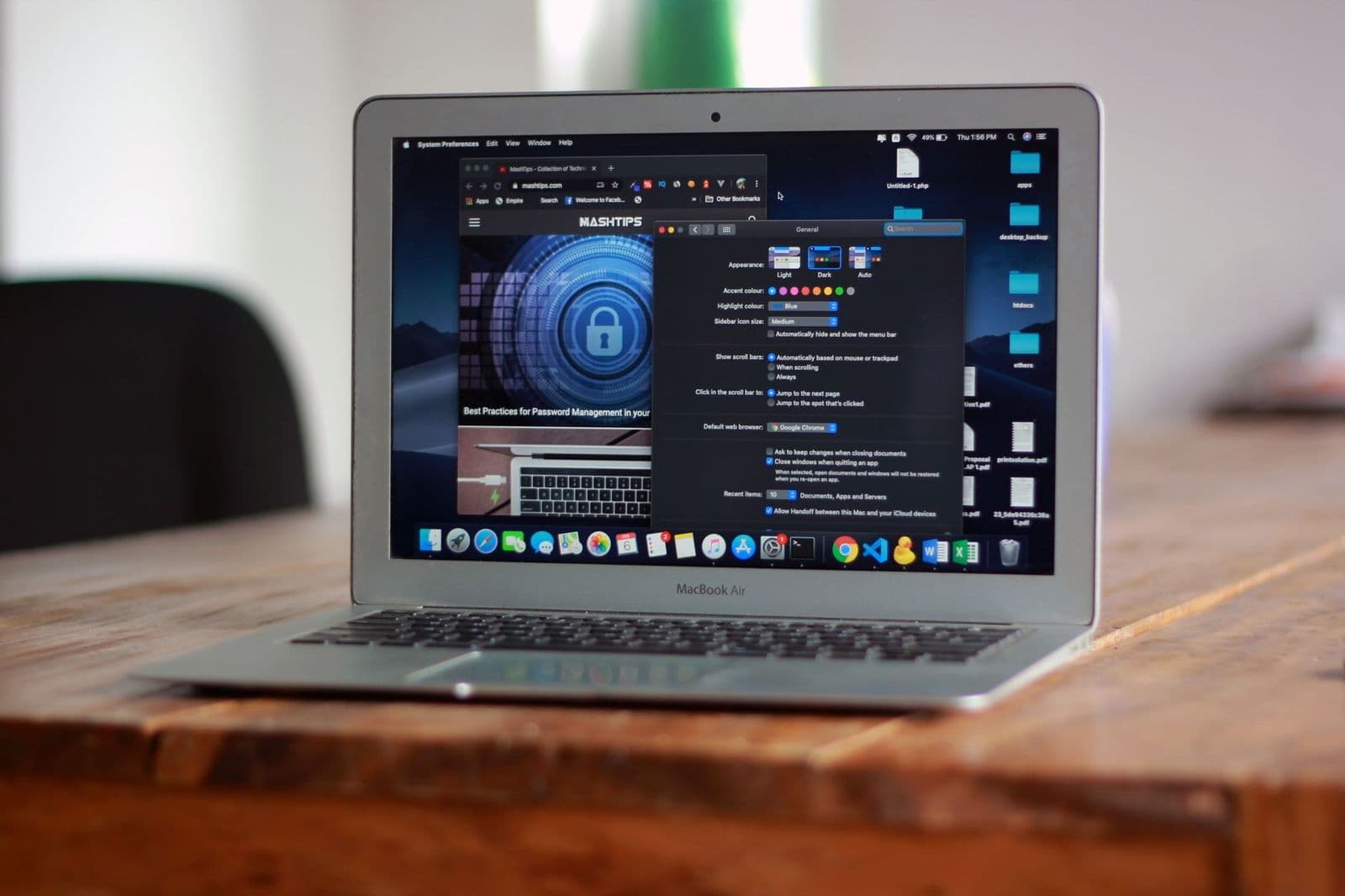
Best browser for old laptops: low memory use, steady security updates, and settings that keep slow hardware responsive.
An old laptop rarely feels slow because of its age alone. More often, a modern browser with heavy defaults, dozens of extensions, and background services overwhelms limited memory and an aging processor. The good news is that browsers are free, so your real budget here is system resources. This guide helps you find the best browser for old laptops by matching browser weight and settings to the hardware you already own.
Work through the setup levels below to compare memory use and update support and revive a machine that still has useful life.
Setup Levels in Place of Price Tiers
Since browsers cost nothing to download, think in levels of effort and resource demand instead of dollars. A lighter setup asks less of your processor, memory, and storage, while a fuller setup trades resources for sync, extensions, and media features. The three levels below describe what each approach delivers and what it gives up, so you can choose based on your laptop specs rather than brand loyalty.
Level One: The Lightest Setup
The lightest setup uses a browser known for small memory footprints, few background processes, and a simple interface. It suits laptops with 2 GB to 4 GB of RAM, spinning hard drives, and dual core processors. Expect fast startup, calm fans, and enough stability for email, news, documents, and a handful of tabs. The trade offs are fewer extensions, plainer media handling, and sometimes slower support for the newest web apps. For a spare or single purpose machine, this level often feels like a hardware upgrade you did not pay for.
Level Two: The Balanced Mainstream Setup
The balanced setup uses a mainstream browser with strict settings. You keep hardware acceleration off or on based on testing, limit extensions to two or three, and turn on tab sleeping or memory saving modes. This level suits laptops with 4 GB to 8 GB of RAM and any solid state drive. You gain full compatibility with banking, school, and work sites, plus sync across devices. It asks a little setup time up front, about fifteen minutes, and rewards you every day afterward.
Level Three: The Full Feature Setup
The full feature setup keeps a mainstream browser at near default settings, with rich sync, many extensions, and multiple profiles. It only makes sense on stronger old laptops, typically 8 GB of RAM or more with a decent processor and an SSD. On weaker hardware this level causes the very sluggishness people blame on age. If your machine qualifies, you lose nothing in compatibility and gain convenience. If it does not, dropping to level two usually restores smooth scrolling and typing without changing your habits much.
What Your Resources Get You at Each Level
Headline figures say little, because resource value shows up in daily moments. A browser feels fast when tabs switch instantly, typing never lags, and video plays without the fan racing. The notes below translate each level into those moments, tied to the memory and storage your laptop actually has, so you can place your machine honestly.
Budget Tier: What to Expect
Treat the budget tier as machines with 2 GB to 4 GB of RAM and older processors. Here the browser choice matters most, because a heavy default install can consume half your memory before you open a single page. Expect to work with about five to ten tabs, standard definition video, and simple web apps. Turn off startup boost and background running, clear the cache monthly, and avoid antivirus browser add ons that duplicate protection. A light operating system can extend this tier further, and our guide to the best linux for old laptops explains when switching systems beats switching browsers.
Midrange Tier: The Sweet Spot for Most Buyers
Most old laptops live in the midrange tier, with 4 GB to 8 GB of RAM and, ideally, an SSD. A balanced mainstream browser handles school portals, office documents, video calls, and twenty or so managed tabs here. This is where settings pay off most. Enable the built in memory saver, review which sites may run in the background, and remove extensions you have not used in a month. If your laptop still uses a spinning drive, that drive, not the browser, is now your main bottleneck, and an inexpensive SSD changes everything.
Premium Tier: When Spending More Pays Off
In this context, spending more means spending on the laptop, not the browser. A memory upgrade to 8 GB or 16 GB where the machine allows it, plus an SSD, lets almost any current browser run well and keeps security updates flowing for years. That small hardware budget often beats buying a replacement laptop. Once upgraded, choose your browser by ecosystem and privacy preference rather than survival. Readers comparing full platform changes can also review our guide to the best distros for old laptops for lightweight system options.
Features Worth Paying For and Ones to Skip
Browser feature lists are long, yet only a few items decide whether an old laptop feels usable. Focus on memory behavior, update support for your operating system, and media performance. Skip decorative themes, built in shopping tools, and extra sidebars that consume the resources you are trying to protect.
Processor and Performance Tier
On weak processors, the number of processes a browser spawns matters more than raw benchmark speed. Browsers that isolate every site into its own process protect stability but use more memory and processor time. Test with your real workload. Open your usual tabs, play a short video, and watch a task manager for sustained processor use near maximum. If typing lags during video, reduce video resolution, close chat tabs that refresh constantly, or move to a lighter browser. Smooth input always beats a fast page load score.
Battery Life in Real World Use
Browsing is one of the heaviest daily loads on an old battery. Video, video calls, and pages with auto playing media drain fastest, while reading and writing are gentle. Browsers with tab sleeping and media controls extend unplugged time noticeably. Lower screen brightness still helps more than any browser setting, but a browser that keeps ten background tabs quiet can add real minutes. If your battery is worn, judge browsers on wall power too, since a machine that runs cooler also stresses aging hardware less.
Features That Matter for Old Laptops
Three features matter most for old laptops. First, ongoing security support for your operating system version, because some major browsers have ended updates for older Windows and macOS releases, which makes them unsafe for banking. Second, a built in memory saver or tab discard tool. Third, an easy way to block auto playing video and heavy ads, which cuts both memory use and page clutter. For a broader shortlist beyond aging hardware, our guide to the best browser for laptops compares mainstream options on current machines.
Display Size, Resolution, and Brightness
Older laptop screens are often dim and low resolution, so browser interface size affects comfort. Choose a browser that lets you set a default page zoom, such as 110 percent, and a readable default font size, so you stop zooming site by site. Compact tab modes help on small screens by leaving more vertical room for content. Dark themes can reduce glare indoors, though on older LCD panels they save no meaningful power. If text still strains your eyes, a browser with a clean reading mode strips clutter and enlarges articles in one click.
Long Term Costs to Factor In
The browser itself is free, but long term costs hide around it. An unsupported browser can expose you to fraud, which is the highest cost of all, so calendar the end of support for your system and plan a move before it arrives. Time is another cost. Ten minutes of tuning now prevents daily friction for years. Storage matters too, since caches grow quietly on small drives, so set a seasonal reminder to clear them. If you budget money at all, spend it on memory or an SSD first, because those upgrades improve every browser you might choose.
Browsers: Your Questions Answered
What features matter most in browsers for old laptops?
Low idle memory use, tab sleeping, and continued security updates for your operating system matter most. A browser that stays patched protects your accounts, and a memory saver keeps a 4 GB machine responsive with normal tab counts. Also value a simple settings backup or sync, because rebuilding bookmarks and passwords on a slow machine wastes an afternoon. Ignore built in extras you will not open weekly.
How much RAM do I need?
You can browse comfortably on 4 GB with a tuned mainstream browser or a lighter one, and 2 GB remains workable for a few tabs and light tasks. At 8 GB, browser choice stops being a survival decision and becomes a preference. If pages reload whenever you switch tabs, memory is your limit regardless of browser, and closing heavy sites such as social feeds frees more memory than any setting.
Is an old laptop enough for school?
For most students the honest answer is yes: a browser based workflow covers most school tasks, including documents, research, and video classes. Dedicated software for labs, design, or exams can still require a specific system, so check course requirements first. If your old laptop runs a browser smoothly with the levels above, you likely do not need new hardware for general schoolwork this term.
How long should a browser last?
A browser lasts as long as it receives security updates on your system, which is usually years on a supported operating system. The practical end arrives when the maker drops your system version or when sites begin refusing your browser as outdated. Plan to reassess once a year. Check the version page, confirm updates install, and note any warnings about future support, so a change never catches you during tax season or enrollment.
Is a dedicated GPU worth it?
No, a dedicated graphics card is not worth chasing for browsing on an old laptop. Integrated graphics handle pages, documents, and high definition video fine, and the browser setting for hardware acceleration matters more than the chip itself. If scrolling stutters with acceleration on, turn it off and compare, since old graphics drivers often cause the glitches blamed on the browser. Spend any upgrade money on memory or storage instead.
Our Verdict
Match browser weight to your memory, turn on tab saving tools, and keep security support as a non negotiable. Most aging machines feel new again at the balanced level with no purchase at all. Choose the best browser for old laptops by trying your real tabs for one day, and change your defaults only after that trial.


