
Best Browser for Laptops: Complete Buying Guide for 2026
Disclosure: We may earn a commission when you buy through links on this page, at no extra cost to you. As an Amazon Associate I earn from qualifying purchases. Learn more
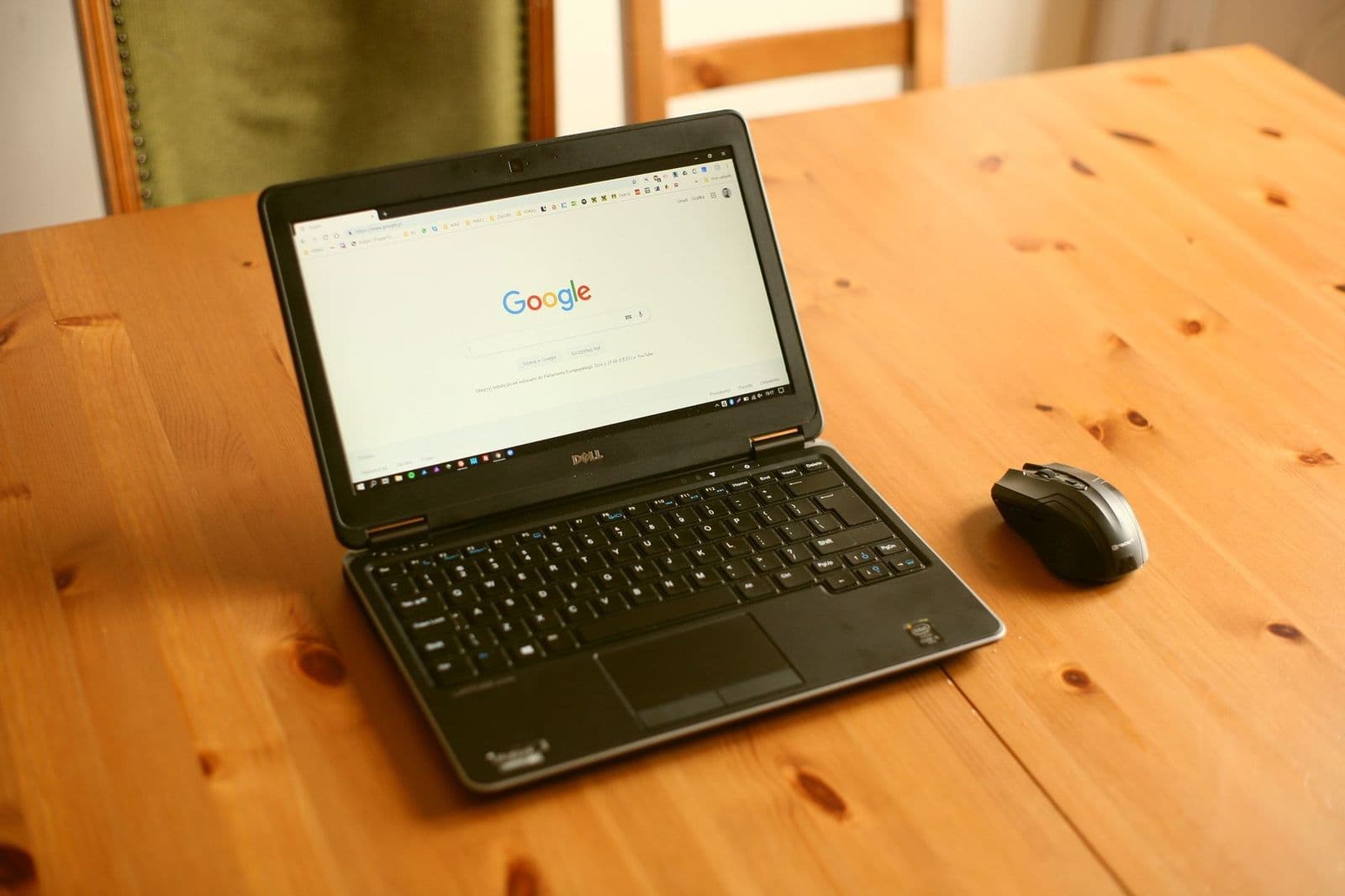
Best browser for laptops: memory use, battery impact, extensions, sync, and privacy compared, plus a quick way to try two.
The best browser for laptops handles long sessions, many open tabs, and a mix of work, study, and entertainment without eating all your memory or battery. Laptops add trade-offs that phones do not have: limited RAM, a battery that drains faster with heavy pages, and the need to keep work and personal browsing apart.
This guide covers the features that matter on a laptop, the main browser types, how to set one up for speed and security, and how to compare two browsers on your own machine.
What Matters in the Best Browser for Laptops
Think about your normal day first. A student with twenty research tabs, a remote worker on video calls, and someone who only checks email and streams shows all need different strengths. Pick the three tasks you do most, then judge each browser against them.
Memory Use and Tab Handling
Browsers differ a lot in how much memory they use with the same pages open. A browser that puts unused tabs to sleep keeps a laptop with 8 GB of RAM responsive for hours, while one that keeps every tab fully active can slow everything down. Look for a memory saver or tab sleeping option that you can switch on and tune.
Battery Impact
Video, animated ads, and many active tabs drain a battery fastest. Some browsers include an efficiency or battery saver mode that limits background activity. If you work unplugged, try the same set of pages in each browser and watch how much charge each one uses over an hour.
Extension Support
Extensions for passwords, notes, and ad blocking save time, but each one adds memory use and a bit of risk. A browser with a large extension library gives you choice, yet the best habit is to install only what you really use.
Sync Across Devices
Syncing bookmarks, tabs, and passwords between laptop and phone helps when you switch devices mid task. Pick the browser that matches what your phone uses, and check that you can choose which data syncs.
Privacy and Security Controls
Look for tracker blocking, cookie controls, per-site permissions, and warnings about unsafe pages. Automatic updates matter most, since a patched browser protects banking, email, and work accounts.
Keyboard Shortcuts and Accessibility
Zoom controls, reader mode, and good keyboard shortcuts make long reading and research easier. If you live in your browser all day, a handful of shortcuts for tabs, search, and bookmarks saves real time.
Types of Laptop Browsers
Mainstream Browsers
The big names work with almost every site and web app, support the widest range of extensions, and update often. They suit most people and are the safest starting point if a site or work tool is picky about compatibility.
Lightweight Browsers
These use less memory and start faster, which suits older laptops or machines with 4 GB of RAM. They may offer fewer extras, so check that they support the sites you rely on.
Privacy-Focused Browsers
These block trackers and third-party cookies by default and collect less data. They suit people who want protection without hunting through settings, although a few sites may need exceptions.
Browsers Built Into the System
Windows and macOS include their own browsers, which are well integrated and update with the system. It is worth trying yours before installing another.
Setting Up a Browser on a Laptop
- Install the browser from its official site or your system's app store.
- Import bookmarks and passwords from your old browser, then confirm everything arrived.
- Turn on automatic updates and the memory or battery saver mode.
- Create separate profiles for work and personal use so bookmarks, history, and logins stay apart.
- Install only the extensions you need, then check their permissions.
Review your extensions every few months and remove the ones you no longer use. Each extension adds memory use and another place for something to go wrong.
Comparing Two Browsers on Your Own Laptop
Spec lists tell you little, so run a short trial. Use each browser for three days with your usual sites, a video call, and your normal number of tabs. Watch how fast pages load, whether the fan spins up, and how much battery you lose in an hour. Keep the one that causes the fewest annoyances and set it as your default only then. If a work tool misbehaves, check with your IT team or the tool's help page, since some business sites only support certain browsers.
Work, School, and Streaming Use
For work, check that your video call tool, email, and company sites run smoothly and support your sign-in method. Students should look for good PDF viewing, a reader mode for long articles, and easy tab grouping for research projects. If you stream video, test fullscreen playback and picture-in-picture, and plug in the charger for long sessions, since video is one of the heaviest loads on a laptop battery.
Shared family laptops benefit from separate profiles, so each person keeps their own bookmarks and logins. Set a guest profile for visitors and avoid saving passwords on a machine many people use.
Cost
Almost every laptop browser is free. Optional paid features such as a VPN, extra sync storage, or advanced security tools rarely change basic browsing. Try the free version for a few weeks first, and if your laptop feels slow, a memory upgrade often helps more than any browser change.
Common Mistakes
- Keeping dozens of tabs active when a memory saver would do the job.
- Installing many extensions and never reviewing them.
- Skipping updates on a laptop used for banking or work.
- Mixing work and personal accounts in one profile.
- Blaming the browser for slowness caused by low memory or a nearly full drive.
Related Guides
For more options, see our guides to the best web browsers for laptops, the best browser for old laptops, and the best web browser for older laptops.
Laptop Browser FAQ
Which laptop browser uses the least memory?
It depends on tabs, extensions, and sites, so compare with your usual workload. Lightweight browsers often use less on older laptops, while mainstream browsers with tab sleeping can handle many tabs well. Close unused tabs and review extensions before you switch.
Are browser extensions safe?
Extensions from official stores with clear permissions are generally safer, but any extension carries some risk. Install only what you need, read the permissions, and remove extensions you no longer use.
How do I keep work and personal browsing separate?
Use separate profiles or separate browsers. Profiles keep bookmarks, history, and passwords apart. On a work laptop, follow your employer's software rules and sign out of personal accounts.
Can I sync without storing passwords online?
Many browsers let you choose what to sync, so you can keep bookmarks and tabs in sync without passwords. A separate password manager gives more control and works across browsers.
Why is my browser slow?
Common causes are too many tabs, heavy extensions, an outdated browser, or a slow connection. Close tabs, turn off extensions one by one, update the browser, and try another network. If slowness continues, check the laptop's memory and free storage.
Final Thoughts
Choose by your daily tasks, try two browsers for a few days, and keep the one that stays fast, uses modest memory, and keeps your accounts secure. The best browser for laptops is the one that fits your workload and your hardware.


