Best Big Monitors for Work: What Actually Matters Before You Buy for 2026
Disclosure: We may earn a commission when you buy through links on this page, at no extra cost to you. As an Amazon Associate I earn from qualifying purchases. Learn more

Compare the best big monitors for work by size, resolution, panel type, ergonomics and ports, with a clear checklist to help you choose with confidence.
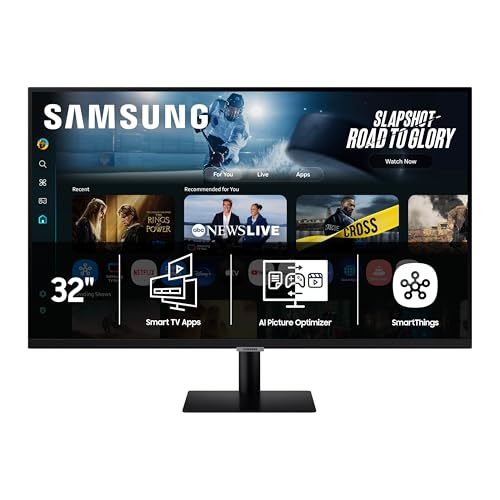
A bigger screen only helps your work if the details behind it are right. A panel that looks impressive in a listing can still strain your eyes, crowd your desk, or leave text looking soft at your normal sitting distance. This guide uses a simple checklist to sort the best big monitors for work from models that are merely large, so you can judge size, clarity, comfort, and connections in a sensible order.
Start with how you spend your day, then work through the product table with those tasks in mind. Spreadsheets, code, documents, and video calls each reward different specs, and the sections that follow explain where to spend and where you can save.






A Checklist for Comparing Large Screens for Work
Think of this section as a scoring sheet you can apply to any model in the product table above. Give each factor a quick pass or fail for your own setup before you look at price.
Features That Matter Most for Office Tasks
Work places demands on a monitor that entertainment alone does not. You read small text for hours and keep several windows open at once. Prioritize sharp text, accurate and stable color, and a matte surface that controls reflections from windows and ceiling lights. Brightness around 300 to 350 nits suits most offices, while a low blue light mode and flicker free backlight help during long sessions.
Measuring Your Desk for Size and Fit
Measure your desk before you fall for a diagonal number. Note the width and depth you can give up, your eye distance from the screen, and the space your keyboard and papers still need. A 32 inch screen is roughly 28 inches wide, and a 43 inch screen can approach 38 inches wide, so the stand footprint matters as much as the panel. If space is tight, a monitor arm can free the surface under the screen and let you reclaim room for notes and devices.
Panel Technology, From IPS to OLED
IPS panels are the safe default for work because they hold color and brightness well when you lean or turn. VA panels offer deeper contrast, though color can shift a little at wide angles. OLED delivers the strongest contrast and very fast pixel response, but static toolbars and spreadsheets shown all day raise the risk of burn in over time. Mini LED backlights raise brightness and HDR impact, yet they usually cost more than office work requires.
Stand, Mounting, and Ergonomics
A large screen puts more weight at eye level, so stand quality shapes your comfort all day. Look for height adjustment, tilt, and swivel at a minimum, and check that the stand stays firm without wobble when you type. The top of the screen should sit near eye level so your neck stays neutral. VESA mount holes, commonly in a 100 by 100 mm pattern, let you move the panel to an arm later if you add a second screen.
Refresh Rate and Response Time in Plain Terms
Refresh rate describes how often the image updates each second, and response time describes how fast pixels change. For documents and calls, 60Hz is workable, but 100Hz or 120Hz makes scrolling through long files and moving windows feel noticeably smoother. Adaptive sync keeps that motion steady by matching the screen to the signal from your computer. Response time matters far less at a desk than in fast games, so treat very low millisecond claims as a bonus. If you also play after hours, see our guide to the best gaming monitors.
Resolution and Screen Size Together
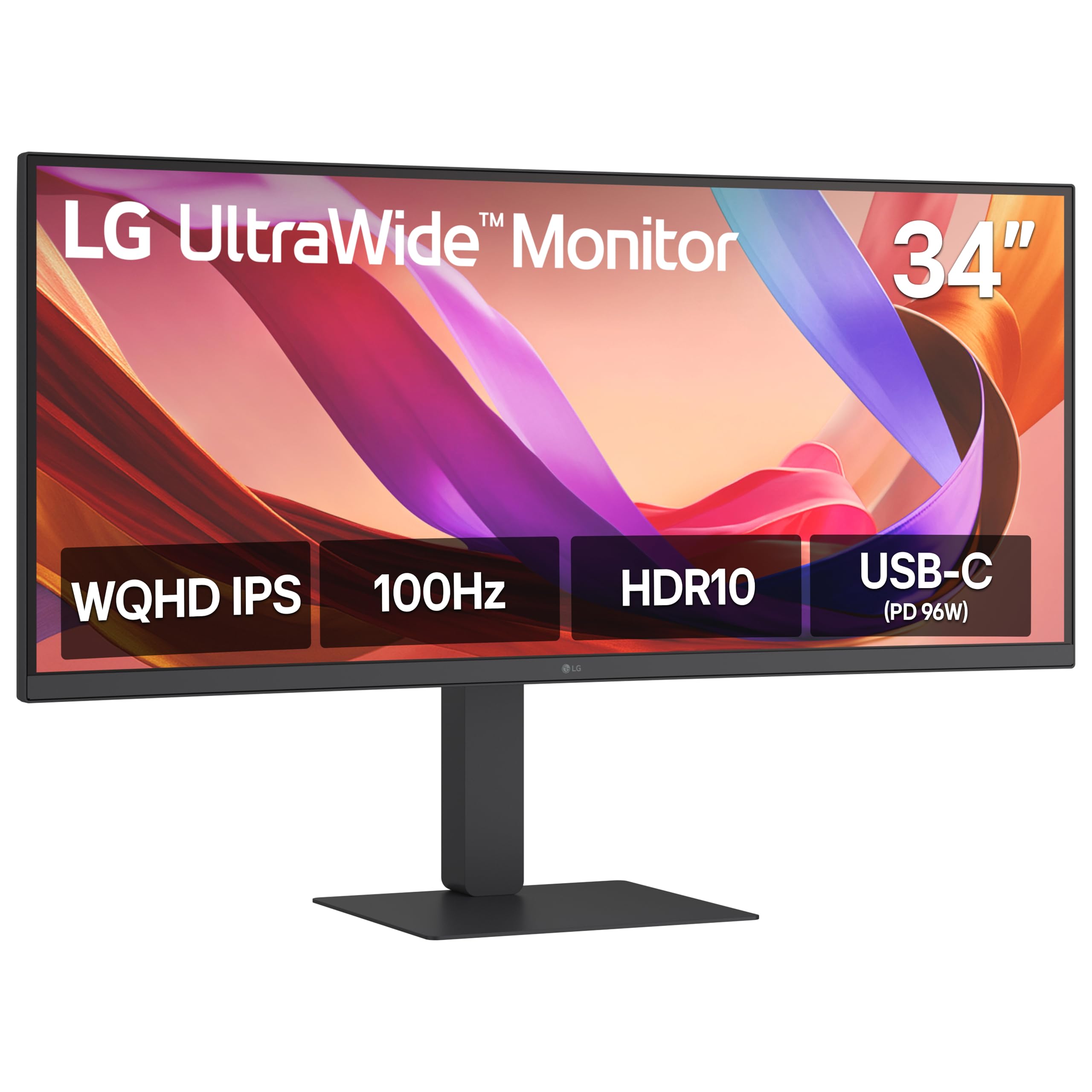
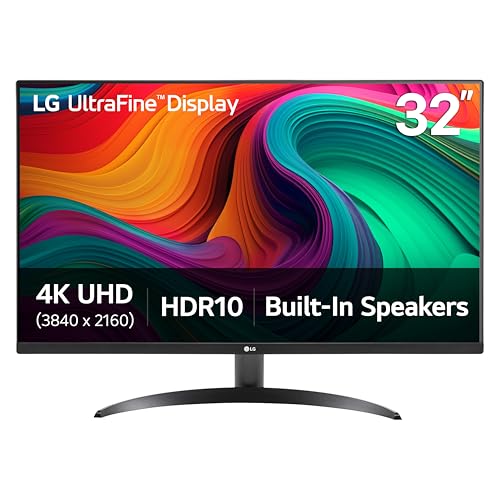
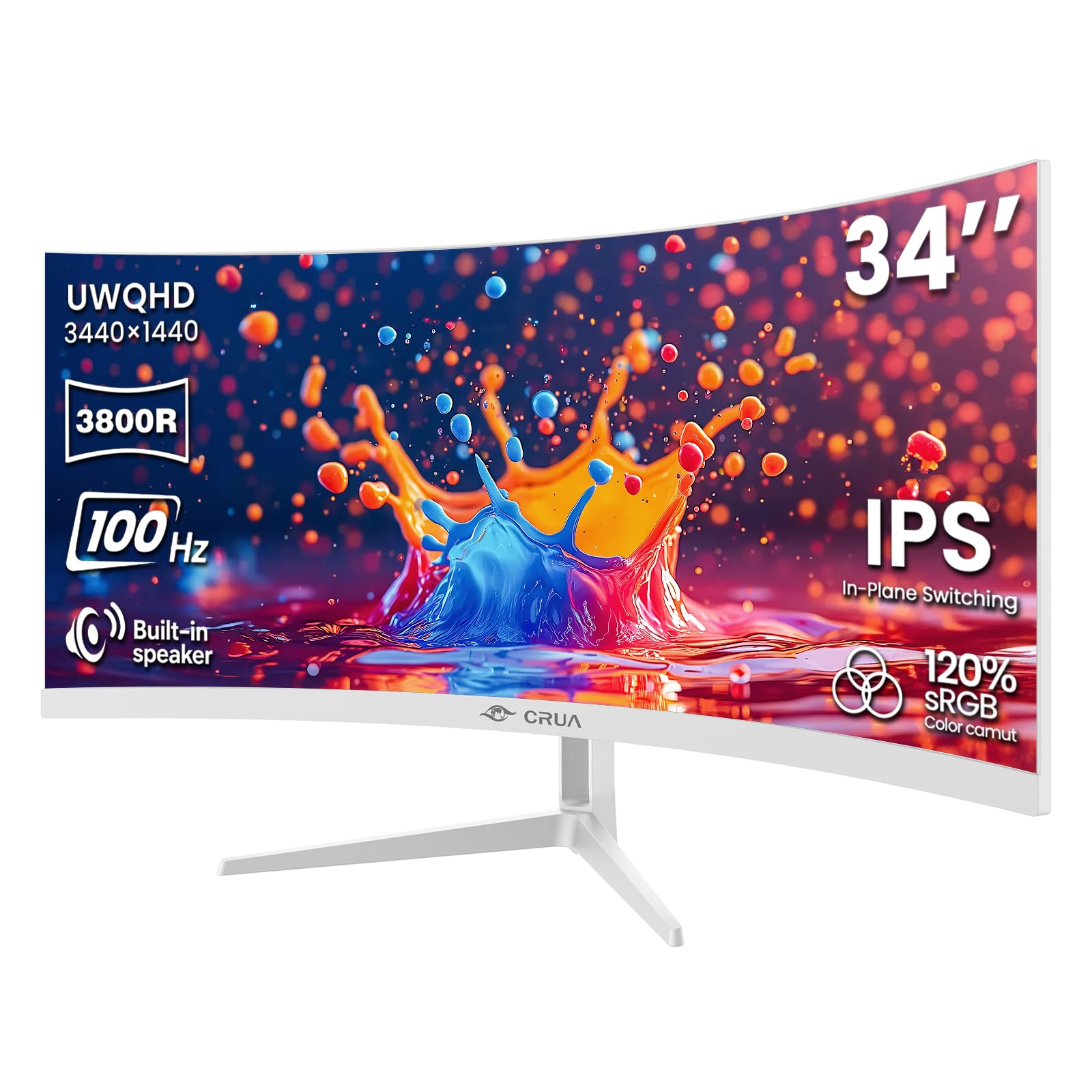
Resolution only makes sense next to size and viewing distance. At 32 inches, 1440p gives you more room than 1080p without making text tiny, while 4K at that size adds fine detail that helps with design and photo work. At 38 to 43 inches, 4K earns its keep because lower resolutions spread pixels too thin and letters start to look rough. Ultrawide models around 34 inches pair a wide layout with a 1440p vertical height, which suits side by side documents. Sit farther from very large screens so you can take in the full width without turning your head constantly.
Matching a Large Monitor to Your Kind of Work
With the checklist set, the next step is matching it to your workload. Use the groups below to narrow the best big monitors for work to the size, resolution, and features that suit how you spend your hours.
For Spreadsheets, Documents, and Data Entry
If your day is rows, columns, and long reports, screen area and text sharpness come first. A 32 inch 1440p or 4K panel lets you see more columns without constant zooming, and a second document can sit beside your main file. Look for a matte finish, strong brightness control, and a stand you can raise so the grid sits straight ahead. Readers comparing general office options can also see our guide to the best work monitors for smaller desk setups.
For Creative Work, Photo Editing, and Video
Creative tasks reward color range and accuracy above raw size. Look for wide color coverage, often listed as a high percentage of the DCI P3 space, plus a factory calibration report. A 4K IPS or OLED panel at 32 inches gives you room for timelines and tool panels while keeping detail honest. Check that the screen offers a picture mode that locks brightness and color so your edits stay consistent from session to session.
For Coding, Writing, and Heavy Multitasking
People who live in many windows at once benefit most from width. An ultrawide screen or a 43 inch 4K panel can hold an editor, a browser, a terminal, and a chat window without stacking. USB C input with power delivery is worth paying for here because one cable can carry the picture and charge your laptop, which keeps a busy desk clear. A built in KVM switch also helps if you move between two computers. For a closer look at desktop focused choices, see our guide to the best pc monitors for work and compare how those models handle ports and hubs.
Quick Buyer Checklist Before You Order
Run through these questions against the product table above. A single no on the first three is a reason to keep looking.
- Does the screen fit your desk width and depth with room left for your keyboard and papers?
- Does the resolution match the size, so text will look sharp at your normal sitting distance?
- Does your laptop have the right output, such as HDMI 2.1, DisplayPort, or USB C, to drive the full resolution?
- Can the stand adjust for height and tilt, or does the panel have VESA holes for an arm?
- Does the panel type suit your tasks and your room lighting?
- Are there enough USB ports for your mouse, keyboard, and webcam, or will you need a separate hub?
- Does the warranty cover the panel for at least a full year, with clear terms you can read before buying?
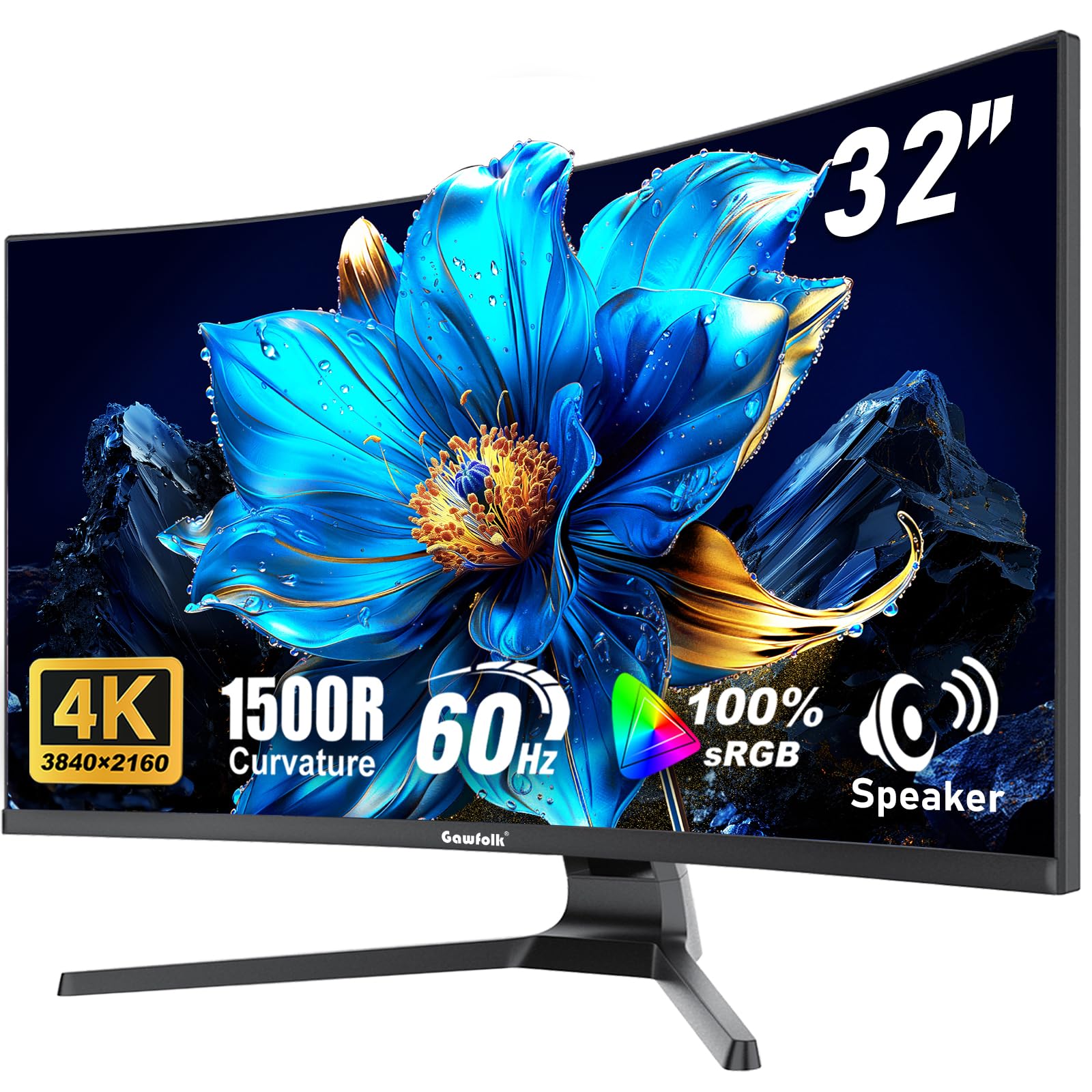
If you answered yes to most of these, the model is a sound fit on paper. Shoppers drawn to a wraparound layout can see our guide to the best curved monitors for work to judge whether a curve suits their desk depth.
Red Flags That Should Slow You Down
Some warning signs show up again and again on large screens that disappoint. Treat these points as prompts to dig deeper.
- Vague specs that boast about size and HDR but never state brightness, color coverage, or the exact resolution in numbers.
- No VESA mount holes and a stand with tilt only, which locks a heavy screen into one posture for years.
- A very short warranty or support terms that are hard to find, which matters more on a large panel that is costly to ship back.
- Ports that look generous in photos but turn out to be older standards that cannot carry 4K at a smooth refresh rate.
- Prices far below similar large screen options with no clear reason, which often points to an older panel or missing basics like height adjustment.
Budget displays can still be a smart buy when the basics are honest. The risk is paying for size while giving up clarity, comfort, or connections.
Care and Maintenance for a Big Work Monitor
Clean the screen only with a dry or slightly damp microfiber cloth, and never spray liquid straight onto the panel. Wipe gently in one direction so dust does not scratch the surface. Set the picture mode to a standard or user preset rather than a vivid store mode, since the calmer settings are easier on your eyes and more accurate for documents. On an OLED screen, run the pixel refresh cycle the maker provides and avoid leaving a static image up overnight. Check stand screws and arm mounts every few months, because a large panel can slowly tilt if a joint loosens.
Frequently Asked Questions
What features matter most in big monitors for work?
Sharp text, a comfortable stand, and the right connections matter most in big monitors for work. Start with resolution that matches the size, then check height adjustment, a matte surface, and at least one modern input your laptop supports. A detail many buyers miss is the menu control, since a clumsy joystick makes daily brightness changes annoying.
How long do big monitors for work usually last?
Big monitors for work usually last about five to eight years of daily office use. The backlight slowly dims over that span, and buttons, ports, and stand joints often wear before the panel itself fails. Keeping brightness moderate instead of at the maximum can slow that dimming, and a surge protector guards against power spikes.
IPS or OLED, which panel is better for a big work monitor?
IPS is the better default for a big work monitor because it handles static screens all day without burn in risk and costs less at large sizes. OLED wins on contrast and motion clarity, which suits video editing and mixed entertainment use. OLED also keeps text crisp while you scroll fast, thanks to its near instant pixel response.
Does refresh rate matter on a big work monitor if you do not play games?
Yes, refresh rate matters on a big work monitor even without games, because higher rates make scrolling, dragging windows, and video calls look smoother. The jump from 60Hz to 100Hz or 120Hz is easy to feel during a full day of reading and research. It will not change the quality of a still document, though, so weigh it below resolution and ergonomics when your budget forces a choice.
What size big monitor should you get for your desk?
Most desks suit a 32 inch big monitor, which adds real space without forcing you to turn your head. A 38 to 43 inch model needs a deeper desk and a sitting distance of roughly three feet or more to stay comfortable. Before ordering, tape the outline of the screen on your wall with painter tape for a day to see whether the size overwhelms your setup.
Is 4K resolution worth it on a big monitor for work?
Yes, 4K resolution is worth it on a big monitor for work once the screen reaches about 32 inches, because text and fine detail stay sharp across the larger area. It also lets you fit more content at a readable size once you adjust scaling, though older software can look small until you set scaling for each app.
Final Thoughts
The right large screen fits your desk, keeps text sharp at your sitting distance, and adjusts to your posture without a fight. Weigh panel type and connections against your actual tasks, and treat refresh rate and HDR as refinements rather than the main event. Readers who want to compare the wider field first can see our guide to the best big monitors for general use beyond office work.
Before you order, return to the product table and check your shortlist against the buyer checklist once more. Choosing the best big monitors for work comes down to that honest match between screen, desk, and workload.