Best Basic Laptops for Work Made Simple: A Clear Buying Guide for 2026
Disclosure: We may earn a commission when you buy through links on this page, at no extra cost to you. As an Amazon Associate I earn from qualifying purchases. Learn more

Shopping for the best basic laptops for work for the first time? Learn the terms, compare options, and avoid rookie mistakes with this easy guide.
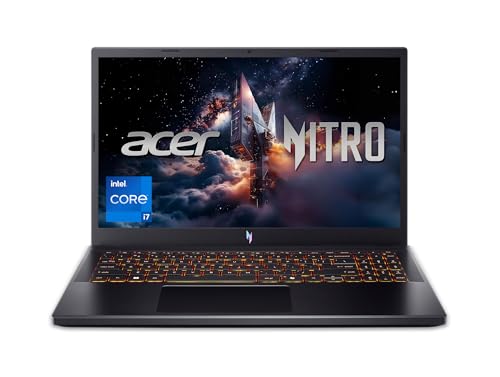
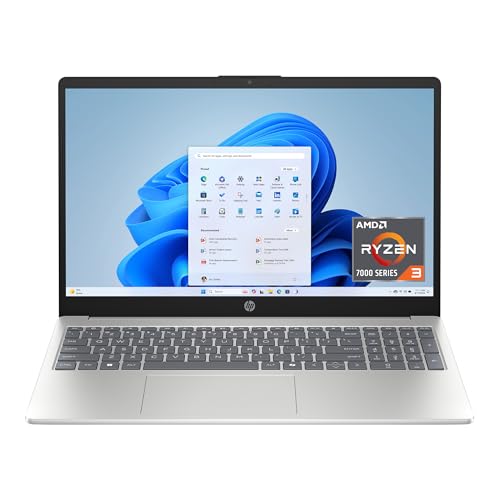
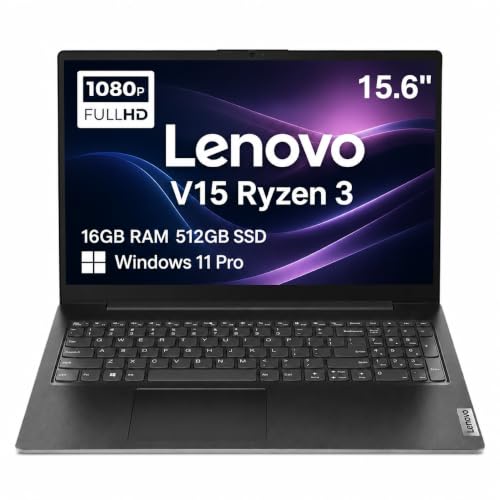
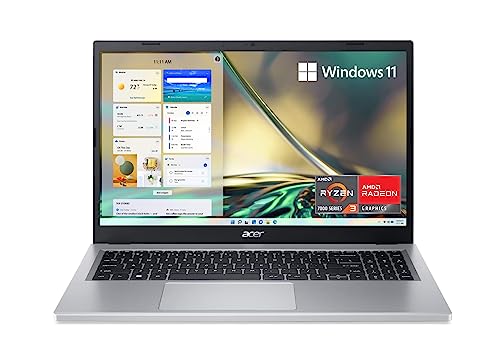
Buying your first work laptop feels harder than it should, mostly because listings throw jargon at you before explaining what any of it does. This guide starts with the basics, translates each spec into plain English, and then shows you how to choose best basic laptops for work with confidence. The product table above gives you a quick look at current options while you learn.
You do not need the fastest machine on the market. You need one that opens your apps quickly, survives a full workday, joins calls clearly, and keeps doing all of that for several years. Every section below connects a spec to that simple goal, so you can ignore the rest without guilt.




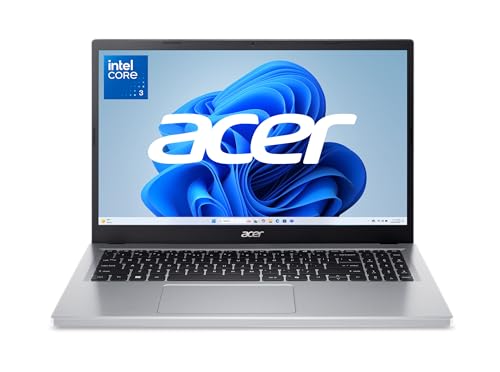
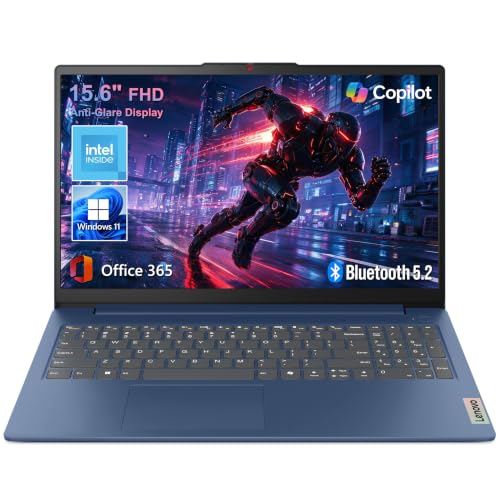
Basic Laptops 101: The Basics
A basic laptop is a general purpose computer built for everyday office tasks: email, documents, spreadsheets, web apps, video calls, and light photo work. It uses integrated graphics built into the main processor rather than a separate gaming card, which keeps it thinner, quieter, and cheaper. Most models run Windows, some run ChromeOS, and a smaller group runs macOS, and all three handle browser based work well.
A few terms unlock most listings. The processor is the brain that runs your apps. RAM is short term memory that keeps open apps responsive. Storage is the filing cabinet for your files, and a solid state drive, often shortened to SSD, is the fast modern kind you want. The display is measured corner to corner in inches, and battery life is quoted in hours under ideal conditions, so treat that number as an upper bound.
Key Specs Explained in Plain English
Features That Matter for Work
Work use has its own demands that casual home use does not. You will join video calls, so a clear webcam and microphone matter. You will type for hours, so keyboard comfort matters. You will open many tabs and apps at once, so 16 GB of RAM matters. You may also need specific ports for a monitor, a headset, or an office dock. If your employer requires certain software or a managed system, confirm those rules first, because they can narrow your choices more than any spec on this page.
Processor and Performance Tier
Think of processor tiers as light, medium, and heavy lifting. Entry tier chips handle email and documents but can feel slow with large spreadsheets or many tabs. Midrange chips from the major families are the right target for most workers: they stay quick for years and cost far less than top tier parts. High tier and gaming chips only pay off for video editing, data work, or 3D tasks. A practical rule is to spend on RAM and storage before you spend on a faster processor, because everyday slowness usually comes from too little memory.
Ports and Connectivity
Ports decide what you can plug in without adapters. Aim for USB C, at least one standard USB port, and HDMI for an external monitor. USB C can carry power, video, and data through one cable, which makes docking at a desk simple. For wireless, WiFi 6 or newer gives a steadier connection on busy networks, and Bluetooth connects headsets and mice without cables. If a slim model drops ports you need daily, the adapter you must carry everywhere quickly erases the benefit of that slim body.
Keyboard, Trackpad, and Build
You will feel the keyboard and trackpad more than any spec sheet number. Look for keys with decent travel, meaning they press down a satisfying distance, a layout that does not cramp your hands, and backlighting if you work in dim rooms. A large, smooth trackpad reduces how often you reach for a mouse. Aluminum bodies resist flex and dents better than thin plastic, though good plastic is fine at lower prices. Open and close the lid with one corner in a store if you can; twisting hints at a weak frame.
Display Size, Resolution, and Brightness
Size is a trade between screen room and carrying weight. A 13 or 14 inch display suits commuters and small desks, while 15 or 16 inch models make spreadsheets and side by side documents easier. Resolution of 1920 by 1080, often called Full HD, is the sensible minimum for sharp text. Brightness around 300 nits or more keeps the screen readable near windows. High refresh rates and OLED panels look lovely, but for office work they are nice extras, not needs, so fund the basics first. If you compare broader categories, our guide to the best basic laptops shows how work models differ from general home models.
Best Basic Laptops for Specific Needs
Best Basic Laptops for Work from Home: Tips for First Time Buyers
Choosing among the best basic laptops for work from home shifts your priorities in three ways. First, weight matters less, so a larger 15 or 16 inch screen is often worth it for all day comfort. Second, your home setup can include a separate monitor, keyboard, and mouse, so the built in parts matter slightly less than the ports that connect them. Third, call quality depends on your room as much as the laptop, so budget for a simple headset and decent lighting. A midrange model plus those accessories usually beats a premium laptop used alone at a kitchen table.
Rookie Mistakes to Avoid
- Buying too little RAM. A laptop with 8 GB may feel fine in the store and sluggish within a year. Choose 16 GB for work you depend on.
- Ignoring storage type. Avoid slow spinning hard drives in a new machine. A solid state drive makes startup and file opening dramatically faster.
- Chasing the thinnest body. Ultra slim designs can drop useful ports and run hotter. A slightly thicker model often works better at a desk.
- Skipping the webcam check. A poor camera and microphone make you look and sound unprofessional on calls, even if every other spec is strong.
- Forgetting the return window. Keyboard feel and screen comfort are personal. Buy from a seller with a clear return period and actually try the machine during it.
Getting Started: Setup and First Use
Start by plugging in, connecting to your home WiFi, and letting the system finish its first round of updates before you install anything. Keep the OS and firmware updated on an ongoing basis, because updates fix security issues and often improve battery behavior. Set up a sign in method you will actually use, such as a PIN or fingerprint, then turn on automatic file backup to cloud storage or an external drive.
Two habits extend the life of a new machine. First, avoid running at 100 percent charge all the time if your laptop offers a battery limit setting for desk use, since holding a full charge for weeks adds wear. Second, install only the apps you need during the first week, so if something misbehaves you know what changed. Readers setting up a shared home office may also find our guide to the best laptops for home and work useful for balancing personal and job needs on one machine.
FAQs
What features matter most in basic laptops for work?
RAM, storage speed, keyboard comfort, and call quality matter most. Choose 16 GB of RAM, a solid state drive of at least 256 GB, and a webcam that looks clear in your actual room lighting. One point buyers overlook is warranty and support terms for business use, since a fast repair path protects your income when the laptop is also your office. Check whether on site or mail in service is included before you buy.
How long should a basic laptop last?
Plan on four to six years of solid work use. The battery usually fades first, often after three to four years, and many models allow a replacement that restores unplugged time. Software demands grow slowly for office tasks, which is why buying 16 GB of RAM now extends useful life more than a faster processor does. When repair quotes approach half the price of a new midrange machine, replacement is usually the better value.
Is a dedicated GPU worth it?
Not for standard office work. Integrated graphics handle video calls, streaming, documents, and even light photo editing without trouble. A dedicated graphics card adds cost, weight, heat, and fan noise, and it shortens battery life. The exceptions are specific jobs: regular video editing, CAD, or data visualization can justify one. If your role might grow into those tasks, ask your employer what their teams use before you spend extra on a guess.
Is a Chromebook enough for work?
A Chromebook is enough when all your work happens in a browser, which covers many office and training programs. It starts fast, updates itself, and resists most malware. The limits appear with specialized desktop software, heavy offline work, or certain company tools. Always check your required software list first. If even one required app needs Windows or macOS, a Chromebook becomes a second device rather than your main one, which changes the value calculation completely.
Should I buy a laptop or a tablet?
Buy a laptop if typing, file management, and multitasking fill your day. Tablets are pleasant for reading and media, and a keyboard case helps, but window management and precise file work stay clumsier. A useful test: picture your busiest Monday hour and count how many apps you switch between. If the answer is more than three, the laptop wins. Slim laptop options in our guide to the best notebook laptops show how portable a full computer can be.
How much RAM do I need?
Most work buyers need 16 GB. That amount keeps a browser with many tabs, a video call, documents, and chat apps open at once without slowdowns. Eight GB is a budget compromise that can feel tight within a year or two, and 32 GB only helps with large data sets, virtual machines, or heavy media work. RAM is often fixed at purchase on slim models, so decide carefully, because you may not be able to upgrade it later. For carrying your machine and charger safely, see our guide to the best laptop backpacks for work.
Wrapping Up
Keep your shortlist simple: 16 GB of RAM, a fast solid state drive, a comfortable keyboard, and a screen you can read all day. Match the size to how much you travel, and spend what remains on warranty or a good headset rather than a faster chip. Compare your finalists in the product table above, and choose the best basic laptops for work option that removes daily friction, because the best work laptop is the one you stop thinking about. If your job leans toward a desktop style setup, our guide to the best work pc laptops covers that angle too.