Best Backup for Android Phones 2026: Never Lose a Memory
Disclosure: We may earn a commission when you buy through links on this page, at no extra cost to you. As an Amazon Associate I earn from qualifying purchases. Learn more
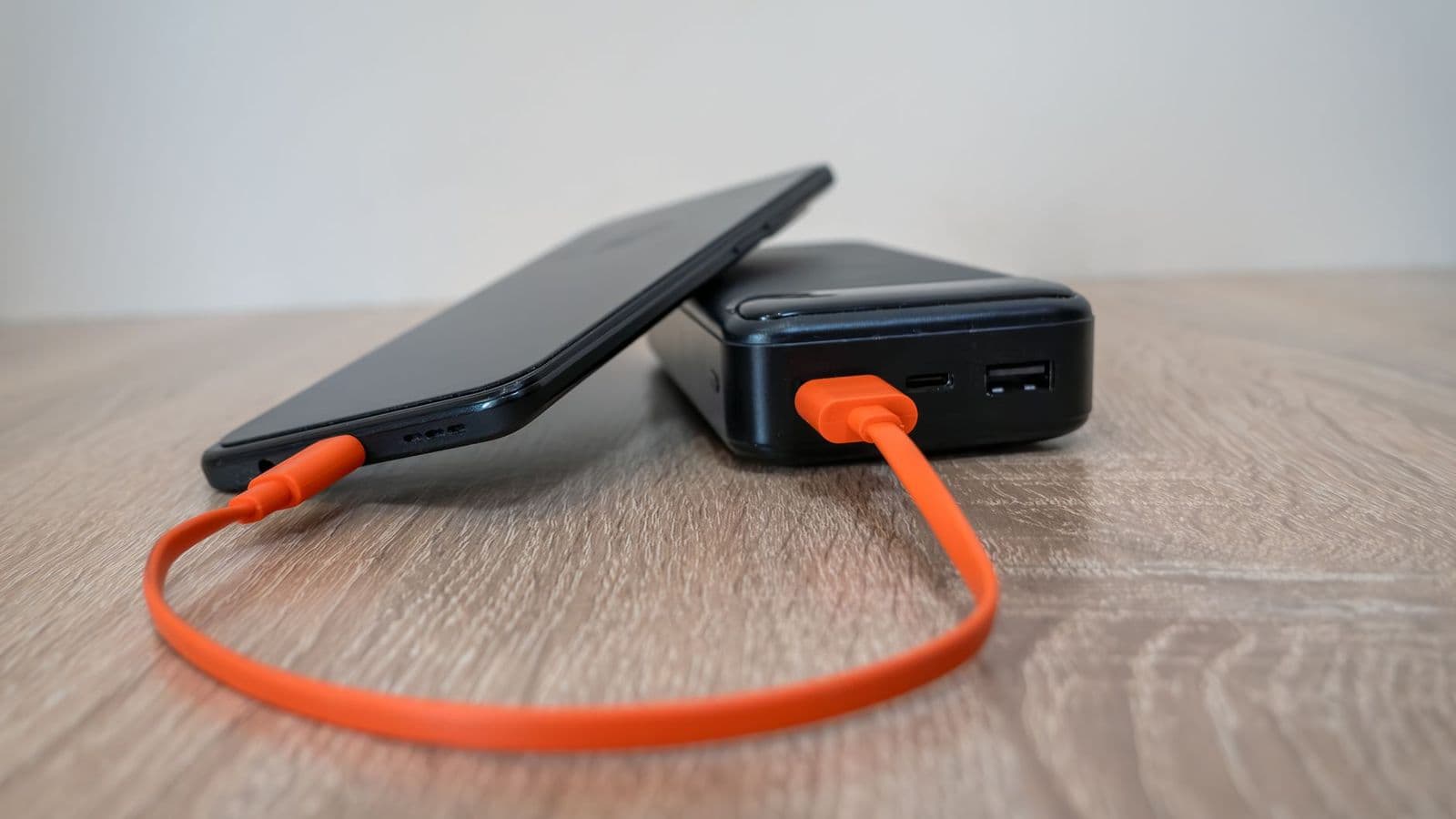
Back up Android phones with cloud, apps and local copies, covering photos, contacts, messages and restore steps.
Best backup for android phones means a routine that saves photos, contacts, messages, and app data automatically, so a lost or broken phone never becomes a lost life archive. This guide compares backup approaches, from cloud services to local computer copies.
Android offers several backup paths, and the best setup combines at least two so one failure cannot wipe everything. This guide explains cloud backup, local backup, photo handling, restore steps, and security, so you can set up protection once and forget it.
Who Needs a Phone Backup
Everyone with photos, contacts, messages, and documents on their phone needs a backup, since phones get lost, stolen, broken, and replaced every few years. Parents, travellers, freelancers, and students face the highest stakes, since their phones hold irreplaceable memories and work.
Even careful owners benefit, because a backup also smooths upgrades: restoring a new phone from a backup takes minutes versus hours of manual setup. Think of backup as insurance you set up once and hope never to claim.
Cloud Backup Basics
Built in cloud backup saves app data, settings, call history, and contacts to your account automatically when charging and on wifi. Check that backup is enabled, since new phones sometimes leave it off by default, and confirm the last backup date regularly.
Cloud storage limits matter: free tiers fill fast with photos and videos, so review what counts against your quota. Upgrade storage or exclude large video folders if backups stall, and keep payment details current so storage never lapses silently.
Photos, Videos and Messages
Photos and videos deserve separate attention, since they consume the most space and carry the most sentimental value. Enable photo cloud sync at a quality setting you accept, and keep a second copy on a computer or drive for irreplaceable albums.
Messages and chat histories back up through their own app settings, not always through system backup, so check each important app individually. Export critical chats periodically, and confirm that media inside chats saves with the backup rather than as links alone.
Comparing Related Options
App focused buyers can compare best backup app for android phones for dedicated tools and best backup software for android phones for computer based options. These two categories cover most needs, since power focused and phone model guides address different questions than data protection.
Compare shortlisted options on automation, restore speed, photo handling, and encryption, not just storage size. A backup that runs silently and restores cleanly beats a larger manual system that you forget to run.
Local Backup and Computer Copies
Local backup to a computer gives fast restores, full control, and no monthly fee, making it ideal for large photo libraries. Connect by cable, copy photos and documents manually or with backup software, and store the copy away from the phone.
Encrypt local backups that hold sensitive data, and label drives by date so you can find the right restore point. A local copy plus a cloud copy satisfies the off site rule, protecting against both phone loss and house disasters.
Restore Steps and Testing
Test your restore process before you need it by checking that a spare device or emulator can recover contacts, photos, and a few apps. A backup you have never restored is only a hope, not a plan, so verify it while calm rather than during a crisis.
When restoring to a new phone, sign into the same account, connect to wifi, and let the restore finish before installing extra apps. Check photos, messages, and contacts after restore, and keep the old phone until you confirm everything arrived safely.
Security and Privacy
Backups hold your whole digital life, so protect the account with a strong password and two factor authentication. Review which apps can access backup data, and remove old devices from your account when you upgrade.
Be cautious with free backup apps that monetize data, and read privacy policies before granting full device access. Trusted built in tools and reputable paid apps usually offer clearer privacy terms than unknown free alternatives.
Backing Up WhatsApp and Chat Apps
Chat apps store years of conversations and media, so check each app backup setting individually rather than assuming system backup covers everything. Most major chat apps offer their own cloud backup toggle with separate storage and frequency options.
Include media in chat backups when storage allows, since photos and voice notes inside chats often matter more than text alone. Exclude large video folders if storage runs short, but keep a local export of critical conversations as a second copy.
Test chat restore after switching phones by confirming that recent conversations and media appear correctly. A chat backup that restores text without media still loses precious photos, so verify media recovery explicitly.
Switching Phones Smoothly
Switching Android phones goes smoothly when backups are current, accounts are signed in, and wifi is strong before starting. Begin the transfer at home with chargers handy, since restoring large photo libraries takes time and battery.
Keep the old phone until the new one fully restores and you verify contacts, photos, messages, and banking apps. Banking and authentication apps often need manual reactivation for security, so plan extra time for those steps.
Transfer physical items too: SIM cards, memory cards, and accessories may not move automatically with cloud restores. Check that photos stored on memory cards copy to the new phone or a computer before wiping the old device.
Protecting Kids and Family Phones
Family phones hold school work, photos, and contacts that children cannot easily recreate, so set up automatic backups on every family device. Use family cloud storage plans to share space economically across several phones and tablets.
Teach children basic backup habits early, showing them how photos sync and why losing a phone need not mean losing memories. Simple routines like nightly charging on wifi keep family backups current without effort.
Review privacy settings on family backups, since children's photos deserve extra protection. Use strong account passwords, two factor authentication, and limited sharing to keep family memories safe from unauthorized access.
Backing Up Contacts and Calendars
Contacts and calendars sync through account services automatically for most Android users, but verify sync settings after account changes or phone updates. A single disabled toggle can silently stop syncing for weeks.
Export contacts periodically as a vCard file stored on a computer, creating a backup independent of cloud accounts. This simple export rescues contacts if account access fails or sync errors corrupt data.
Calendar backups matter for appointments and reminders, so confirm calendar sync covers all calendars including shared family and work calendars. Missing shared calendars cause missed events that no photo backup can fix.
Free Versus Paid Backup Storage
Free backup storage suits light users with modest photo collections, but fills quickly for families and photographers. Monitor storage usage monthly and upgrade before backups stall, since stalled backups leave new data unprotected.
Paid storage tiers offer generous space and family sharing that spreads cost across several devices economically. Compare per device costs rather than headline prices, since family plans often beat individual upgrades.
Local drives provide a free alternative to paid cloud storage for large libraries, though they lack automatic off site protection. Combine free cloud for essentials with local drives for bulk media to balance cost and safety.
Backup After Phone Repairs
Phone repairs sometimes wipe devices, so back up fully before handing a phone to any repair shop. Screen replacements and battery swaps occasionally require factory resets, catching owners without backups by surprise.
Verify backup completeness before repair by checking last backup dates for photos, contacts, and app data. A repair shop cannot recover data from a wiped phone without a prior backup, regardless of repair quality.
Restore after repair promptly and verify critical data before resuming normal use, since post repair issues sometimes need further shop visits. Keep the backup until you confirm the repaired phone works perfectly.
Frequently Asked Questions
How do I know my Android backup worked?
Check backup settings for the last successful backup date and confirm photos, contacts, and app data appear in the list. A recent date with reasonable size signals success. If backups stall, check wifi, charging, storage quota, and account sign in. Test a restore on a spare device when possible for full confidence.
Does Android back up everything automatically?
Android backs up app data, settings, contacts, and call history automatically when enabled, but photos, messages, and some app data need separate settings. Check each important app, especially chats and photo apps, for its own backup toggle. No single switch covers every data type, so review settings after major updates.
Should I use cloud or local backup?
Use both when possible: cloud for automatic off site protection and local for fast restores and large photo libraries. Cloud protects against theft and house disasters, while local copies restore without internet. Together they satisfy the 3-2-1 rule and cover most failure scenarios. Start with cloud, then add local copies.
How much storage do I need for backup?
Most phones need backup space roughly equal to used storage, with photos and videos dominating. Check used space in settings, then allow headroom for growth. Free cloud tiers often fall short for photo heavy users, so budget for a paid tier or local drive. Exclude large disposable files to save space.
What happens if I lose my phone?
With a current backup, buy or borrow a replacement, sign into your account, and restore apps, contacts, photos, and settings over wifi. Remote lock and erase protect data on the lost phone. Without a backup, recovery depends on individual app clouds and carrier records, which rarely restore everything. Set up backup before loss strikes.
Final Thoughts
Set up best backup for android phones today with cloud automation plus a local copy, then test a restore while calm. The routine that runs silently and restores cleanly is the winner. Protect your memories now, and a lost phone becomes an inconvenience rather than a disaster.