Best Backlit Laptops: Types Compared and How to Choose for 2026
Disclosure: We may earn a commission when you buy through links on this page, at no extra cost to you. As an Amazon Associate I earn from qualifying purchases. Learn more

Compare budget, gaming and Chromebook types to choose the best backlit laptops for typing in the dark, with price ranges and who each type suits.
A keyboard you can see in a dim room sounds like a small feature until you try to type on a late flight or in a dark lecture hall. The confusing part is that the best backlit laptops come in very different types, from light Chromebooks to heavy gaming machines, and the backlight is only one piece of the choice. This guide compares the main types side by side so the trade offs are clear.
Instead of judging every laptop by the same ruler, match the type to your day first, then check the details that decide comfort and speed. The comparison table below gives you a quick view of current options once you know which type fits your life.


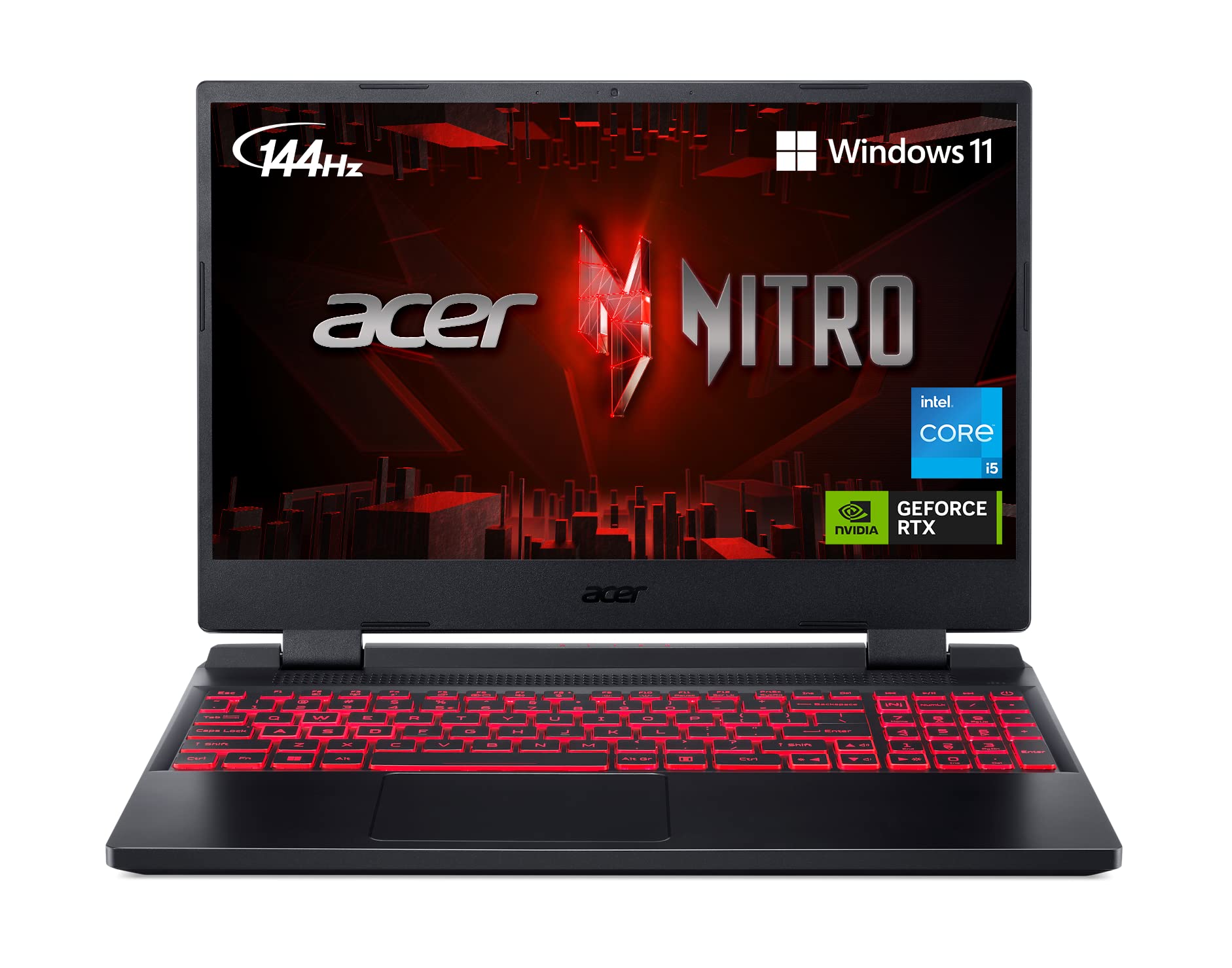
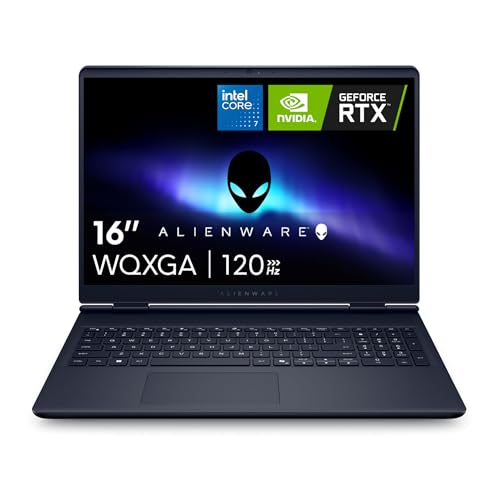

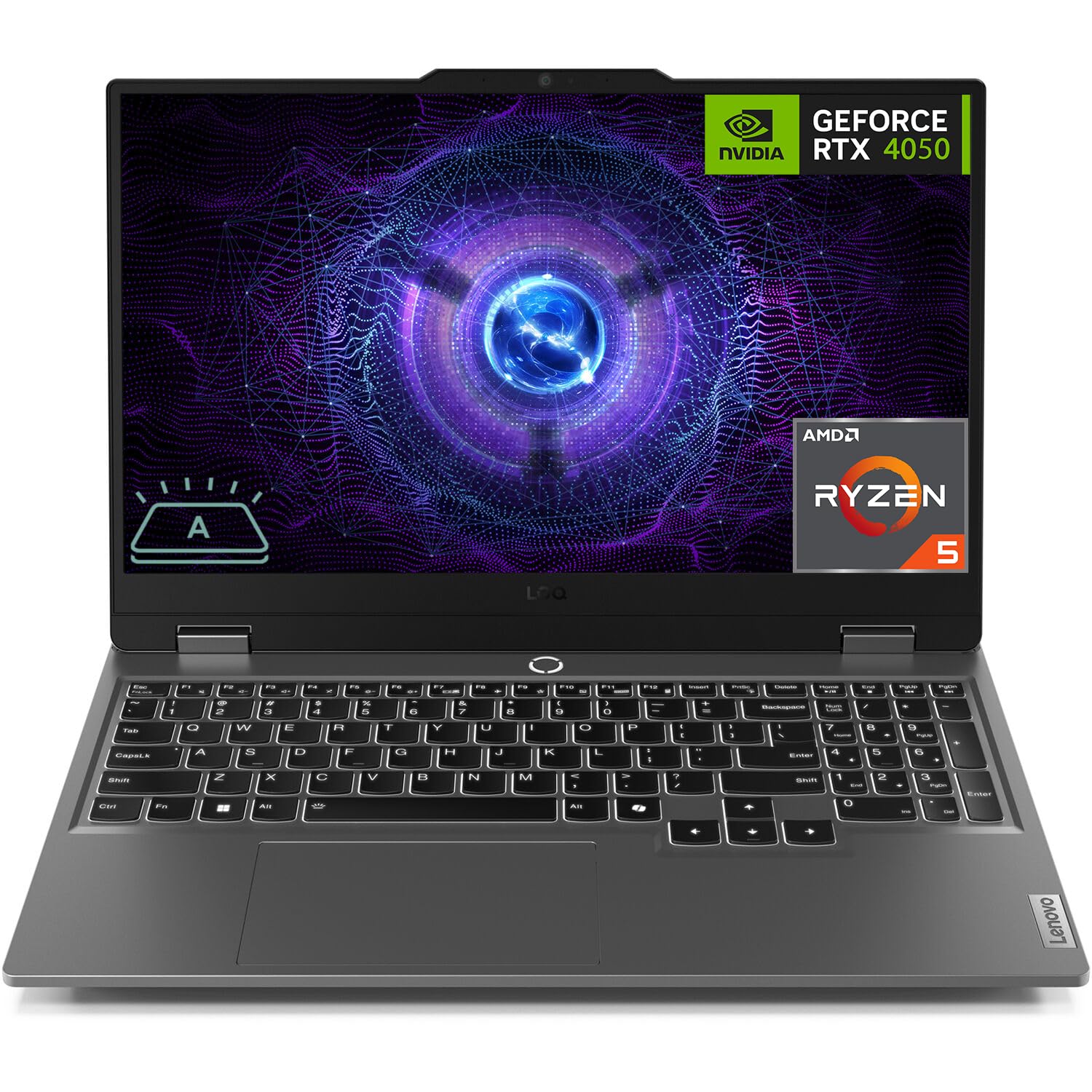


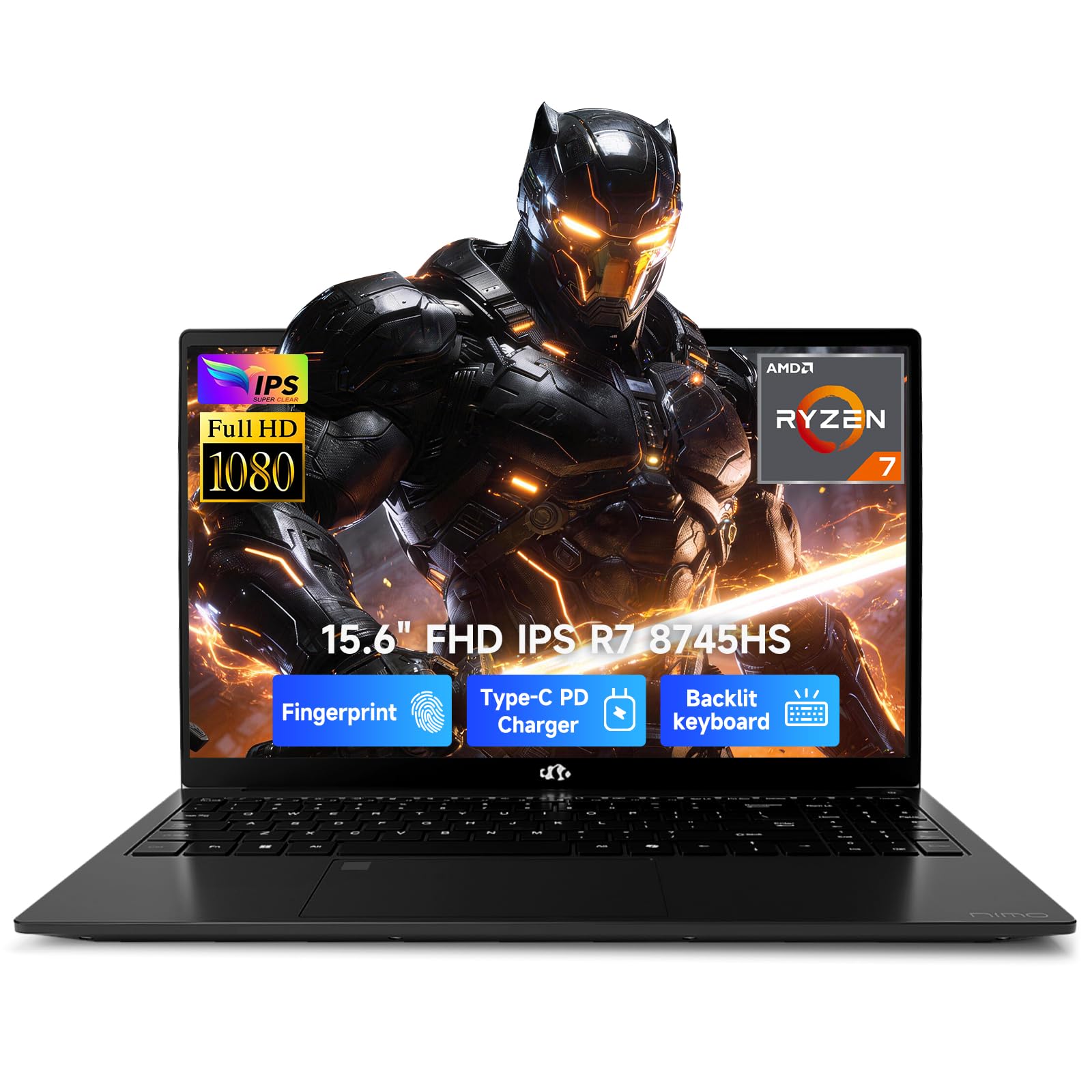
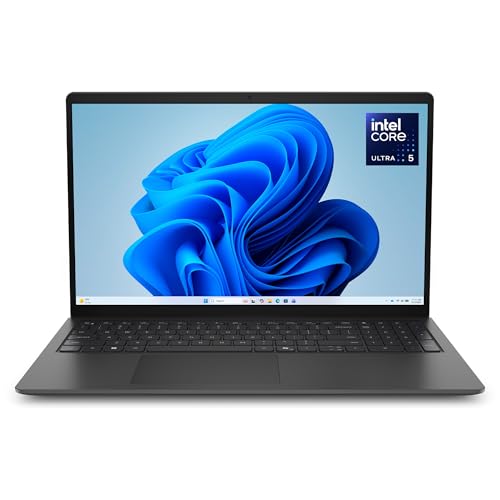
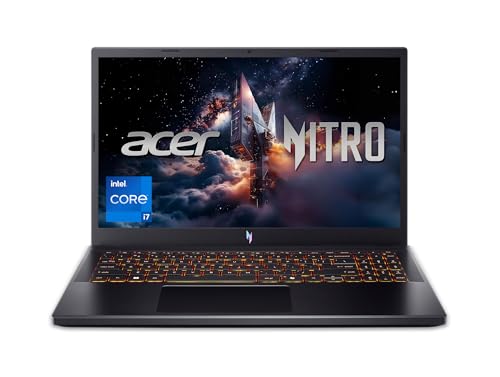
Types of Backlit Laptops Compared
Three types cover most buyers. Budget laptops aim for low price and simple tasks, gaming laptops aim for speed and graphics power, and Chromebooks aim for light weight and long battery life on web based work. All three can include a backlit keyboard, but the quality of that backlight, and everything around it, differs a lot by price.
As rough price guidance, budget laptops often sit under $500, Chromebooks commonly run about $250 to $600, and gaming laptops usually start near $800 and climb well past $1,500. Treat those as orientation ranges rather than promises, since sales swing prices often. Readers comparing slim everyday machines may also enjoy our guide to the best notebook laptops for a related view.
Budget Laptops
Budget laptops run full Windows on modest processors with enough power for documents, browsing, email, and video calls. Their backlit keyboards are usually single color white light with one or two brightness levels, which is honestly enough for most people. Screens and speakers are serviceable rather than lovely, and plastic bodies keep the price down.
Choose this type if your work is browser and document based and your budget is firm. Skip it if you edit video, play demanding games, or expect the machine to feel fast five years from now. At this price, put storage and memory ahead of screen flair when you compare two close options.
Gaming Laptops
Gaming laptops pair strong processors with dedicated graphics, fast screens, and cooling systems built for long, hot sessions. Their keyboards often offer per key color lighting, extra macro keys, and firmer key feel, because lighting doubles as a game control aid. The costs are weight, fan noise, and short battery life away from an outlet.
Choose this type if you play modern games, edit video, or do three dimensional work and want one machine for everything. Expect to carry a heavier power brick as well as the laptop itself. If gaming is only an occasional treat, a budget or midrange laptop plus a console may serve you better for less money.
Chromebooks
Chromebooks run ChromeOS, a light system built around the browser, web apps, and cloud storage. They start fast, update quietly, and often run for a full school or work day on one charge. Backlit keyboards appear on midrange and premium Chromebooks, while the cheapest school models may skip the feature, so check the specification line rather than assuming.
Choose this type if your life already lives in Google services and you value low cost and low fuss. Skip it if you need specific Windows or Mac software, heavy offline work, or serious gaming. Students weighing this route should also read our guide to the best laptops for college for course specific advice.
Budget Laptops vs Gaming Laptops: Which Should You Choose?
These two types answer different questions. On performance, gaming laptops win by a wide margin, with dedicated graphics and cooling that budget machines cannot match. On price and portability, budget laptops win just as clearly, often costing half as much and weighing far less in a daily bag.
Battery life favors the budget side for light tasks, though a gaming laptop sipping power in a browser can surprise you. Keyboard lighting favors gaming models, with color zones and per key control, while budget boards stick to plain white light. Decide by your hardest weekly task: if that task is a modern game or a video edit, choose gaming; if it is writing and browsing, save the money.
How to Choose the Right Backlit Laptop
Weight and Portability
Weight shapes whether a laptop actually travels with you. Under 3 lb suits students and commuters who carry the machine all day, while gaming models often weigh 5 lb or more before the power brick. Screen size drives much of that weight, so a 14 inch screen is the sweet spot for many people who move around.
Ports and Connectivity
Count the ports you use weekly before you buy. USB C with charging support, at least one full size USB port, HDMI for an external screen, and a headphone jack cover most desks. WiFi 6E or WiFi 7 keeps wireless fast on modern networks, and Bluetooth handles mice and earbuds. Dongles fix gaps, but built in ports are calmer.
Graphics (Integrated vs Dedicated GPU)
Integrated graphics live inside the main processor and handle browsing, office work, streaming, and light photo editing with ease. A dedicated GPU is a separate graphics chip with its own memory, and it is what modern games, video editing, and three dimensional tools truly need. If your work never pushes graphics, skip the dedicated chip and enjoy lower price, less heat, and longer battery life.
Processor and Performance Tier
Current laptop processors from the Intel Core and Core Ultra lines, AMD Ryzen chips, and Apple M series chips all handle everyday work well. The tier matters more than the brand for most buyers. Entry chips suit documents and browsing, midrange chips suit multitasking and light creative work, and top chips suit heavy editing and gaming. Pair the processor with at least 16GB of RAM and a 512GB SSD if you plan to keep the machine for years.
Battery Life in Real World Use
Maker battery claims assume gentle use at low brightness, so expect less in your own day of video calls and bright screens. A backlit keyboard adds a small drain, and turning its brightness down or letting it time out after a pause stretches runtime. Fast charging through USB C is a practical rescue, with many machines regaining hours of use from a short top up.
Value hunters should compare whole packages rather than single specs, and our guide to the best reasonable laptops explains that balance in more depth. Timing also matters, so our guide to the best time to purchase laptops can help you buy during the strongest sale seasons.
Setup and Care Tips
On day one, run system and firmware updates, set the keyboard backlight timeout, and learn the function key that controls its brightness. Keep the operating system and firmware updated after that, since updates often improve battery behavior and keyboard response. Avoid running at 100 percent charge all the time if the maker offers a battery care setting that caps charge, because gentler charging slows battery wear.
Carry the laptop in a padded sleeve when commuting, especially gaming models whose vents and corners dislike knocks. Once a month, wipe the keys with a lightly dampened cloth, since skin oil makes legends harder to read through the backlight. If the keyboard itself is your top priority, compare models in our guide to the best laptops with backlit keyboard after you settle on a type.
Frequently Asked Questions
How long should a backlit laptop last?
A well chosen laptop should serve four to six years for everyday work, and the keyboard backlight itself rarely fails first. Batteries and storage needs usually age a machine out before its lights do. Choosing 16GB of memory and a larger SSD at purchase is the cheapest way to stretch that lifespan.
Is a dedicated GPU worth it?
A dedicated GPU is worth it if you play modern games, edit video often, or use three dimensional and design software. For browsing, documents, and streaming it adds cost, heat, and weight with no daily benefit. Integrated graphics in current processors are strong enough that most students and office workers can skip the upgrade confidently.
How much RAM do I need?
Most buyers should aim for 16GB of RAM, which keeps many browser tabs, documents, and calls running smoothly at once. 8GB still works for a Chromebook or a very light Windows workload, but it limits multitasking. Creative pros and gamers who keep large projects open should consider 32GB, ideally in a model that allows upgrades.
Is a Chromebook enough for school?
For most schoolwork, yes, because writing, research, slides, and classroom platforms all live in the browser. The exceptions are courses that require specific installed software, such as engineering tools or full desktop editing suites. Check your course list first, confirm a backlit keyboard is included at your price, and a Chromebook can be the lightest, cheapest path through school.
Should I buy a laptop or a tablet?
Buy the laptop if typing is central to your work, since a real keyboard with backlight, a trackpad, and full file handling make long tasks far easier. A tablet wins for reading, drawing, and media on the move. Many people who travel constantly choose a light laptop for work and let a phone cover casual media, skipping the tablet entirely.
The Bottom Line
Choose the type first: budget for simple Windows work, gaming for graphics power, Chromebook for light and simple web days. Then confirm the backlight is truly included, weight suits your bag, and memory and storage give the machine room to age. With the product table above as your shortlist, the best backlit laptops become a clear, calm decision rather than a spec sheet headache.