
Best Art Laptops of 2026: Complete Buying Guide
Disclosure: We may earn a commission when you buy through links on this page, at no extra cost to you. As an Amazon Associate I earn from qualifying purchases. Learn more

A guide to art laptops for drawing and design: screen color, pen support, graphics power and portability explained.
The best art laptops pair an accurate screen with reliable pen input and enough graphics power for your biggest file. This guide explains the features that matter, the types available and the mistakes to avoid, in plain terms.
The comparison table below gives a quick overview of the main types. The sections that follow explain features, types and care so you can narrow your shortlist.

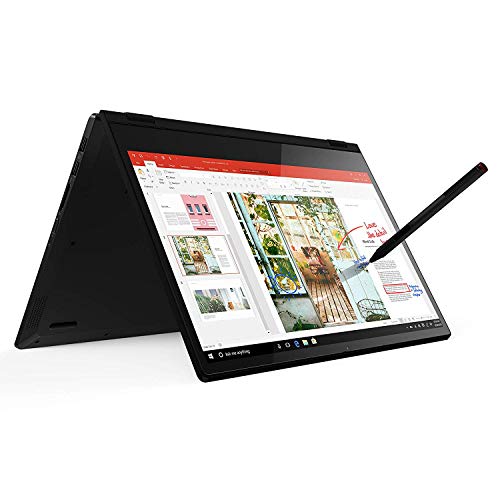
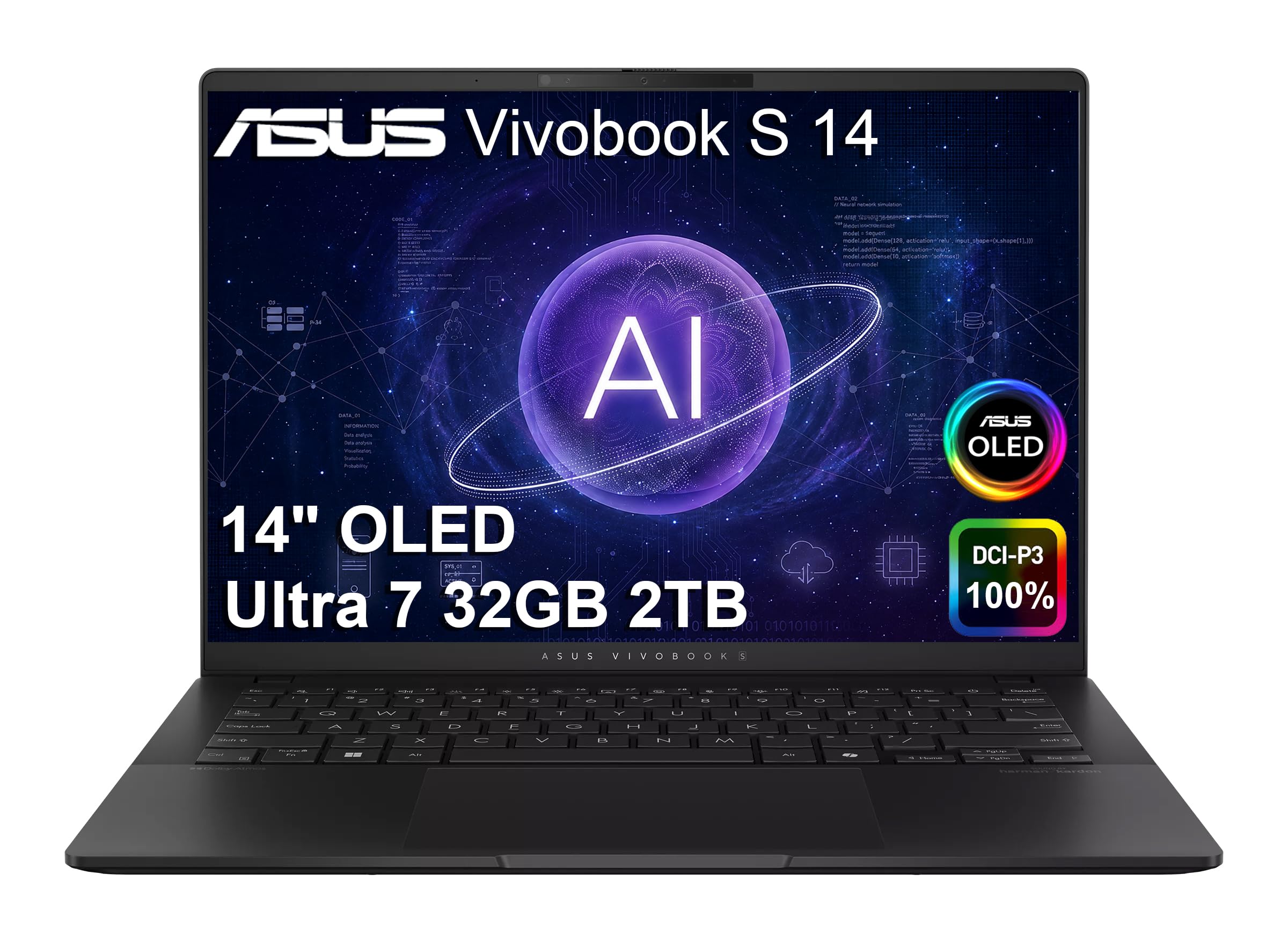


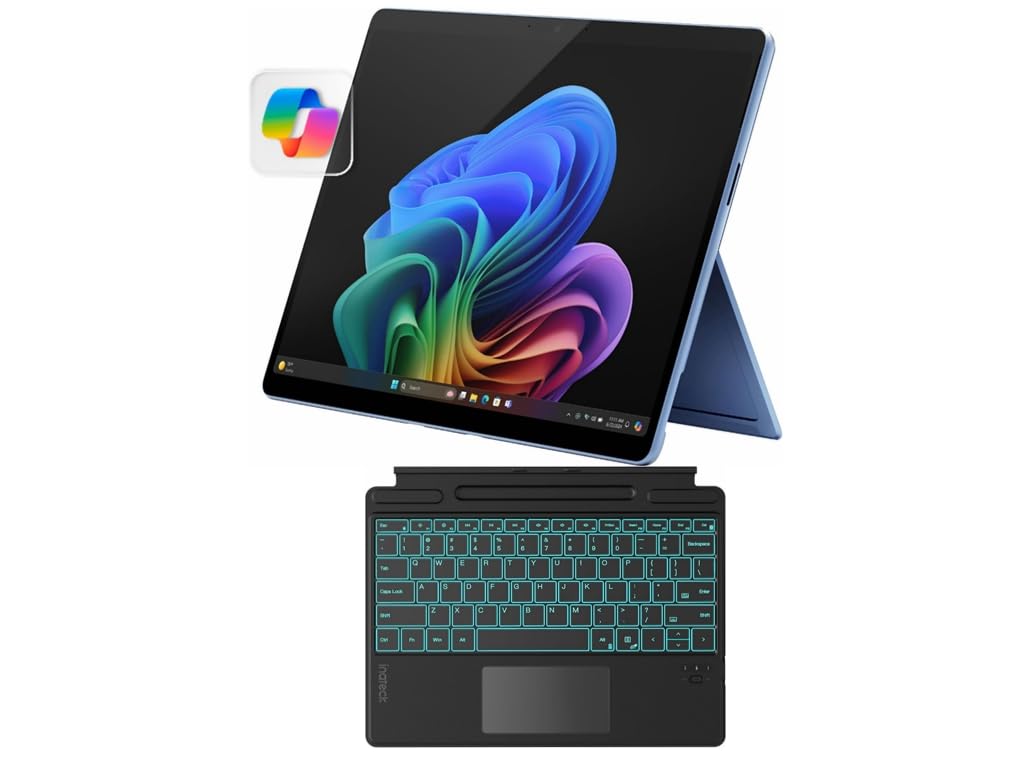
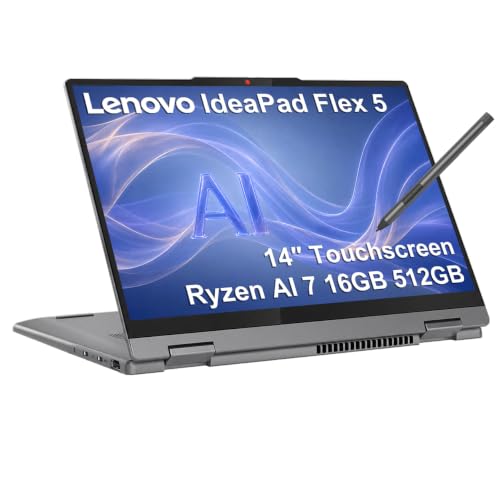


Who Should Buy This
Art laptops suit digital illustrators, graphic designers, animators, and art students who draw, paint, and edit on screen. They work for illustration, photo editing, 3D work, and design projects. They suit artists who need accurate color and smooth pen input. They are a weaker fit for buyers who only browse and write documents, where a simpler laptop costs far less.
Key Features to Compare
When comparing best art laptops, focus on the features below before looking at price. Each feature affects daily comfort, performance, or running costs, and the right balance depends on how you will use the product most.
Screen color and accuracy
Color accuracy matters more than resolution alone for art work. Look for a screen that covers a wide color range and shows consistent color across brightness levels. A matte or low reflection screen helps in bright rooms, while a glossy screen can look vivid but reflect lights. Calibrate the screen periodically if color critical work matters, since factory settings drift over time.
Pen and touch support
Pen support transforms a laptop for drawing, but not all touchscreens support a pressure sensitive pen well. Check pen pressure levels, tilt support, and whether the pen is included or sold separately. Palm rejection should let your hand rest on the screen without stray marks. Test drawing lines at slow and fast speeds, since lag and wobble show up differently in each case.
Graphics and processor power
Graphics power matters for large canvases, many layers, 3D rendering, and video. A dedicated graphics chip helps heavy 3D and video work, while integrated graphics suit illustration and 2D design. Memory matters too: large files with many layers need more memory to stay smooth. Choose graphics and memory for your heaviest project, not your average sketch.
Portability and battery for artists
Portability matters when you draw in cafes, studios, and classes. A lighter laptop with a good battery suits mobile artists, while a heavier workstation suits desk based work. Check weight with the charger, since art laptops often need a larger power supply. A laptop that is too heavy to carry will stay at home, no matter how good its screen is.
Types Compared
The main types of best art laptops suit different routines and budgets. Understanding the differences helps you avoid paying for features you will not use, or missing a feature you need every day.
Art laptops with pen displays
Pen display laptops combine a laptop with a touch and pen screen you draw on directly. They suit illustrators who want to draw on screen without a separate tablet. They cost more and weigh more, but they simplify a mobile setup. Choose this style when direct screen drawing is central to your work.
Art laptops for external tablets
Art laptops paired with an external drawing tablet suit artists who already own a tablet or prefer a separate drawing surface. They offer more laptop choice and often better value, since the laptop need not have a touch screen. They need desk space for the tablet. Choose this style when you already own a good tablet.
Art workstation laptops
Workstation laptops prioritize processor, graphics, memory, and color accurate screens for heavy 3D, animation, and video. They suit professionals and senior students with demanding projects. They are heavier, louder, and more expensive. Choose workstation when your projects regularly push a standard laptop to its limits.
What Your Money Gets You
Art laptops usually cost about $800 to $2,000, with capable illustration laptops near the lower end and workstation models higher. Budget for a pen if it is not included, a color calibration tool if color matters professionally, and a sleeve or bag that protects the screen. A dearer model mainly buys a better screen, stronger graphics, and more memory, which help large files and 3D work. Spend on screen quality first for illustration, and on graphics and memory first for 3D and video.
If you draw casually, a mid range laptop with a good pen is usually enough.
Care and Warning Signs
Care protects a screen and pen that you rely on daily. Use a screen protector if you draw directly on screen, and clean the display with a microfiber cloth, not paper towels. Store the pen safely and replace nibs when they wear, since a worn nib can scratch a screen. Back up artwork regularly to cloud or external storage, since large files are painful to lose.
Keep vents clear during rendering, and avoid leaving the laptop in a hot car. If color looks wrong, recalibrate before blaming the file.
Common Buying Mistakes
- Paying for a touch screen that lacks pressure sensitive pen support, which leaves drawing feeling flat.
- Choosing by resolution alone and ignoring color coverage, so colors look different on other screens.
- Skimping on memory, then watching large layered files slow down.
- Buying a thin laptop with weak cooling for long 3D or video renders.
- Forgetting the cost of a pen, a calibration tool and a protective sleeve.
Shopping Checklist
- Is the pen included, and does the screen report pressure and tilt?
- Does the maker state the color coverage of the display?
- Is there enough memory and storage for your largest project files?
- What does the laptop weigh with its charger, if you carry it daily?
- Are the return and warranty terms clear?
Related Guides
For nearby choices, see our guides to the best laptops for digital art, best laptops for art and design, best laptops for art majors, best laptops for art and gaming and best notebook laptops.
Frequently Asked Questions
Do I need a touch screen for digital art?
Not necessarily. Many artists draw on an external tablet while looking at a regular laptop screen. A touch screen laptop lets you draw directly on the display, which feels more natural for some artists. Choose by workflow: direct screen drawing suits illustrators who sketch on screen, while a tablet suits artists who already own one.
How much memory do art laptops need?
Illustration and 2D design usually run well with moderate memory, while large layered files, 3D, and video need more. Choose more memory than your current largest project needs, since files grow with experience. Memory affects smoothness when switching between apps, so it matters for multitasking as well as single files.
Is a dedicated graphics card necessary for art?
For illustration and 2D design, usually not. Integrated graphics handle most drawing apps well. For 3D modeling, rendering, and video editing, a dedicated graphics card helps significantly. Match graphics to your heaviest work, not to the most demanding app you might try once.
What screen size is best for art laptops?
A 14 to 16 inch screen suits most artists, balancing workspace and portability. Larger screens show more canvas and panels, but add weight. Smaller screens suit travel but need zooming and panning more often. If you work mainly at a desk, pair a portable laptop with an external monitor for the best of both.
Can a gaming laptop work for art?
Yes, often well. Gaming laptops offer strong graphics and processors that help 3D and video work. Their screens vary in color accuracy, so check that spec carefully. They are heavier and louder than art focused laptops, and battery life is usually shorter.
A gaming laptop is a good choice when art and gaming share one machine.
Final Thoughts
Choose by screen quality and pen support first, then graphics power and memory for your heaviest project, then weight and battery for how far you carry it. Use the product table above to compare types before you order.
The best art laptops are the ones that make drawing feel natural and keep up with your largest file without fuss.


