Best And Worst Laptops by Budget: Smart Choices for 2026
Disclosure: We may earn a commission when you buy through links on this page, at no extra cost to you. As an Amazon Associate I earn from qualifying purchases. Learn more

Compare the best and worst laptops by budget with a clear guide to displays, RAM, storage, battery life, ports, and overall build quality for every user.
Laptop prices run from under $300 to well over $2500, and the cheapest option can end up costing the most if it slows down in a year or needs an early replacement. The smartest way to sort the best and worst laptops is by what each price tier actually delivers for your daily work. A student writing papers, a remote worker on video calls, and a video editor need very different machines.
This guide explains what to expect at each tier, which features deserve your money, and which extras you can skip. Check the comparison table below after you settle on a budget range and a screen size.

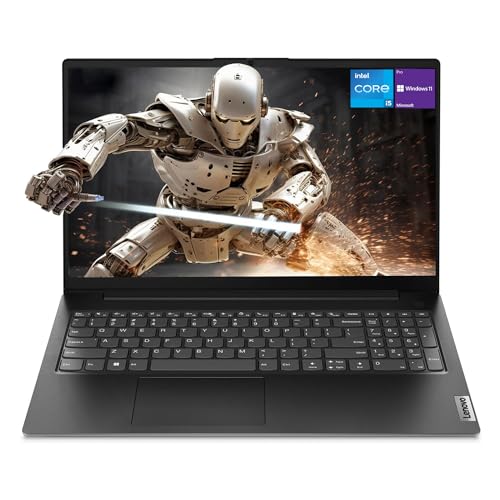

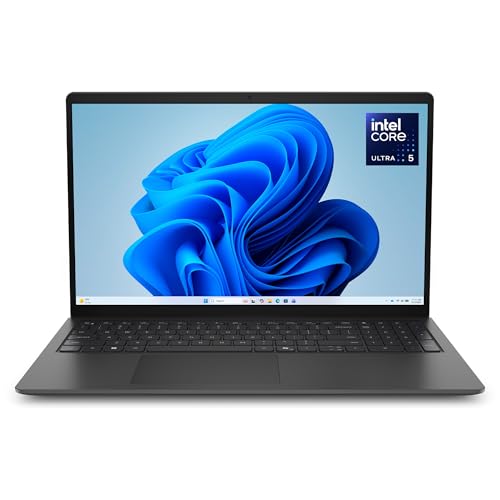
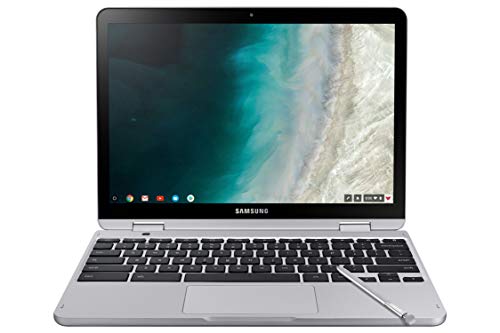


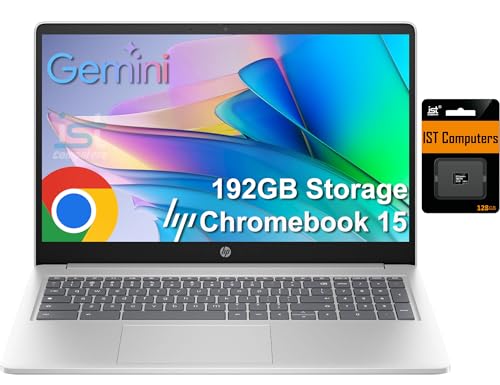

Choosing by Budget: What Each Tier Should Give You
Budget Tier: The Minimum Worth Accepting
A good budget choice should still give you at least 8 GB of RAM, a solid state drive rather than slow spinning storage, and a screen that does not wash out at slight angles. Expect plastic construction, modest speakers, and battery life that covers a school day with care. The main limit is headroom, so these machines suit browsing, documents, streaming, and light photo work. Avoid any model with only 4 GB of RAM or a tiny drive that fills up after a few system updates.
Midrange Tier: The Balance Most People Need
Midrange laptops usually bring 16 GB of RAM, a faster processor, a brighter and more accurate display, and a metal or partly metal chassis. Ports improve too, with USB C charging and an HDMI output more common here. This tier handles office work, dozens of browser tabs, light creative tasks, and casual games without constant slowdowns. For many buyers, this is the point where spending stops being about survival and starts being about comfort, speed, and a machine that still feels good in year four.
Premium Tier: What the Extra Money Buys
Premium models add excellent color accurate displays, long battery life in a thin body, strong speakers, and refined keyboards and trackpads. Some add dedicated graphics for gaming or video work, while thin ultraportables focus on low weight and quiet cooling. You also tend to get better webcams, faster WiFi, and longer software support. The trade off is price and sometimes fewer ports, so check whether you will need a dock or adapter for your monitor and accessories.
What Your Money Gets You at Each Price Tier
Budget Tier: What to Expect
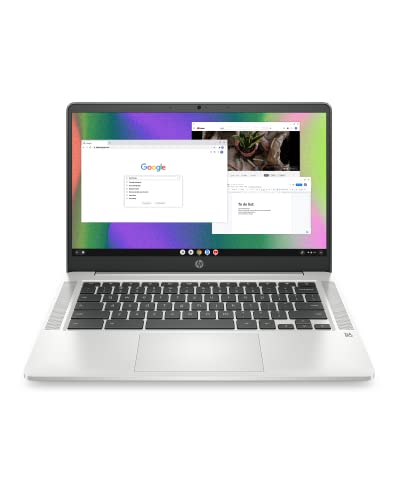
At around $300 to $600, Chromebooks and basic Windows laptops dominate. They can be a smart buy for school and home basics if the screen is at least full HD and the keyboard feels firm. Storage often sits at 128 GB or 256 GB, so cloud storage or an external drive may become part of the plan. If you are comparing slimmer everyday options in this range, our guide to the best notebook laptops adds useful context on weight and portability.
Midrange Tier: The Sweet Spot for Most Buyers
At about $600 to $1100, you should expect 16 GB of RAM, a 512 GB solid state drive, a backlit keyboard, and a display bright enough for a sunny room. Battery life claims become more believable here, and build quality improves enough that the lid and hinges feel solid. This is also the tier where a good sale matters, so learning about the best time to purchase laptops can save real money. Back to school and holiday sale periods often move midrange models into budget territory.
Premium Tier: When Spending More Pays Off
Above about $1100, and up to $2500 or more for powerful creative machines, you pay for display quality, battery efficiency, and performance that holds up under heavy loads. OLED screens, high refresh rate panels, and dedicated graphics appear here. Shoppers who game should compare this tier carefully with our notes on the best and worst gaming laptops, because gaming models trade battery life and weight for graphics power. For office users, a premium thin laptop often makes more sense than a heavy gaming design.
Features Worth Paying For and Ones to Skip
Keyboard, Trackpad, and Build
You touch the keyboard and trackpad every minute, so they deserve priority over small processor differences. Look for keys with clear travel, a layout without shrunken keys you use often, and a trackpad that tracks smoothly without sticking. An aluminum lid and base resist flex and protect the screen better than thin plastic. If you type for hours, a slightly larger screen and a keyboard without a cramped number pad can reduce fatigue more than any spec sheet upgrade.
Graphics: Integrated Versus Dedicated
Integrated graphics handle office work, streaming, and light photo editing well and preserve battery life. A dedicated graphics card matters for modern games, 3D work, and faster video exports, but it adds cost, heat, fan noise, and weight. It also shortens unplugged run time, sometimes by hours. Buy dedicated graphics only if your software or games truly need it. Otherwise, put that money toward more RAM, a better display, or a larger drive, which you will notice every day.
Operating System
Windows offers the widest software and game support and the most hardware choice at every price. macOS suits buyers who value long battery life, strong resale value, and smooth links with an iPhone, but storage and RAM upgrades at purchase can be costly. ChromeOS is simple, secure, and affordable for school and web based work, yet it cannot run many full desktop programs. Choose the system your required apps support first, because no discount fixes a laptop that cannot run your work software.
Processor and Performance Tier
The processor sets the ceiling for speed, but core counts and model names can mislead. For office work, a current midrange processor with 16 GB of RAM feels faster in daily use than a stronger chip paired with only 8 GB. Creative work and gaming benefit from higher tiers and better cooling. To understand how processors stack up across generations, see our ranking guide to the best to worst processors for laptops. Always check RAM and storage alongside the chip name.
Long Term Costs to Factor In
Add the cost of a protective sleeve or bag, a mouse, a possible dock, cloud storage or backup drive, and software subscriptions your work requires. Extended warranty or accidental damage cover can be worth it for students and frequent travelers, but read what it excludes. Battery wear is another cost, since many thin laptops have sealed batteries that need professional service. A machine with enough RAM and storage on day one usually costs less over five years than a cheap model you must replace in year two.
Laptop Questions Answered
Is a dedicated GPU worth it?
It is worth it if you play demanding games, edit high resolution video, or use 3D software that lists a dedicated card as a requirement. For documents, browsing, and streaming, it adds cost and heat without a daily benefit. One extra point is resale, since gaming models with a still capable card can hold value with other gamers. Check the exact graphics tier rather than buying on the label alone, because low tier dedicated cards can be barely ahead of strong integrated graphics.
Should I buy a laptop or a tablet?
Buy a laptop if you type long documents, multitask across windows, or need full desktop software and easy file management. A tablet suits reading, drawing, media, and short notes, especially with a stylus. Adding a keyboard case and trackpad to a tablet can close the gap, but the total often reaches laptop prices with more limits. Students should check course software first, since some exam and science tools still require Windows or macOS.
How long should a laptop last?
A midrange or premium laptop should serve well for about five to seven years with normal care, while a budget model may feel slow in three to four years. Battery capacity fades first, often noticeably after a few hundred charge cycles. Keeping storage at least one quarter free and installing updates promptly helps performance hold up. If the fan runs constantly during simple tasks, dust buildup or aging thermal paste may be part of the cause, and a service visit can help.
How much RAM do I need?
For most people, 16 GB is the right target because browsers, video calls, and office apps together use more memory than many expect. Eight GB can work for light school or web only use on a Chromebook or a basic Windows machine. Creative work, virtual machines, and heavy multitasking point to 32 GB. Because many thin laptops cannot be upgraded later, buying enough RAM at purchase is one of the safest places to spend a little more.
Is a Chromebook enough for school?
Yes, for many students a Chromebook covers classroom platforms, documents, research, and video lessons at a low price with simple upkeep. It falls short when a course needs installed software, offline specialty apps, or local storage for large media projects. Check the update expiration date listed for the model, because a cheap Chromebook near the end of its update window is a poor buy. Battery life is a strength here, often lasting a full school day.
The Bottom Line
Set your tier first, then insist on 16 GB of RAM and a good display in midrange and above, and treat graphics as a need based choice rather than a default upgrade. Readers who want the wider context behind these rankings can also browse our best and worst hub for related comparisons. Judged this way, the best and worst laptops sort themselves quickly, and the product table above will confirm which models match the tier and features you chose.