
Best Affordable Laptops for Recording Music Made Simple: A Clear Buying Guide for 2026
Disclosure: We may earn a commission when you buy through links on this page, at no extra cost to you. As an Amazon Associate I earn from qualifying purchases. Learn more

Learn how to choose the best affordable laptops for recording music, with plain English help on processors, RAM, storage, ports, and quiet fans.
Recording music on a laptop sounds simple until clicks, pops, and fan noise start ruining good takes. If this is your first recording setup, this guide walks from the basics to a confident purchase, explaining what best affordable laptops for recording music really need and what you can safely skip.
You will learn how the processor, RAM, storage, and ports affect tracking and mixing, in plain English and without product hype. The product table below then gives you a fast way to check real options against those needs.

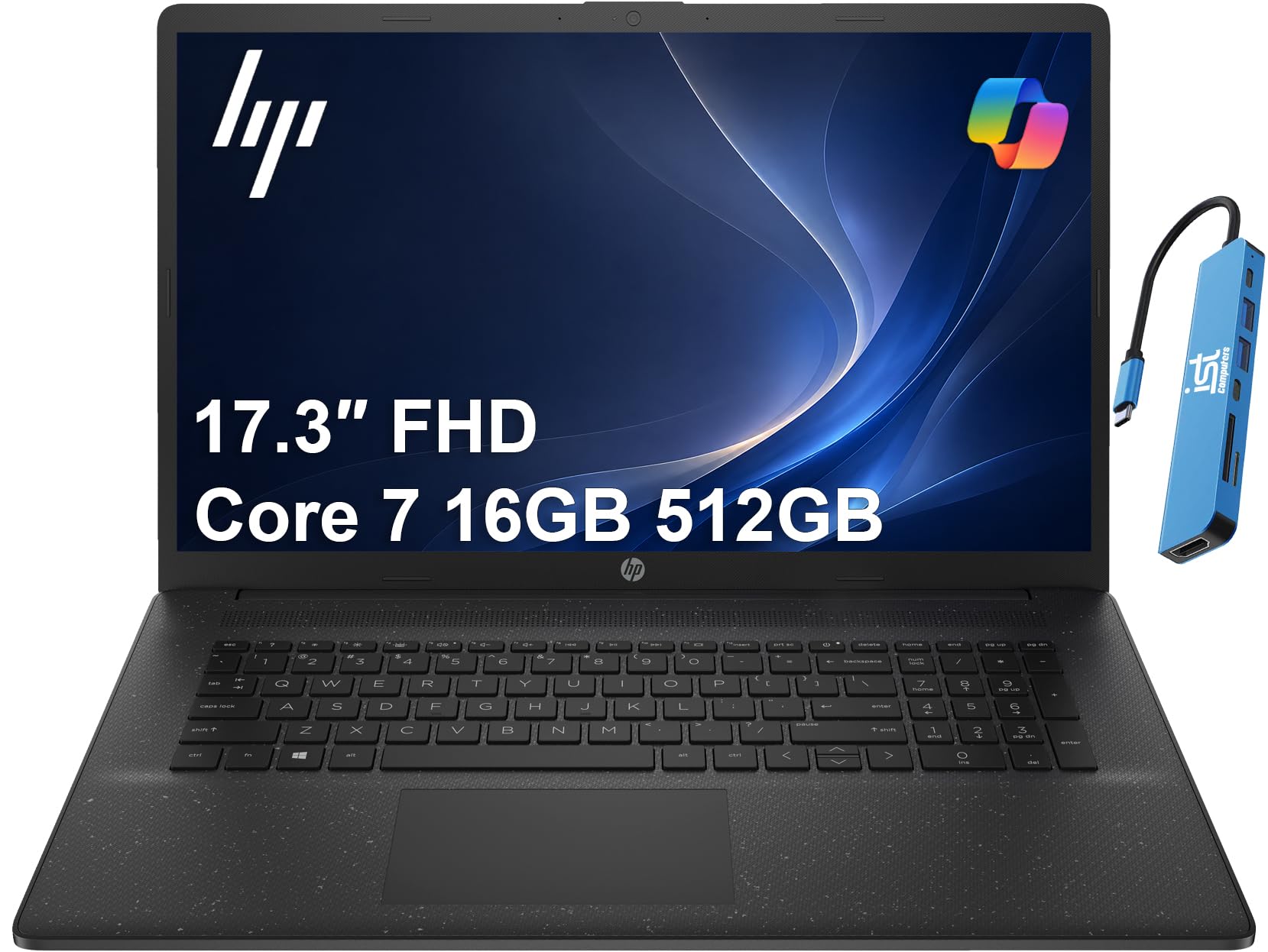
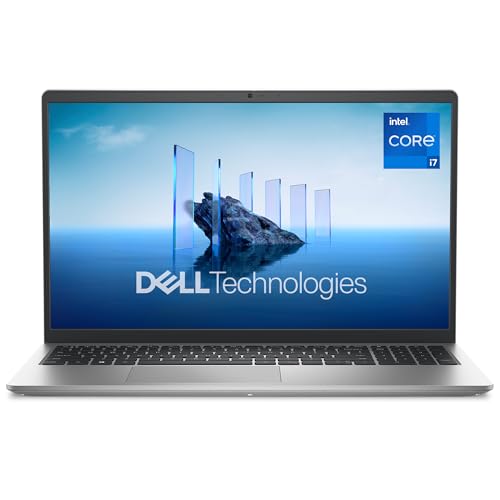

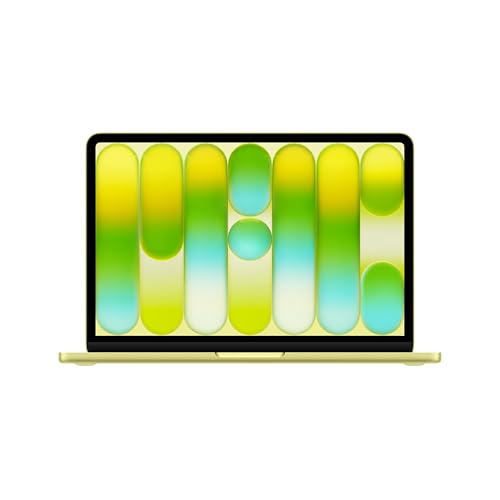


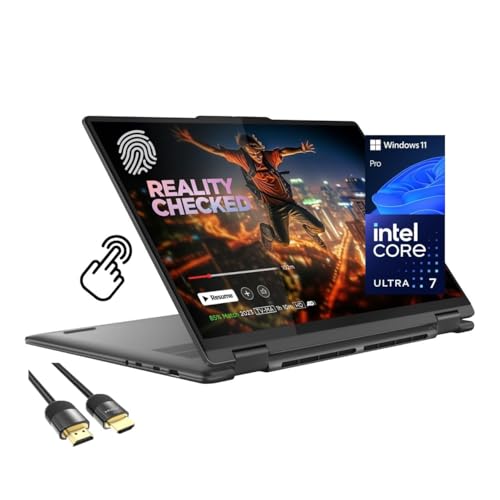

Laptops 101: The Basics
A recording laptop does two jobs at once. It captures audio from your interface in real time, and it plays back tracks, effects, and virtual instruments while you record the next part. If the computer cannot keep up in real time, you hear dropouts, clicks, or delayed sound in your headphones.
Your audio software, often called a DAW, is the studio on screen. The processor does the math for effects and instruments. RAM holds the samples and tracks you are using right now. The solid state drive loads projects, sample libraries, and recordings quickly and quietly.
Latency is the small delay between playing a note and hearing it back. Lower latency feels natural, but it makes the processor work harder in short bursts. A capable processor and a well set audio buffer matter more for recording than a fancy graphics card or a very thin case.
Fan noise is the other beginner surprise. A laptop that is quiet while browsing can get loud during a mix, and a sensitive microphone will pick that noise up. Placement and cooling matter, so think about where the laptop will sit in your room from the start.
Key Specs for the Best Affordable Laptops for Recording Music
What You Can Realistically Get on a Budget
Around $600 to $900 is a realistic budget for a laptop that records and mixes comfortably. Expect a strong midrange processor, 16 GB of RAM, and a fast 512 GB solid state drive at that level. You will likely give up a premium screen, the lightest case, and a dedicated graphics card, none of which recording truly needs.
Features That Matter for Recording Music
Recording needs steady real time performance, quiet cooling, and the right ports for your interface. Look for a processor that can hold speed without throttling, at least two USB ports in the formats your gear uses, and a headphone jack if you monitor directly. Our guide to the best laptops for recording music explains interface and session needs in more depth.
Processor and Performance Tier
The processor is the most important part for recording. It runs your effects, virtual instruments, and mixes in real time, and strong single core speed helps when one track carries a heavy chain of plugins. Current Intel Core Ultra, AMD Ryzen, and Apple M series chips in the midrange and above all record well. Avoid low power entry chips meant only for browsing and documents.
RAM and Storage
Sixteen GB of RAM is the sensible target for recording. It lets your DAW, sample based instruments, and a browser for lyrics or charts run together without swapping to disk. Eight GB can handle small demos with few tracks, but it limits growth. For storage, choose a 512 GB solid state drive at minimum, and plan an external drive for backups and large sample libraries.
Graphics (Integrated vs Dedicated GPU)
Integrated graphics are enough for recording and mixing. Your DAW draws meters, waveforms, and plugin windows, and modern integrated graphics handle that easily, even on an external monitor. A dedicated GPU adds cost, heat, and fan noise without making audio sound better. Spend that money on RAM, storage, or your interface and headphones instead, unless you also edit video seriously.
Ports and Connectivity
Count your gear before you buy. Your audio interface, MIDI keyboard, control surface, external drive, and charger all need ports at the same time. Look for at least two USB C ports, ideally with Thunderbolt on at least one, plus a full size USB port for older gear.
Check whether USB C charging occupies a port you need during sessions. Readers who also produce beats can compare our guide to the best affordable laptops for music production.
Rookie Mistakes to Avoid
- Buying the thinnest laptop for a home studio. Very thin cases often run hotter and louder under a long mix, and they offer fewer ports for interfaces and drives.
- Choosing 8 GB of RAM to save a little money. Sample libraries and modern plugins fill memory fast, and many laptops cannot be upgraded later.
- Ignoring fan noise. Read the size and cooling design carefully, and plan to place the laptop away from your microphone during takes.
- Forgetting adapters and cables. A new laptop with only USB C ports may need adapters for your interface, keyboard, and drives on day one.
- Storing the only copy of a project on the laptop. Drives fail and laptops get stolen. Back up sessions to an external drive or cloud storage after every session.
If you are comparing wider music workflows, our guide to the best laptops for music production and recording covers combined setups. Shoppers weighing a general purpose machine can also review our guide to the best and affordable laptops and then check the recording points here.
Getting Started: Setup and First Use
Start with updates, then restraint. Keep the operating system and firmware updated, install your DAW and interface drivers from the maker sites, and restart before your first session. Set your audio buffer low for recording, around 64 to 128 samples if your system stays stable, and raise it for mixing when latency no longer matters.
Turn off cloud sync, game overlays, and other background apps while you record, because a sync scan during a take can cause a dropout. Avoid running at 100 percent charge all the time if the laptop stays on your desk, and use any charge limit setting your machine offers.
Do a trial recording before anything important. Record silence and listen for fan noise, then record a full practice take with your usual plugins on. Finding a noise or latency problem during a trial is a lesson. Finding it during your best vocal take is a loss.
One more practical habit helps every session. Name your project folders with the date and song title, and save a new version before major edits like comping vocals or changing the arrangement. That simple routine makes it easy to return to an earlier take, and it costs nothing but a few seconds each time you save.
Laptops: Your Questions Answered
What features matter most in laptops for recording music?
A strong processor, 16 GB of RAM, a fast solid state drive, quiet cooling, and the right ports matter most for recording music. Real time audio cannot pause and catch up, so steady performance beats peak benchmark numbers. A laptop that stays quiet near a microphone and connects to your interface without a chain of adapters will serve you better than a flashier screen.
Is a Chromebook enough for school or for recording?
A Chromebook is not enough for serious recording. Most full DAWs, audio interface drivers, and third party plugins do not run on ChromeOS, and browser based tools limit track counts, effects, and file control. A Chromebook can capture a quick idea or a voice memo, but choose Windows or macOS for a real recording setup you plan to grow.
Is a dedicated GPU worth it for recording?
A dedicated GPU is not worth it for recording alone. Audio plugins and DAW graphics run well on integrated graphics, and a separate GPU adds heat and fan noise that can reach your microphone. The exception is a creator who also edits music videos or streams with heavy visuals. In that case, budget for the GPU and record vocals in a quieter spot.
How much RAM do I need for recording music?
Get 16 GB of RAM for recording music if you can. That amount supports a DAW, several virtual instruments, and effects on multiple tracks without constant freezing or bouncing of tracks. Eight GB works for small acoustic demos with few plugins. Choose 32 GB only if you use large orchestral sample libraries or very big sessions.
Should I buy a laptop or a tablet for recording?
Buy a laptop for recording as your main tool. Laptops run full DAWs, support a wider range of audio interfaces, and manage files, backups, and external drives far more easily. Tablets are handy for lyrics, remote control of a DAW, and simple mobile demos, but most musicians outgrow a tablet only setup once track counts and plugins grow.
The Verdict
Put your money in this order: a capable midrange processor, 16 GB of RAM, a roomy solid state drive, and ports that match your interface. Then think about fan noise and placement, because a quiet room and a steady computer protect every take you record.
Compare your shortlist with the product table above, and the best affordable laptops for recording music for your room and style should be clear. Set it up carefully, back up every session, and spend the time you saved on the music itself.


