
Best Affordable Laptops for Photoshop 2026 Buying Guide
Disclosure: We may earn a commission when you buy through links on this page, at no extra cost to you. As an Amazon Associate I earn from qualifying purchases. Learn more

The best affordable laptops for photoshop combine strong RAM, a color accurate screen, and fast storage for smooth layers and quick exports.
Photoshop is hungrier than most everyday programs. Layers, filters, and large files eat memory quickly, and a slow drive makes every open and save feel like a wait. This guide explains how to pick the best affordable laptops for photoshop by focusing on the parts that change your day: memory, storage, the screen, and a processor that keeps filters responsive.
The product table below lists current options. Read the sections here first, so you can tell a laptop that merely runs the program from one that feels good to work on for years.




What Photoshop Needs From Your Hardware
Photoshop keeps your working layers in memory and uses the drive as scratch space once memory fills. That is why 16 GB of RAM is the practical starting point and why an SSD is not optional. With 8 GB the program runs, but large layered files, several open documents, and a browser with tabs quickly cause lag.
The graphics chip matters less than many shoppers assume. Many everyday tools run on the processor, while some filters and smooth zooming use the graphics hardware. A modest dedicated chip helps with heavier filters and large canvases, but integrated graphics on a recent processor are enough for photo retouching, web graphics, and print layouts of moderate size.
How to Choose the Best Affordable Laptops for Photoshop
Memory
Sixteen gigabytes is the target. Thirty two gigabytes helps with very large files, panoramas, and heavy multitasking, but it usually pushes a laptop beyond a modest budget. Because many budget laptops cannot be upgraded later, buy the memory you need today.
Storage
Choose an SSD of at least 512 GB. Photoshop files grow large, and a full drive slows both the program and scratch space. An external drive handles archives, so the internal drive can stay fast and free.
Display
Look for a full HD screen with good brightness and wide viewing angles, with sRGB coverage near 100 percent where the listing states it. A matte or anti glare finish helps near windows. If color accuracy matters for print or client work, plan to use an external monitor at your desk.
Processor
A recent mid range processor with six or more cores keeps filters and exports moving. Newer generations also run cooler and last longer on battery. Do not pay for the top chip when memory and storage still need budget.
Keyboard, Trackpad, and Ports
You will use shortcuts all day, so a firm keyboard helps. A pen or mouse often replaces the trackpad for retouching. Ports for a card reader, a second monitor, and a drive save carrying adapters.
Types of Laptops for Photoshop Work
| Type | Good for | Watch out for |
|---|---|---|
| Thin and light laptop | Retouching and web graphics on the move | Fans get loud under long exports |
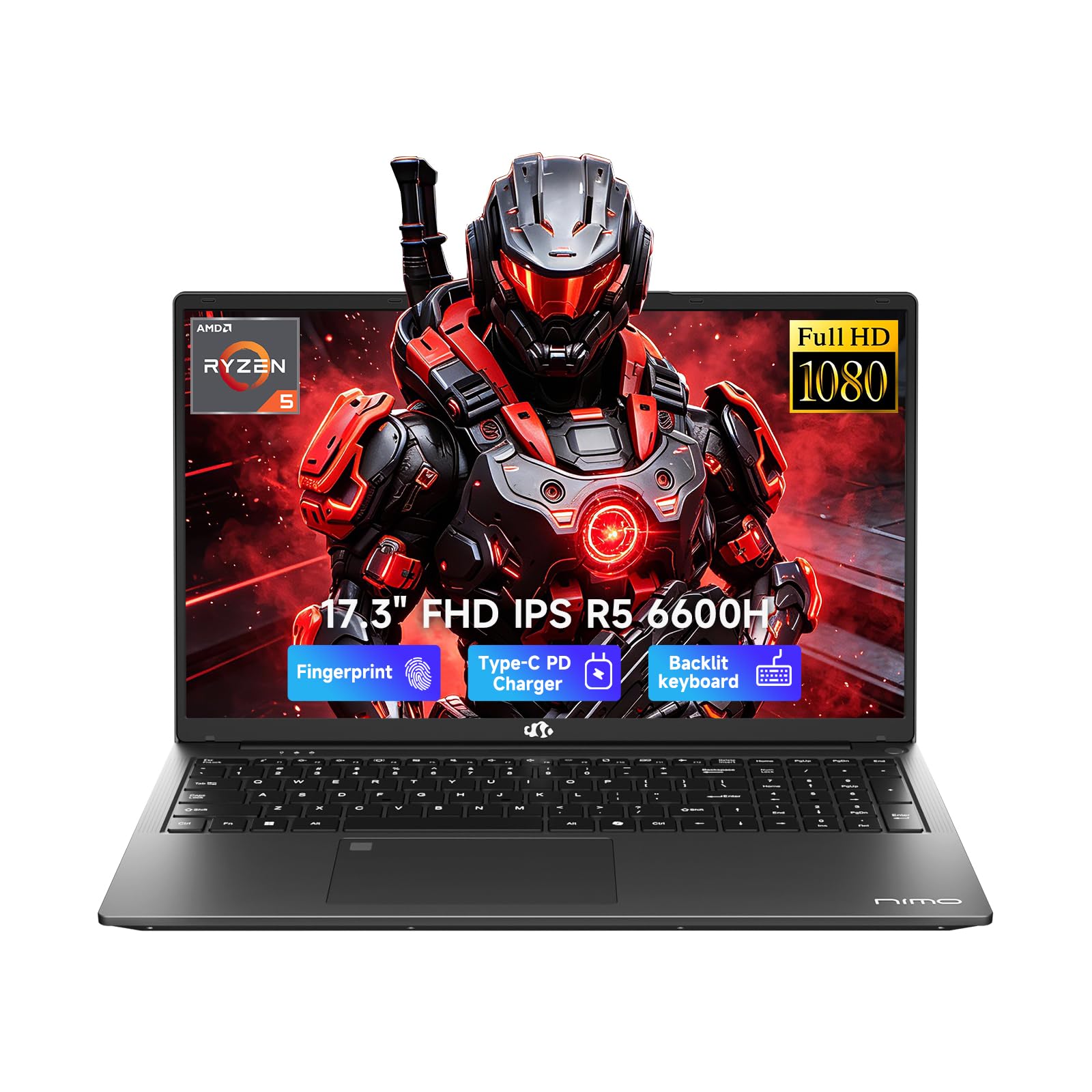
| Entry gaming laptop | Heavy filters and large canvases | Weight and shorter battery life |
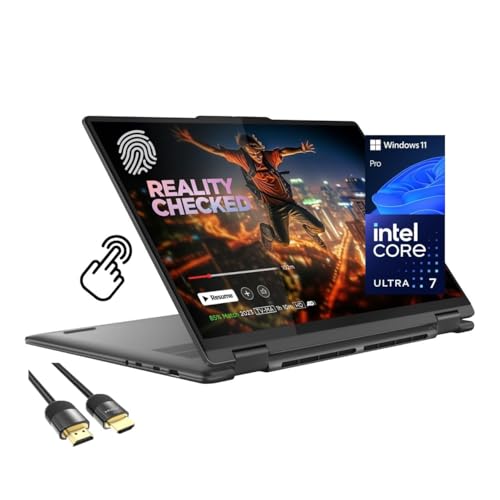
| Laptop with a touchscreen | Pen based retouching and sketching | Higher price for the same specs |
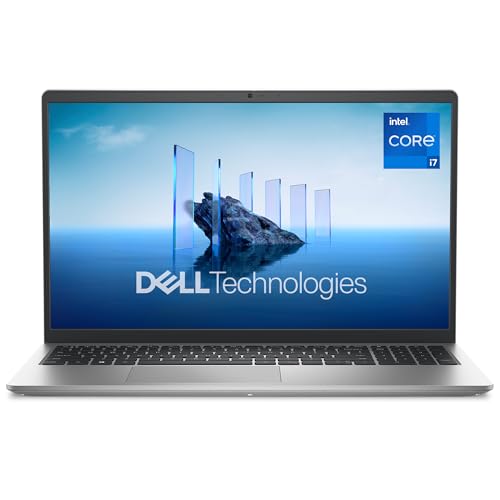
| Everyday 15 inch laptop | Occasional edits on a tight budget | Dim screens and limited memory |
As a rough guide, around $600 to $800 buys 16 GB of RAM and a decent SSD, while $800 to $1,100 adds a better screen or graphics chip. Spend on memory and display before anything else.
Mistakes to Avoid
- Buying 8 GB of RAM. It is the most common reason a budget laptop feels slow with layered files.
- Ignoring the screen. A dim or washed out panel makes color judgments unreliable.
- Paying for a gaming GPU you will not use. Put the money toward memory or storage first.
- Skipping the return window check. Open one of your own large files in the first week and make sure it feels smooth.
Keeping Photoshop Fast
Keep at least a fifth of the drive free, because a full drive slows scratch space. Close unused browser tabs while you work, and purge the program cache when the app starts to feel heavy. Save big projects in layered formats only when you need the layers, and export flattened copies for sharing.
Keep the system and drivers updated, and clean the vents every few months so fans keep up during long edits. Back up finished work to two places, such as an external drive and a cloud folder.
What Your Money Gets You
Around $500 to $700
This tier gives you a capable everyday laptop with a recent processor, often 16 GB of RAM on the better listings, and a 512 GB SSD. It handles photo retouching, social graphics, and moderate layered files. Expect plastic bodies, average screens, and louder fans under load.
Around $700 to $900
The middle tier is where most Photoshop users find the best balance. Screens are brighter with better color coverage, builds feel sturdier, and some models add an entry graphics chip. Large layered files and heavier filters become far more comfortable here.
Around $900 and above
Higher priced laptops add stronger cooling, faster graphics, and sharper displays. That helps if you work with very large canvases, 3D effects, or video alongside photos. For purely photo work, many people are better served by the middle tier plus an external monitor.
Whatever the tier, check that the listing states the amount of memory and the type of storage clearly. Vague specifications are a common sign of a weaker configuration, and a clear listing makes comparing models much easier.
Using Photoshop on a Budget Laptop
Photoshop settings can ease the load on a modest laptop. Lower the history states, limit the number of open documents, and use smart objects wisely. Work at a lower preview resolution when you retouch large files, and turn on graphics acceleration if your graphics hardware supports it.
Point the scratch disk to your fastest drive, and keep at least 20 percent of it free. These small adjustments make a budget machine feel faster without any spending.
Frequently Asked Questions
How much RAM do I need for Photoshop?
Sixteen gigabytes covers most photo editing and design work comfortably. Eight gigabytes can work for small files, while 32 GB helps with very large documents and heavy multitasking.
Do I need a dedicated graphics card for Photoshop?
Not for basic retouching. A modest dedicated chip helps with certain filters, large canvases, and smooth zooming, but memory and storage matter more on a budget.
Can a Chromebook run Photoshop?
Chromebooks run web based editors, but the full desktop program needs Windows or macOS. If you need the full tool set, choose a Windows laptop or a Mac.
Is a touchscreen useful for Photoshop?
It can be, especially with a pen for retouching or drawing. For mouse based editing it adds cost without much benefit, so decide based on how you work.
Is a 15 inch or a 14 inch laptop better?
A 15 inch laptop gives more room for panels and the canvas, while a 14 inch model is easier to carry. If you mostly work at a desk, the larger screen is more comfortable.
Final Thoughts
Prioritize 16 GB of RAM, an SSD, and a screen you trust, then add graphics power only if your work needs it. Compare the specs in the product table above and choose the best affordable laptops for photoshop that matches your files and budget. For wider context, see our guide to the best laptops photoshop and the best affordable laptops for students.


