Best Affordable Graphics Tablets: Buying Guide for 2026
Disclosure: We may earn a commission when you buy through links on this page, at no extra cost to you. As an Amazon Associate I earn from qualifying purchases. Learn more
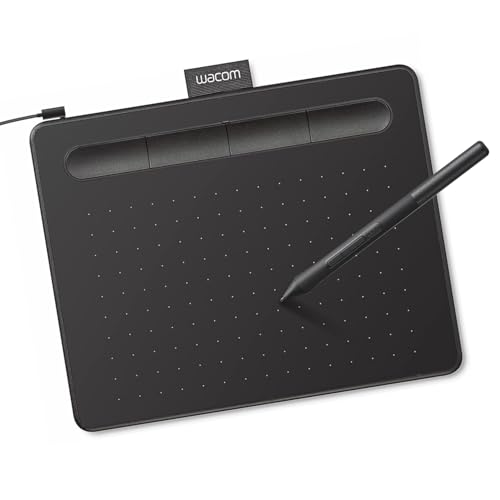
A plain guide to the best affordable graphics tablets: pen accuracy, shortcut keys, size, and software support.
Designers and illustrators need a tablet that translates hand movement into precise digital lines without lag or jitter. A clear best affordable graphics tablets guide helps you compare pen accuracy, size, and workflow features for photo editing, illustration, and graphic design. The comparison table below gives a quick overview.
Graphics tablets differ from general drawing tablets mainly in workflow emphasis, since designers often combine pen input with keyboard shortcuts, layers, and color work. This guide focuses on accuracy, shortcut efficiency, and software integration, so you can choose a tablet that speeds up professional style work without a professional price.
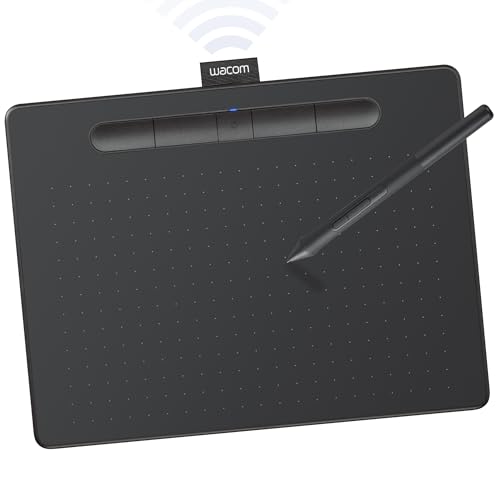


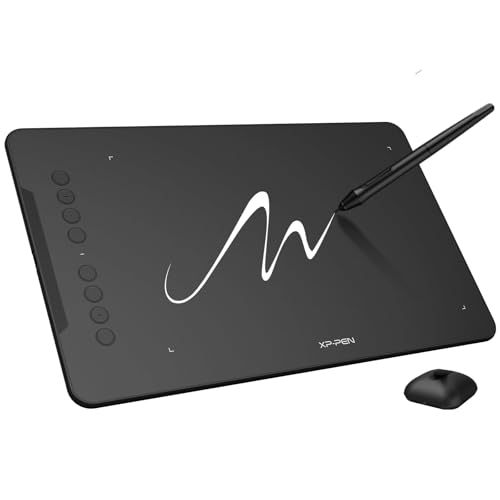
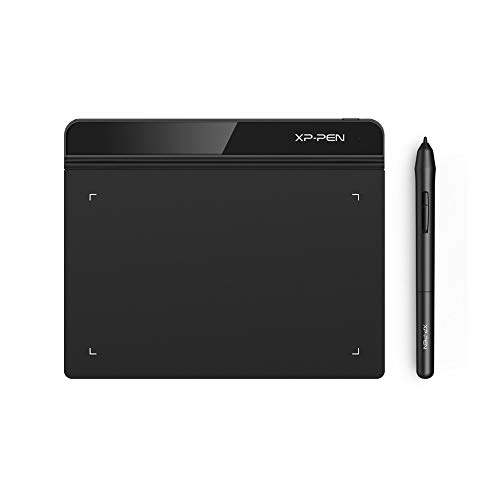

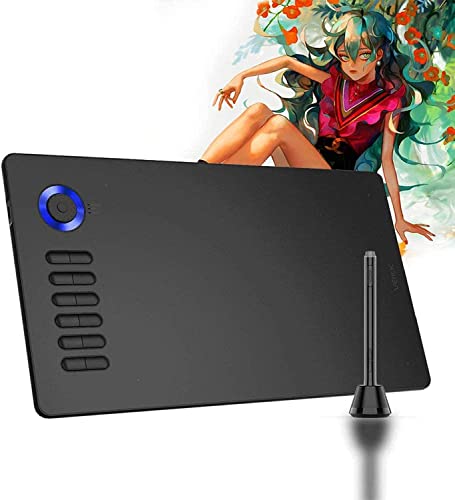
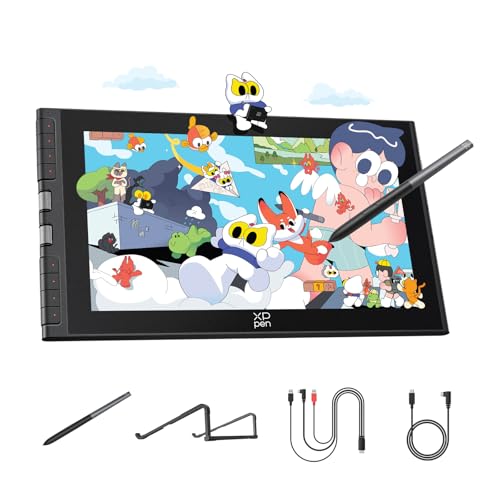
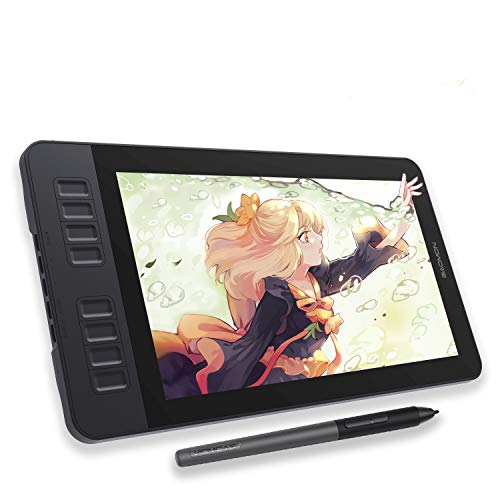
Pen Accuracy and Line Quality for Design
Accuracy matters when tracing logos, retouching photos, and drawing clean vector paths, since small errors become visible at large sizes. Look for a pen with consistent pressure response, minimal parallax on pen displays, and smooth diagonal lines without wobble. Test slow curves and fine details in your main design app, since those tasks expose weaknesses that fast sketching hides.
Resolution and report rate affect how faithfully the tablet follows your hand, though very high numbers matter less than stable, predictable tracking. A tablet that tracks smoothly at normal drawing speeds will serve design work better than one with impressive specifications but jittery slow lines. Check driver settings for smoothing and pressure curves, since tuning those options can improve line feel greatly.
Shortcut Keys, Dials, and Workflow Speed
Shortcut keys and dials save time in design apps, where zoom, brush size, undo, and layer switching happen constantly. Customizable keys placed within easy reach let you work without moving your hand to the keyboard repeatedly, which keeps creative flow intact. A dial for zoom or brush size is especially useful for illustrators who adjust those settings many times per hour.
Do not overvalue a large number of buttons if you will only configure a few, since unused keys add cost and clutter without benefit. Start by mapping your five most used shortcuts, then add more only when a clear need appears. A simple, well placed set of controls often beats a crowded panel that you must memorize before it helps.
Size, Monitors, and Color Work
Tablet size should match your monitor setup, since a small tablet mapped to a huge widescreen monitor can feel overly sensitive, while a large tablet on a laptop can feel slow and tiring. Medium sizes suit most dual monitor desks, while compact models suit travel and single laptop setups. Consider your desk space and arm reach, since a tablet that forces awkward posture will hurt productivity over long sessions.
Color work adds another consideration, since pen displays must show colors accurately enough for design decisions, while screenless tablets rely on your monitor for color. If you use a pen display, check color coverage and calibration options, and keep your monitor calibrated as well. For screenless use, invest in a good monitor first, since the tablet cannot compensate for a poor display.
Software Integration and File Workflows
Check that the tablet integrates smoothly with your design apps, including pressure in vector tools, brush dynamics in raster apps, and pen buttons in photo editors. Driver updates and app compatibility change over time, so read recent feedback for your specific app versions rather than relying on older reviews. Test a real project file during the return window, including layers, masks, and large canvases.
File workflow matters too, since designers often move between sketching, vector work, and photo editing in one day. A tablet that switches apps cleanly, remembers per app settings, and wakes reliably from sleep saves daily frustration. Keep drivers updated, back up custom settings, and note any app specific quirks early so you can work around them.
Budget Strategy for Growing Designers
Affordable tablets can handle serious design work when pen accuracy and driver stability are strong, even without premium extras. Prioritize those fundamentals over a built in screen if budget is tight, since a screenless tablet plus a good monitor often outperforms a cheap pen display with poor color and lag. Spend the saving on a better monitor, a comfortable chair, or training that improves skills faster than hardware alone.
As client work grows, you may upgrade to a larger tablet or a pen display with better color, and that progression is normal and healthy. Choose a first tablet that teaches you your preferred size, button layout, and workflow, then upgrade based on concrete limits. A thoughtful first purchase pays for itself in completed projects, even if it is not your final tablet.
For a wider look at pen tablets beyond the affordable range, see our guide to the best graphic tablets.
A Final Check Before You Buy
Before you order, test a tablet with a real project file from your own work, including layered artwork, vector paths, and photo retouching, rather than judging it on a blank canvas doodle. Real files expose driver quirks, pressure behavior in different tools, and performance on large canvases that simple tests hide. If you buy online, use the return window for that real project test, and note pressure settings, button mappings, and any app specific issues before the window closes, so you can exchange or adjust with evidence rather than vague dissatisfaction.
Consider your full desk workflow, including keyboard position, monitor height, and whether shortcut keys sit within comfortable reach of your drawing hand. A tablet that forces you to stretch for common commands or twist your wrist for hours will slow you down and cause strain, even if its pen specifications look excellent. Arrange a trial layout with the tablet beside your keyboard, test zoom and undo sequences repeatedly, and notice whether the workflow feels fluid or constantly interrupted by awkward reaches.
Finally, plan for growth without overspending at the start, by choosing a tablet whose size and driver support suit your current projects while leaving a clear upgrade path for later. Keep notes on what limits you encounter, such as a need for a larger active area or a pen display for lettering, and upgrade only when those limits appear repeatedly in paid or portfolio work. A first tablet that teaches you those preferences is a successful purchase, even if a more advanced model follows within a year or two.
Frequently Asked Questions
Are graphics tablets different from drawing tablets?
They overlap greatly, but graphics tablets often emphasize shortcut keys, dials, and software integration for design workflows. Drawing tablets may focus more on natural sketching feel. In practice, many models serve both purposes well, so choose by pen accuracy, size, and workflow features rather than by the product label alone.
Do I need a pen display for graphic design?
No, many designers work excellently with screenless tablets, especially for vector work, photo retouching, and layout tasks. Pen displays help with direct illustration and hand lettering, where seeing the pen on the artwork matters most. Start screenless if budget is tight, and add a display only when direct drawing becomes a clear bottleneck.
How important are shortcut keys?
Shortcut keys save significant time when you use zoom, brush size, undo, and layer commands constantly, which most designers do. A few well placed keys matter more than a large panel you never learn. Map your most used commands first, and expand gradually as the workflow becomes automatic.
What size is best for a dual monitor desk?
A medium tablet usually suits a dual monitor desk, since it balances control and arm comfort across a wide screen area. Small tablets can feel too sensitive on very wide setups, while large tablets may strain your shoulder during long sessions. Match tablet size to total screen width and your desk space, not to tablet size alone.
Can an affordable tablet handle professional work?
Yes, when pen accuracy and drivers are reliable, affordable tablets can handle professional illustration, retouching, and vector work. Premium models add refinement, larger screens, and better color, but they do not replace skill and workflow. Start affordable, build a portfolio, and upgrade when client demands clearly exceed your current tools.
Final Thoughts
A graphics tablet should make design work faster and more precise, not add a layer of technical friction between hand and artwork. Test with real project files, tune pressure curves patiently, and keep driver settings backed up, so your workflow stays smooth after system updates and app changes over time. The product table above can help you compare pen and workflow features, but your apps and desk setup should guide the choice. Choose accuracy and reliability first, and let extras follow.
Compare best affordable graphics tablets on pen accuracy, shortcut layout, size, and software integration, and pick the tablet that fits your design routine. A well matched tablet becomes an extension of your hand, and that is worth more than any specification list.