
Best Affordable Drawing Tablets with Screen Made Simple: A Clear Buying Guide for 2026
Disclosure: We may earn a commission when you buy through links on this page, at no extra cost to you. As an Amazon Associate I earn from qualifying purchases. Learn more

Learn how the best affordable drawing tablets with screen compare on pen pressure, display quality, size, and connections in this first time buyer guide.
Drawing directly on the surface you are looking at feels natural from the first sketch, which is why screen models appeal to so many new artists. This guide explains the best affordable drawing tablets with screen in plain language, from how a pen display works to which specs actually change your art. You will learn the difference between a display that plugs into a computer and a standalone tablet, what pressure levels really mean, and where budget models cut corners.
No art background or tech background is assumed. Read the basics first, then use the comparison table below with fresh eyes.
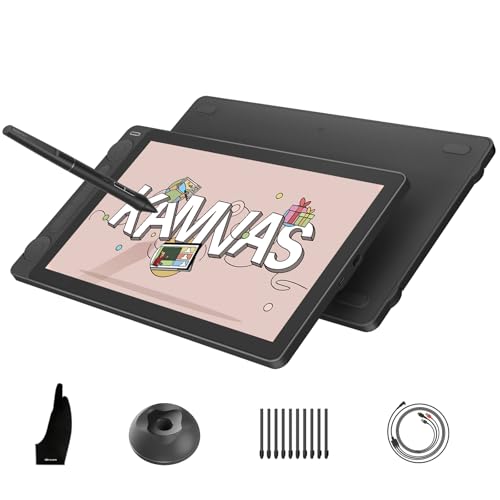
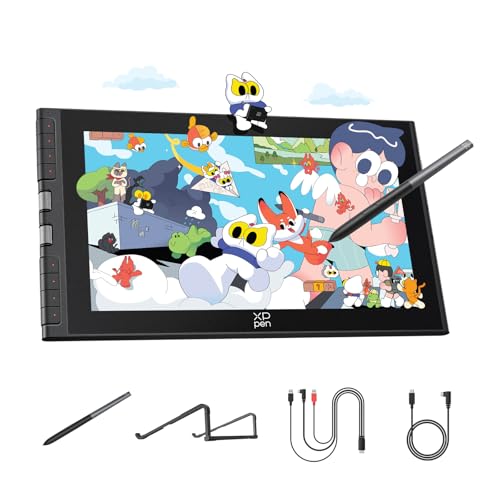
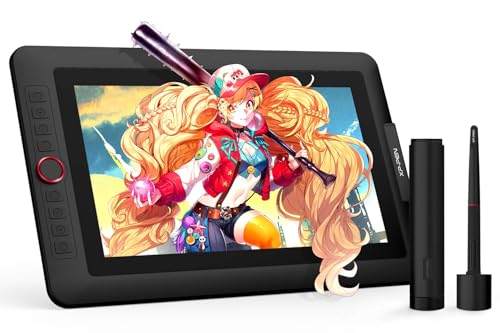
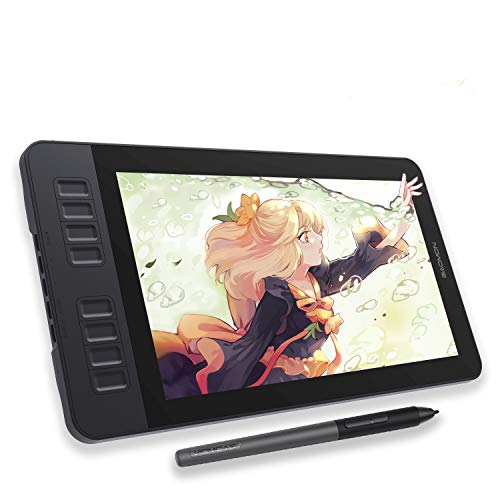



Drawing Tablets 101: The Basics
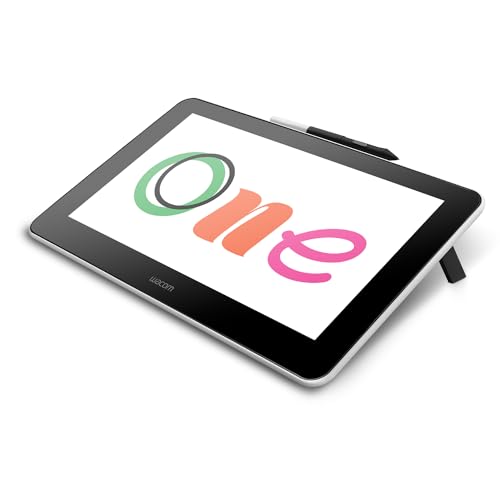
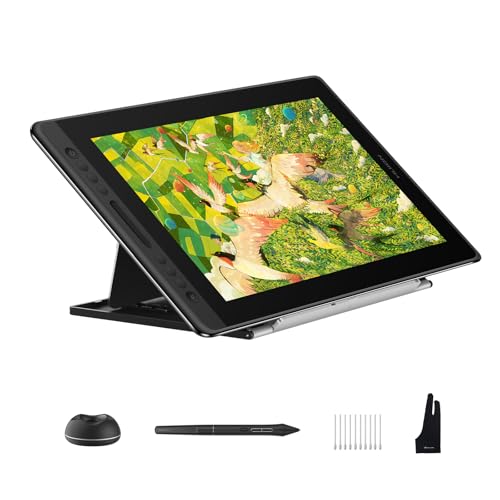
A drawing tablet with a screen, often called a pen display, is a monitor with a pen sensitive surface. You draw on the glass, and the strokes appear in your art software exactly where your pen touches. Most affordable models are pen displays that connect to a Windows or Mac computer, which supplies the processor, storage, and programs. A smaller group of standalone tablets runs Android or iPadOS and works with no computer at all, but they cost more for the same screen size.
Three terms cover most listings. Pressure sensitivity is how many levels of force the pen can detect, which controls line thickness and opacity as you draw. Parallax is the small gap between the pen tip and the pixel beneath the glass; laminated screens shrink that gap and feel more accurate. Color gamut describes how much of a standard color range the screen can show, and a wider gamut means reds and greens in your file look closer to print. Battery free pens, which need no charging, are now standard on most models and are the type to choose.
Key Specs Explained in Plain English
What You Can Realistically Get on a Budget
For around $180 to $350 you can expect a sharp 11 to 16 inch display, a battery free pen with strong pressure support, and a laminated screen on many models. What gets cut at this price is usually color accuracy headroom, premium pen feel, shortcut buttons, and sturdy included stands. Do not compromise on the pen itself or on screen lamination if you can avoid it, because those two shape every drawing session. A slightly smaller screen with a good pen beats a large screen with a vague, laggy pen. Save a little of your budget, around $20 to $40, for a drawing glove, a stand, and spare pen nibs.
Why Choose a Drawing Tablet With Screen
Drawing on a screen removes the hand and eye split that beginners struggle with on screenless models, where you move a pen on a desk pad while watching a separate monitor. On a pen display, lines land under your pen, so learning feels faster and tracing or inking is easier. The trade offs are cost, desk space, and heat, since the display sits in front of you like a small monitor. If you are unsure the format suits you, our overview of the best drawing tablets without screen explains the cheaper route and who thrives with it. Students and hobbyists who sketch daily usually adapt to a screen within days.
Processor and Performance Tier
Here is the point that confuses most first time buyers: a pen display has no processor of its own, so its speed is your computer speed. If your laptop already runs your art software smoothly, an affordable pen display will feel fast. Standalone tablets are different, because the chip inside decides everything. Recent mid range chips handle sketching, inking, and moderate photo work comfortably, while entry chips struggle once canvases grow past poster size or layer counts climb. If you plan 3D sculpting or animation, judge the computer or the standalone chip first and the screen second, because no display can fix a slow host machine.
Operating System (Windows, macOS, ChromeOS, Android, iPadOS)
Your operating system decides which art programs you can run. Windows and macOS support the full desktop apps used by most illustrators, and nearly every pen display ships drivers for both. Standalone Android tablets rely on mobile apps, which are capable for sketching and social media art but sometimes lack advanced print tools. iPadOS models sit above most budgets yet offer polished apps. ChromeOS support is growing, but driver support varies by brand, so confirm your exact model is listed as compatible before buying for a Chromebook. Match the tablet to the software you already own or plan to learn, not the other way around.
RAM and Storage
For pen display buyers, RAM and storage live in your computer: 8 GB of RAM is a workable minimum for drawing apps, and 16 GB is the comfortable choice for large canvases and many layers. An SSD keeps apps and files opening quickly. For standalone tablets, treat 8 GB of RAM and at least 128 GB of storage as the sensible floor, because art files, app caches, and exported images fill space faster than expected. Cloud backup protects finished work, and an external drive is a cheap safety net. Running out of storage mid project is a rookie problem you can plan away today.
Once these specs make sense, compare wider choices in our guide to the best drawing tablets with screen, which covers higher price bands too.
Choosing Drawing Tablets for Your Situation
Best Affordable Drawing Tablets with Screen and Pressure: Tips for First Time Buyers
Pressure is the feature that turns a screen into an art tool, so weigh it carefully. Look for at least 8,192 pressure levels on paper, but judge feel over numbers, because pen tilt support and a low activation force matter more in real strokes. Check that the pen tracks evenly in slow diagonal lines, since wobble in slow lines is a common budget flaw that fast scribbles hide. Also confirm spare nibs are included and cheap to replace. If pressure control is your top concern, start with the models in the product table above that pair high pressure support with a laminated screen, then check driver reviews for your operating system.
Rookie Mistakes to Avoid
- Buying the biggest screen first. A 22 inch display overwhelms small desks and tiring arm movements follow; 13 to 16 inches suits most beginners.
- Forgetting the computer. A pen display is not a computer, so an old laptop with a weak chip will still lag no matter how nice the screen is.
- Ignoring cable and port needs. Many models want a USB C port with display support or a free HDMI port plus a USB port, so check your machine before ordering.
- Chasing pressure numbers alone. Pen feel, parallax, and driver quality change your lines more than the jump between high pressure counts.
- Skipping the software budget. Some art programs are free and excellent, but if your course or job needs a paid app, include that cost from the start.
Getting Started: Setup and First Use
Install the driver from the maker site before you plug the tablet in, then restart your computer so the pen settings load cleanly. Connect the cables, open the driver panel, and calibrate the pen by tapping the target points while holding the pen at your natural angle. Set the two pen buttons to undo and right click, which speeds up nearly every program. Keep the OS and firmware updated, since driver updates often fix pen lag and button bugs. Know how to check pen pressure inside your art app with a test scribble page, because that confirms the full setup works. For standalone models, avoid running at 100 percent charge all the time; unplugging at a full battery and working on power cycles keeps the battery healthier over years.
New artists who want a gentler learning curve can also read our guide to the best drawing tablets for beginners with screen for setup focused advice.
Frequently Asked Questions
Is a dedicated GPU worth it for a drawing tablet setup?
For most 2D drawing, no, because modern integrated graphics handle sketching, inking, and painting smoothly. A dedicated GPU earns its cost when you move into 3D sculpting, heavy filters on huge files, or video work alongside your art. Remember that the GPU lives in your computer, not in a pen display, so upgrading the screen never adds graphics power. Put the money toward RAM first, and consider a GPU only when your software visibly slows down.
How much RAM do I need for drawing software?
Eight gigabytes is the practical minimum and suits sketching and modest canvases. Sixteen gigabytes is the safer target if you paint with many layers, large brushes, or several apps open at once, and it extends the useful life of your setup. On standalone tablets, more RAM keeps big files responsive when you zoom and rotate the canvas. If your budget forces a choice, extra RAM usually improves daily drawing more than a slightly larger screen.
Should I buy a laptop or a tablet for drawing?
Buy a pen display plus a decent laptop if you need full desktop software, file management, and school or office work in one setup. Choose a standalone tablet if portability matters most and mobile art apps cover your style. Many students start with a laptop they already own and add an affordable pen display, which is the lowest cost path. A standalone becomes attractive later, when you know you draw away from your desk often enough to justify it.
How long should a drawing tablet last?
A well kept pen display commonly lasts four to six years, and the screen itself often outlives the pen nibs and cables, which are cheap wear parts. Driver support is the hidden limit: once a maker stops updating drivers for new operating systems, an older tablet can become unreliable. Buying from a brand with a track record of long driver support protects your purchase. A screen protector film, replaced once a year or so, keeps the drawing surface smooth and scratch free.
Is a Chromebook enough for school drawing?
It can be for light sketching, notes, and web based art tools, but it is the riskiest host for a pen display. Driver support for ChromeOS covers only some models, and many full art programs simply do not run on it. Check the maker compatibility list for your exact tablet and Chromebook before spending anything. If your course names specific desktop software, you need Windows or macOS instead. For general schoolwork plus casual doodling, a Chromebook paired with a confirmed compatible display is acceptable.
Final Thoughts: Best Affordable Drawing Tablets with Screen
Decide between a pen display and a standalone first, then judge pen feel, lamination, and driver support before screen size. Compare the best affordable drawing tablets with screen in the product table above against your computer ports and your desk space, and your first tablet will feel like a tool you grow with, not a gadget you outgrow. Readers still weighing formats can finish with our guide to the best affordable drawing tablets across both styles.


