
Best Affordable Drawing Tablets 2026: A Beginner Guide
Disclosure: We may earn a commission when you buy through links on this page, at no extra cost to you. As an Amazon Associate I earn from qualifying purchases. Learn more
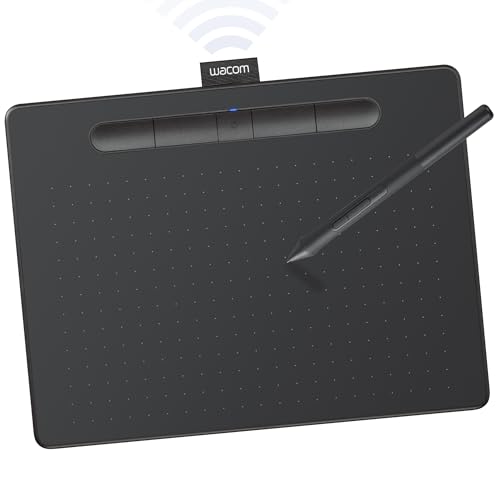
Pen response, active area, and software support: a plain guide to choosing the best affordable drawing tablets for your budget.
Digital drawing can feel magical when pen and screen work together, and frustrating when lag, parallax, or a tiny active area gets in the way. A clear best affordable drawing tablets guide helps beginners and hobby artists choose a tablet that matches their art style and budget. The comparison table below gives a quick overview of the main types.
Drawing tablets come in screenless models that connect to a computer monitor, and pen display models with a built in screen you draw on directly. Screenless models cost less and suit desk setups, while pen displays feel more natural but cost more and need desk space. This guide explains pen feel, size, software, and ergonomics so you can choose with confidence.

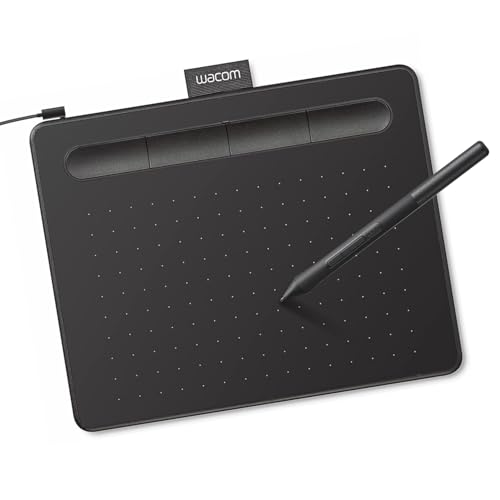
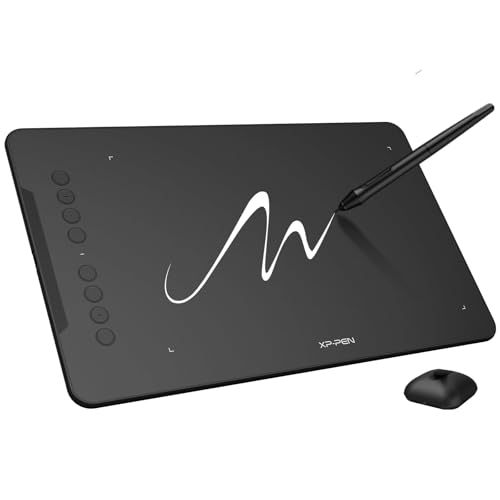

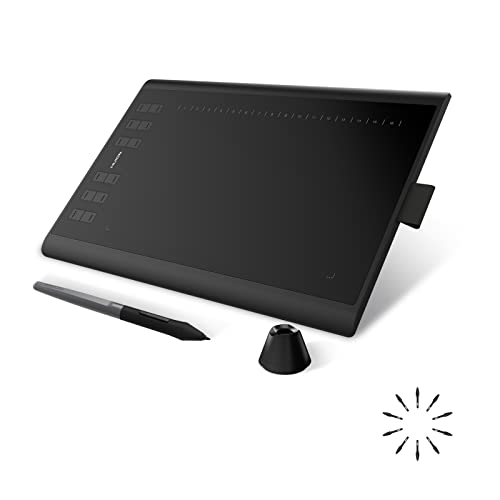

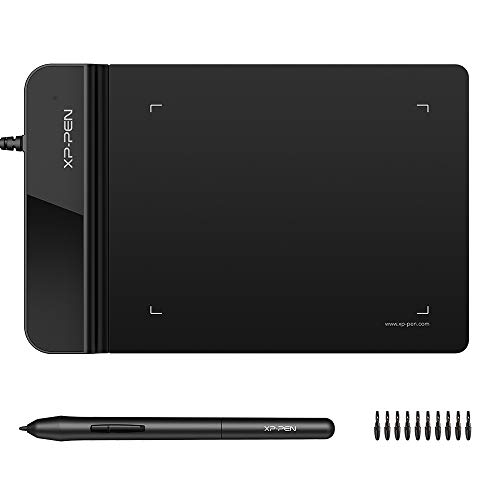
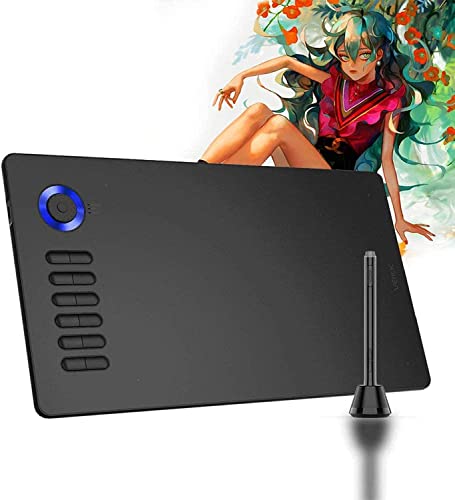
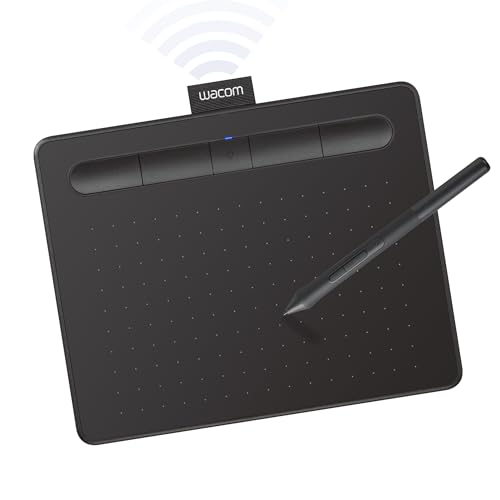
Screenless Tablets vs Pen Displays
Screenless tablets let you draw on a pad while looking at your computer monitor, which feels strange at first but becomes natural with practice. They are light, portable, and affordable, making them a strong first tablet for students and hobbyists. The main adjustment is hand eye coordination, since your hand moves on the pad while your eyes watch the screen, much like using a mouse.
Pen displays show your drawing directly under the pen, which feels closer to paper and helps with precise line work and lettering. They cost more, need a desk stand or arm for comfort, and add screen glare and weight to consider. If you draw for hours daily or struggle with screenless coordination, a pen display may be worth the extra cost, but beginners often learn happily on a screenless model.
Pen Pressure, Tilt, and Line Feel
Pen pressure levels decide how finely a tablet responds to light and heavy strokes, and higher levels generally allow smoother shading and line variation. In practice, most artists use a limited pressure range, so a very high maximum matters less than smooth, consistent response without jumps or dead zones. Look for a pen that feels balanced, with buttons placed where you will not press them accidentally.
Tilt support lets the pen sense angle, which helps calligraphy, shading, and natural brush effects in compatible software. Battery free pens are convenient, since they never need charging, while battery pens may feel slightly different in weight and balance. Test line feel if possible, including diagonal lines and slow curves, since wobble or lag shows up most clearly in slow, careful strokes.
Active Area, Size, and Desk Setup
Active area is the drawing surface, not the whole tablet body, and it should suit your arm movement and screen size. A small active area suits sketching and photo editing on a laptop, while a larger area suits broad arm strokes and large monitors. Too large an area can strain your shoulder if you must reach across it constantly, so match size to your desk and monitor, not to ambition alone.
Desk setup matters for comfort, including tablet angle, monitor height, and chair support during long sessions. A slight tilt stand can reduce wrist strain, and a clean desk with room for your drawing arm prevents cramped strokes. If you travel, a compact tablet that fits your laptop bag may serve better than a large model left at home.
Software, Compatibility, and Learning Curve
Check software compatibility with your computer system and your preferred art apps before you buy, since drivers and app support vary. Most tablets work with popular drawing and photo apps, but pen buttons, tilt, and pressure may behave differently across programs. Download the latest driver from the maker site, and test pressure in your main app during any return window.
Learning curve is real, even for experienced paper artists, so allow a few weeks of regular practice before judging a tablet. Start with simple sketches and exercises, customize pen buttons gradually, and keep paper sketching alongside digital work if it helps your creativity. A tablet that feels awkward on day one may feel natural by week three, so judge after practice, not after a single session.
Budget Choices and Long Term Value
At affordable prices, prioritize pen smoothness, driver reliability, and a size that suits your desk over extra buttons or flashy extras. A simple reliable tablet often serves a beginner better than a complex model with features you never configure. Check warranty, driver update history, and community support, since those factors affect whether a tablet stays useful after system updates.
As skills grow, you may want a larger area, a pen display, or better tilt support, and that upgrade path is normal. Start affordable, learn what you actually need, and upgrade based on real limits rather than imagined ones. A first tablet that teaches you your preferences is good value even if you replace it later with a more advanced model.
Related guides include best affordable drawing tablets with screen, best most affordable tablets, and best pc tablets.
A Final Check Before You Buy
Before you order, measure your desk and monitor setup, and imagine your drawing arm moving across the active area for an hour without strain. A tablet that is too large for a small desk forces cramped elbow positions, while a tablet that is too small for a large monitor makes fine control feel twitchy and imprecise. If possible, test sizes in a shop or borrow a friend tablet for a short session, since size preference is personal and difficult to judge from dimensions alone.
Check driver support for your operating system version and your main art application, and read recent user feedback about driver stability rather than relying only on launch reviews. A tablet with excellent hardware but unreliable drivers will frustrate every session, while a simpler tablet with stable drivers feels effortless. Download the latest driver, test pressure and tilt in your actual app during the return window, and keep a note of driver settings that work, so a future update does not silently change your pen feel.
Finally, plan a learning routine for the first month, with short daily exercises in line control, shading, and pressure variation, rather than judging the tablet on a single ambitious project. Early awkwardness is normal, especially on a screenless model, and regular practice builds the hand eye coordination that makes digital drawing feel natural. Keep paper sketching alongside digital work if it supports your ideas, and upgrade only when a specific limit, such as size or screen need, clearly holds you back.
Frequently Asked Questions
Should a beginner choose a screenless tablet or a pen display?
A screenless tablet is usually the better first choice, since it costs less, travels easily, and teaches digital drawing fundamentals well. A pen display feels more natural but costs more and needs desk space and a stand. Start screenless unless you know you struggle with hand eye coordination or you draw professionally for long hours.
How important are pen pressure levels?
Pressure levels matter for smooth shading and line variation, but smooth consistent response matters more than an extremely high maximum number. Most artists use a modest pressure range in daily work, and a tablet with steady response feels better than one with high numbers but jumpy lines. Test slow curves and shading if possible before deciding.
What size drawing tablet should I buy?
Choose a size that matches your monitor and desk, with room for comfortable arm movement without shoulder strain. Small tablets suit laptops and travel, medium tablets suit most desk setups, and large tablets suit broad strokes and large monitors. A medium size is a safe starting point for most beginners.
Do drawing tablets work with all art software?
Most tablets work with popular drawing and photo apps, but pressure, tilt, and pen buttons may behave differently across programs. Check compatibility with your main app and operating system before buying, and update drivers from the maker site. Test your usual workflow during the return window to catch any compatibility issue early.
How long does it take to learn a drawing tablet?
Most people need a few weeks of regular practice before a tablet feels natural, especially when moving from paper. Start with simple exercises, customize buttons gradually, and draw daily in short sessions rather than one long frustrating session. Patience and practice matter more than tablet price for early progress.
Final Thoughts: Best Affordable Drawing Tablets
An affordable drawing tablet should remove barriers to creativity, not add technical frustration, so prioritize pen feel, driver reliability, and comfortable size. The product table above can help you compare types, but your art style and desk setup should guide the choice. Start simple, practice regularly, and upgrade when you hit a real limit.
Compare best affordable drawing tablets on pen response, active area, software compatibility, and comfort, and choose the model that invites you to draw every day. Start with a simple reliable model, practice daily, and let real experience guide any future upgrade to a larger or screen based tablet. A tablet you enjoy using will improve your art far more than an expensive model left in a drawer.


