
Best Accessories for Tablets: Cases, Keyboards and Stands for 2026
Disclosure: We may earn a commission when you buy through links on this page, at no extra cost to you. As an Amazon Associate I earn from qualifying purchases. Learn more

Cases, keyboards, styluses and stands compared by how you use your tablet, with fit checks to help you choose the best accessories for tablets.
A tablet is only as useful as the gear around it. A case saves it from the first drop, a keyboard turns it into a small laptop, and a good stand makes video calls and recipes easier. The best accessories for tablets are the ones that fit your exact model and fix a problem you meet every week, so this guide starts with how you use the tablet and works outward.
The product table above lines up the most useful accessory types. Read the sections below to decide which to buy first and which can wait.
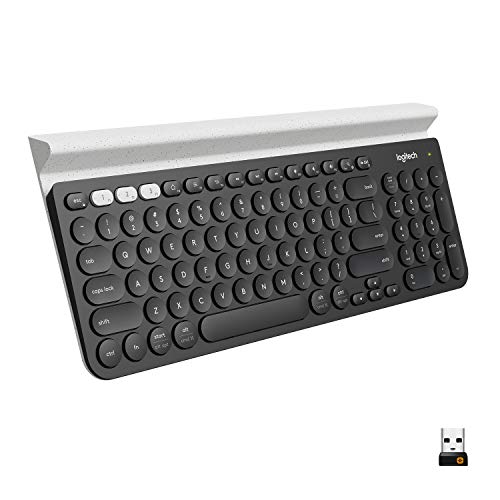

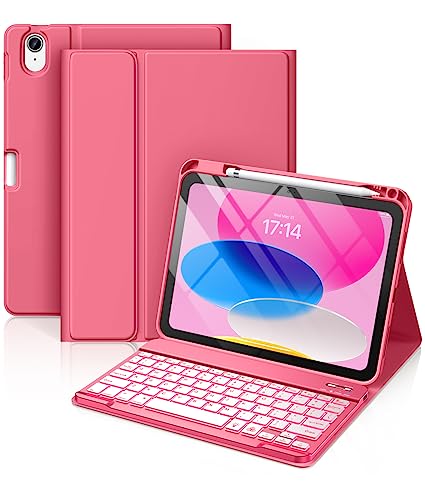
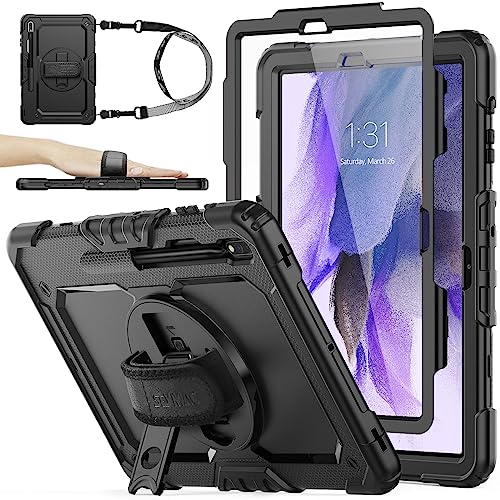

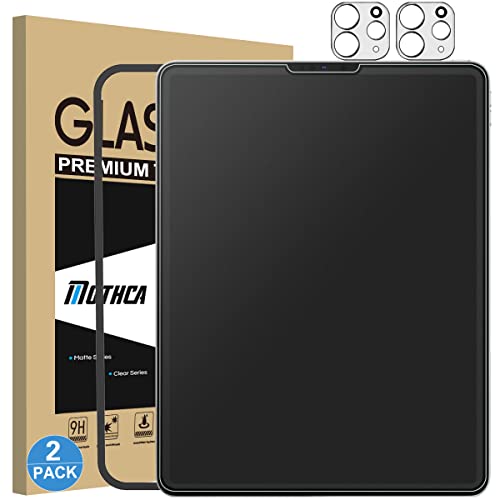

Who Should Buy Which Tablet Accessories
Families and Parents of Young Children
Protection comes first. A thick, shock absorbing case with a built in stand or handle survives drops and sticky fingers, and a tempered glass screen protector takes scratches instead of the screen. Choose a case that leaves speakers and ports open and keeps the camera usable. Add a sturdy charging cable to leave in the living room so the tablet is always ready.
Students and Note Takers
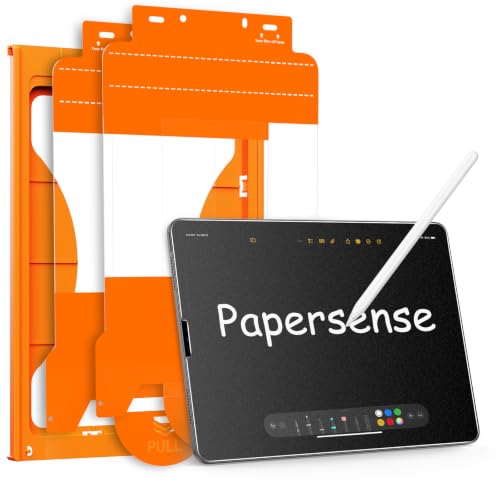
You want a comfortable way to type and write. A Bluetooth keyboard or a keyboard case makes essays and email faster, while a stylus helps with handwritten notes and diagrams. A paper feel screen protector adds friction for drawing and writing. Check that the stylus supports your tablet, since not every pen works on every model.
Remote Workers and Creators
A keyboard case with a trackpad, a stand that holds the screen at eye level and a USB C hub for storage and displays turn a tablet into a workstation. Look for a keyboard with a comfortable key layout and a stand that adjusts to several angles. Creators who draw should compare stylus pressure levels and screen protector texture.
Travelers and Commuters
Choose a slim case that adds little weight, a folding stand and a compact charger with a short cable. A padded sleeve protects the tablet in a bag when you want to keep the case slim. Keep the charger and cable in a small pouch so they never get left behind on a trip.
Key Features to Compare
Exact Model Compatibility
Tablet accessories are made for specific models and sizes. Check the model name, the screen size and the generation before you order, because a case for one generation often blocks the camera or buttons on the next. For Android tablets, look at the model number printed on the back of the tablet or in the settings menu.
Protection Versus Bulk
Rugged cases protect corners and the screen edge but add weight and thickness. Slim folios save space and still cover the back. Decide how much risk your routine involves: a tablet that travels in a school bag needs more protection than one that lives on a coffee table.
Input and Productivity
Check key travel, layout and whether the keyboard connects by Bluetooth or through a magnetic connector. Look for a stylus with palm rejection support if you write or draw. A stand should be stable on a bumpy lap or on a desk, with an angle range that suits both typing and watching.
Power and Connectivity
Chargers, cables and hubs should support the wattage and data speed your tablet uses. A charger that is too weak slows charging or may not keep up while you work. Choose a certified cable and a hub with the ports you really need, such as USB, HDMI or an SD card slot.
Screen Protectors
Tempered glass resists scratches and feels smooth, while a paper feel film adds grip for drawing but softens sharpness slightly. Buy multi packs so a first failed installation does not leave you without a protector. Apply the protector in a clean, dust free room and press out bubbles slowly from the center.
Types of Tablet Accessories Compared
Cases and Covers
Cases are the first accessory most owners buy. Folio cases double as a stand, kids cases add thick bumpers and handles, and slim shells keep the tablet light. A magnetic case that wakes and sleeps the tablet is a small convenience many people like.
Keyboards
Keyboard cases combine protection and typing in one piece, while separate Bluetooth keyboards work with several devices and pack flat. Compare key feel, battery life and whether the keyboard supports your operating system shortcuts.
Stylus Pens
Active styluses add pressure sensitivity and palm rejection, while simple capacitive pens work like a fingertip. Pick the type your tablet supports, and keep spare tips if the pen uses replaceable ones.
Stands and Holders
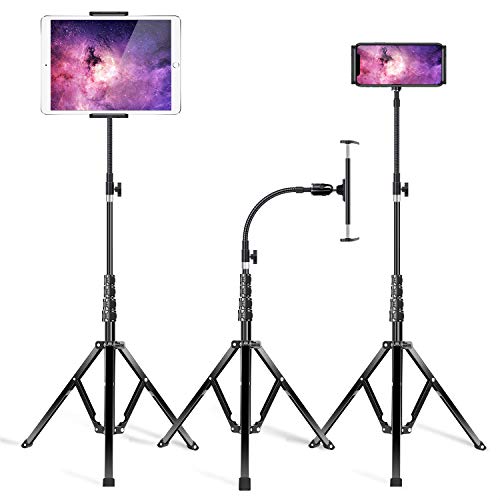
Desk stands, floor stands with a gooseneck and kitchen mounts all change how comfortably you use a tablet. Check the clamp range so the stand fits your tablet inside its case.
Common Mistakes to Avoid
- Buying a case or protector for a similar looking model instead of your exact one.
- Choosing a keyboard with cramped keys and discovering that typing is slower than on the screen.
- Paying for a premium stylus when your tablet does not support active pens.
- Using a weak charger and wondering why the tablet charges slowly while in use.
- Skipping return terms on accessories that need to be tried on the tablet itself.
Care and Longevity
Wipe cases and screens with a soft, slightly damp cloth and dry them fully. Remove the tablet from its case now and then to clear grit from the corners. Store cables without tight bends, replace a cracked screen protector before it affects touch response and keep keyboards dry. Charge keyboards and styluses on a schedule so they are ready when you need them.
A Final Check Before You Order
Write down the tablet model, the screen size and the main job you want the accessory to do. Match the accessory to that job, check the compatibility list on the product page and read the return terms. Buy one or two items first, use them for a week and add more only if a real gap remains. If you are still choosing a tablet itself, our guide to the best tablets to purchase covers the options.
Frequently Asked Questions
What tablet accessory should I buy first?
Buy a fitted case and a screen protector first. They prevent the most common and most expensive damage. Add a keyboard, stylus or stand once you know how you use the tablet.
Do all styluses work with every tablet?
No. Active styluses are made for specific tablet families, while simple capacitive pens work on most touch screens but without pressure sensitivity. Check the tablet maker's compatibility list before buying.
Is a keyboard case better than a separate keyboard?
A keyboard case is more compact and protects the tablet, while a separate keyboard usually has better keys and works with several devices. Choose the case if you travel often and the separate keyboard if you type at a desk.
How much should I spend on tablet accessories?
A good case and protector cost about $20 to $60 together. Keyboards range from about $25 for basic models to $150 or more for premium ones. Spend more on the item you use daily and less on extras you try once.
Can I use a phone charger for my tablet?
Often yes, but a tablet may charge slowly on a low power phone charger. Use a charger with enough wattage for your tablet and a certified cable, and follow the maker's guidance.
Final Thoughts
Match every accessory to your exact tablet, start with protection, then add the input and stand gear your routine calls for. Use the table above to compare prices and sizes, and choose the best accessories for tablets that fit the way you use yours.


