Best 4K Monitors for Work in 2026: Which Type Is Right for You?
Disclosure: We may earn a commission when you buy through links on this page, at no extra cost to you. As an Amazon Associate I earn from qualifying purchases. Learn more
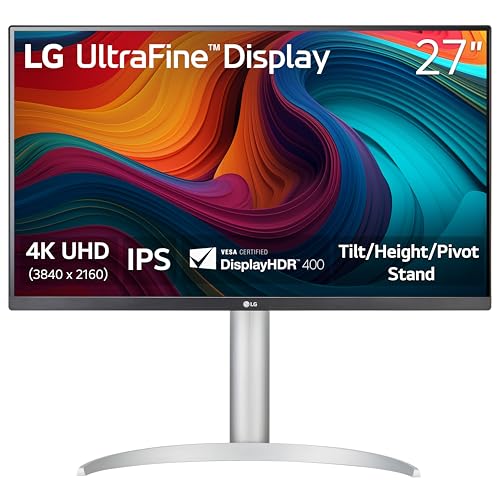
Best 4k monitors for work compared by size, panel type, ports, and ergonomics, to fit your desk, your tasks, and your budget.
Choosing the best 4k monitors for work is tricky because a screen that shines for video editing may be overkill for email and spreadsheets, while a bargain screen may strain your eyes during a full workday. This guide compares the main types side by side, so you can see how size, panel behavior, ports, and stand design affect real tasks. Use the product table and the comparison table below to short list the type that fits your desk and your daily workload.
Work screens need to do a few jobs well: show small text clearly, keep windows organized, connect to your laptop or desktop without fuss, and stay comfortable for hours. Color needs vary by job, so a writer and a photo retoucher will not need the same tuning. The sections below explain each type in practical terms, then give you a simple decision path based on task, space, and budget.

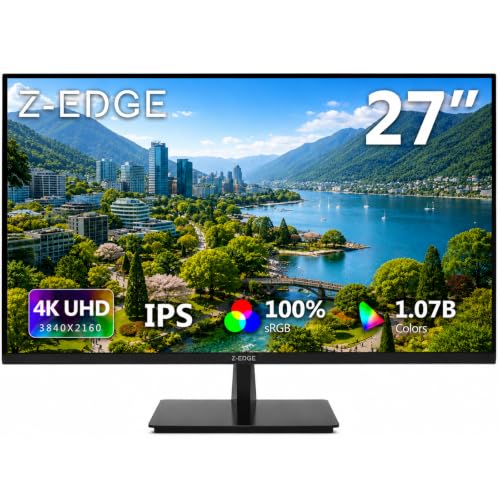
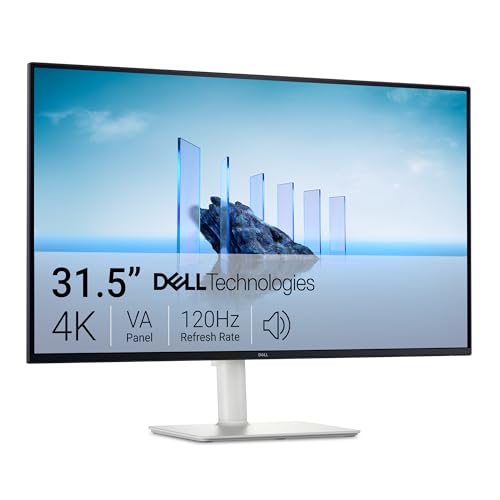
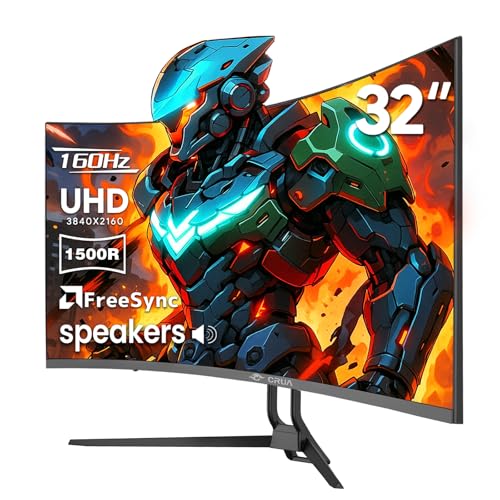
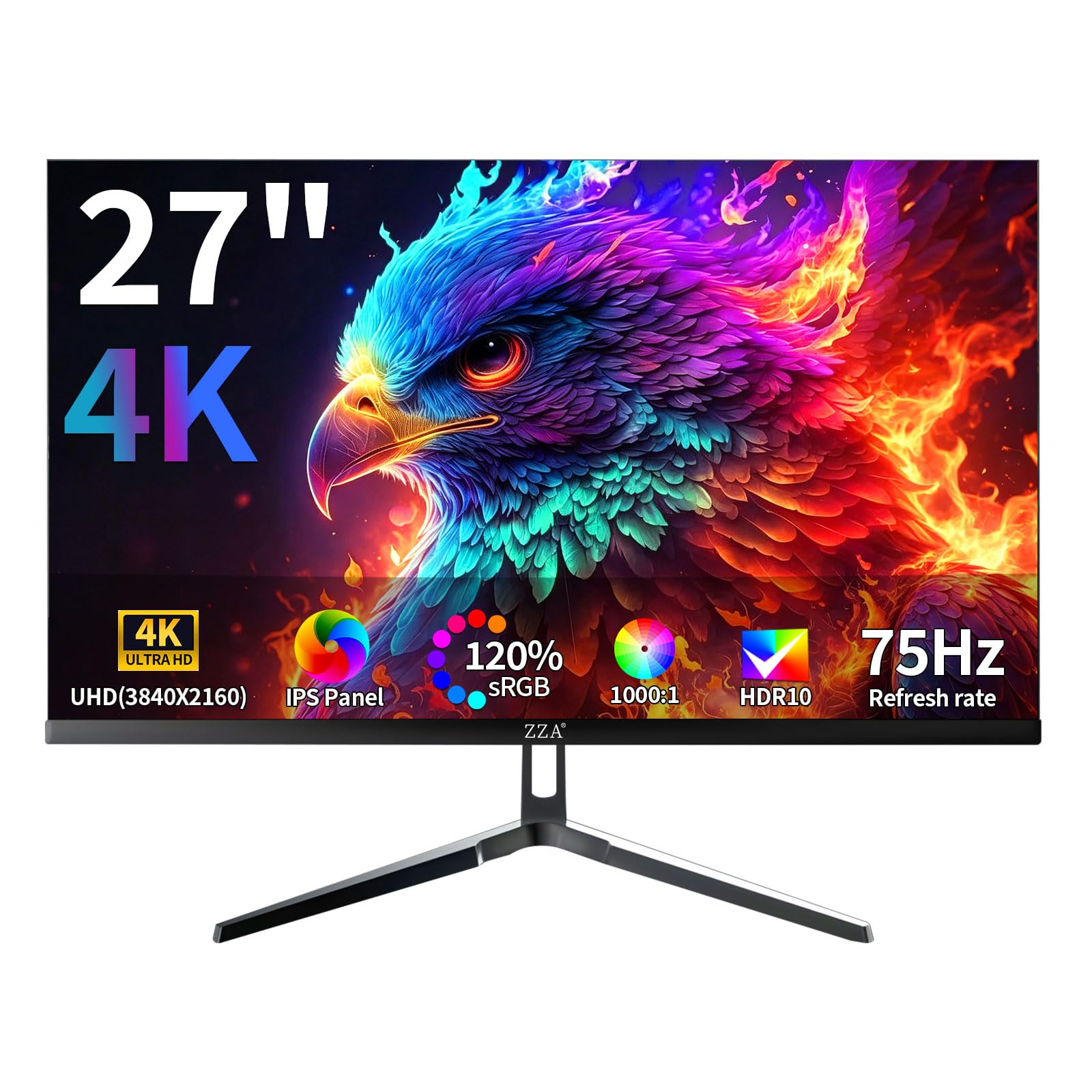
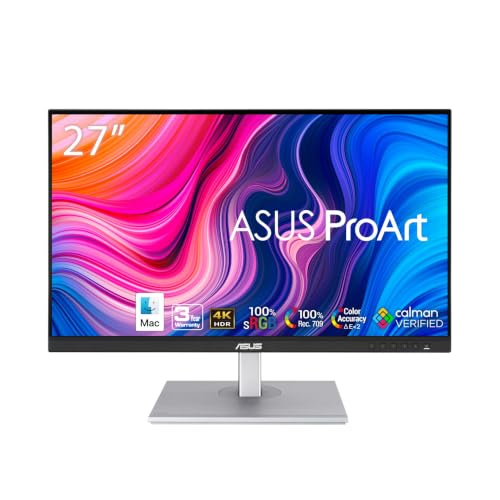
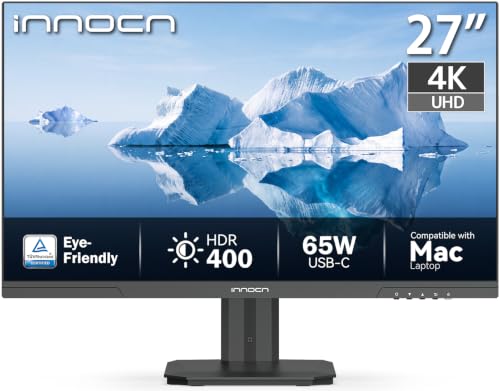
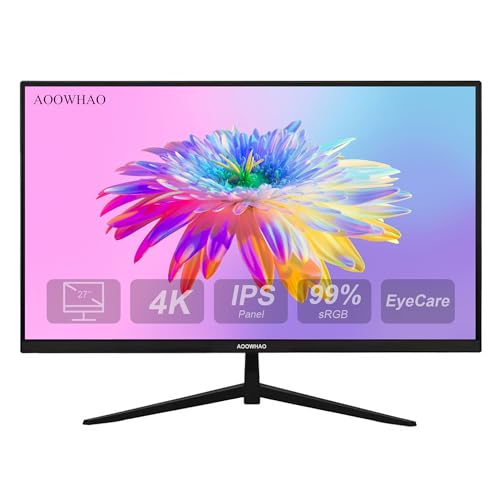
Types of 4K Monitors for Work Compared
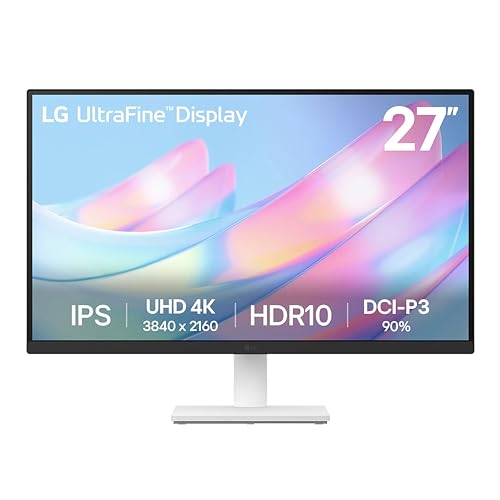
The table below summarizes the main work focused types at a glance. Read the type sections that follow for the trade offs behind each row, because price and size alone do not tell you how a screen will feel after eight hours.
| Type | Best For | Pros | Cons | Typical Price |
|---|---|---|---|---|
| Large Screen Options | Multitasking and timelines | Room for several windows | Needs desk depth | About $350 to $700 |
| Budget Displays | Everyday office tasks | Sharp text at lower cost | Simpler stands and color tuning | About $250 to $450 |
| Gaming Displays | Mixed work and play | Smooth motion and sync | Color presets may need tuning | About $400 to $800 |
Large Screen Options
Large screen options are best when your work involves several open windows, long timelines, or wide spreadsheets. A 32 inch screen, for example, can hold a document, a reference page, and a chat window without constant switching. The trade off is desk depth: you need enough distance to scan the whole screen without turning your head too much. Check scaling settings as well, because a large screen only helps if text stays at a comfortable size for your eyes.
Large screens also suit shared viewing sessions, where two people need to read the same document. In that case, wide viewing angle stability matters, so an IPS based model often works better. Measure stand width and cable reach before you buy, because a large foot and short cables can create clutter.
Budget Displays
Budget displays are best when your main tasks are writing, email, browsing, and video calls. They still deliver the sharp text that makes 4K useful, but they may use a simpler stand, fewer USB ports, and less refined color presets. That trade off is sensible if you do not edit color critical work and you already own a dock or a hub. Focus on matte finish, stable brightness control, and a port that supports full resolution from your computer.
A budget display can disappoint if you assume it will also serve as a color reference or a gaming screen. Check stand adjustment carefully, because a screen that sits too low can cause neck strain. A low cost monitor arm can sometimes fix a basic stand, but factor that cost into your comparison.
Gaming Displays
Gaming displays are best when one screen must serve both work and play after hours. They offer faster refresh rates and adaptive sync, which make games and fast scrolling feel smoother. Their color presets sometimes favor vivid images, so you may need to switch to a neutral preset for documents and design work. If you play games only occasionally, do not pay a large premium for speed you will rarely notice during work.
For mixed use, look for a gaming display that also offers good text clarity, a height adjustable stand, and ports for both a PC and a console. If work is your sole priority, a work focused model with better ergonomics and color tuning is usually the smarter buy.
Large Screen Options vs Budget Displays: Which Should You Choose?
Choose a large screen when multitasking is your bottleneck and your desk can support the extra size. Choose a budget display when your tasks are mainly text based and you want to keep cost down without losing sharpness. Compare them on five points: window room, viewing distance, stand adjustment, port count, and color needs.
A large screen wins on window room but loses on desk fit, while a budget display wins on price but may need an arm or a hub to match comfort. If you edit images or video, neither type is ideal unless its color tuning and brightness control meet your task, so check those specs before you let size or price decide.
How to Choose the Right 4K Monitor
Once you know the type, use the factors below to compare models within that group. Each factor affects a different part of the workday, from reading comfort to cable management. Keep notes on your desk size, your computer ports, and your most common tasks, and judge each model against those real constraints.
Panel Technology
Panel technology shapes color stability, black depth, and viewing angle behavior. IPS panels hold color well from the side, which helps in shared viewing and wide seating. VA panels can show deeper blacks but may shift more at an angle, while OLED panels show very deep blacks and fast response but need care with static content and bright rooms.
Mini LED backlight designs can improve brightness control, yet results depend on tuning and zone count. Pick the panel by room light and seating, not by a single contrast claim.
Features That Matter for Work
Work use creates specific needs that gaming specs do not capture. Text clarity at your normal distance matters most, followed by steady brightness, flicker control, and a low glare finish. A USB hub, a laptop charging port, and a clear input switch can save daily friction when you dock and undock.
For document heavy jobs, look for good scaling support and a stand that puts the top of the screen near eye level. For design jobs, add color coverage and preset accuracy to that list, and check them with your own files when possible.
Connectivity and Ports
Ports decide whether a screen works cleanly with your current computer or forces you to buy adapters. Check for DisplayPort, HDMI, and USB C options, and confirm which port supports full 4K resolution at your preferred refresh rate. A USB C port that also delivers power can simplify a laptop setup to a single cable, but only if its power output matches your laptop needs. Count your peripherals too, because a built in hub can replace a separate dock for a keyboard, a mouse, and a webcam.
Stand, Mounting, and Ergonomics
Ergonomics affect comfort more than most buyers expect, because a screen that sits too low or too far to one side can cause strain over weeks. Height, tilt, and swivel adjustments let you align the screen to your chair and desk, while a VESA pattern lets you switch to an arm later. Check the footprint as well, because a broad stand can push your keyboard back or crowd a notebook. If you share the desk, quick height adjustment becomes even more valuable.
HDR and Brightness
Brightness and HDR handling matter differently for work than for movies. For documents, steady brightness and glare control beat peak brightness, because you read text for hours rather than watching brief highlights. HDR support can improve video and photo preview, but only if the screen handles mixed bright and dark content well.
Check supported formats such as HDR10, and avoid judging HDR quality by brightness numbers alone. In a bright room, a matte finish and good brightness range often help more than a high peak figure.
Tips to Get the Most From Your 4K Monitor
Small setup habits can make a good screen feel much better. Start by setting a neutral picture preset and adjusting brightness to match room light rather than leaving the screen at maximum. Use the scaling setting that keeps text readable, and arrange windows so your main task sits directly ahead.
Clean the panel with a microfiber cloth only, keep cables tidy, and use sleep settings when you step away. If you use an OLED model, follow the maker pixel refresh guidance and avoid leaving static menus on screen for long periods.
For related options, see our guide to best 4k computer monitors for work when you want desktop focused comparisons, and see our guide to best work monitors for a broader work screen short list. If you also play games, see our guide to best gaming monitors and our guide to best 4k monitors gaming for motion focused traits. For laptop pairing, see our guide to best pc monitors for work before you finalize ports and hub needs.
Frequently Asked Questions
What Features Matter Most in 4K Monitors for Work?
Text clarity, comfortable brightness, good ergonomics, and the right ports matter most for work screens. Sharp text reduces reading fatigue, while a height adjustable stand keeps your neck in a neutral position during long sessions. Ports matter because a mismatch can force adapters or limit resolution, which undermines the benefit of 4K. Color accuracy joins that list only when your job involves design, photo, or video work, so rank features by your actual tasks rather than by spec sheet length.
Is 4K Worth It for Office Work?
Yes, 4K is worth it for many office workers, because it sharpens text and lets you place more windows on one screen. The gain is strongest on 27 inch and larger screens used at a normal desk distance, where small fonts stay legible. It helps less if you work mainly on a small screen, sit far away, or use low resolution content all day. Confirm that your computer and cable support full resolution, or the upgrade will not deliver its full benefit.
What Size Should I Get for My Room or Desk?
Let desk depth decide size, because a screen that is too large for its distance forces extra head movement. A 27 inch screen fits most standard desks, while a 32 inch screen suits deeper desks and multitasking heavy jobs. Measure from your eyes to the screen position, leave room for the stand, and check scaling so text does not become tiny. In a compact room, a well placed smaller screen often feels better than a large screen squeezed onto a shallow desk.
IPS Versus OLED: Which Is Better for Work?
For most work, IPS screens are the safer default because they keep color steady from different angles and usually cost less. OLED screens offer deeper blacks and faster response, which can help video work in a dim room, but they need more care with static interface elements. Bright rooms and shared desks favor IPS stability, while dark room creative work may favor OLED contrast. Choose by room, seating, and budget, and do not let a single panel claim override those practical factors.
Does Refresh Rate Matter for People Who Do Not Play Games?
Refresh rate is a secondary factor for non gamers, because most office tasks run well at 60Hz. A higher rate can make scrolling feel smoother, yet the difference is small next to text clarity, brightness control, and stand quality. If you scroll through long documents all day, you may appreciate 120Hz, but it should not outweigh a better panel or a more adjustable stand. Spend on speed only after the core work factors are covered.
How Long Do Work Monitors Last?
Work monitors commonly last many years when brightness is kept at a comfortable level and vents stay clear. Backlight aging, heat, and power cycling affect life more than any single rated figure, so use sleep settings and avoid maximum brightness in a dim room. Watch for dim patches, color drift, or flicker, and keep warranty documents handy for any claim. A screen with a solid warranty and a clear return window is a better long term bet than one that promises an unusually long lifespan.
The Bottom Line
Match the type to your workload first: large screens for multitasking, budget displays for text heavy office work, and gaming displays only when play shares the desk. Then compare panel behavior, ergonomics, ports, and brightness against your desk size and computer. A screen that fits your space, shows clear text, and connects cleanly will improve every workday more than a flashier model with the wrong size or ports.
Check the product table one last time, short list two models that meet your core needs, and choose the one that fits your routine and budget. When you compare those finalists, keep the best 4k monitors for work as your reference point and confirm that size, ports, and comfort all line up before you order.