Best 4K Gaming PC: Everything to Know Before Your First Purchase for 2026
Disclosure: We may earn a commission when you buy through links on this page, at no extra cost to you. As an Amazon Associate I earn from qualifying purchases. Learn more

Best 4K gaming PC advice for first time buyers: which specs matter, what to avoid, and how to pick a balanced system.
Choosing the best 4k gaming pc for a first purchase can feel confusing, because the spec sheets are full of numbers that do not explain themselves. This guide walks you from the basics to a confident choice, one clear step at a time, and the comparison table below can help you compare the main options side by side.
A 4K gaming PC is simply a desktop computer built to run games at a very high resolution, with enough graphics power, memory, and cooling to keep play smooth. You do not need to understand every technical term to choose well. You need to know which specs matter most, which ones you can upgrade later, and where spending more actually changes what you see on screen.



Best 4K Gaming PC Basics for First Time Buyers
A 4K display shows about four times as many pixels as a standard 1080p display, so the graphics card has to work much harder to fill every frame. That is why a PC that runs games well at 1080p may struggle at 4K, even if the rest of the parts look similar on paper. The goal is a steady frame rate, not just a high peak number that drops during busy scenes.
Think of the main parts as a team. The graphics card, often called the GPU, draws each frame. The processor, or CPU, prepares game logic, physics, and instructions for the GPU.
Memory, or RAM, holds the data the system needs right now, while storage holds your games and operating system. If one part lags far behind the others, the whole system can stutter, so balance matters more than one headline spec.
Most first time buyers choose a prebuilt desktop rather than building from parts, and that is a sensible starting point. A prebuilt machine arrives assembled and ready to set up, with a warranty that covers the whole system, and you can still upgrade parts later in many cases. Building your own can save money and teach you a lot, but it also means you are responsible for choosing compatible parts and fixing problems yourself.
Key Specs Explained in Plain English
The sections below explain each major spec in plain language, with a practical level to look for. Use them as a checklist when you compare machines, and remember that the product table above shows how the main options line up.
CPU and GPU Pairing
The GPU matters most for 4K gaming, because it renders the detailed image at high resolution. Look for a GPU class that is clearly aimed at 4K play rather than one marketed mainly for 1080p, and check that it has enough video memory for large textures. A mid range CPU is usually enough when paired with a strong GPU, because most 4K games are limited by graphics power rather than processor speed.
Avoid a mismatch in either direction. A very expensive CPU paired with a weak GPU will not fix low frame rates at 4K, and a top tier GPU paired with a very old or slow CPU can still stutter in busy scenes. Ask whether the pairing makes sense as a whole, and look for systems where the CPU, GPU, and cooling are all in a similar performance class.
RAM and Storage
For most 4K gaming today, 16GB of RAM is a workable minimum, while 32GB gives more headroom for background apps, streaming, and future games. DDR5 memory is the newer standard on many current systems, but the amount of memory usually matters more than small speed differences between kits. If a system offers 32GB at a modest price step, it is often worth taking for peace of mind.
Storage should be a fast NVMe solid state drive, with at least 1TB if you plan to keep several large games installed at once. Modern games can take up a large amount of space, and a small drive fills up fast. A second drive bay or an extra slot is a useful bonus, because it lets you add storage later without replacing the main drive.
Case Size, Airflow, and Aesthetics
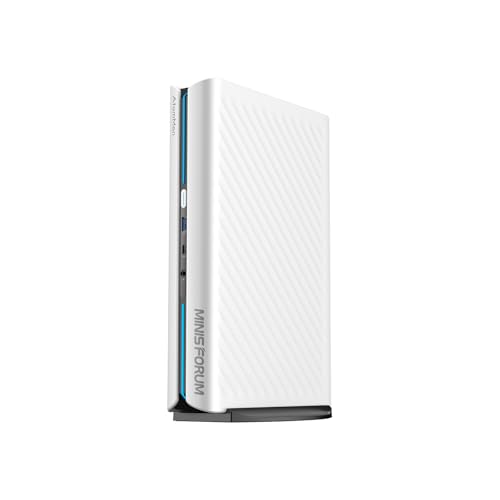
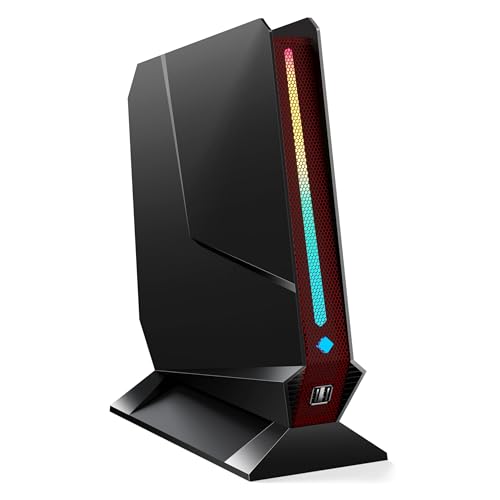
Case size affects cooling, noise, and upgrade room. Full size ATX cases usually offer the most airflow and the easiest upgrades, while smaller mATX and ITX cases save desk space but can run warmer and leave less room for larger graphics cards. Measure your desk and check the maximum graphics card length before you buy a compact case.
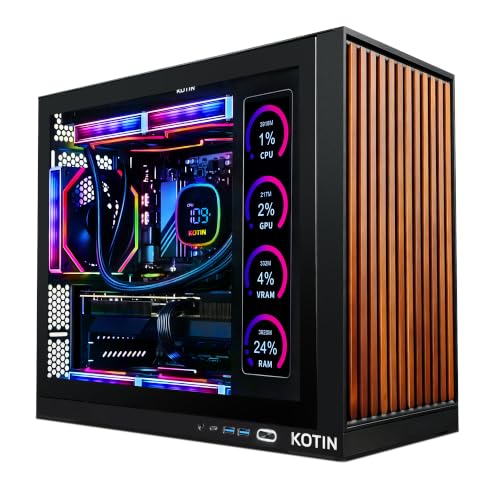
Airflow matters more than looks. A case with mesh panels, clear intake paths, and enough fans will keep parts cooler and quieter than a sealed glass box with little ventilation. Lighting and glass panels are a matter of taste, and they should never come at the cost of airflow. If you like a clean look, choose a case that offers both good ventilation and tidy cable routing.
Upgradability and Standard Parts
Some prebuilt systems use standard parts that are easy to replace, while others use proprietary power supplies, motherboards, or cooling mounts that limit future upgrades. Standard parts give you more choice later, whether you want more storage, more memory, or a stronger graphics card in a few years. Ask whether the power supply, motherboard, and case follow common sizes and connectors.
Check the upgrade path before you buy, not after. Look for spare memory slots, spare drive bays, and a power supply with enough spare capacity for a future graphics card upgrade. A system that is easy to open and service will also be easier to clean, which helps it stay quiet and reliable over time.
Warranty, Support, and Build Quality
A good warranty covers the whole system, not just one part, and it should be easy to understand before you buy. Many systems offer one to three years of coverage, and the length and terms can differ a lot between sellers. Read what is covered, how repairs are handled, and whether you need to ship the whole machine back for a small fault.
Build quality shows up in small details. Neat cable management improves airflow and makes future upgrades easier, while loose cables can block fans and trap dust. Solid panels, secure connectors, and a quiet fan profile at idle are all signs of careful assembly. If you can, check buyer guidance about support response times, since helpful support matters when something goes wrong.
Rookie Mistakes to Avoid
- Chasing one headline number, such as clock speed, while ignoring the GPU class that actually drives 4K performance.
- Buying a small drive to save money, then running out of space after installing only a few large games.
- Choosing a sealed case for looks, then finding that poor airflow makes fans loud and parts run hot.
- Skipping the power supply check, which can block a future graphics card upgrade if it has too little spare capacity.
- Forgetting the display, since a 4K PC needs a 4K display with the right inputs to show its full benefit.
Each of these mistakes is easy to avoid with a short checklist. Compare the GPU class first, confirm at least 1TB of fast storage, check airflow and case size, confirm upgrade room, and make sure your display matches the PC you plan to buy. A few minutes on those five points can prevent the most common regrets.
Getting Started: Setup and First Use
When your PC arrives, place it where air can flow freely around the intake and exhaust vents, and leave space behind the case for cables. Connect the display to the graphics card outputs rather than the motherboard outputs, since that is a common first time error that limits performance. Then run system updates and install the latest graphics drivers from the official source before you start playing.
Set aside time for basic care from the start. Clean dust filters and check fans every three months, keep the PC off the floor if you can, and update graphics drivers and system firmware carefully, following the maker guidance for each step. Keep your game library and save files backed up, and note your warranty start date so you know what support is available if a part fails.
4K Gaming PCs: Your Questions Answered
Air or liquid cooling: which is better for a 4K gaming PC?
Air cooling is usually simpler, cheaper, and easier to maintain, and a good air cooler handles most gaming PCs well. Liquid cooling can move heat away from the processor more quietly in a compact case, but it adds pumps, tubes, and a radiator that need care over time. Choose air cooling if you want low fuss and long term simplicity, and consider liquid cooling only if your case is small, your processor runs hot, or quiet operation matters a lot to you.
Is it cheaper to build or buy a prebuilt PC?
Building your own can cost less for the same parts, especially if you shop for deals and already own tools and a display. A prebuilt PC adds assembly, setup checks, and a single system warranty, which many first time buyers value more than the saving. Compare the total cost honestly, including the operating system, warranty, and your time, and remember that a prebuilt machine from a clear guide to best gaming pc prebuilt options can still leave room for later upgrades.
How long will a gaming PC stay relevant?
A well balanced 4K PC can stay useful for several years, though newer games will gradually ask more of it over time. You can extend its life by lowering a few demanding graphics settings, adding storage, or upgrading the graphics card later if the power supply and case allow it. Choosing a strong GPU class and 32GB of memory at the start usually delays the point where an upgrade feels necessary.
What GPU do I need for 1440p?
For 1440p play, a mid range to upper mid range GPU is usually enough for smooth frame rates at high settings in most games. That resolution needs far less graphics power than 4K, so you can spend less on the GPU and still enjoy a sharp image. If you plan to move to a 4K display later, though, it is worth choosing a stronger GPU now rather than buying twice, and our guide to best gaming pc choices explains how the tiers compare.
How much RAM do I need for gaming?
Most gamers do fine with 16GB of RAM today, especially if they close heavy background apps while playing. Choose 32GB if you stream, run voice chat and a browser with many tabs, or want extra headroom for future games. More than 32GB rarely changes gaming performance on its own, so spend the difference on a better GPU or more storage first, and check headset comfort in our guide to best headphones for pc gaming if long sessions matter to you.
Wrapping Up
The smartest first purchase starts with the GPU class, then checks that the CPU, memory, storage, cooling, and power supply all support it. A balanced system with good airflow, at least 1TB of fast storage, and room to upgrade will serve you better than a flashy machine with one strong part and several weak ones. Use the product table above to compare the shortlist, and weigh warranty and support as part of the value, not as an afterthought.
Take your time, compare two or three sensible options, and choose the machine that fits your display, your desk, and your budget. A well chosen best 4k gaming pc should feel smooth from the first game, stay quiet under load, and leave you a clear upgrade path for the years ahead. If you also need a matching screen, see our guide to best 4k tvs for pc gaming before you decide.