
Best 4K Editing Laptops Made Simple: A Clear Buying Guide for 2026
Disclosure: We may earn a commission when you buy through links on this page, at no extra cost to you. As an Amazon Associate I earn from qualifying purchases. Learn more

New to best 4k editing laptops? Learn the key terms in plain English, compare specs that matter, and avoid common first time buying mistakes.
Buying your first serious editing laptop can feel like reading a foreign language. Spec sheets throw around cores, gigahertz, color gamut, and graphics memory, yet none of it explains what you will feel when a timeline stutters or an export takes an hour. If you cut video for work, school, or a growing channel, the right machine saves you time on every single project.
This guide explains best 4k editing laptops in plain English, starting with the basics and ending with a confident shortlist method. The comparison table below shows the current options, and the sections that follow teach you how to read it. By the end, you will know which specs deserve your money and which ones you can safely ignore for your kind of editing.
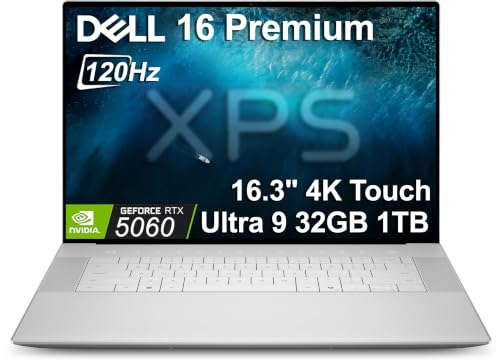


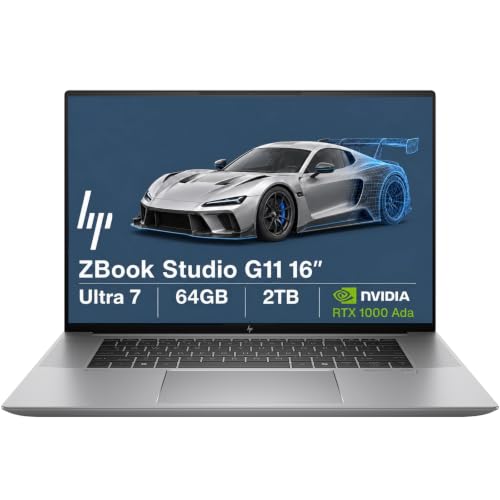
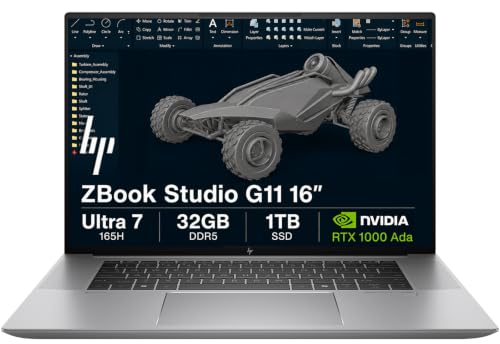
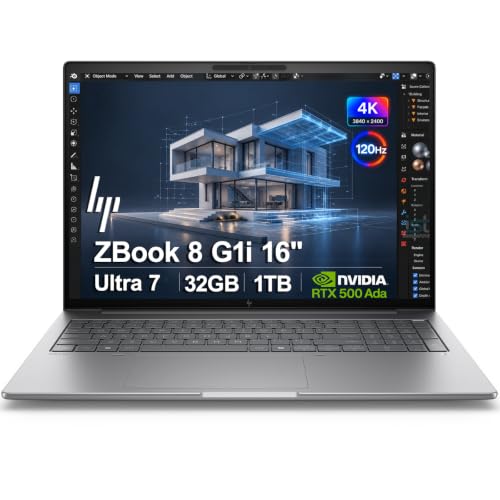
4K Editing Laptops 101: The Basics
A 4K editing laptop is a portable computer built to cut, grade, and export video at 3840 by 2160 resolution, which is four times the pixel count of Full HD. That workload stresses four parts at once. The processor handles timeline logic and effects, the graphics chip accelerates color work and exports, memory holds your project and previews, and fast storage feeds large clips without pauses.
The screen matters just as much, because you judge color and sharpness on it all day. A good editing display covers the full sRGB range at minimum, and wider DCI P3 coverage helps if you grade for modern streaming platforms. You also need ports for drives, a card reader or adapter for camera media, and cooling that can sustain speed during a long export instead of slowing down after two minutes. Keep these basics in mind, and every spec below will make more sense.
Key Specs Explained in Plain English
Processor and Performance Tier
The processor, or CPU, is the manager of the whole system. Current Intel Core Ultra, AMD Ryzen, and Apple M series chips all edit 4K video well, but tier matters more than brand. Aim for a recent mid tier or higher chip with at least six performance cores if editing is regular work. More cores shorten exports and keep effects responsive. A simple rule helps here, since the processor is hard to upgrade later, buy one tier above your current minimum if your budget allows. Pair it with 16 GB of RAM as a floor and 32 GB if you use many effects, titles, and apps at once.
Weight and Portability
Power means little if the laptop stays on your desk because it hurts to carry. Under about 3 lb feels easy for students and commuters, but most strong 4K editing machines weigh about 3.5 to 5 lb once you add a dedicated graphics chip and real cooling. Add the charger weight too, since a large power brick can add another pound to your bag. If you edit mainly at one desk, accept the weight and enjoy the speed and ports. If you travel weekly, favor a lighter model with a slightly slower chip, and plan to plug into a monitor at home.
Graphics (Integrated vs Dedicated GPU)
Integrated graphics share the processor and work fine for simple cuts, captions, and light color changes in short clips. A dedicated graphics chip, or GPU, has its own fast memory and takes over the heavy jobs, such as noise reduction, stabilization, effects, and final exports. For regular 4K work, a dedicated GPU is the single upgrade you will feel most. Check that your editing software uses GPU acceleration and favor models whose graphics memory is at least 6 GB for effects heavy timelines. Thermals matter as well, because a thin body can throttle a strong chip during long renders.
Keyboard, Trackpad, and Build
You will type shortcuts and trim clips for hours, so input quality is not a luxury. Look for keys with clear travel and a firm landing, backlighting for dim rooms, and a layout that does not shrink important keys. A large, smooth trackpad with accurate clicking helps when you edit away from a mouse. For build, an aluminum chassis resists flex and protects the screen better than thin plastic, and a hinge that opens with one hand signals careful design. Also check fan noise reviews in plain terms, since a loud machine can ruin voice recording sessions in the same room.
Display Size, Resolution, and Brightness
Most editors land on 14 to 16 inches, which balances timeline space with portability. A 4K panel shows fine detail without scaling tricks, but it uses more battery, so many fine machines use a slightly lower resolution that still looks sharp. Brightness of about 400 nits or more keeps the image clear near windows, and a matte finish cuts reflections. Refresh rate of 60 Hz is fine for editing, while higher rates mainly please gamers. Color accuracy claims matter most, so value full sRGB or wide DCI P3 coverage and a low Delta E figure over headline resolution alone.
Storage and memory deserve a plain word too. Choose an SSD of at least 512 GB, and 1 TB if your projects stay on the machine, because 4K footage fills space fast. Fast external drives help, but internal speed keeps previews smooth. If your workflow also covers stills, our guide to the best laptops for picture editing explains color tools for photo work in more depth.
Rookie Mistakes to Avoid
- Buying on screen resolution alone, then discovering the processor or graphics chip cannot keep a 4K timeline smooth.
- Choosing 8 GB of RAM to save money, which forces constant reloading and slow previews on real projects.
- Ignoring ports and then living with a nest of adapters for drives, monitors, and card readers every day.
- Forgetting the charger and bag weight, so a portable plan quietly becomes a desk only machine.
- Skipping color coverage details, then grading on a dull panel that misrepresents your final video.
Many of these mistakes come from comparing only price and one headline spec. If you want a second angle on the same workload, our guide to the best laptops for 4k video editing approaches the choice from the project side.
Getting Started: Setup and First Use
Your first hour sets up months of smooth work. Update the operating system and firmware right away, since early updates often improve fan behavior and graphics drivers. Install your editing software, set its scratch disk or cache to the fastest internal drive, and turn on GPU acceleration in the settings. Import a short test project, render a one minute export, and note the time, because that baseline tells you later whether updates helped or hurt. Avoid running at 100 percent charge all the time if the maker offers a battery limit setting, since holding a battery near 80 percent during desk use slows wear. Finally, back up your project folder from day one, ideally to a second drive.
FAQs for First Time Buyers
Is a Chromebook enough for school?
For writing, browsing, and light classwork, yes, but not for serious 4K editing. Most Chromebooks lack the processor strength, graphics power, storage, and full desktop editing apps that 4K timelines demand. Browser based editors can handle short simple clips, yet effects, color work, and long exports quickly hit limits. If your course includes real video production, choose a Windows or macOS laptop that meets the specs above.
Should I buy a laptop or a tablet?
Buy the laptop for editing. A laptop gives you a real keyboard, full editing software, precise file control, and ports for drives and monitors. Tablets shine for notes, storyboards, and reviewing cuts on a couch, and some can act as a second screen. If your budget forces one device, the laptop covers the whole workflow, while a tablet alone will leave gaps you feel on your first long project.
How much RAM do I need for 4K editing?
Start at 16 GB for straightforward 4K cuts with a few tracks and modest effects. Move to 32 GB if you use noise reduction, complex titles, motion graphics, or keep many apps open beside your editor. RAM that is soldered cannot be upgraded later, so check that detail before ordering. Running short on memory shows up as stuttering previews and slow app switching, not as a clear error message.
How long should a 4k editing laptop last?
A well chosen model should serve about four to six years of editing work. The battery will fade first, often after three to four years of heavy cycles, and software demands grow slowly each year. You extend life by keeping vents clean, leaving storage headroom of at least 15 percent, and choosing mid tier or higher parts at purchase. Plan a mid life battery replacement if the rest of the machine still feels fast.
Is a dedicated GPU worth it for editing?
Yes, for most 4K editors it is the clearest speed upgrade after a capable processor. A dedicated GPU accelerates effects, color grading, stabilization, and exports in modern editing apps, sometimes cutting render times dramatically. Integrated graphics can manage simple projects, but timelines grow, and the gap shows. If you must trim cost, reduce storage before graphics, because external drives are easy to add later and graphics chips are not.
Our Verdict
Put your money in this order: a strong processor, a dedicated graphics chip, 16 GB of RAM or more, and a color accurate screen. Then check weight, ports, and noise against your real routine. Readers comparing nearby categories may also find our guides to the best notebook laptops, the best laptops editing, and the best laptops 4k useful context. When you match best 4k editing laptops to your project size instead of headline claims, you buy once and edit happily, so compare your shortlist against the product table above before you order. Keep this guide handy whenever you review the best 4k editing laptops again.


