
Best 1tb Hard Drives 2026: Storage Buying Guide
Disclosure: We may earn a commission when you buy through links on this page, at no extra cost to you. As an Amazon Associate I earn from qualifying purchases. Learn more
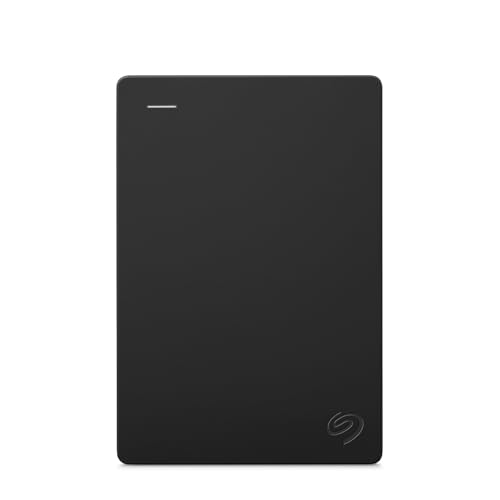
Laptop, desktop and backup users: how to pick the best 1tb hard drives by drive type, speed, reliability and backup habits.
The best 1tb hard drives give you a straightforward terabyte of storage for laptops, desktops, and backup duties. This guide focuses on laptop upgrades, desktop archives, and simple backup routines. One terabyte still suits a large photo library, documents, and a moderate media collection.
The product table gives an overview of the main 1TB choices, and the sections that follow explain drive types, laptop fit, speed expectations, and reliability habits. Choose by machine fit and backup discipline, and your storage will serve you for years.
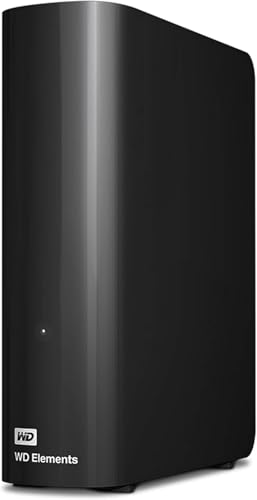


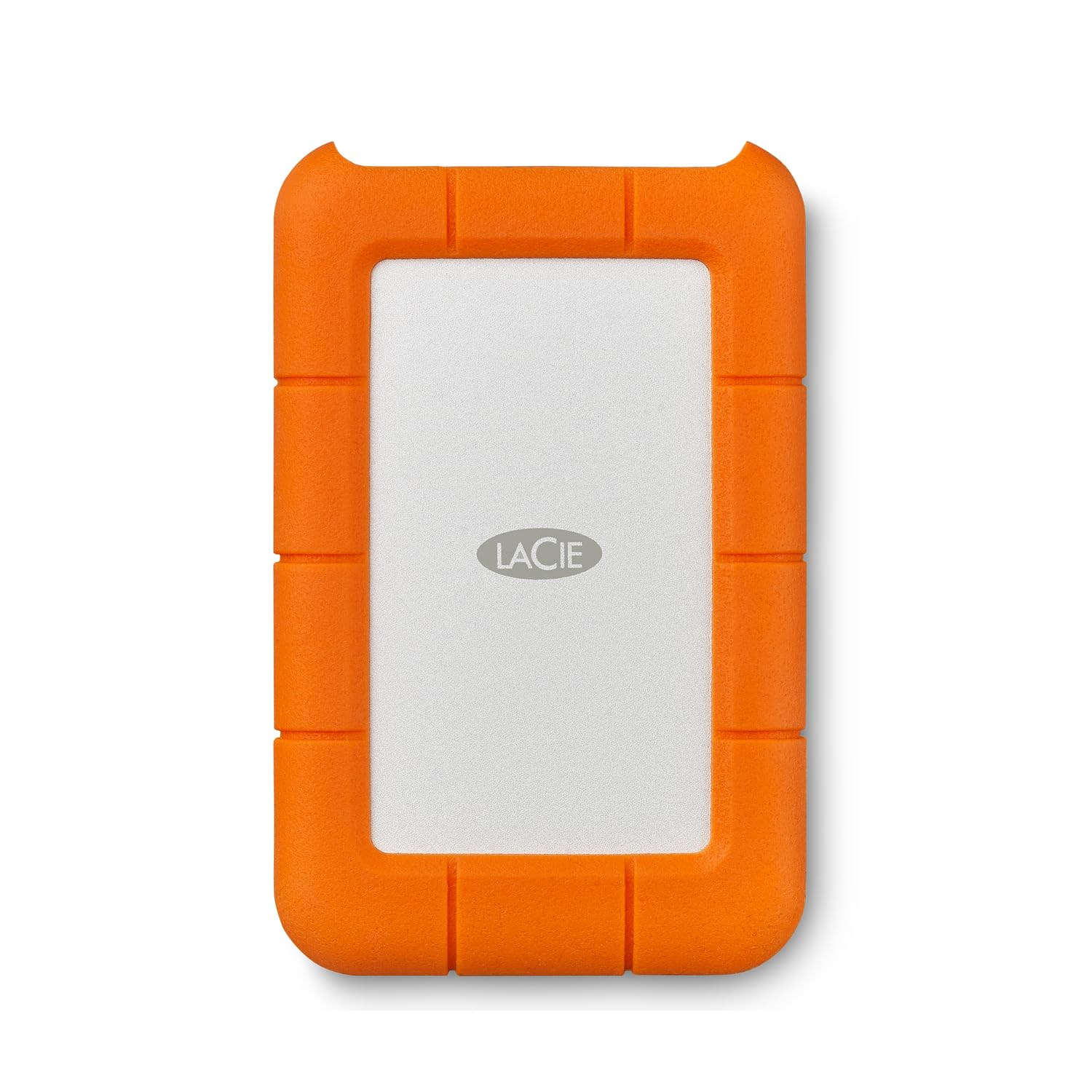
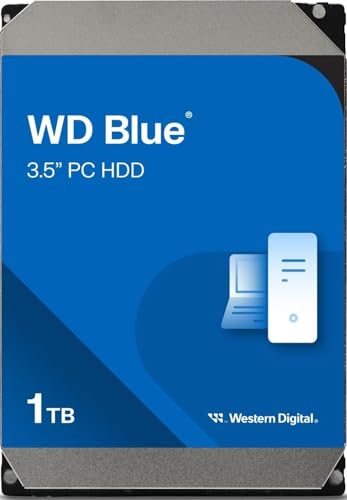
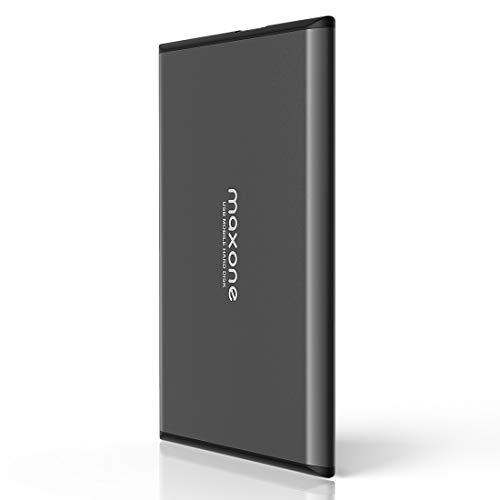


Laptop Upgrades at 1TB
Laptop owners gain most from a 1TB solid state upgrade, which speeds boot times, app launches, and file searches while cutting weight and heat. Check your laptop manual for drive size and interface, since older laptops use 2.5 inch SATA while newer models use M.2 slots of varying lengths. Clone your old drive before swapping, so your system and files transfer without a fresh install.
Battery life often improves with a solid state drive, since flash memory draws less power than a spinning disk. If your laptop still uses a hard disk, the jump in responsiveness feels dramatic in daily use. Keep the old drive as a backup until the new install proves stable for a few weeks.
Desktop Storage and Archives
Desktop users can pair a fast system drive with a 1TB hard disk for archives, giving cheap capacity for photos, videos, and documents. Hard disks suit media libraries that grow steadily, since cost per terabyte stays low and large files stream fine from spinning storage. Keep archives organized by year or project, so finding files stays easy as the library grows.
Ventilation matters for desktop drives, since heat shortens lifespan over years. Mount drives securely, keep airflow clear, and avoid stacking drives without gaps. A tidy case with good airflow protects both drives and other components from heat stress.
Speed Expectations in Real Use
Solid state speeds impress on paper, yet everyday gains level off once boot and app loading feel instant. Hard disk speeds suit sequential tasks such as playing media and copying large files, though random access feels slower. For most home users, reliability and capacity matter more than chasing the fastest benchmark, since daily tasks rarely stress modern drives.
External drive speed depends on the USB port as much as the drive, so a fast drive on an old port still transfers slowly. Check port versions on your machine, and use the fastest available port for large backups. Cable quality matters too, since worn cables cause drops and retries that slow transfers more than drive specs suggest.
Reliability, Warranties, and Warning Signs
Drive warranties vary by model and use, with longer cover often signaling maker confidence for heavier workloads. Read warranty terms for residential use, and keep purchase records for claims. No warranty restores lost data, so backup habits remain the real protection, regardless of brand promises.
Warning signs include repeated errors, very slow access, clicking from hard disks, and frequent disconnects from external drives. Back up immediately when warnings appear, and replace the drive rather than hoping it recovers. A drive that shows warnings has already told you its story, so act on it promptly.
Backup Routines That Actually Work
A workable backup routine runs automatically, since manual backups get forgotten during busy weeks. Schedule weekly backups to an external drive and keep a second copy of irreplaceable files elsewhere, such as cloud storage or a drive stored away from home. Try a restore every few months, because an unchecked backup may fail silently.
Label backup drives clearly with dates, so you know which copy is newest during a crisis. Rotate two external drives when possible, keeping one off site or in a different room. Simple, automatic, and verified beats elaborate plans that never run.
Choosing Your 1TB Drive
For a laptop system drive, choose solid state for speed and durability. For a desktop archive, choose a hard disk for low cost capacity. For portable backup, choose a rugged external drive with a good cable and a case, since travel knocks damage drives more than desk use ever will.
Compare total cost including any needed adapters or enclosures, and confirm fit before ordering. The product table can help you weigh options once you know your machine type and main storage job.
A Final Check Before You Order
Before ordering, decide whether this drive serves as a system upgrade, an archive, or a portable backup, since each role favors different types. System roles favor solid state speed, archives favor hard disk capacity, and portable roles favor rugged externals. One clear role prevents compromise purchases that serve none well.
Check cable and port compatibility for external models, especially USB types and power needs. A drive that needs mains power limits travel use, while a bus powered model travels freely. Order the right cable length for your desk layout to avoid strain on ports.
Plan file organization before transferring data, creating folders by year, project, or category that match how you search. Good organization at transfer time saves hours of sorting later. Consistent naming helps every future backup and restore.
Finally, keep purchase receipts and warranty details with the drive documentation, noting the warranty end date. Claims proceed faster with records at hand. A small folder for tech receipts pays off whenever hardware needs service.
One More Practical Note
Consider encryption for portable drives carrying sensitive files, since a lost drive can expose personal data. Built in encryption tools in modern operating systems protect contents without extra cost, though you must remember recovery keys. A lost encrypted drive inconveniences you briefly, while a lost unencrypted drive risks far more.
Think about drive retirement too, securely erasing old drives before disposal or donation. Simple deletion does not remove data fully, so use a proper erase tool for drives leaving your control. Responsible retirement protects privacy and completes the storage lifecycle neatly.
A Last Word on Storage Habits
Build a habit of verifying backups occasionally, opening a few restored files to confirm they work rather than trusting the backup log alone. A backup that has never been checked is only a hope, while a verified backup is a proven safety net. Schedule a quick verification every season, and keep one copy of truly irreplaceable files in a different location.
Related Guides to Compare
Travelers should compare best portable 1tb hard drives for portable 1TB models built for bags and movement.
For inside the machine upgrades, best 1tb internal hard drives covers internal 1TB drives by form factor.
Reliability focused buyers can see best quality hard drives for build and warranty guidance.
For backup on the move, best portable external hard drives 1tb covers portable external 1TB drives and cables.
Desktop backup users can compare best hard external hard drives for larger external drives that need mains power.
Frequently Asked Questions
Is 1TB enough for a laptop?
One terabyte suits most laptop users, covering documents, photos, apps, and a moderate media library with room to spare. Video editors and large game collectors may need more, so check current use and expected growth. If your present drive stays under 70 percent full, 1TB should serve well for several years.
SSD or HDD for a 1TB laptop upgrade?
A solid state drive suits laptop upgrades best, giving faster boots, better battery life, and resistance to travel knocks. A hard disk costs less but feels slower and tolerates drops poorly, which matters in a portable machine. Most laptop owners notice the solid state difference every day, making it the usual recommendation.
How do I clone my old drive?
Cloning copies your entire old drive, including system and files, to the new drive using cloning software and an adapter or second bay. Back up important files first, follow the software steps carefully, and confirm the new drive boots before wiping the old one. Keep the old drive untouched for a few weeks as a safety net.
Do external 1TB drives need mains power?
Portable external 1TB drives usually run from USB power alone, while larger desktop externals often need a mains adapter. Portable models suit travel and laptop use, while desktop models suit permanent backup stations. Check power needs before buying, since a mains powered drive limits where you can use it.
How long will a 1TB drive last?
Most drives last several years with normal use, though heat, shocks, and heavy writes shorten life. Watch for errors, slow access, or unusual noises, and replace drives showing warnings promptly. Backup habits matter more than lifespan guesses, since any drive can fail without warning.
Final Thoughts
Pick a 1TB drive by machine fit and job, favoring solid state for laptops and hard disk for cheap desktop archives. The product table summarizes the choices, and a verified backup routine protects your files better than any single drive. Fit, reliability, and habit together decide satisfaction.
With the best 1tb hard drives matched to your machine, a terabyte becomes quiet, reliable room to work and play. Back up automatically, watch for warning signs, and replace drives before they fail.
