Best 120hz Monitors: Every Type Explained Side by Side for 2026
Disclosure: We may earn a commission when you buy through links on this page, at no extra cost to you. As an Amazon Associate I earn from qualifying purchases. Learn more

Compare the best 120hz monitors by type, from OLED to budget IPS, and match panel, size, and HDR to your desk and use.
Shopping for a smooth screen can feel confusing, because similar sounding models differ in panel type, resolution, and extra features. The best 120hz monitors share one trait, a refresh rate of 120 times per second, yet they can look and feel very different in daily use. This guide compares each type side by side so you can match a screen to your room, your desk, and your budget.
Use the comparison table below to narrow the field, then read the sections that match your main use. A gamer, a home office worker, and a movie watcher may all want 120Hz, but for different reasons. Prices below are approximate, so check the product page before ordering, and keep your viewing distance and desk space in mind as you compare sizes.


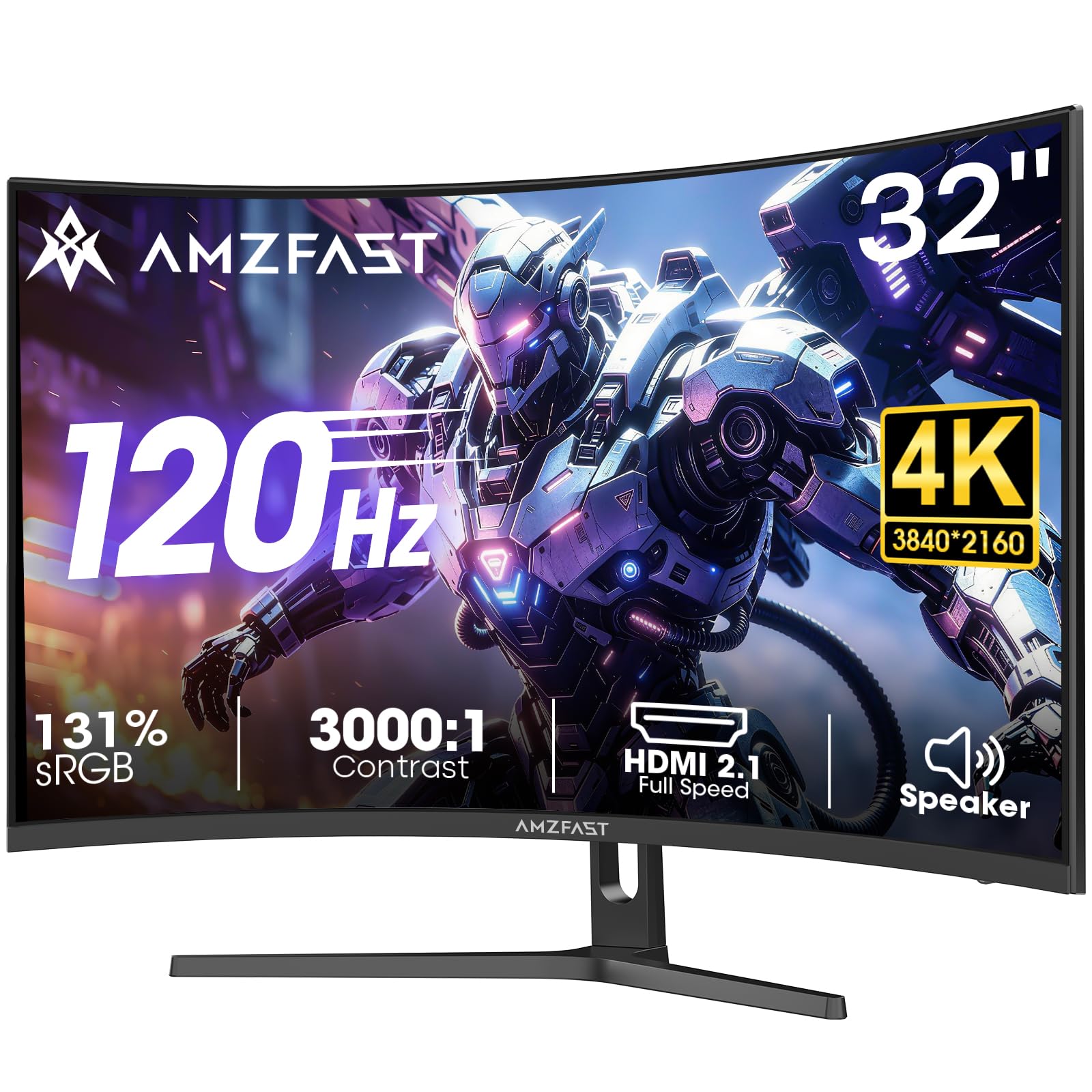

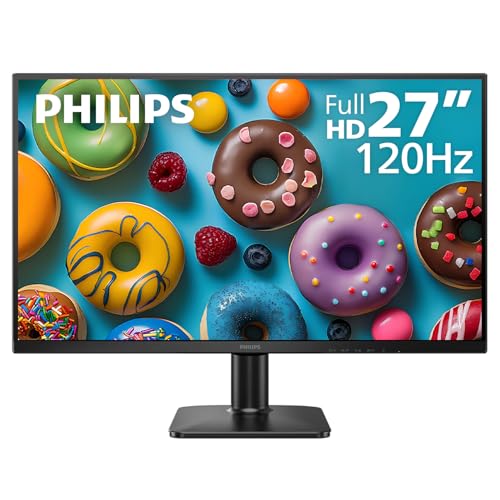
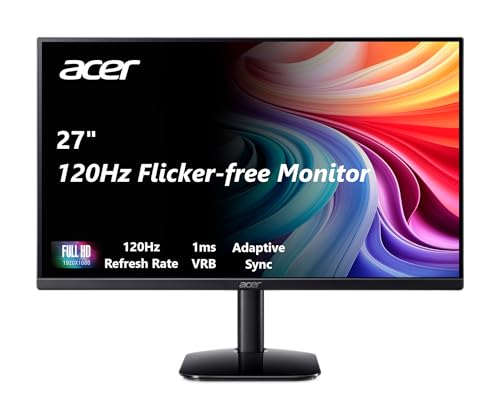

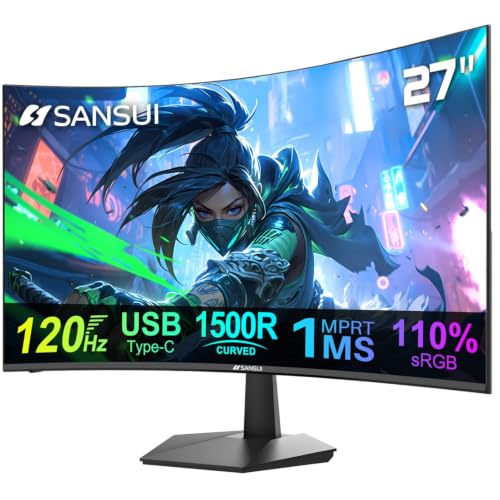
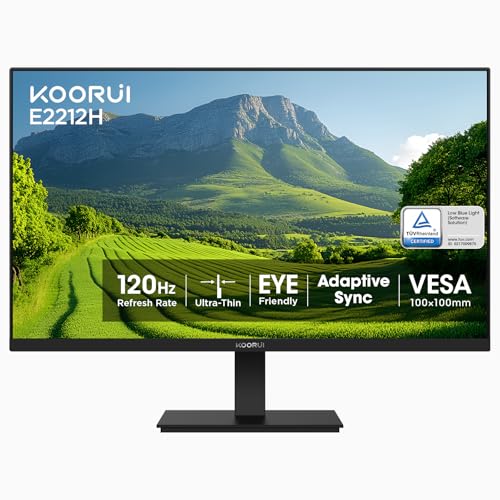
Types of 120hz Monitors Compared
Panel type shapes color, contrast, viewing angle, and price more than any other single factor. Resolution and screen size matter too, but they build on the panel underneath. The table below gives a quick overview, and the sections that follow explain each type in more detail. Read the type that fits your budget first, then compare it with the type just above it to see what extra money buys.
| Type | Best For | Pros | Cons | Typical Price |
|---|---|---|---|---|
| OLED displays | Movies and high contrast gaming | Deep blacks and fast response | Higher price and burn in risk | About $500 to $1,000 |
| Budget displays | Everyday work and casual play | Low price and solid smoothness | Weaker contrast and color | About $70 to $200 |
| Large screen options | Shared viewing and multitasking | Roomy workspace and immersion | Needs more desk space | About $300 to $700 |
OLED Displays
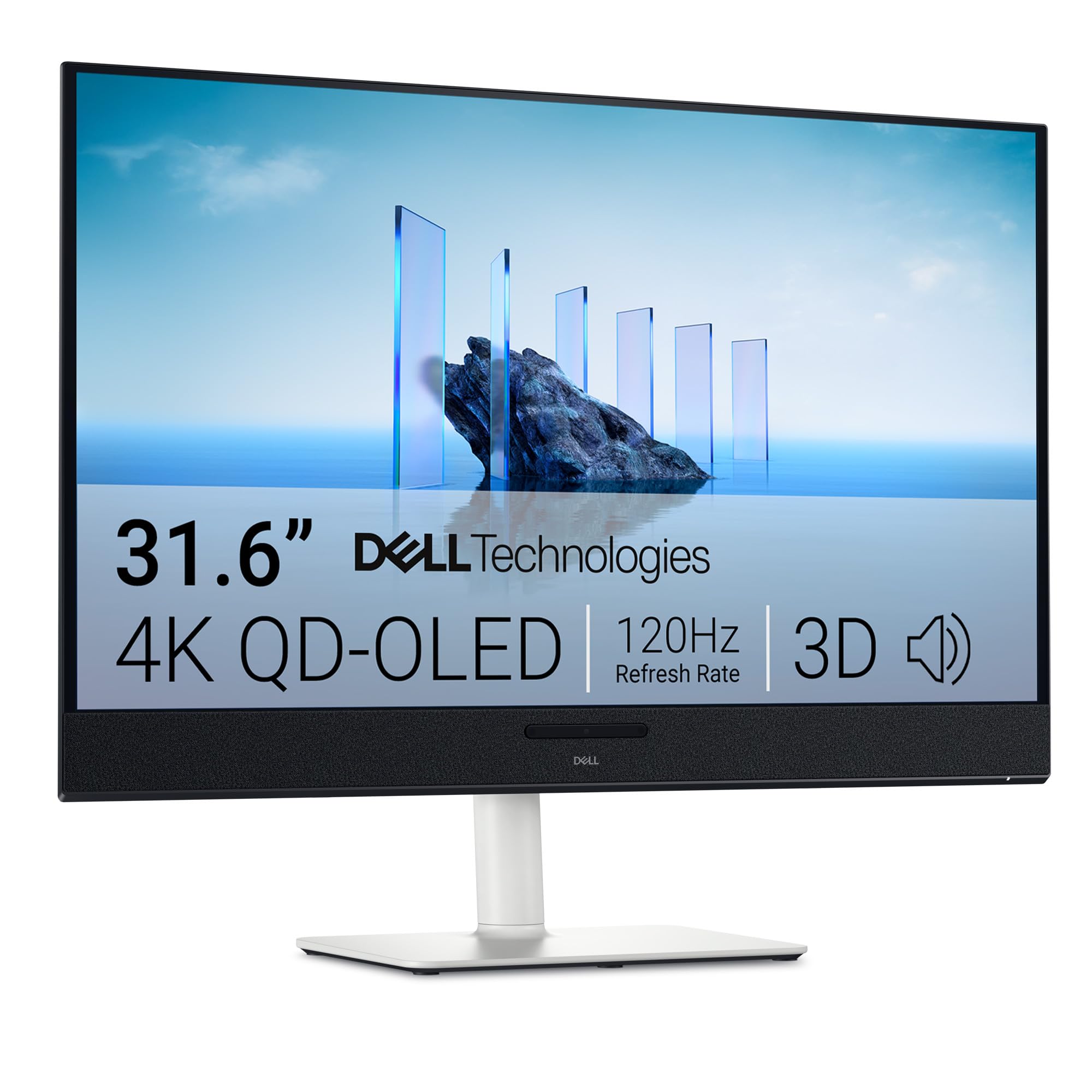
An OLED display lights each pixel on its own, so black areas can turn fully off and bright areas can stand out sharply. That control produces deep contrast, vivid color, and very fast response, which suits movies, dark games, and photo work. The trade offs are a higher price and a risk of burn in, where a static image left on screen for very long periods can leave a faint mark. Use pixel refresh features and vary your content if you choose OLED, and avoid leaving the same bright menu on screen all day.
Budget Displays
A budget display brings 120Hz smoothness to everyday work, browsing, and casual games at a much lower price. These screens usually use simpler panels with narrower color coverage and weaker contrast than OLED, but motion still looks clearly smoother than on a standard 60Hz screen. They suit buyers who want fluid scrolling and responsive play without paying for premium image quality. Check brightness and viewing angle before buying, since budget models vary more in those areas than in refresh rate alone.
Large Screen Options
A large screen suits buyers who split their work across windows, watch with others, or want a more immersive game view. Sizes around 32 inches and above give room for side by side documents and larger text, which can ease eye fatigue during long sessions. The trade off is desk space and viewing distance, since a very large screen viewed too closely can force constant head movement. Measure your desk depth first, and sit far enough back that you can see the whole screen without turning your head.
OLED Displays vs Budget Displays: Which Should You Choose?
Choose OLED when image quality is your top priority and your budget allows it. You gain deeper blacks, richer color, and faster response, which matter most for movies, photo editing, and atmospheric games. Choose a budget display when smoothness matters more than perfect contrast, or when you need a second screen for work. Budget screens still deliver the core 120Hz benefit, fluid motion, at a fraction of the price. If you split time evenly between work and movies, consider a mid priced panel with good color coverage as a middle path.
For console gaming comparisons, see our guide to the best gaming monitors 120hz and our guide to the best gaming monitors for a wider gaming range. For sharper detail, see our guide to the best 4k 120hz monitors. For general gaming setup advice, see our guide to the best computer monitors for gaming.
How to Choose the Right 120hz Monitor
Start with panel type, then match resolution and size to your desk, then check ports and ergonomics. A monitor that looks great on paper can disappoint if its stand cannot adjust to your eye level or its ports do not fit your computer. Work through the factors below in order, and note which ones matter most for your main use before you compare prices.
Panel Technology (IPS, VA, OLED, Mini LED)
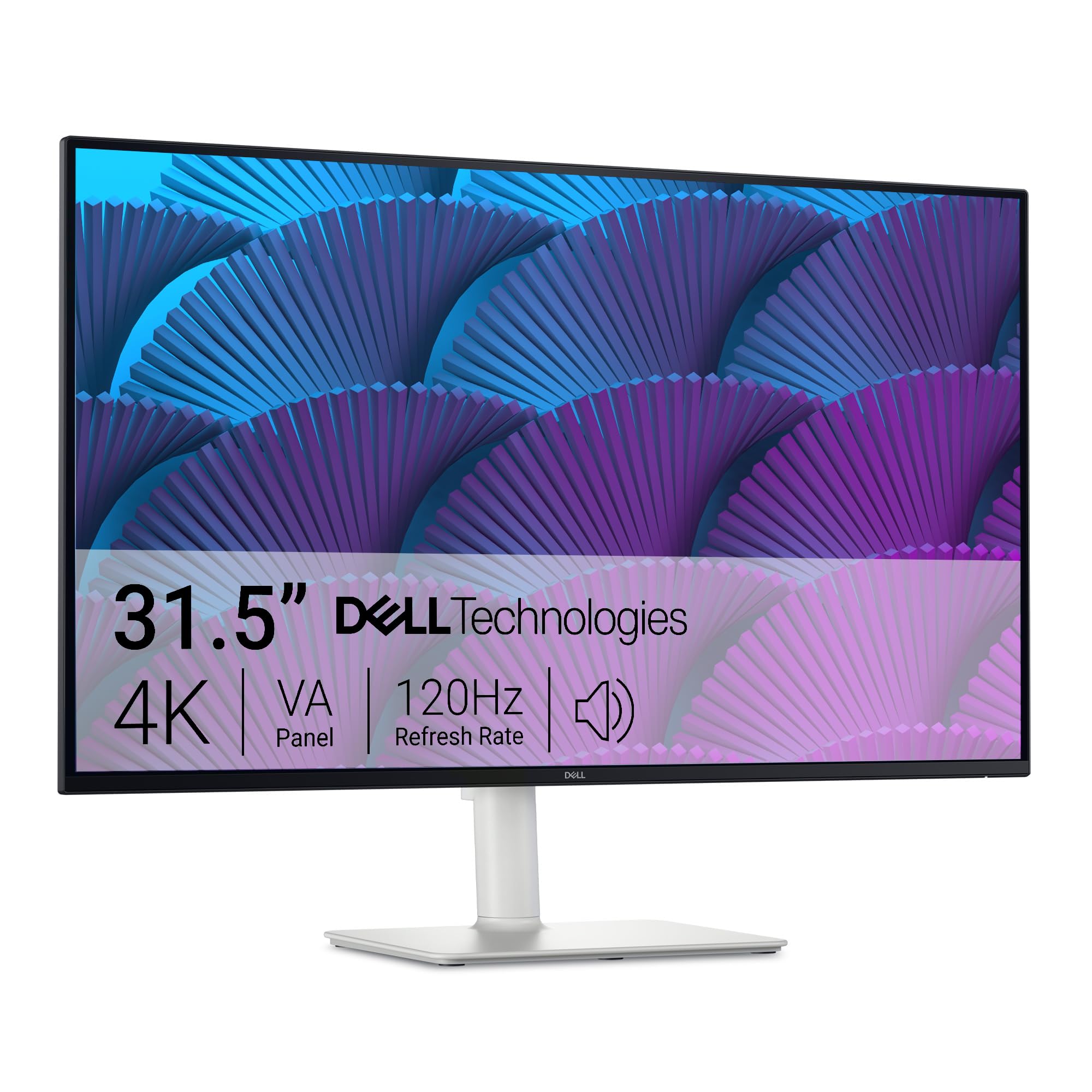
IPS panels offer wide viewing angles and accurate color, which suits shared desks and color aware work. VA panels offer stronger contrast at a lower price, but viewing angles are narrower and fast motion can smear slightly. OLED panels offer the best contrast and response, with burn in as the main caution. Mini LED panels use many small backlights to improve contrast on a traditional LCD, sitting between standard LCD and OLED in both price and performance.
Stand, Mounting, and Ergonomics
A good stand should adjust in height, tilt, and swivel so the top of the screen sits near eye level. If the included stand falls short, check for VESA mounting holes so you can add an arm or wall mount later. Ergonomics matter more than many buyers expect, since a screen fixed too low can strain your neck during long days. Measure your desk and chair height together, and favor monitors that adjust without tools where possible.
Resolution and Screen Size
Resolution and size work together, since a larger screen needs more pixels to stay sharp. A 24 inch screen looks crisp at 1080p, a 27 inch screen benefits from 1440p, and a 32 inch screen usually deserves 1440p or 4K. Sit about an arm's length from a 27 inch screen and farther from larger screens. If your computer struggles with 4K gaming, a 1440p screen at 120Hz can offer smoother play and still look sharp.
HDR and Brightness
HDR, or high dynamic range, aims to show brighter highlights and deeper shadows in supported movies and games. True HDR needs high brightness, often several hundred nits, plus good local dimming to control light by zone. Many budget screens carry an HDR label but lack the brightness to show a real difference, so check peak brightness and dimming claims rather than the label alone. For bright rooms, prioritize overall brightness over HDR branding, since glare can wash out even a good HDR image.
Picking the Best 120hz Monitors for Different Uses
Different uses pull you toward different types, even at the same refresh rate. A work monitor should prioritize text clarity and adjustability, while a gaming monitor should prioritize response time and adaptive sync. A movie monitor should prioritize contrast and color. Match the sections below to your main use, and let secondary uses break ties rather than drive the whole decision.
Best 120hz Monitors under 200: Which Type Works Best
Under 200 dollars, budget displays offer the best value, since they deliver smooth 120Hz motion without premium panel costs. Focus on brightness, viewing angle, and port selection rather than chasing HDR labels or the largest size. A 24 inch or 27 inch screen at 1080p or 1440p usually fits this budget best. Avoid screens that sacrifice the stand entirely, since a wobbly or fixed stand can undo the comfort of an otherwise good display.
Best Ips 120hz Monitors: Which Type Works Best
IPS panels suit buyers who value accurate color and wide viewing angles, such as designers, office workers, and anyone who shares a screen. Look for good color coverage, consistent brightness across the screen, and an adjustable stand. IPS contrast will not match OLED, but colors stay true when viewed from the side, which matters in shared rooms. Pair an IPS screen with a calm room light setup to get the most from its color accuracy.
Tips to Get the Most From Your 120hz Monitor
First, confirm your computer actually outputs 120Hz, since some connections and settings default to 60Hz. Set the refresh rate in your display settings, use a cable rated for your resolution and refresh rate, and turn off any vivid picture mode that oversaturates color. On OLED screens, run pixel refresh cycles as the maker recommends and vary static content. Clean the screen with a microfiber cloth only, and keep vents clear so the panel stays cool during long sessions.
Take regular breaks and adjust brightness to match your room, since comfort matters as much as specs. If you notice persistent eye pain, headaches, or vision changes, see an eye care professional rather than trying to fix the problem with settings alone. General comfort guidance here is not medical advice, and a professional can check for issues a new monitor cannot solve.
Frequently Asked Questions
Does Refresh Rate Matter on a Monitor for Non Gamers?
Yes, refresh rate matters for non gamers too, because smoother motion makes scrolling, window movement, and cursor tracking feel more fluid. The difference is clearest when you scroll long documents or move between apps quickly. It will not make text sharper or colors richer, so prioritize panel quality if your work is mostly reading. Many office workers notice less motion blur and a more responsive feel at 120Hz.
Is 4K Worth It on a 120Hz Monitor?
Yes, 4K is worth it on larger screens and for detailed work such as photo editing, video timelines, and large spreadsheets. On smaller screens viewed from normal distances, the jump from 1440p to 4K is harder to notice. Also consider your computer, since driving 4K at 120Hz demands a stronger graphics card and a suitable cable. If your hardware cannot keep up, a 1440p screen at 120Hz may feel smoother overall.
How Long Do 120Hz Monitors Last?
Most monitors last many years with normal use, often well beyond five years, since they have no moving parts except for adjustable stands. OLED panels need more care, because static images over very long periods can cause burn in, but varied content and pixel refresh features reduce that risk. Backlight brightness may dim gradually over time on LCD screens. A monitor with a good warranty and solid build quality is a safer long term choice.
IPS vs OLED: Which Panel Is Better for a 120Hz Monitor?
IPS is better if you want accurate color, wide viewing angles, and freedom from burn in worry at a lower price. OLED is better if you want the deepest blacks, highest contrast, and fastest response for movies and atmospheric games. Neither panel wins for every buyer, so match the panel to your room and habits. A bright room with shared viewing favors IPS, while a dim room for movies favors OLED.
What Size Monitor Should I Get for My Room or Desk?
Choose 24 inches for small desks and close viewing, 27 inches for most desks at arm's length, and 32 inches or larger only if you have enough desk depth to sit farther back. Measure your desk depth and check that the screen width fits without crowding speakers or documents. A screen that is too large for its distance forces head movement and can tire your eyes. When in doubt, choose the smaller size that still fits your main tasks comfortably.
Our Verdict
Start with panel type, then size and resolution, then ports and ergonomics. Budget displays deliver the core 120Hz benefit for work and casual play, IPS panels add color accuracy and viewing comfort, and OLED panels deliver the best contrast for movies and immersive games. Whatever you choose, the best 120hz monitors are the ones that fit your desk, your eyes, and your main use, so review the product table above once more before you decide.