Best 144hz Gaming Monitors in 2026: A Buyer Checklist
Disclosure: We may earn a commission when you buy through links on this page, at no extra cost to you. As an Amazon Associate I earn from qualifying purchases. Learn more

The best 144hz gaming monitors match your graphics card, desk and games. Use this checklist to compare panel, resolution, sync and ports.
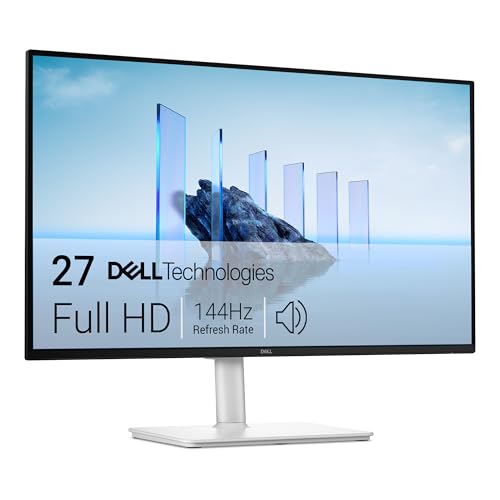
A 144Hz screen can look like a small upgrade on a spec sheet and feel like a big one in play, because motion stays clearer when you turn, track and aim. The best 144hz gaming monitors pair that refresh rate with the right panel, resolution and ports for your games and desk. This guide turns those specs into a checklist, so you can read the comparison table below and know which differences matter.
Start with three facts: the games you play most, the graphics card or console you own, and the size of your desk. Those facts decide whether 1080p, 1440p or 4K makes sense, how much brightness you need, and which cables carry the full signal. The sections below move from user types to core specs, then to budget choices and care.




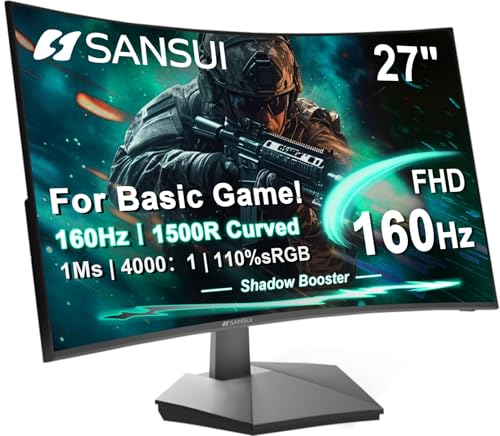
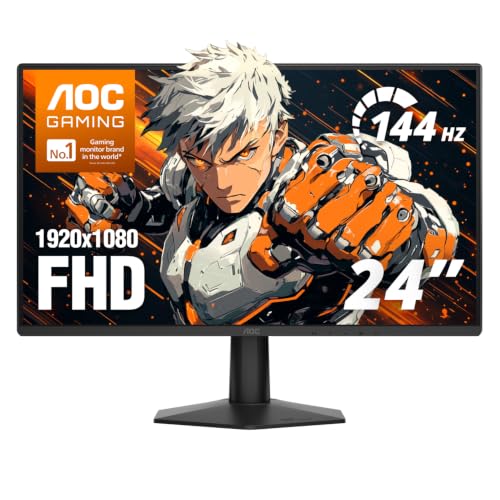
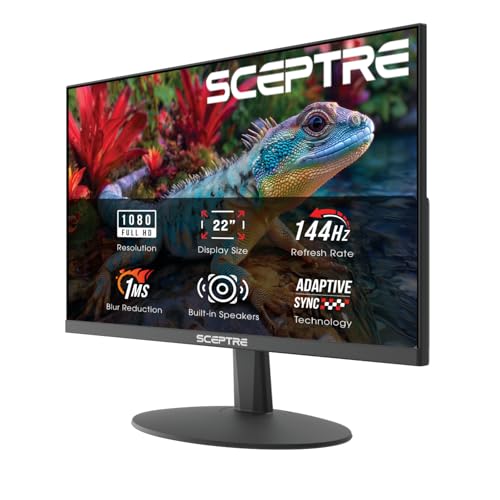
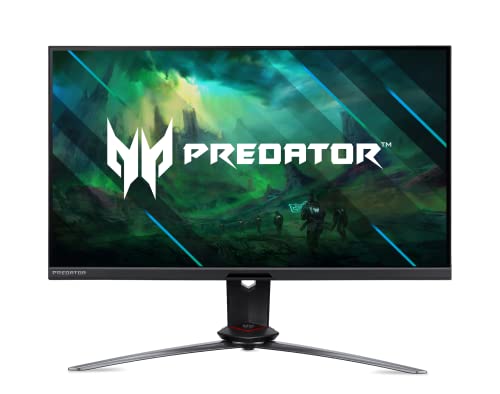
Who Should Buy a 144Hz Gaming Monitor?
Your use case narrows the field faster than any single spec. A competitive player, a console player and a mixed use buyer should each rank size, resolution and ports in a different order. If you want the wider category view first, see our guide to the best gaming monitors.
Competitive Players Who Chase Smooth Motion
You play shooters and other fast games where tracking moving targets decides rounds. Choose 1080p at about 24 to 25 inches, because your card can push high frame rates there and the smaller screen keeps the full scene in view without head turns. Prioritize motion clarity and a low input lag mode. For models built around this balance, see our guide to the best gaming monitors 1080p 144hz.
Console Players Using a Desk Setup
You play on a current console at a desk and want smoother play than a 60Hz screen allows. Current consoles output up to 120Hz, and a 144Hz monitor can display that signal, so you lose nothing and gain a screen that also suits a PC later. Look for HDMI ports that accept a 120Hz signal at your chosen resolution, plus a headphone jack.
Mixed Work and Play Users
You split the day between work, browsing and games, and you want one screen for all three. A 27 inch 1440p monitor gives sharper text than 1080p at the same size and still lets a mid range graphics card reach high frame rates in many games. Look for accurate color and brightness you can lower at night, plus a USB C input if you use a laptop.
Key Features to Compare
Compare the factors below in order. Together they decide whether a 144Hz label becomes smooth, clear play on your desk.
Panel Technology: IPS, VA and OLED
Panel type shapes color, contrast and motion. IPS panels give accurate color and wide viewing angles, so they suit shared screens and mixed use. VA panels give deeper contrast and darker blacks, but some VA panels smear dark motion. OLED panels give near instant response and rich contrast, yet they cost more and need care to limit burn in. TN panels are now rare and suit buyers who value speed above color.
Resolution and Screen Size Pairing
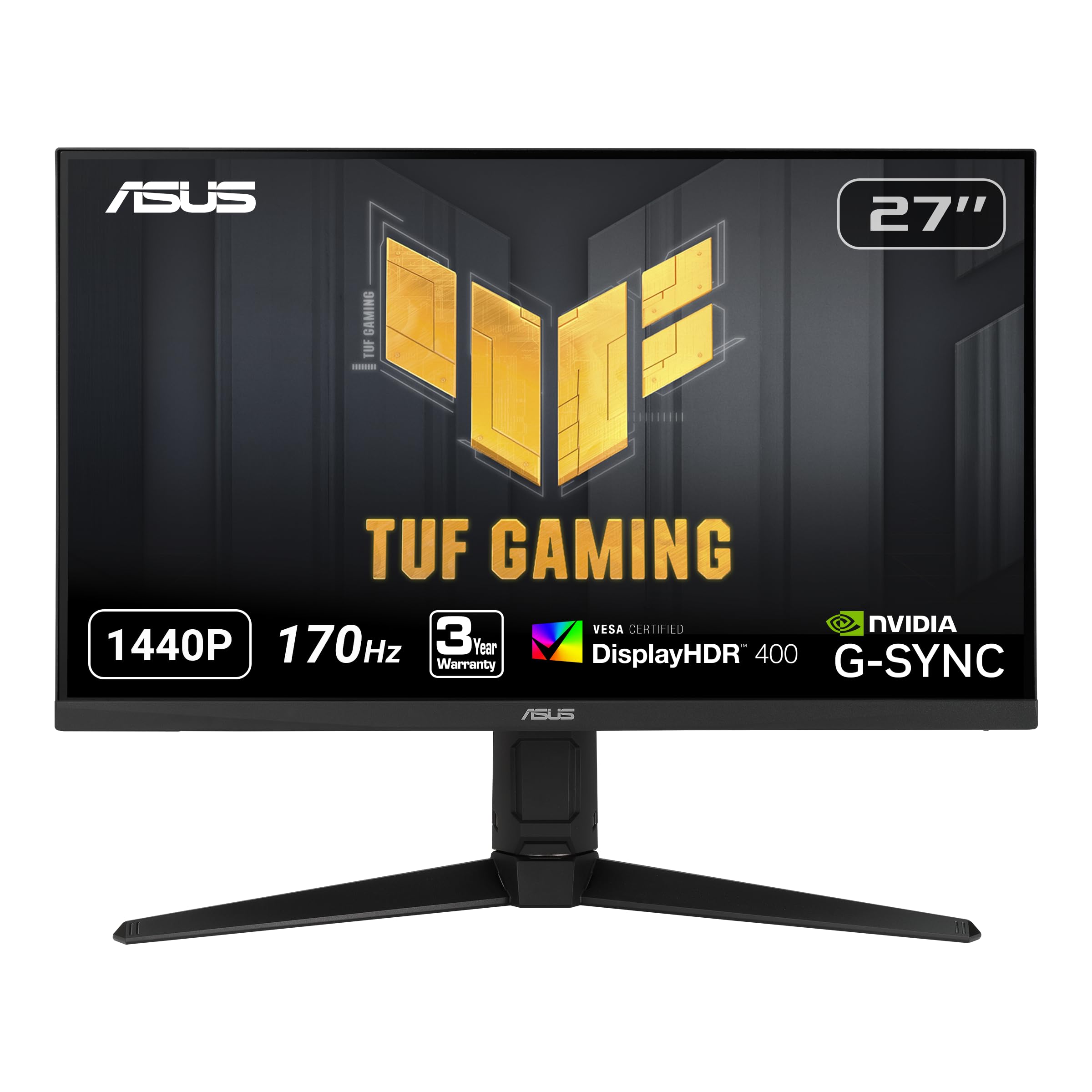
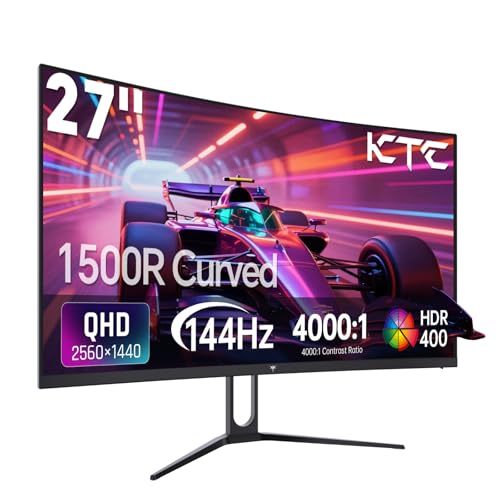
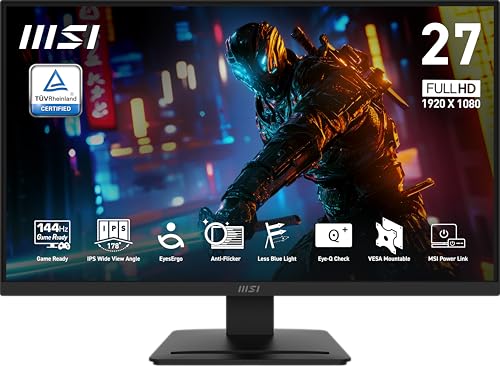
Resolution and size work as a pair. At 1080p, about 24 to 25 inches stays sharp enough and easy for a card to drive at high frame rates. At 1440p, 27 inches balances detail and desk depth, and our guide to the best gaming monitors 144hz 1440p covers that pairing in depth. At 4K, 32 inches or larger uses the extra pixels well, but your card must work far harder. Match the pair to your card first.
Response Time and Motion Clarity
Response time shows how fast a pixel changes color, and lower values reduce ghosting behind moving objects. Treat about 1 millisecond ratings with caution, because brands measure that figure under ideal settings with strong overdrive. Strong overdrive can add bright halos around moving edges, so a medium setting often looks cleanest in real play. What matters most is a panel that stays clear at 144Hz without smearing in dark scenes.
Adaptive Sync and Variable Refresh
Adaptive sync lets the monitor change its refresh rate to match the frame rate your card delivers, which removes tearing without the lag that fixed sync can add. FreeSync works over DisplayPort and HDMI on most cards, while G Sync Compatible models are validated for NVIDIA cards. Check the sync range, because a range that starts near 48Hz keeps play smooth when frame rates dip. Low frame rate compensation helps below that floor by repeating frames.
Ports and Cables for 144Hz
Ports decide whether you actually get 144Hz. DisplayPort is the safest route on a PC, since most gaming cards and monitors support 144Hz over DisplayPort. HDMI varies more, and some monitors limit HDMI 2.0 inputs at higher resolutions, while HDMI 2.1 carries 4K at 120Hz and above. Use the cable supplied with the monitor, and check the port version on both ends before you blame the panel for a 60Hz cap.
HDR and Brightness for Your Room
Brightness and HDR decide how games look in your room, not only on paper. For a bright room, look for about 300 to 400 nits of sustained brightness and a matte finish that cuts glare. HDR labels alone mean little, because true HDR impact needs high peak brightness and local dimming that darkens small zones. Without local dimming, HDR scenes can look washed out.
How to Choose the Best 144hz Gaming Monitors for Different Uses
Budget and use change which compromises are smart, but one point applies at every price: check the stand and mount first. A stand with height and tilt adjustment places the screen at eye level, and a VESA pattern, 100 by 100 millimeters on most models, lets you add an arm to free desk space.
Best 144hz Gaming Monitors under $400: What to Check
Under this budget, 1440p at 27 inches with an IPS panel is realistic, while 4K and OLED sit above it. Spend on the panel, sync support and a height adjustable stand first, and skip extras like large USB hubs or built in speakers. Judge the screen on brightness and contrast in normal play rather than on the HDR badge, which is modest at this price.
Monitors for 144hz Gaming Across PC and Console
Buyers who split time between a PC and a console need flexible inputs more than exotic extras. Choose at least two HDMI ports plus DisplayPort, a panel that accepts a 120Hz console signal at full resolution, and a simple joystick control that makes input switching quick. You gain most from a screen that needs no adapter or cable swap when you change machines.
Common Mistakes to Avoid
Most returns and regrets trace back to a short list of avoidable errors.
- Leaving the display set to 60Hz in system settings means the monitor never shows the smoothness you paid for.
- Buying a 4K 144Hz screen for a weak graphics card leaves frame rates low and forces blurry scaling in hard games.
- Using an old cable or a limited port can cap the signal below 144Hz even when the panel is capable.
- Trusting an HDR badge without checking brightness and local dimming leads to washed out highlights and flat dark scenes.
- Placing a large screen on a shallow desk puts it too close, so you turn your head often and strain your neck.
Tips and Care for Your 144Hz Gaming Monitor
Set the picture up once. Turn off the vivid or dynamic mode, because it pushes color and sharpness past what the game sends. Set brightness for your room light, and use the game mode for play. After any driver update, confirm the display still runs at 144Hz, since updates can reset the value.
Clean the screen only with a dry or lightly damp microfiber cloth, and never spray liquid straight onto the panel, because fluid can reach the edge seals. Wipe in straight lines with light pressure. If you choose OLED, run the pixel refresh cycle the maker provides and let static toolbars hide during long work sessions. Keep the original box, since its foam makes moves and warranty returns safer.
Your Questions About 144Hz Gaming Monitors, Answered
What size 144Hz gaming monitor fits a small desk?
A 24 to 25 inch 1080p or a 27 inch 1440p monitor fits most small desks. Measure desk depth first, because the stand foot, not the panel, decides how much room remains for a keyboard. Sit in your chair and hold one arm straight ahead as a quick check. If your hand nearly touches the planned screen spot, stay at 25 inches or plan a desk arm mount.
Is IPS or OLED better for a 144Hz gaming monitor?
Choose IPS for a bright room and long workdays, and OLED for a dim room where contrast and motion clarity matter most. In bright light, OLED glare and lower screen brightness can flatten the image, while IPS stays readable. If you read text all day, note that some OLED layouts add color fringes at letter edges, so IPS is safer for office heavy use.
Does a 144Hz gaming monitor refresh rate matter for work and video?
Yes, a 144Hz gaming monitor still feels smoother for work and everyday use, even without games. The mouse pointer moves with less blur, scrolling text stays easier to follow, and window dragging looks cleaner. The gain has limits, though: films and most streamed shows are made at low frame rates, so they look much the same as on a 60Hz screen.
Is 4K worth it on a 144Hz gaming monitor?
4K is worth it on a 144Hz gaming monitor only if your graphics card can feed it, or you also value sharp text and console play at 4K. A practical middle path is to render hard games below native resolution and let GPU upscaling rebuild the image, which trades a little sharpness for far higher frame rates. For that trade in depth, see our guide to the best 4k 144hz gaming monitors.
Our Verdict
Start with the pair your card can drive, 1080p for speed or 1440p for balance, then check panel type, sync range and ports. Use the product table above to compare the screens that pass your list.
When you compare best 144hz gaming monitors with those points fixed first, the right choice tends to stand out fast, and you can buy once and enjoy the screen for years.