Best 120hz Monitors for PS5: A First Time Buyer's Guide for 2026
Disclosure: We may earn a commission when you buy through links on this page, at no extra cost to you. As an Amazon Associate I earn from qualifying purchases. Learn more
First time guide to the best 120hz monitors for PS5: what HDMI 2.1, VRR, panel types and sizes mean, and which rookie mistakes to skip.
Buying your first gaming monitor can feel confusing, because spec sheets throw around numbers like refresh rate, response time, and HDMI versions without explaining any of them. This guide walks you through the best 120hz monitors for ps5 in plain language, starting with the basics and ending with a clear sense of what to buy for your budget.
You do not need to spend a fortune or learn engineering terms to get smooth console gaming. Once you know which two or three specs actually matter for this console, the product table below becomes easy to read.

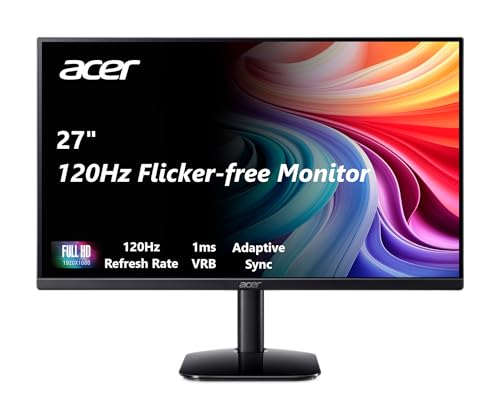

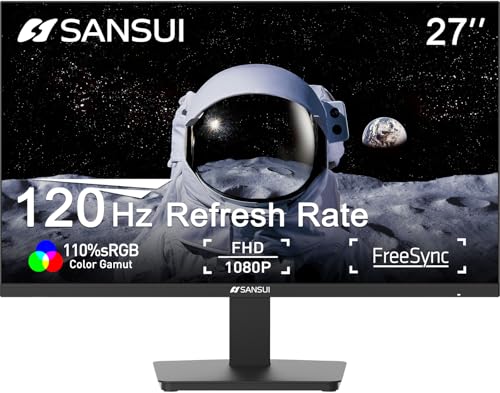
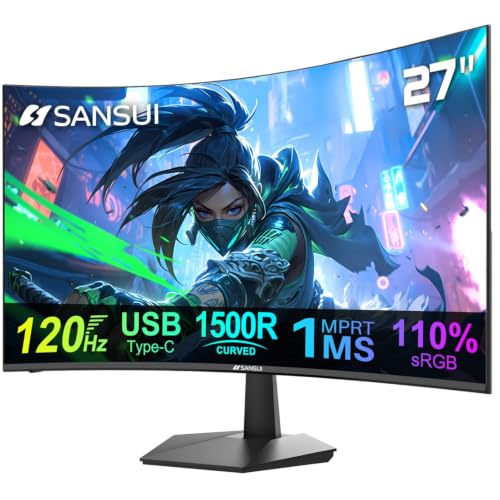
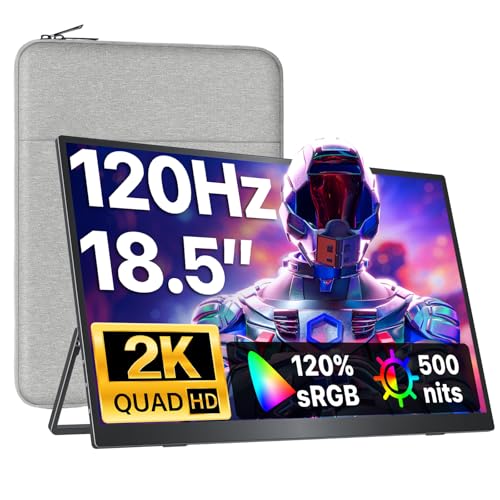
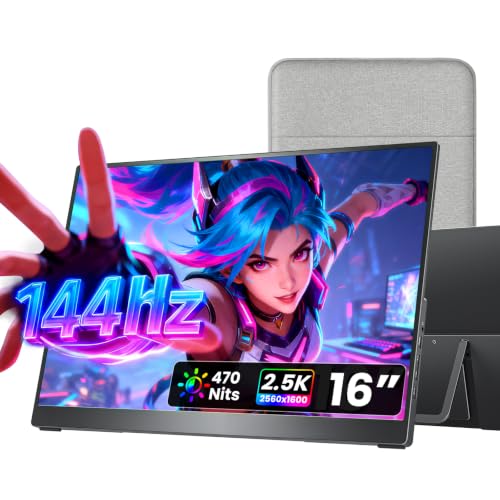
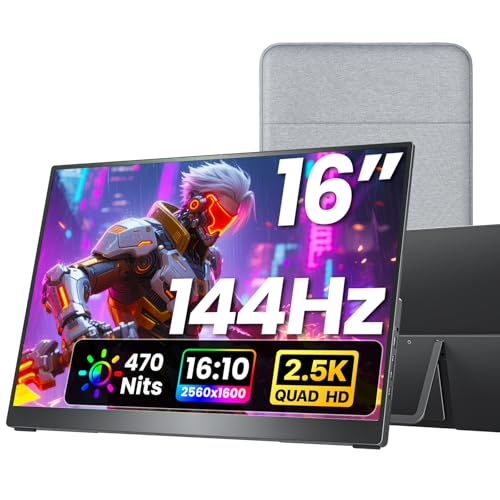
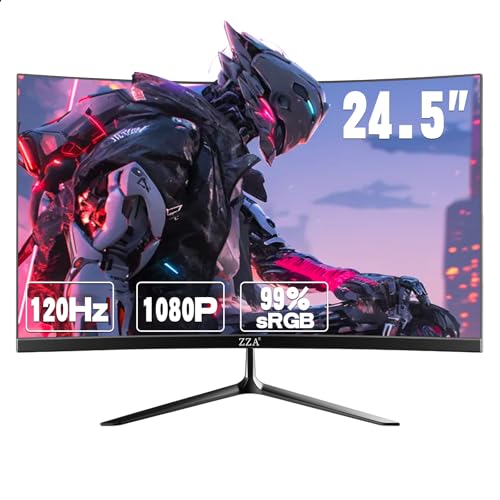
120hz Monitors 101: The Basics
A 120hz monitor redraws the picture 120 times per second, twice as often as a standard 60hz screen. When a game sends frames at that rate, motion looks smoother and your controller inputs feel more responsive.
The console itself decides how many frames it can output, and many games offer a performance mode that targets 120 frames per second, often at a lower resolution than 4K. If you are still weighing the console side of the setup, our guide to the best monitors for ps5 covers the broader picture before you narrow down to refresh rate. The monitor simply has to accept that signal and display it, which is why the connection standard matters as much as the panel.
Two terms come up everywhere: refresh rate is how often the screen can redraw, and response time is how fast each pixel changes color, with lower numbers meaning less blur behind fast moving objects.
Key Specs of the Best 120hz Monitors for PS5, Explained
Features That Matter for PS5
This console needs an HDMI 2.1 port to deliver 4K at 120hz, so that port is the first thing to confirm on any candidate. At 1440p or 1080p, some models reach 120hz over older HDMI versions, but HDMI 2.1 keeps every option open. Look for variable refresh rate support as well, because it smooths out the frame rate dips that happen in busy scenes.
Panel Technology: IPS, VA, OLED, and Mini LED
IPS panels give accurate colors and wide viewing angles, which suits shared desks and multiplayer sessions on one screen. VA panels deliver deeper contrast and darker blacks, though fast motion can smear slightly on cheaper models. OLED panels switch pixels almost instantly and produce perfect blacks, at higher prices and with a small risk of burn in from static images left on screen for hours.
Mini LED backlights sit behind IPS or VA panels and brighten HDR highlights in specific zones, narrowing the gap to OLED. Shoppers comparing panel types across the wider market can also browse our overview of the best gaming monitors for ps5 for more panel examples.
Adaptive Sync and Gaming Features
Variable refresh rate, often shortened to VRR, lets the monitor match its refresh timing to the frames the console sends, which removes screen tearing and reduces stutter. The console also supports ALLM, which switches the display into its low latency game mode automatically when you start playing. Marketing names like G Sync and FreeSync come from the PC world, and what matters for console play is plain VRR over HDMI.
Stand, Mounting, and Ergonomics
Most gaming monitors include height and tilt adjustment, and a stand that raises the screen to eye level keeps your neck comfortable through long sessions. Check for a VESA mount pattern, usually 100 by 100 mm, if you plan to use a monitor arm or wall bracket later. Keep the screen at roughly arm's length, and keep built in speaker volume moderate if you play close to the display.
Smart Platform and Sound
A few larger monitors borrow TV features such as streaming apps from platforms like Roku or Google TV, which is handy if the screen doubles as your bedroom television. Most desk monitors skip smart features entirely, and that is fine, because the console itself streams video apps well. Sound is the weaker point: small built in speakers sound thin, so many players use a headset or a compact soundbar instead.
Connectivity and Ports
You need at least one HDMI 2.1 port for the console, and a second HDMI port helps if a PC, laptop, or streaming stick shares the screen. DisplayPort matters mainly for PC use, since high refresh rates over DisplayPort do not apply to this console. USB ports on the monitor act as a small hub for charging a controller or plugging in a headset dongle.
Rookie Mistakes to Avoid
- Buying a 120hz monitor with only HDMI 2.0 ports, then finding the console capped at 60hz in 4K because the port cannot carry the full signal.
- Chasing the lowest advertised response time while ignoring VRR, even though frame pacing problems are far more visible in real games.
- Choosing 1080p at a large size such as 32 inches, where the picture looks soft because the pixels are spread too far apart.
- Forgetting to change the console video settings after setup, so the screen never actually receives a 120hz signal.
- Paying extra for 240hz headroom the console cannot use, instead of putting that money toward a better panel or HDR.
Getting Started: Setup and First Use
Start by connecting the console with the high speed HDMI cable included in its box, since older cables can limit the signal. In the console settings, open the screen and video menu, set resolution and refresh output to automatic, and turn on VRR for supported games. Then pick a game with a performance mode and confirm the monitor on screen display reports 120hz while it runs.
Next, switch the monitor picture preset to its game mode and turn off the vivid factory settings, which push colors and sharpness too far. Set brightness so white menus look clean rather than glowing, and sit with the screen at eye level. If you choose an OLED, run its pixel refresh cycle when the panel prompts you, and let it finish before unplugging the monitor.
FAQs
What features matter most in 120hz monitors for ps5?
An HDMI 2.1 port, VRR support, and a panel with fast pixel response matter most. HDMI 2.1 unlocks 4K at 120hz, VRR smooths frame rate dips, and quick response keeps motion clear. Resolution and size come next, matched to your seating distance. A low input lag game mode also helps, since it shortens the delay between pressing a button and seeing the result on screen.
Is 4K worth it on a 120hz monitor for console gaming?
4K is worth it if you sit close to a 27 inch or larger screen and play story driven games where detail stands out. Many titles reach 120 frames per second only at lower resolutions, so a 4K panel often runs those games upscaled. A good 1440p monitor costs less and still looks sharp at desk distance, which makes it the practical pick for smaller setups. If resolution is your top priority, compare the models in our guide to the best 4k monitors for ps5 before deciding.
Does a 120hz refresh rate matter for people who rarely game?
A 120hz refresh rate still helps outside games, because scrolling text, cursor movement, and video pans all look smoother. The catch is that movies and streaming shows are filmed at low frame rates, so they gain little. If the screen is mostly for work and films, spend the money on size, color accuracy, and HDR instead of refresh speed. PC players with the same question can see how the options differ in our roundup of the best 120hz monitors for general use.
IPS vs OLED: which panel is better for a first gaming monitor?
IPS is the safer first buy, because it costs less, gets bright, and carries no burn in worries during long sessions with static menus. OLED wins on contrast and motion clarity, with near instant pixel response and true blacks that suit dark games. Choose OLED if your budget stretches and you vary your content, and choose IPS if the monitor doubles as an all day work screen.
What size 120hz monitor should a first time buyer get?
A 27 inch screen suits most desks, because it fills your view at arm's length without forcing you to turn your head. At 32 inches, 4K resolution keeps text and game detail sharp, while 1440p can look grainy up close. Smaller 24 inch models fit tight desks and favor fast paced games. Measure your desk depth first, since bigger screens need more distance to stay comfortable.
How long does a 120hz gaming monitor usually last?
A typical gaming monitor lasts about five to eight years of regular use before brightness fades or backlights weaken. OLED panels can lose brightness unevenly if the same static image sits on screen for hours every day, so vary your content and use the built in refresh tools. Dust the vents, avoid pressing on the panel when moving it, and a quality monitor should outlast the console it serves.
The Bottom Line
For a first purchase, confirm HDMI 2.1 and VRR first, then pick the panel and size that fit your desk and budget. Budget 1080p models run about $100 to $200, 1440p and 4K options with strong HDR sit around $250 to $500, and OLED models start near $800. If your eyes feel strained after long sessions, adjust brightness and viewing distance, and see an eye care professional if eye pain or vision changes persist. Compare your shortlist in the product table, and the best 120hz monitors for ps5 for your setup will be the one that checks those first two boxes without overspending.