Best Computer for 4 Monitors in 2026: Everything to Know Before Your First Purchase
Disclosure: We may earn a commission when you buy through links on this page, at no extra cost to you. As an Amazon Associate I earn from qualifying purchases. Learn more

Shopping for the best computer for 4 monitors for the first time? Learn the terms, compare options, and avoid rookie mistakes with this easy guide.
Running four screens sounds complex, but the buying decision rests on a few clear checks. The best computer for 4 monitors is a machine whose graphics hardware can drive four displays at once, with enough processing power and memory for the apps you spread across them. This guide explains each spec in plain English and ends with setup steps, so you can read the comparison table below with confidence.
Begin with your main job for the desk. A trader watches charts all day, an office worker juggles documents and calls, and a streamer plays on one screen while tools fill the other three. Each job loads the computer in a different way.

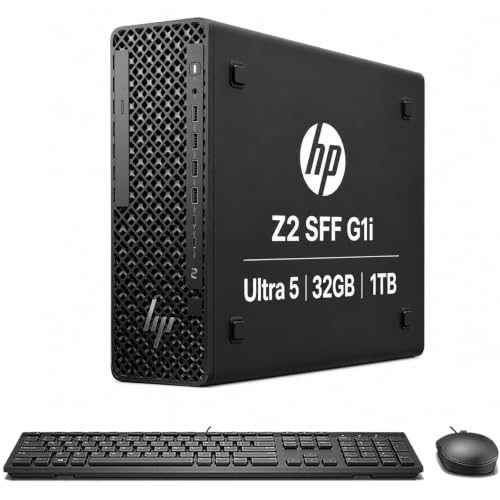
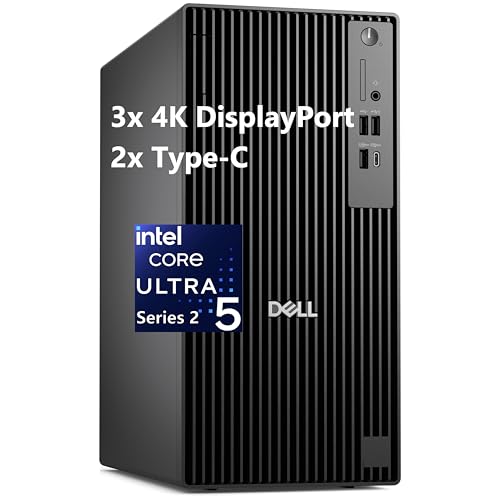
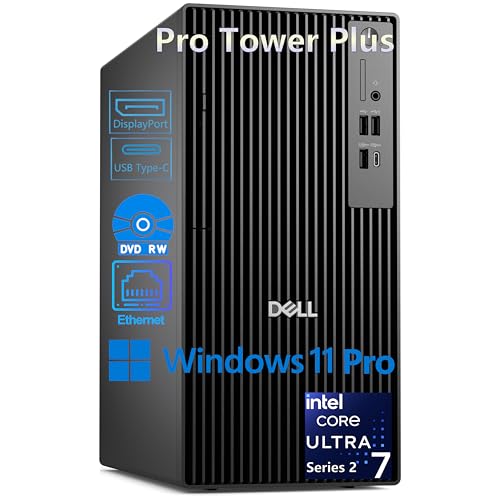

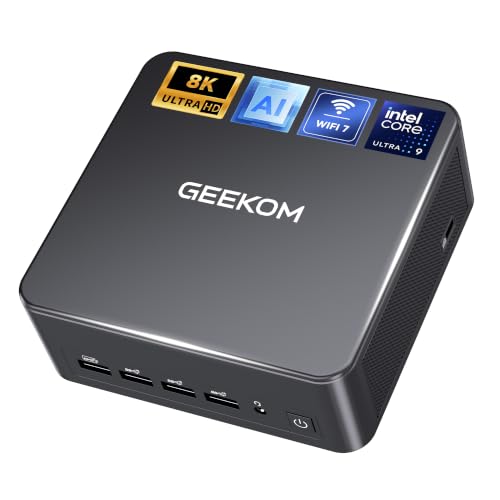
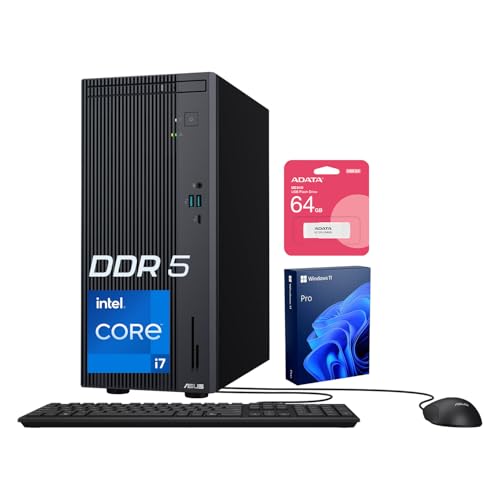
Computers 101: The Basics for a Four Screen Desk
In short, the best computer for 4 monitors is an ordinary computer with an unusual graphics setup. A computer sends a picture to each screen through a graphics chip and a cable. One screen needs one active output, so four screens need four working outputs, or a supported hub that splits one output correctly. The processor runs your programs, and memory holds what is open right now.
Budget for the whole desk, not only the tower or laptop. Cables, a hub, and a larger desk all add cost. If screen prices worry you most, see our guide to the best affordable computer monitors.
Who Should Buy a Computer That Runs Four Monitors?
Four screens help when you keep several full windows visible at once. If you mostly use one app at a time, two screens may serve you better and cost less.
Best Trading Computer with 4 Monitors: Tips for First Time Buyers
A trading desk keeps charts, news, order entry, and a browser open together, and every window must update without delay. Choose a quiet computer with a mid range processor, at least 32 GB of memory, and four outputs that match your screens. Stability matters more than game performance here.
Home Office Workers and Video Creators
You spread mail, documents, chat, and calls across the desk, and creators add a timeline and a preview window. A mid range processor and 16 to 32 GB of memory keep that mix smooth. Video editors should also choose a stronger graphics card, because editing apps use it to render effects and exports, while pure office work does not.
Gamers and Streamers Who Play on One Screen
You play on one main screen while chat, stream tools, and a browser fill the other three. The game screen sets the graphics load, so choose the card for that resolution first, then confirm it still offers four outputs. For that main display, see our guide to the best gaming monitors.
Reading a Spec Sheet for a Four Monitor PC: Outputs First
Read the spec sheet in this order: outputs first, then screen load, then the parts that run your apps. A computer that fails the first check cannot run your desk at all.
Graphics Outputs Come First on a Four Monitor Computer
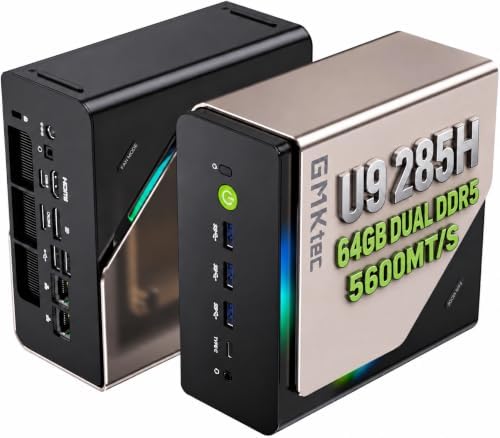
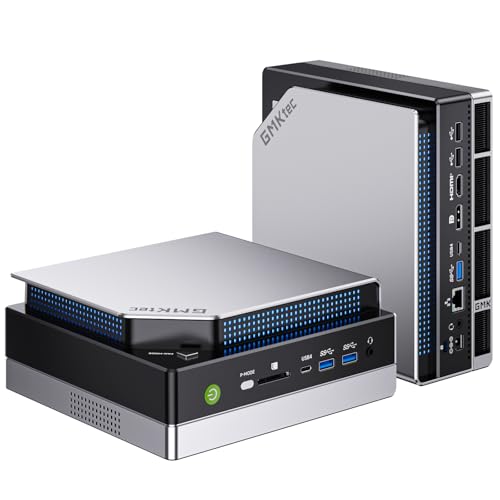
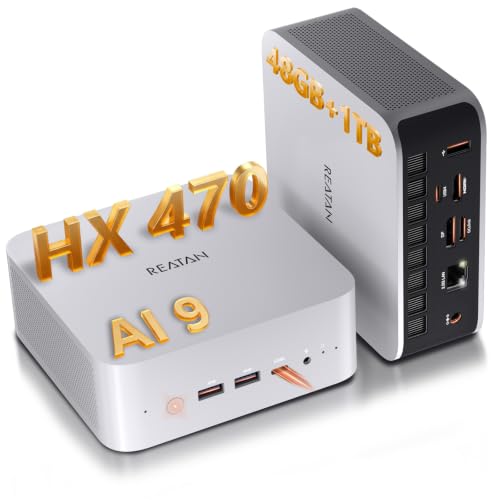
Count the physical outputs on the graphics card or laptop and match them to your screens before you buy. Many cards offer three DisplayPort sockets and one HDMI socket, which suits most desks, but some offer only three outputs in total. Integrated graphics built into a processor often support fewer screens, and the limit varies by chip. Check the maker spec sheet for the exact maximum screen count, because adapters cannot add an output the chip does not support.
Resolution and Refresh Rate Set the Real Screen Load
Each screen asks the graphics card to draw a set number of pixels many times per second. Four screens at 1080p total about 8.3 million pixels per frame, close to one 4K screen, while four 4K screens total about 33 million pixels and need a far stronger card. A refresh rate of 60 Hz suits office work and charts, and higher rates suit fast games on the main screen. For fast play, see our guide to the best computer monitors for gaming.
Processor and Memory for Many Open Apps
The processor decides how quickly programs respond, and memory decides how many stay open without slowing down. Four screens invite you to leave more apps open, so treat 16 GB as a floor for office work and choose 32 GB for trading, streaming, or editing. Buyers who compile code or run virtual machines should step up the processor first.
Ports, Hubs, and Docks Beyond the Screen Sockets
Your desk also needs sockets for a keyboard, drives, a headset, and a wired network lead. Laptops often reach four screens through a dock, but the dock and the laptop port must both support that screen count, and some docks mirror two screens instead of extending them. Count the USB ports and check the dock spec before you order.
Power Supply, Cooling, and Noise at a Full Desk
A graphics card that drives four screens draws real power, so the power supply must exceed the card maker stated minimum and leave headroom for drives and USB gear. Towers handle this more easily than small cases, where heat builds fast. Choose a case with open airflow paths and room for the card, so fans stay quiet.
Wiring Up a Four Screen Desk Step by Step
Set the desk up in stages, testing each screen as you add it.
- Place the computer where its vents stay clear, connect one screen, and install the latest graphics driver from the card maker.
- Add one screen at a time, and confirm each new screen appears before you connect the next one.
- Open display settings, drag the screen icons into the same order as your desk, and set the main screen.
- Set each screen to its native resolution, then adjust text scaling so words stay readable.
- Label both ends of each cable with tape, so a loose lead is easy to trace later.
Finish with a normal work session before you tidy the cables away. Open your usual apps and check that windows land where you expect. Only then route the cables through a tray or clips, leaving a little slack at each plug.
Rookie Mistakes to Avoid
- Buying a computer with only three graphics outputs leaves the fourth screen dark until you replace the card or the machine.
- Mixing cables and adapters without checking their ratings can limit a 4K screen to a low refresh rate.
- Choosing four 4K screens on a weak graphics card makes games and video stutter across the whole desk.
- Skipping the dock spec on a laptop setup can leave two screens mirrored instead of extended.
- Crowding the computer into a closed cabinet traps heat and makes fans run loud all day.
Care and Maintenance for a Four Monitor Computer
Dust is the main enemy of a desk computer that runs all day. Keep the case off thick carpet, wipe the outer vents with a dry cloth each month, and use short bursts of canned air on the intake grilles with the machine off.
Update the graphics driver when you add a screen or when a display problem appears, and note the driver version that works well. Check cable plugs twice a year for looseness, because a screen that blinks off is often a tired cable rather than a failing card.
Frequently Asked Questions
What features matter most when a computer must run 4 monitors at once?
The graphics output count matters most, because four screens cannot run on three outputs. After that, match card strength to your total resolution, and choose memory for your open apps. One fresh check helps: confirm the limit in the maker manual for the exact model, because makers sell near identical names with different port layouts.
Can integrated graphics run 4 monitors on a desktop computer?
Yes, some integrated graphics can run four screens, but many setups support only two or three. The limit depends on the processor, the board sockets, and the maker settings together. Office apps and charts run fine at that level, while games do not. A board with a free slot for a later graphics card keeps an upgrade path open.
What desk and room space does a computer with 4 monitors need?
A computer with four screens needs a desk about 60 to 72 inches wide for most screen sizes. Measure your screens side by side, then add space for speakers and the tower if it sits on the desk. Also check the door swing behind you, because a deep desk plus a chair needs more room depth than buyers expect.
Is 4K worth it on all 4 monitors from one computer?
4K is worth it on screens you read closely, and less so on side screens that show chat or mail. Text looks sharper at 4K, but you may raise text scaling, which gives back some of the extra space. A mixed desk, with one or two 4K screens and the rest at 1440p or 1080p, often balances cost and clarity well.
How long does a computer for 4 monitors usually last?
A computer for four screens usually lasts about five to seven years for office and trading work. The screen outputs age first, because new displays adopt new socket standards over time. You can often extend the life with a memory upgrade or a newer graphics card in a tower. Laptops lack that path, so buy extra memory at purchase.
Does refresh rate matter for office work on 4 monitors?
Refresh rate matters a little for office work, mainly in how smooth scrolling and window movement feel. At 60 Hz most readers see no problem with text, charts, or video calls. A higher rate can feel easier during long scrolling sessions, but it will not make documents sharper. Spend on size or resolution first if your budget forces a choice.
Our Verdict
Start with the outputs, then size the graphics card for your total resolution, then choose memory for your open apps. That order avoids the costliest error, a machine that cannot light the fourth screen. Use the product table above to compare port counts, memory, and card strength.
Chosen that way, the best computer for 4 monitors fades into the background of your workday, which is the real goal. Your screens stay lit and your apps stay open.