Best Affordable Computer Monitors: A First Time Buyer's Guide for 2026
Disclosure: We may earn a commission when you buy through links on this page, at no extra cost to you. As an Amazon Associate I earn from qualifying purchases. Learn more
Shopping for the best affordable computer monitors for the first time? Learn the terms, compare options, and avoid rookie mistakes with this easy guide.
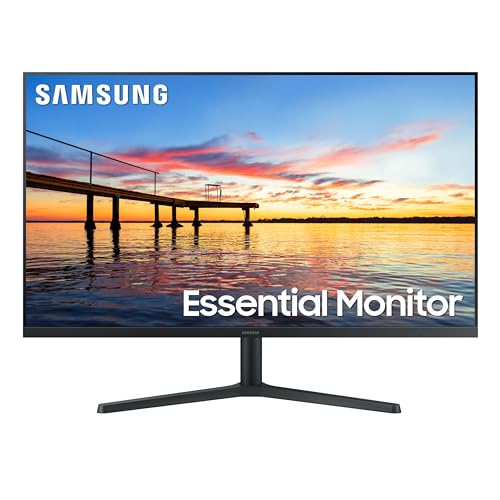
Buying your first separate monitor can feel like reading a spec sheet in a foreign language. Panels, refresh rates, sync, ports, mounts: every listing throws ten terms at you, and the prices jump from under $100 to several hundred dollars. This guide slows the whole thing down. We start with the basics, explain each spec in plain English, and show you how to pick the best affordable computer monitors for your desk without paying for features you will never notice. The product table gives you a quick way to compare options before we get into the details.
The honest starting point is that a budget monitor is a set of trade offs, and that is fine. At this price level you cannot have the biggest screen, the fastest panel, and the richest color all at once, so the skill is knowing which two matter for your work or study. By the end you will know what size and resolution make text easy to read, which panel type suits your room, and how to connect everything with a single cable.

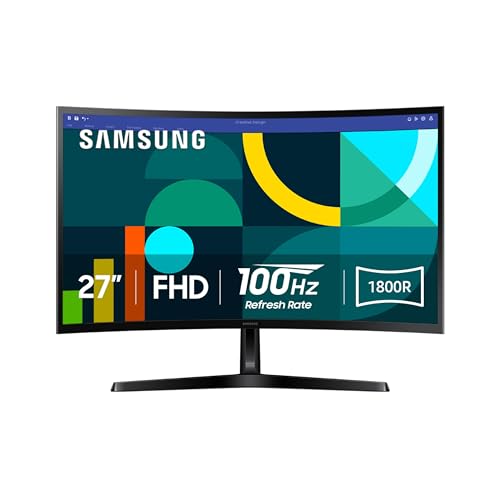

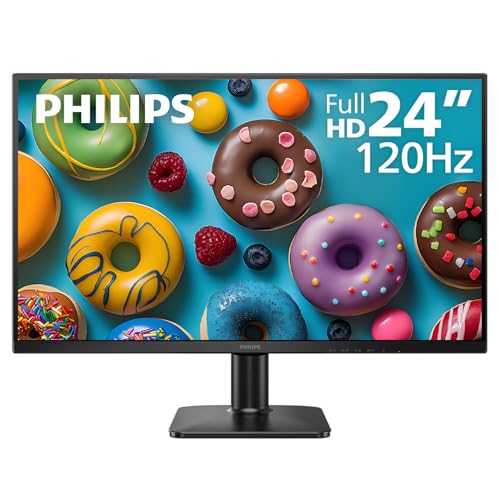

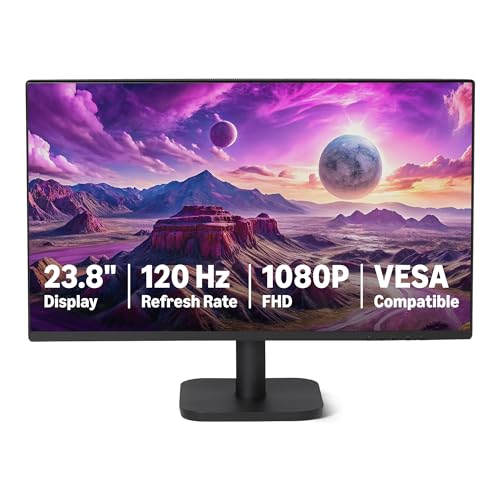
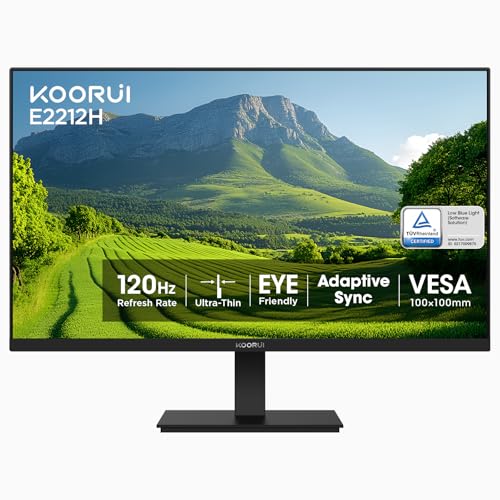
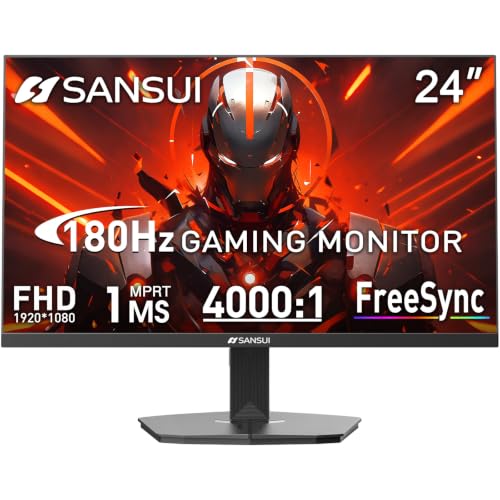
Computer Monitors 101: The Basics
A computer monitor is the screen that shows what your computer produces. Your laptop or desktop does the thinking, and the monitor only displays the picture it receives, which means the monitor can never look better than the signal sent to it. If your computer outputs a soft, low resolution image, even an expensive screen will show that same soft image, just bigger. This one idea explains half of the disappointment first time buyers feel when a new screen looks no sharper than the old one.
The picture travels from the computer to the monitor through a cable, most often HDMI or DisplayPort, and some newer monitors accept video over a USB C cable as well. The monitor then lights up a grid of tiny dots called pixels. The count of those pixels is the resolution: 1920 by 1080, often called Full HD or 1080p, is the standard at budget prices, while 2560 by 1440, called 1440p or QHD, packs in more dots for crisper text. More pixels on the same screen size means smaller, sharper letters, which is why resolution and size should always be judged together.
Three more terms will show up in every listing. Refresh rate, measured in hertz, is how many times per second the screen redraws the picture. Response time, measured in milliseconds, is how quickly a pixel can change from one shade to another. Brightness, measured in nits, tells you how strongly the screen glows, which matters in a bright room. None of these numbers can be compared blindly across brands, because makers measure them under different conditions, a point we return to in the spec sections below.
Key Specs for the Best Affordable Computer Monitors, Explained
Screen Size and Resolution Come First
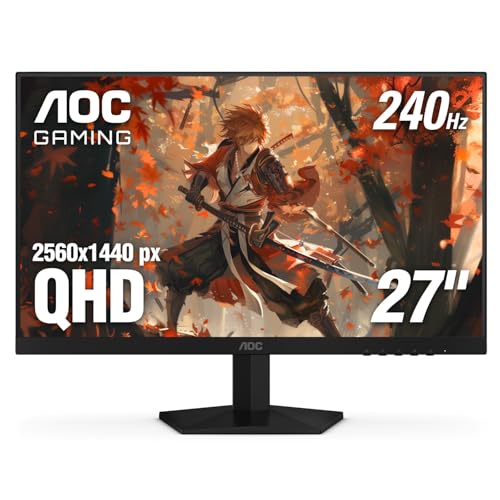
For desk work and study, start with size and resolution, because these two decide whether text is comfortable to read for hours. A 24 inch screen at 1080p is the classic budget pairing: letters are large and clear at a normal sitting distance, and almost any computer can run it well. Step up to 27 inches and 1080p starts to look grainy, since the same pixels stretch over more space, so a 27 inch screen pairs better with 1440p if your budget and computer allow it. Bigger is not automatically better; a screen so large that you turn your head all day is a poor trade.
What You Can Realistically Get on a Budget
Set honest expectations before you shop. Under about $110, you get a basic 21 to 24 inch 1080p screen with a fixed stand and one or two ports, and that is a fair deal for schoolwork and office tasks. Between about $110 to $210, you gain better panels, thinner bezels, and sometimes a height adjustable stand. From about $210 to $320, 1440p and faster refresh rates enter the picture. What gets cut at the low end is panel uniformity, stand adjustment, and port count, long before the headline specs suffer. Readers comparing across the whole budget market can also browse our overview of the best affordable monitors for other screen categories. Spend first on resolution and panel quality, because you look at those every second, and let extras like built in speakers come last.
Panel Technology: IPS, VA, OLED, and Mini LED
The panel is the layer that makes the image, and it decides color, contrast, and viewing angles. IPS panels are the safe first buy: colors stay accurate when you lean back or share the screen, and text looks clean. VA panels give deeper blacks and stronger contrast for movies, but their viewing angles are narrower and dark scenes can smear slightly in motion. OLED delivers perfect blacks and instant response, yet it is rare at budget prices and carries a small risk of burn in if a static image sits for months. Mini LED improves backlight control on premium screens and is mostly out of reach in this price range, so treat it as a future upgrade rather than a realistic pick today.
| Panel | Strength | Trade off | Good for |
|---|---|---|---|
| IPS | Accurate color, wide viewing angles | Blacks look gray in a dark room | Study, office work, shared screens |
| VA | Deep contrast, strong blacks | Narrower angles, slight dark smearing | Movies and solo evening use |
| OLED | Perfect blacks, instant response | High price, burn in risk with static images | Premium movie and gaming setups |
| Mini LED | Bright highlights, strong local dimming | Expensive, uncommon under $300 | Bright rooms and HDR video |
Refresh Rate and Response Time
A standard screen refreshes 60 times per second, which is smooth enough for documents, web pages, and video. Screens at 100Hz, 144Hz, or higher redraw more often, so scrolling text and mouse movement feel smoother and games look clearer in motion. The catch is that your computer must actually produce those extra frames, because the monitor only shows what it receives. Response time figures deserve skepticism: every maker measures them differently, often with aggressive settings you would never use daily, so a claim of 1ms from one brand and 4ms from another does not prove the first screen is faster in your home. If you play games often, our guide to the best computer monitors for gaming explains which speed specs matter most. For a first desk monitor, a clean 75Hz to 144Hz panel beats a dubious record breaking claim.
Adaptive Sync and Gaming Features
Adaptive sync lets the monitor match its refresh rhythm to the frames your graphics card produces, which removes the tearing lines that appear when the two fall out of step. FreeSync works over a wide range of graphics hardware, and G Sync is the matching system built for the other major graphics platform; many affordable screens support at least one of them. This feature matters only if you play games, and it costs little or nothing at this level, so it is a pleasant bonus rather than a reason to buy. Some listings also mention HDMI 2.1, which mainly serves console players who want 120Hz at 4K; on a budget computer monitor, a standard HDMI port is usually enough. Players comparing dedicated game screens can look at the best affordable gaming monitors for models built around speed first.
Ports and One Cable Simplicity
Before you fall for a screen, check the back of your computer. Most desktops offer HDMI and DisplayPort, while many thin laptops offer only USB C or a single HDMI port. Pick a monitor whose inputs match what you already have, so the setup is one cable from computer to screen with no adapters in between. A monitor with a USB C input that carries video can be the simplest option for a laptop, since the same cable shows the picture and sometimes charges the laptop too. Count your devices as well: a desktop plus a work laptop plus a game console needs at least two or three inputs, or you will swap cables weekly.
Stand, Mounting, and Ergonomics
Budget monitors often ship with a stand that only tilts, which leaves the screen too low for good posture. Your eyes should land near the top third of the screen, so either budget for a stand with height adjustment or plan a simple fix. Many affordable screens include a VESA mount pattern, a standard set of screw holes on the back that fits monitor arms and wall brackets. An arm frees desk space and lets you set the height and angle exactly, which is worth more comfort than a small spec upgrade. Check the VESA size in the listing, usually 75 by 75 mm or 100 by 100 mm, and confirm your arm matches it.
HDR and Brightness
HDR promises brighter highlights and richer color, but at budget prices the label is mostly marketing. True HDR needs high peak brightness and local dimming, which cheap panels lack, so an HDR sticker on a 250 nit screen changes very little. Brightness numbers also cannot be compared across brands with confidence, since measurement conditions differ and some makers quote peak figures reached only in small areas. What actually helps in a sunny room is a matte finish that cuts reflections and a brightness control with enough range. Judge HDR claims with doubt, set your expectations by panel type and resolution, and you will rarely be disappointed.
Eye Comfort: What a Monitor Can and Cannot Do
Let us be honest about eye comfort, because this topic collects more marketing fog than any other. No monitor can fix tired eyes on its own. The larger factors are your habits: sit at about an arm's length from the screen, take short breaks to look at distant objects, match the screen brightness to the room light, and keep the top of the screen near eye level. Features like low blue light modes and flicker free backlights can help at the margins, and a matte surface reduces glare, but they are maker descriptions rather than medical promises. If your eyes still ache after fixing distance, light, and breaks, ask an eye doctor rather than buying a more expensive screen.
Rookie Mistakes to Avoid
- Buying size before resolution: a 27 inch screen at 1080p spreads the pixels thin, so text looks fuzzy at desk distance.
- Trusting response time claims: makers measure differently, so a 1ms claim does not guarantee a clearer picture than a 4ms claim.
- Forgetting to check your ports: the monitor arrives, your laptop has only USB C, and the screen has only HDMI, so setup stalls on an adapter hunt.
- Paying for HDR at the bottom of the market: the label is there, but the brightness and dimming needed for real HDR are not.
- Ignoring the stand: a fixed low stand wrecks your posture, and a monitor arm costs extra money you did not plan for.
- Skipping the dead pixel policy: return windows differ, so check the policy before a stuck bright dot becomes permanent furniture.
Getting Started: Setup and First Use
Setup takes about fifteen minutes. Attach the stand or arm first, place the screen at arm's length, and connect the cable that matches both your computer and the monitor. Turn everything on, then open your computer display settings and confirm the resolution shows the native figure from the box, because computers sometimes start at a lower setting that makes text look soft. Set the refresh rate there too, since a 144Hz screen often defaults to 60Hz until you raise it by hand.
Next, fix the picture. Monitors ship in a vivid or shop mode that pushes brightness and color far past natural, so switch to a standard or sRGB picture mode for accurate, calmer colors. Lower the brightness until white on the screen roughly matches a sheet of paper under your room light. If you use a laptop with a second screen at a desk or in a dorm, travelers can compare best portable computer monitors built for that job. Finally, sit back and read a full page of text; if you squint or lean forward, adjust the height or the scaling setting before blaming the panel.
Computer Monitors: Your Questions Answered
How long does an affordable computer monitor usually last?
Most budget monitors last about five to eight years of daily use before the backlight dims or a fault appears. The panel itself rarely wears out; the power supply and backlight age first. You can stretch that life by keeping brightness below the maximum, letting air flow around the vents, and using a surge protector. A longer warranty is worth a few dollars at this level, and keeping the receipt matters more than any care trick, since early failures are usually warranty claims.
Is 4K worth it on an affordable computer monitor?
For most first time buyers, no: 1440p at 27 inches gives sharp text for far less money, and 4K at small sizes makes text tiny unless you scale it up. This is why shoppers hunting for the most affordable computer monitors usually land on 1440p as the value ceiling. 4K earns its price when you edit photos in detail or sit close to a 32 inch screen. Remember also that your computer must drive four times the pixels of 1080p, which older hardware handles poorly.
What monitor size should I get for my desk?
A 24 inch screen suits desks about 20 to 24 inches deep, while a 27 inch screen needs a little more room so you are not sitting too close. Measure the desk, then check the width of the monitor stand, since wide feet can crowd out your keyboard on a small surface. Corner desks and shallow dorm desks favor 24 inches. If two people share the screen for videos, step up a size or choose an IPS panel so the picture stays clear from an angle.
IPS vs OLED: which panel is better for a first monitor?
IPS is the better first buy for almost everyone, because it costs far less, handles static screens like documents and spreadsheets all day, and keeps colors accurate from any chair. OLED wins on contrast and movie nights, but its price sits above this budget and static images carry a burn in risk over time. Choose IPS for a work and study desk without regret. Pick OLED only when entertainment dominates your use and the price gap stops mattering to you.
Does refresh rate matter for people who do not game?
Yes, a little: moving from 60Hz to 100Hz or 144Hz makes scrolling, window dragging, and cursor movement feel visibly smoother, which many office users enjoy once they try it. It does not make text sharper, and it will not speed up your computer. The cost difference is small now, so a higher refresh rate is a reasonable comfort upgrade if the price gap is under about $40. If the gap is large, spend the money on resolution or a better stand instead.
Final Thoughts
A first monitor purchase goes well when you keep the order straight: size and resolution for clear text first, panel type second, and a connection that matches your computer third. The best affordable computer monitors for your desk are the ones that fit that order at a price you can accept, not the ones with the longest feature list. Use the product table above to compare your short list, check the port and stand details twice, and skip the HDR and response time hype. Do that, and a modest screen will serve your work and study comfortably for years.