Best Combo Printers: Matching Print, Scan, Copy and Fax Features to Your Needs in 2026
Disclosure: We may earn a commission when you buy through links on this page, at no extra cost to you. As an Amazon Associate I earn from qualifying purchases. Learn more

The best combo printers fold print, scan, copy and sometimes fax into one machine. Compare paper handling, scanning and running cost to choose well.
Combo printers are the all in one machines that print, scan and copy, and some also send faxes. The label hides big differences: a small inkjet for school reports is a different tool than a monochrome laser built for a busy office. The best combo printers are chosen by the job they have to do, not by the longest feature list on the box.
The product table above spans ink tank, cartridge inkjet and laser machines, from compact models to wide format and office class units. This guide focuses on the features that change daily use, such as paper handling, scanning and ongoing running cost.



Paper Handling in the Best Combo Printers
Input Tray Capacity
A small tray means frequent refills, while a large tray holds a full ream. If you print documents in batches, a larger tray saves time. If you only print occasionally, a smaller one keeps the machine compact.
Automatic Document Feeder
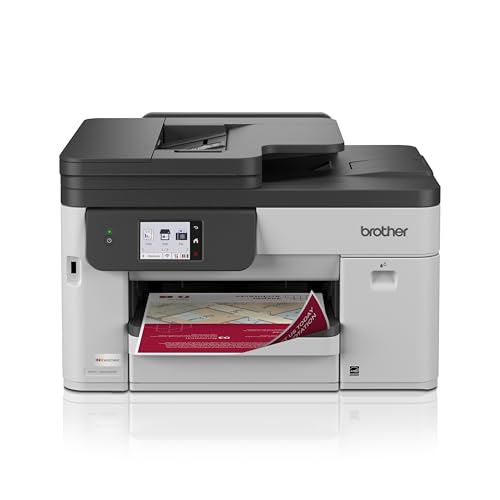
A feeder scans and copies multi page documents in one go. It is the most useful office feature, and one that home users often regret skipping. Look for a feeder that handles both sides, since duplex scanning speeds up large jobs.
Special Media and Wide Format
Some models take envelopes, labels, card stock and photo paper through a rear slot. A few larger machines print on wider paper, up to tabloid size, which suits posters and spreadsheets. If you need these, check the maximum paper size and weight in the product description.
Scanning and Copying Quality
Flatbed Resolution
The flatbed glass handles books, photos and fragile documents. Resolution is quoted in dots per inch, and a modest number is plenty for office papers. If you scan photos or artwork, look for higher resolution and software that supports color correction.
Copy Features
Basic copy functions include multiple copies, reduce and enlarge, and ID card copy. These are handy for forms and school projects. Speed matters for office use, so check pages per minute for copies as well as printing.
Scan to Email, Cloud and USB
Scan to email and scan to cloud save time for remote work. USB scan is useful if your network is unreliable. Confirm that the machine supports the services you use, and that setup does not need a special account.
Running Cost and Reliability
Ink and Toner Costs
The price of ink or toner over a year often exceeds the price of the printer. Tank printers and laser models usually win for frequent printing, while cartridge inkjets cost more per page. Look for the page yield for each cartridge, then do the math for your own volume.
Subscriptions and Third Party Supplies
Some makers offer ink subscription plans that reduce cost for steady users, but they require an account and a connection. Others block third party supplies through firmware. Read the terms so there are no surprises.
Reliability and Support
Paper jams, wireless dropouts and driver issues are the usual complaints. Reviews that describe long term use are a good guide. Check warranty length and whether support is by chat, phone or both.
Who Should Choose What
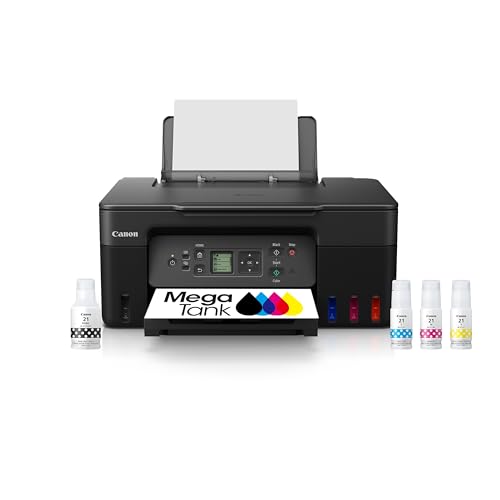
A student or small household does well with a compact ink tank all in one that prints, scans and copies reliably. A home worker who prints contracts and shipping labels should look at a monochrome laser with a feeder. A design or photography hobbyist may prefer a photo oriented inkjet with several ink colors.
For related reading, see our guides to the best computer printers for home, the best printers for pictures and the best quality printers. Makers who like crafts may enjoy the best hobby 3d printers guide.
Setting Up and Getting the Most From Your Machine
Place the printer on a flat, stable surface near your router if it connects over wireless. Leave a few inches behind the machine for paper movement and a little clearance around the vents. Run the setup wizard before you load any special media, then print a sample page of ordinary text to confirm everything works.
Set sensible defaults in the driver: duplex printing, draft mode for everyday documents and a standard paper size. These small choices reduce paper and ink use over a year, and they save you from adjusting settings for every job. Keep a spare set of cartridges or a bottle of ink at home, because running out in the middle of a deadline is the classic printing story.
Security and Privacy Basics
A networked printer is a small computer, so give it a unique admin password and keep its firmware up to date. Turn off features you do not use, such as remote printing from outside your home, and check which cloud services the machine connects to. Offices that handle sensitive documents should look for secure print release, which holds a job until you enter a code at the machine.
Before you recycle an old combo printer, clear any stored scans, network credentials and address books using the reset option in the menu. Many machines keep a surprising amount of data, and a quick reset protects you if the unit changes hands.
Quick Buyer Checklist
- How many pages do you print each month?
- Do you need a document feeder and duplex scanning?
- Do you print on special media or wide paper?
- Which scan destinations do you use?
- What is the page yield for each ink or toner supply?
- Does the printer require an account to work?
- Is the footprint right for your desk or shelf?
Red Flags to Watch For
- Printers sold with partial starter ink only.
- No page yield listed for replacement supplies.
- Firmware that blocks third party supplies without warning.
- Reviews that mention constant paper jams.
- Features advertised that require a paid subscription.
Care Tips
Keep paper in a dry place, and use the correct paper type for each print mode. Clean the scanner glass gently with a soft cloth, and keep the lid closed when the machine is idle. Update the firmware when the maker releases fixes, and keep the printer on a stable surface.
FAQ
Are combo printers good for home offices?
Yes, especially models with a feeder and duplex printing. They replace three devices with one.
Do combo printers include fax?
Some do. If you still send faxes, confirm that the listing mentions a fax line connection.
How often should I replace ink?
Replace it when the printer warns you, or when print quality drops. Do not wait until a cartridge is empty if you need a document urgently.
List your tasks, check the paper handling and compare running cost per page. The product table above will then point you to the best combo printers for your desk.