Best Business Webcams of 2026: Complete Buying Guide
Disclosure: We may earn a commission when you buy through links on this page, at no extra cost to you. As an Amazon Associate I earn from qualifying purchases. Learn more

Our guide to the best business webcams covers resolution, field of view, autofocus, microphones, and lighting so you can choose well for work calls.
A laptop camera often makes you look dim, grainy, and slightly out of focus, which is a poor look when a client call or a job interview is on the line. Choosing among the best business webcams fixes that problem with sharper video, clearer audio, and a mount that puts the camera at eye level instead of below your chin.
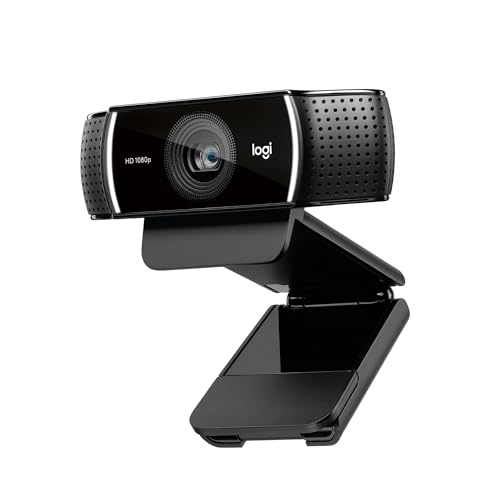
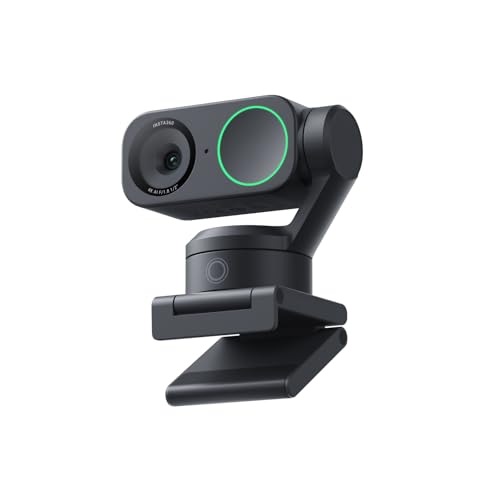
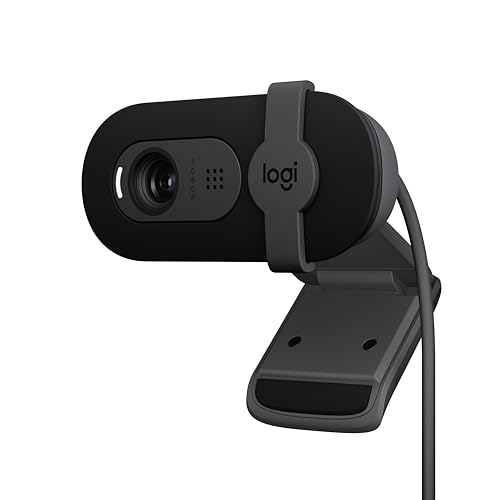
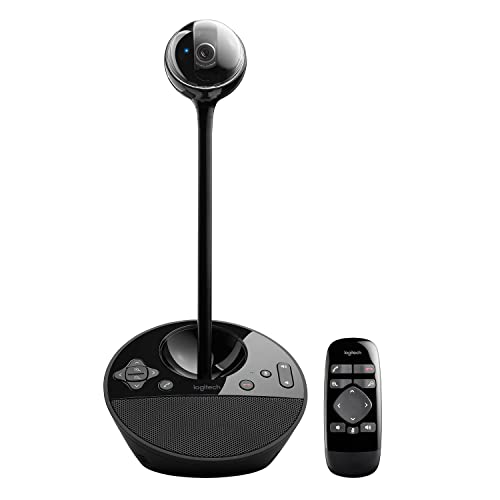
This guide walks through the specs that actually change how you look and sound on calls, the types worth knowing, and the mistakes that waste money. Start with the comparison table below to see how current models differ, then read on for the detail behind each feature.



Who Should Buy a Business Webcam?
Remote Workers in a Home Office
If you spend most of your week on video calls from a desk at home, you need a camera that handles ordinary room light without turning your face orange or gray. A 1080p model with reliable autofocus and a decent microphone covers daily standups, one on one meetings, and screen sharing sessions. Most home office buyers also do well with a standard field of view that frames the head and shoulders without showing the whole room behind them.
Team Leads and Client Facing Professionals
When you present to clients, pitch work, or record short updates for your team, small flaws in video quality become more visible because people watch you for longer stretches. A wider dynamic range, steadier exposure, and auto framing that keeps you centered when you shift in your chair all help. If your presenting ever turns into public facing video, compare your needs with our guide to the best webcam for streaming, since streaming models favor different frame rates and software controls.
Hybrid Workers Who Move Between Desks
If you split time between home, a shared office, and hotel rooms, portability matters as much as image quality. A compact camera with a folding mount, a protective cap or shutter, and a cable that survives daily packing will serve you better than a bulky premium model. You also want true plug and play behavior, because you cannot install drivers on a borrowed meeting room computer.
Key Features to Compare
Resolution and Frame Rate
Resolution decides how much detail the camera captures. A 1080p camera is the practical standard for business calls, since Zoom, Microsoft Teams, and Google Meet all compress your video anyway, and 1080p keeps text on a shared whiteboard or a name badge readable. A 4K sensor mainly helps when the software crops into the image for auto framing, because the crop still leaves enough pixels for a sharp picture. Frame rate matters less for talking head calls: 30 frames per second looks smooth for normal movement, while 60 frames per second only earns its cost if you move around a lot on camera. Readers who want the sharpest image available at any price can also browse our guide to the best quality webcams for higher end options.
Field of View
Field of view is the angle the lens sees, measured in degrees, and it controls how much of the room appears behind you. A view around 65 to 78 degrees frames one person at a desk with a little background, which suits most home offices. Wider views around 90 degrees suit two people sharing one camera or a small meeting room table, but they also reveal clutter and can make your face look smaller. Narrower views flatter a single speaker and hide a messy room, though you must sit at a steady distance so your head stays in frame. Match the angle to your seating and room, not to the biggest number on the box.
Autofocus and Auto Framing
Autofocus keeps your face sharp when you lean toward the screen or hold a product, a document, or a coffee mug up to the lens. Fixed focus cameras are cheaper and fine if you always sit at the same distance, but they blur when you move closer. Auto framing goes further by tracking your position and adjusting the crop so you stay centered, which helps presenters who stand or gesture. Check how the feature behaves before you rely on it, because aggressive tracking that zooms in and out during a quiet call can distract the people watching you.
Microphones and Audio
People tolerate soft video far longer than bad audio, so the built in microphone deserves real attention. Most business webcams include one or two microphones with noise reduction that softens keyboard clicks, fan hum, and room echo. Dual microphones usually judge distance better and keep your voice clear when you turn your head. Still, a webcam microphone works best within about three to six feet; sit farther away in a large room and your voice will sound thin no matter what the specification sheet says. If your calls matter enough, plan to pair the camera with a headset or a desk microphone later and treat the built in audio as a solid starting point.
Low Light Performance and Exposure
Many home offices have one window and a ceiling light, which is exactly the setup that makes cheap cameras struggle. Look for automatic exposure that brightens a backlit face without blowing out the window behind you, and automatic white balance that keeps skin tones natural under warm bulbs. A larger sensor generally handles dim rooms better than a small one at the same resolution. Some models add a built in light, which helps in a dark room but can look harsh at close range. Before you pay extra for low light claims, improve your setup first: face the window or a lamp, and never sit with bright light directly behind you.
Mounting, Privacy, and Connection
The clip mount should grip your monitor or laptop lid without wobbling, and many models add a tripod thread underneath so you can set the camera at exact eye level on a small stand. A physical privacy shutter or lens cap matters for business use, since it removes any doubt about whether the camera can see the room between calls. Note that a webcam is not a monitoring device; if you need to watch a room or a doorway, see our guide to the best security webcams instead. For the connection, USB with a standard UVC driver means the camera works the moment you plug it in, with no software required. Buyers setting up a desktop should also check our guide to the best webcams for pc for notes on ports and cable reach.
Types of Business Webcams
Compact and Travel Models
Compact models fold flat or use a small clip, weigh very little, and slip into a laptop bag without a separate case. They usually shoot 1080p, use fixed or light autofocus, and skip extras like built in lights. They suit hybrid workers and frequent travelers who value a camera that is always with them over the last degree of image quality.
Standard Desktop Models
The standard desktop webcam is the default choice for a fixed home office: 1080p video, autofocus, a moderate field of view, and a monitor clip that stays put for months. These models balance price and performance well, typically landing at about $50 to $100, and they ask nothing of you beyond plugging in the cable and choosing the camera inside your meeting app. This is the category most buyers mean when they search for the best business webcams for everyday work.
Wide Angle Models for Small Meeting Rooms
Wide angle models cover a table of three to six people from a short distance, so a huddle room or a shared office can run a group call from one computer. Their 90 degree or wider view and stronger microphones serve the whole table. The tradeoff is that a single user at home will look small in frame, so buy this type only when group calls are your normal case.
Premium Models With 4K and Auto Framing
Premium models combine a 4K sensor, fast autofocus, auto framing, and better microphones in one unit, often at about $150 to $250. They make sense for executives, trainers, and anyone whose recorded updates or client presentations carry real weight. For ordinary internal calls they are more than you need, and the product table above can help you judge whether the step up fits your budget.
Common Mistakes to Avoid
- Buying a 4K camera when your meeting apps compress every call to 720p or 1080p, so the extra detail never reaches the other side.
- Choosing the widest field of view for a solo desk, which makes your face small and shows the whole room behind you.
- Mounting the camera on top of a tall monitor without tilting it down, so viewers look up at the ceiling and down at the top of your head.
- Judging a camera in a bright showroom style room when your real office is dim, so the picture at home looks far worse than expected.
- Ignoring microphone distance and sitting across a large room, which leaves your voice echoing no matter how good the camera is.
- Skipping the privacy shutter on a camera that stays plugged in all day in a shared home.
How to Make Your Business Webcam Last Longer
A business webcam has no moving parts to wear out, so most failures come from handling, cables, and dust rather than age. A few simple habits keep the picture sharp for years.
- Clean the lens with a dry microfiber cloth every few weeks, since a thin film of dust and fingerprints softens the image long before you notice it on screen.
- Route the cable with slack at both ends and avoid pinching it in a monitor arm or desk hinge, because a strained cable is the most common cause of a camera that cuts out mid call.
- Close the privacy shutter or fit the lens cap when you travel, which protects the glass from keys and coins in your bag.
- Update the firmware and companion software when the maker offers it, since updates often improve autofocus behavior and exposure.
- Store a spare camera or keep your laptop camera as a fallback, so a failure on the morning of an important call never leaves you without video.
FAQ
How much resolution does a business webcam need for video calls?
A business webcam needs 1080p for most video calls. That resolution keeps your face and anything you hold up to the camera clear after your meeting app compresses the stream. A 720p camera still works for casual internal calls, but it looks soft on a large monitor. Choose 4K only if you want auto framing crops or you record video that people watch later at full size.
Does a business webcam work with Zoom, Microsoft Teams, and Google Meet?
Yes, a business webcam with a standard UVC connection works with Zoom, Microsoft Teams, and Google Meet without extra drivers. You plug it in, open the app settings, and select the camera and microphone by name. One practical tip: some apps default back to your laptop camera after an update, so check the selected device at the start of an important call rather than assuming it stayed set.
Where should you mount a business webcam for the most natural eye line?
Mount a business webcam at eye level, about an arm length away, so you appear to look directly at the other people on the call. If your monitor sits low, a small tripod or a stack of books under the camera works until you buy a stand. Sit far enough back that your head and shoulders fill the frame without touching the edges, which also leaves room for hand gestures.
Can a business webcam replace a headset for audio?
A business webcam can replace a headset in a quiet room when you sit within a few feet of the camera. Its noise reduction handles steady sounds like a fan well. In a shared office or a room with hard walls, a headset still wins, because its microphone sits close to your mouth and rejects background voices that a desk camera cannot separate from yours.
How long does a business webcam usually last?
A business webcam usually lasts four to six years of daily use. The sensor rarely fails; the cable, the clip hinge, and outdated software support end its life first. You can stretch that span by keeping the original cable untangled in a drawer as a spare and by checking that the maker still supports your operating system before you upgrade your computer.
Final Thoughts
Start with the basics: 1080p resolution, autofocus, a field of view that matches your room, and a microphone that suits your seating distance. Add a privacy shutter and a mount that puts the lens at eye level, and you have covered what actually changes your calls. Compare your shortlist against the product table above, and you will land on the best business webcams choice for the way you really work.