
Best Budget Monitors for Work at Home: A Buyer's Guide
Disclosure: We may earn a commission when you buy through links on this page, at no extra cost to you. As an Amazon Associate we earn from qualifying purchases. Learn more
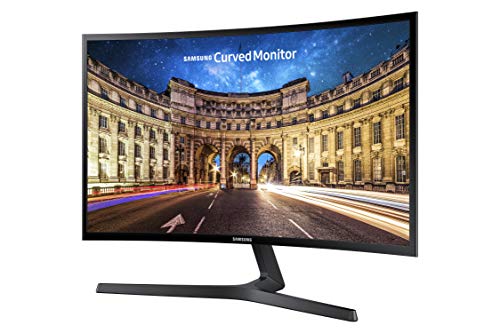
Shopping for a home office monitor can turn into an expensive rabbit hole fast, especially once you start comparing specs meant for gamers and video editors. If your day is really just email, spreadsheets, a few documents, and the occasional video call, you don't need most of that. The goal with best budget monitors for work at home shopping is simple: spend as little as you can while still avoiding a screen that makes your workday harder. This guide walks through what changes at a lower price point, where it's safe to cut corners, and where it isn't.
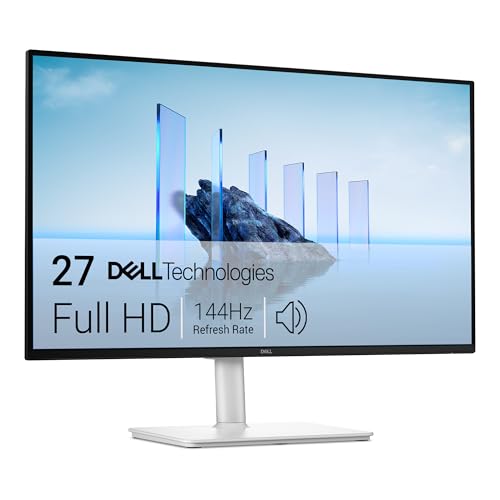
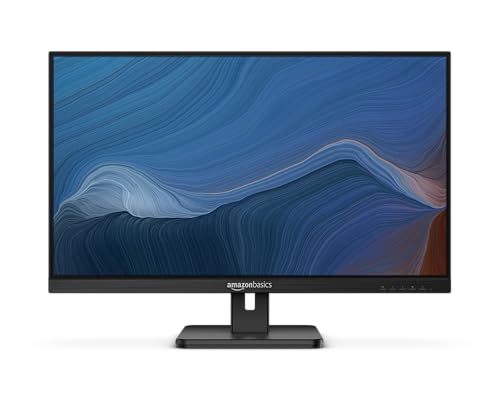
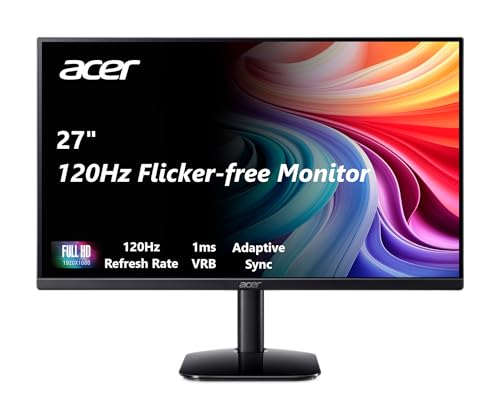
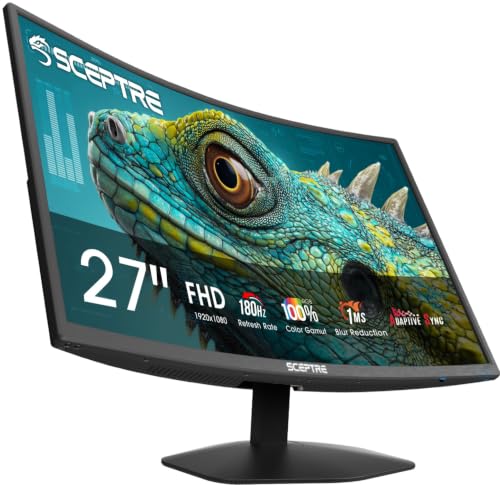
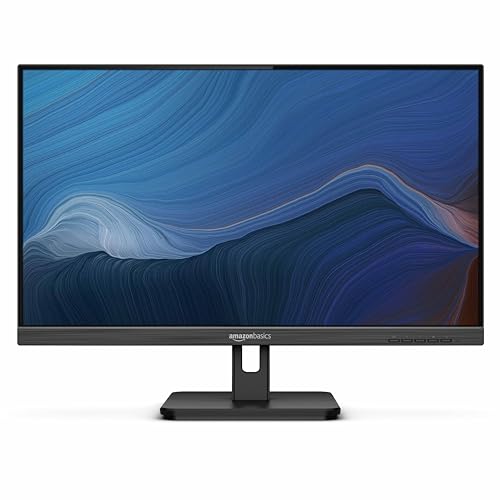
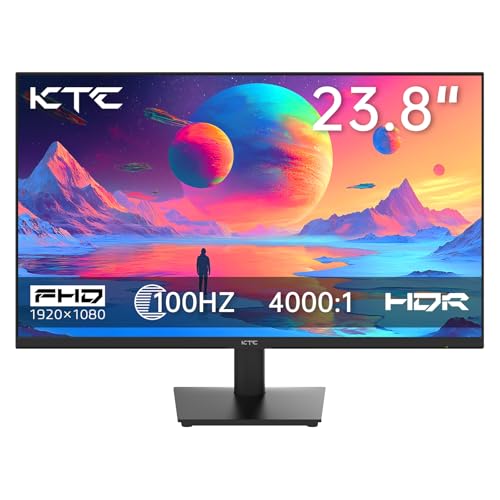
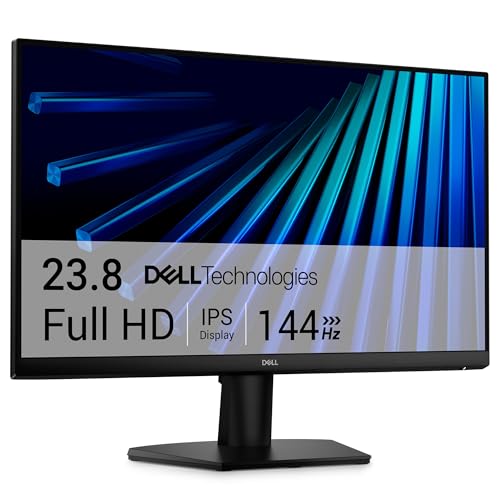
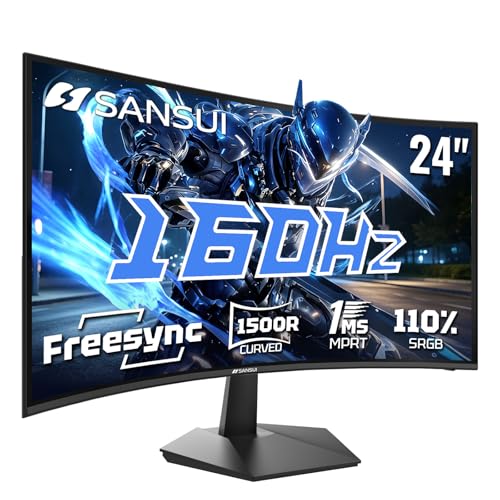
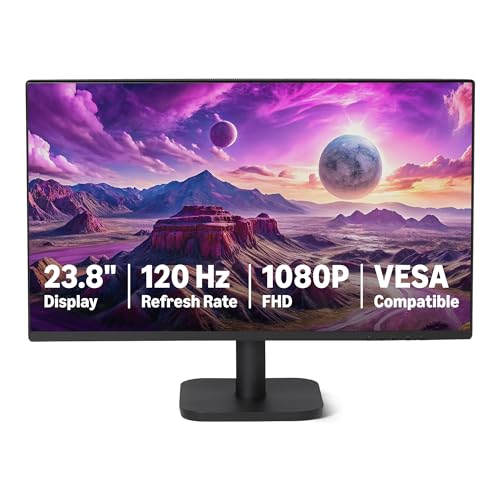
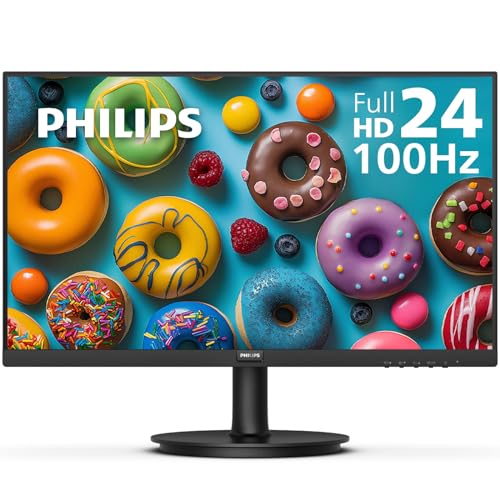
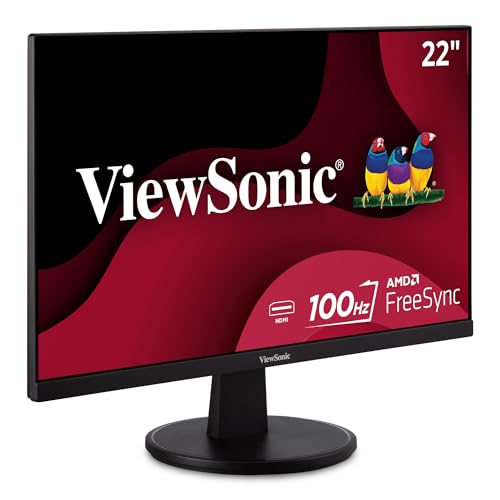
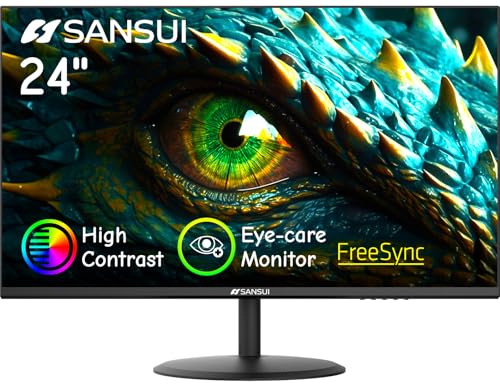

Panel Type Tradeoffs: What a Lower Price Really Changes About the Screen
The single biggest factor separating a $90 monitor from a $250 one is the panel technology inside it. You'll see three letters everywhere in product listings: TN, VA, and IPS. Each one is a different balance of price, color accuracy, and viewing angle, and understanding that trade-off is the fastest way to shop smart when you're trying to find best budget monitors for work at home without overpaying.
TN Panels: Fast and Cheap, But Colors Shift If You Lean Back
TN panels are the cheapest to manufacture, which is why they show up on the lowest-priced monitors. For plain text work, that's often fine. The catch is viewing angle: lean back in your chair, look at the screen from the side, or glance down at it, and colors and contrast can shift noticeably. If you sit dead center and don't move much, this rarely matters. If you like to lean back while reading, it gets annoying quickly.
VA Panels: The Middle Ground Most Budget Shoppers Land On
VA panels sit between TN and IPS in both price and quality. They offer deeper contrast than TN, more stable colors from an angle, and a noticeably better look for documents, spreadsheets, and video calls. For most people buying on a budget, a VA panel is where the money starts paying off without jumping to premium pricing.
When It's Worth Paying a Little More for IPS
IPS panels hold color and contrast steady from nearly any angle, which is genuinely useful if you share your screen with someone standing beside you, or if you just want the most consistent picture possible. Entry-level IPS monitors have gotten much cheaper over the past few years, so if your budget has even a little flexibility, this is usually the upgrade worth chasing first.
Where Budget Monitors Cut Corners: Stands, Ports, and Build
Panel type gets most of the attention, but it's not the only place manufacturers trim costs. Two other areas quietly affect how comfortable and practical a cheap monitor is to actually use every day.
Fixed-Tilt Stands vs Height-Adjustable Ones
Many entry-level monitors ship with a stand that only tilts, with no height or swivel adjustment. That's fine if your desk height already puts the screen at eye level. If it doesn't, you'll end up stacking books under the base or straining your neck looking down all day. Before buying, check whether the listing mentions height adjustment, and if it doesn't, plan on either a VESA-compatible monitor arm or accepting a fixed setup.
Checking Ports Before You Buy, Not After
Older or ultra-cheap monitors sometimes still rely on VGA as a primary input, which won't do you any favors if your laptop only has HDMI or USB-C. Before ordering, confirm the monitor has at least one HDMI port, and check for USB-C if your laptop docks that way. It's a five-minute check that avoids returning a monitor that simply won't connect to what you own.
Screen Size and Resolution That Still Get the Job Done
Bigger and sharper always costs more, so it helps to know where the actual sweet spot sits for office work rather than chasing specs that matter more for gaming or design.
Why 24-Inch, 1080p Is the Budget Sweet Spot
For reading documents, browsing spreadsheets, and sitting in video calls, a 24-inch screen at 1080p (Full HD) resolution is sharp enough that text doesn't look fuzzy, and it's the size and resolution combination that keeps prices lowest. Going smaller saves little money and just cramps your workspace. Going bigger without also increasing resolution can leave text looking soft, since the same number of pixels gets stretched across more screen.
When It Makes Sense to Step Up to a Bigger or Sharper Screen
If your work involves a lot of side-by-side windows, detailed spreadsheets, or light design work, a slightly larger screen or a sharper resolution can genuinely reduce eye strain and scrolling. For a deeper look at sizing tradeoffs across a wider price range, this breakdown of 24-inch monitor options covers what changes as you move up in size and specs. If ergonomics and multi-window setups matter more to you than price, it's also worth reading a broader look at choosing a monitor for working from home, which covers stand positioning and multitasking setups in more depth than this budget-focused guide does.
Common Mistakes When Shopping for a Cheap Office Monitor
A few habits tend to waste money on a budget monitor purchase. Sorting by lowest price first, without checking panel type, means you might land on a TN model with washed-out color you didn't expect. Skipping the port list is another common one, since a monitor with the wrong inputs is useless no matter how good the screen looks. Ignoring stand adjustability is a third mistake people regret within a week, once neck strain sets in from looking at a screen that's too low or too high. Finally, some shoppers assume "budget" automatically means "worse in every way," which isn't true. Plenty of affordable monitors include useful extras like low blue light modes or anti-glare coating that make long workdays more comfortable, even at a modest price.
Frequently Asked Questions
Is a TN panel bad for office work?
Not necessarily. If you sit centered in front of the screen and mostly work with text and spreadsheets, a TN panel can work fine. The drawback shows up if you lean back often or share the screen with someone at an angle, where colors can look washed out.
Is 1080p good enough for a home office monitor?
Yes, for most office tasks. On a 24-inch screen, 1080p resolution is sharp enough for reading text and viewing documents comfortably. It only becomes limiting if you're doing detailed design work or want a lot of windows open side by side.
What size monitor is best for working from home on a budget?
Around 24 inches tends to be the price and usability sweet spot. It's large enough for comfortable reading without pushing you into pricier size and resolution combinations.
Do budget monitors have adjustable stands?
Some do, but many entry-level models only offer tilt adjustment. Check the product listing for height adjustment specifically, and consider a VESA-compatible monitor arm if the included stand isn't a good fit for your desk.
What ports do I need on a budget monitor for my laptop?
At minimum, look for an HDMI port, since most modern laptops support it. If your laptop connects through USB-C, check whether the monitor supports that directly, or plan on an adapter.
Does a cheap monitor cause eye strain?
Not inherently. Eye strain usually comes from screen brightness, glare, or poor positioning rather than price alone. Many budget monitors include low blue light or anti-glare features that help, so it's worth checking for those rather than assuming price determines comfort.
How much should I spend on a monitor for basic office work?
You can get a solid VA or entry-level IPS monitor with decent build quality for a modest price. Spending a bit more than the absolute cheapest option on the shelf usually buys you a noticeably better panel and stand, which pays off in daily comfort.
Making a Smart Trade-Off
Finding one of the best budget monitors for work at home isn't about finding the cheapest possible screen. It's about understanding exactly which tradeoffs are worth accepting, like a simpler stand or a VA instead of IPS panel, and which ones aren't, like a screen too small or dim to read comfortably. Check the panel type, confirm the ports match your laptop, and look for at least basic stand adjustability, and you'll end up with a monitor that handles a full workday without regret.