
Best Brush Sets for Procreate 2026: A Complete Guide
Disclosure: We may earn a commission when you buy through links on this page, at no extra cost to you. As an Amazon Associate I earn from qualifying purchases. Learn more
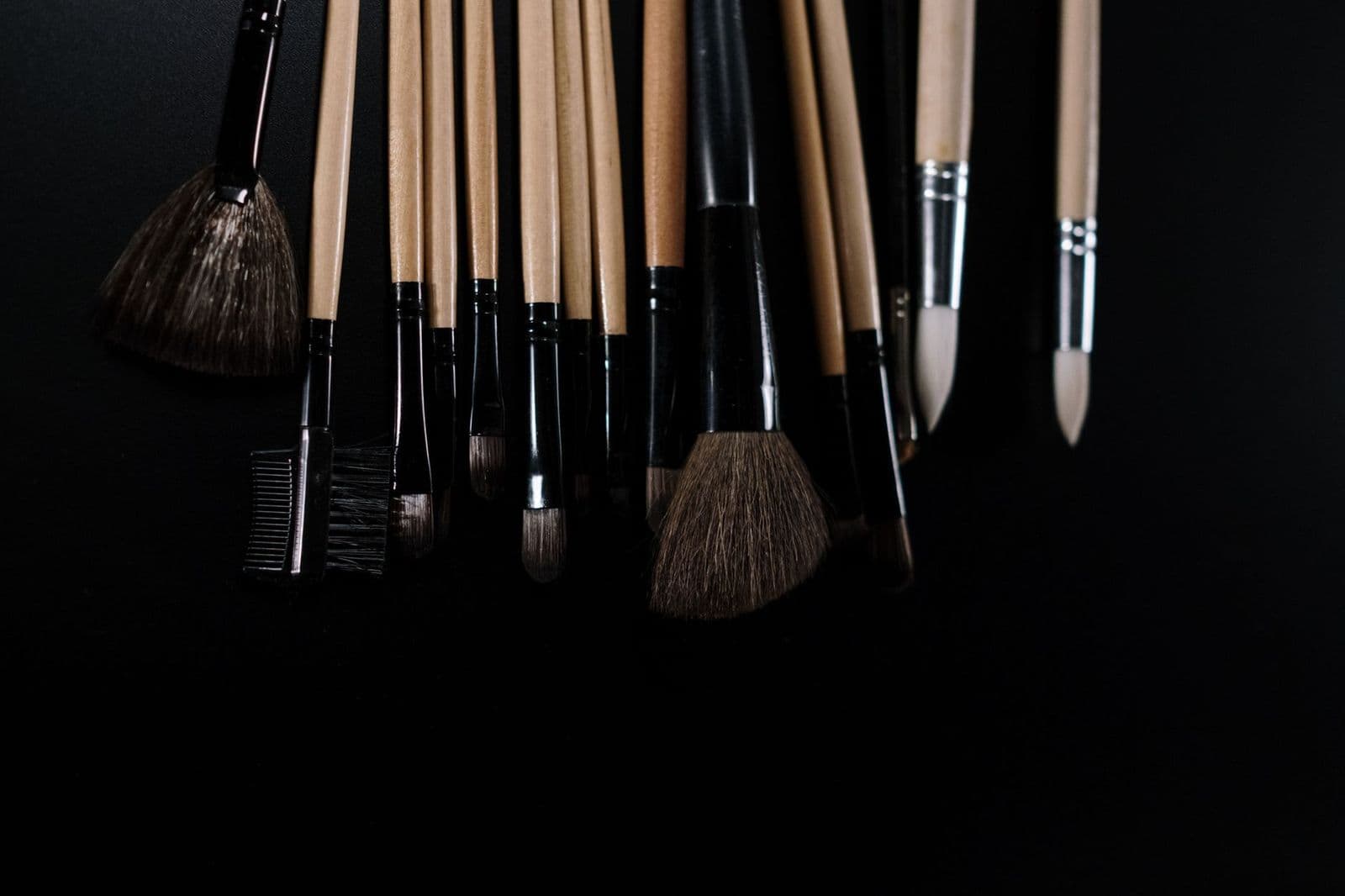
Best brush sets for Procreate: compare stroke feel, texture, organization, and compatibility to pick a pack that fits your art style.
Choosing best brush sets for procreate is less about collecting hundreds of brushes and more about finding a small set that matches how you actually draw. A good pack gives you reliable sketching, inking, painting, and texture tools without burying you in options you never touch.
This guide explains brush types, pressure behavior, and file management in plain language, so you can judge a pack before you buy it. It covers the main brush pack styles, from sketching and inking packs to painterly and texture collections.
How Procreate Brushes Work
Every Procreate brush combines a shape, a grain texture, and pressure settings that respond to your stylus. Shape decides the mark edge, grain adds texture inside the stroke, and pressure settings control size, opacity, and taper as you press harder or lighter. Understanding those three parts helps you judge a pack from its description and preview images.
Brush packs arrive as files you import into Procreate, usually grouped by purpose such as sketching, inking, or painting. A well organized pack names its brushes clearly and groups them logically, so you can find the right tool mid drawing. Messy naming wastes time and discourages you from using the pack at all.
Key Features Worth Comparing
Stroke Feel and Pressure Response
Test how a brush responds to light and heavy pressure, since that range decides whether it feels natural. Good sketch brushes taper smoothly at both ends, while good ink brushes hold a steady line with slight variation. If previews show only finished art, look for stroke sheets that display single lines at different pressures.
Texture and Grain Quality
Grain gives digital strokes a hand made feel, but coarse grain can look noisy at large sizes. Painterly packs need rich, varied grain, while inking packs need clean, quiet grain that does not distract from line work. Zoom previews to full size before buying, since small thumbnails hide grain flaws.
Pack Size and Organization
A pack with 20 focused brushes often beats a pack with 200 similar ones, because fewer choices mean faster drawing. Check whether the pack includes a guide or a stroke sheet that explains each brush purpose. Clear folders and sensible names save time on every project, especially under deadlines.
Compatibility and Updates
Confirm the pack supports your Procreate version and your iPad model, since older packs may behave differently after app updates. Reputable sellers update packs for major Procreate changes and state compatibility clearly. Keep backup copies of your brush files, so an app reinstall does not lose your tools.
Who Should Buy Which Style
For Sketching and Concept Art
Sketch packs need pencils, rough markers, and quick shading tools that respond well to light pressure. Loose, textured strokes suit idea exploration, where speed matters more than polish. A small sketch pack plus one reliable eraser brush often covers the whole early stage of a project.
For Inking and Comics
Inking packs need steady liners, tapered pens, and clean fill tools that hold up at print sizes. Test line consistency at large canvas sizes, since a brush that looks clean small may wobble when enlarged. Pressure taper control matters most here, because it shapes line weight variation.
For Painting and Illustration
Painting packs need soft blending brushes, textured paint tools, and glazing options that layer without muddying colors. Look for brushes that mix color smoothly and leave believable canvas texture. A few versatile paint brushes beat dozens of near identical ones when you are building a finished illustration.
Mistakes to Avoid
The biggest mistake is buying huge bundles and never learning any single brush well. A large library feels exciting, but it slows you down when every stroke requires hunting through menus. Start with one focused pack, learn its brushes properly, and add another pack only when you hit a real gap.
Another mistake is judging packs from finished art alone. Preview art may use many packs, filters, and edits beyond the brushes themselves. Look for raw stroke sheets and unedited process videos, which reveal far more about how brushes actually behave.
Managing Your Brush Library
Organize brushes into custom sets by project type, such as sketching, inking, and painting, so your favorites stay within reach. Duplicate a brush before tweaking its settings, since that preserves the original while letting you experiment freely. Back up your library regularly, especially before major app updates.
Review your library every few months and remove brushes you never use. A lean library speeds up drawing and reduces decision fatigue. With a small, well understood set, your art improves faster than with a huge collection you barely know.
Building a Personal Brush Workflow
A personal workflow beats a large library, and it starts with naming your five most used brushes for each project type. Create custom brush sets for sketching, inking, and painting, and place your favorites at the top of each set. This small organization effort saves minutes on every drawing session and reduces the temptation to buy yet another pack.
Next, learn one new brush setting each week, such as pressure taper, streamline, or grain scale. Small, steady learning builds deep familiarity without overwhelming you. Duplicate brushes before experimenting, so originals stay intact while you explore variations that suit your hand and style.
Finally, keep a test canvas where you try new brushes before using them on client work or finished pieces. A test page with lines, shading, and textures at your usual canvas size reveals problems early. This habit protects finished work and builds confidence in every tool you choose to keep.
Pressure curves in Procreate settings shape brush behavior as much as the brushes themselves. If strokes feel too sensitive or too stiff, adjust the pressure curve before blaming the pack. A gentler curve suits light handed artists, while a steeper curve rewards firm pressure with dramatic variation. Saving a custom pressure curve for different project types, such as sketching versus inking, gives you flexible control without constantly tweaking individual brushes.
Backing up custom brush sets takes only a minute and saves hours of rebuilding after an app reinstall or device change. Export your custom sets to cloud storage regularly, and keep original purchase files in the same folder. A tidy backup routine protects both paid packs and your own customized brushes equally.
For nearby topics, compare our guides to the best brushes sets and the best brush sets.
Frequently Asked Questions
How many brushes do I actually need in Procreate?
Most artists work well with 10 to 20 well chosen brushes covering sketching, inking, painting, erasing, and blending. A larger library can help for specialized textures, but it also slows you down when you must search for tools. Start with a focused pack, learn each brush thoroughly, and add new packs only when a project exposes a genuine gap.
Can I use Procreate brush sets on other apps?
Procreate brushes use a format tied to Procreate, so they do not transfer directly to most other drawing apps. Some sellers offer separate versions for other software, but check compatibility before buying. If you work across apps, look for packs sold in multiple formats or learn to recreate key brushes manually in each app.
Are free Procreate brushes good enough?
Free brushes can be excellent, especially from reputable artists who share starter packs, but paid packs often offer better organization, guides, and updates. Test free packs first to learn your preferences, then invest in paid packs that match your style. Quality varies widely in both categories, so judge every pack by stroke sheets rather than price alone.
How do I import a brush set into Procreate?
Download the brush file to your iPad, then open it and choose Procreate when prompted, or import it through the brush library import option. The new set appears as a brush group you can rename and organise. Keep the original file backed up, since imported brushes can be lost if the app is reinstalled or the library is reset.
Why do my Procreate brushes look different from previews?
Previews often show art at small sizes with additional layers, filters, and color adjustments that change the final look. Canvas size, pressure settings, and stylus type also affect stroke appearance. Test brushes on your own canvas at full size, adjust pressure curves to suit your hand, and judge packs by raw stroke sheets rather than polished artwork.
Final Thoughts
Choosing best brush sets for procreate is about fit, not volume. A small pack that matches your drawing style will serve you better than a huge bundle you never fully learn.
Test stroke sheets, check compatibility, and organise your library by project type. Do that, and the brushes that suit your hand will quickly become tools you trust.


