Best Budget Laptops in 2026: Types, Specs and Buying Tips
Disclosure: We may earn a commission when you buy through links on this page, at no extra cost to you. As an Amazon Associate I earn from qualifying purchases. Learn more

Windows laptops and Chromebooks compared on memory, storage, screen and battery, so you can choose the best budget laptops for school, home or work.
A budget laptop should handle email, video calls, documents, streaming and homework without making every task feel slow. The best budget laptops are not simply the cheapest ones on the page. They are the ones that spend a small amount of money on the parts you notice every day: memory, storage, the screen and the keyboard. This guide explains what to check, what to skip and how the main types compare, so the product table above is easy to read.
Most people shopping in this range fall into three groups: students who need something light for classes, households that want one shared computer, and remote workers who need a dependable second machine. Each group can get by on modest hardware if the basics are right.
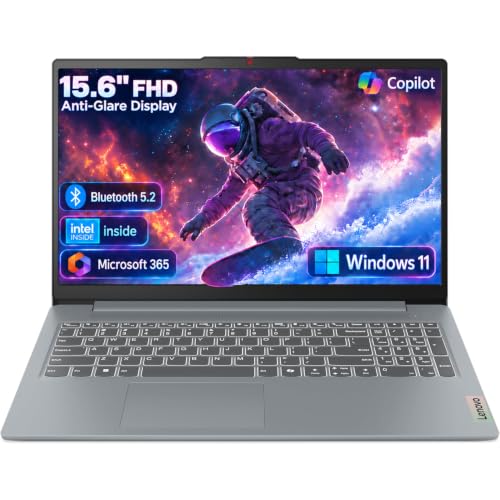
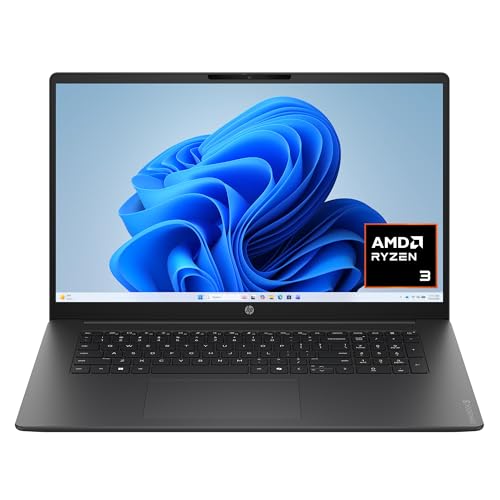
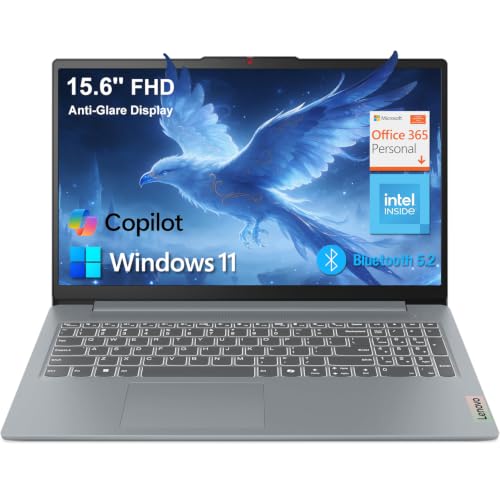





Budget Laptop Types Compared
Three types cover almost every low cost laptop, and the right one depends more on the software you use than on the price.
Windows Laptops With a 15 Inch Screen
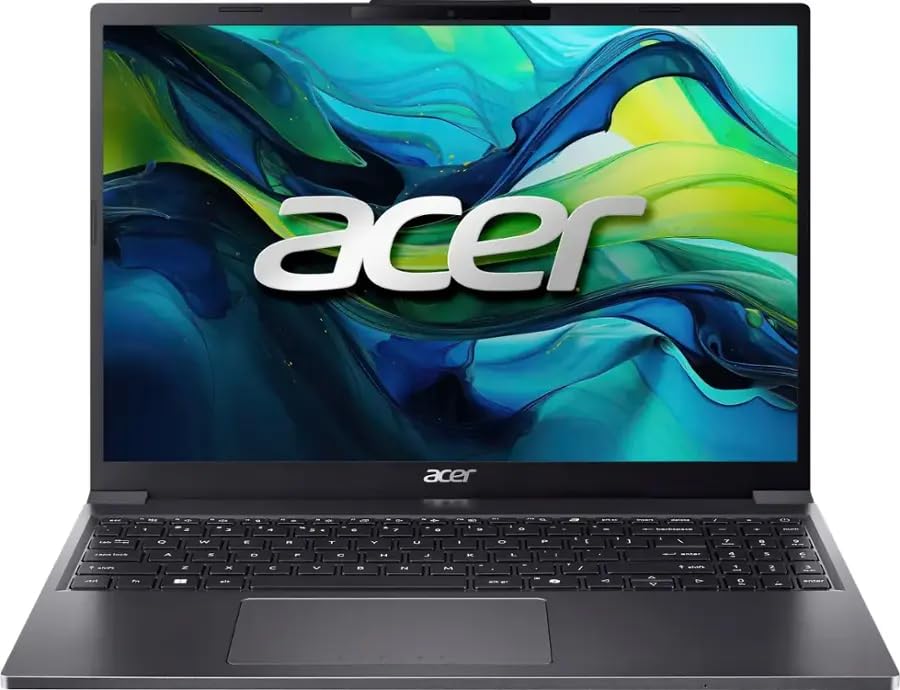
This is the default choice for a shared home computer. The larger screen makes spreadsheets, documents and split screen work more comfortable, and most models include a full size keyboard with a number pad. They run the same programs as a desktop Windows PC, which matters if you need school or office software that is not available online. The trade off is weight and battery life, since a bigger body and a bigger panel are harder to carry all day. Choose this type if the laptop mostly lives on a desk or a kitchen table.
Chromebooks for Web Based Work
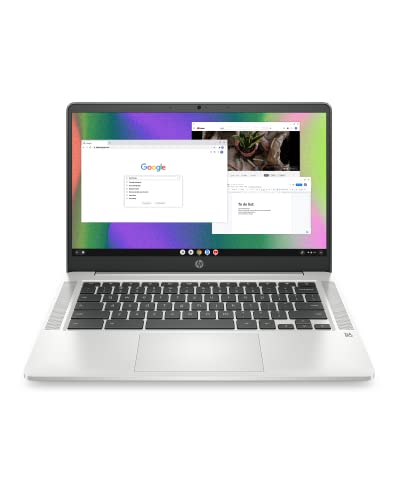
A Chromebook runs a simpler operating system built around the browser. Start up is quick, updates are automatic and the machines are often light and inexpensive. They suit students and anyone who lives in web apps, online documents and streaming. They are a poor fit if you depend on desktop programs that only run on Windows. Before you buy, make sure the tools you need work in a browser, and check the listing for the memory and storage it includes, because very small amounts fill up quickly.
Slim 14 Inch Windows Laptops for Carrying
A 14 inch model gives up a little screen space and the number pad in exchange for a lighter bag. It suits commuters, college students and anyone who works from cafes or libraries. Look for a model that charges over USB C, since one charger can then serve your phone and laptop. If you want more ideas in this size class, our guide to the best notebook laptops compares the lightweight options in detail.
What to Check Before You Buy
Memory and Storage
Memory is the setting that most affects how a cheap laptop feels after a few months. For a Windows laptop, aim for at least 8 GB so a browser with several tabs, a video call and a document can run together. Storage matters too, and a solid state drive of any size is far faster than an old style hard drive. Small storage fills quickly, so plan on cloud storage or an external drive if you keep photos and videos. Always read the exact memory and storage figures in the listing, because two laptops that look alike can differ here.
Processor and Everyday Speed
Entry level processors are fine for browsing, documents, streaming and video calls. They struggle with heavy photo editing, large spreadsheets and gaming. Do not pay extra for a processor name you do not need. If your tasks are light, spend the savings on more memory or a better screen instead.
Screen Quality
A full HD screen (1920 by 1080) is worth looking for, because lower resolution panels make text look soft and leave less room on the page. Check whether the panel is described as anti glare, and keep in mind that brightness varies a lot at this price. If you work near a window, a brighter, matte screen is easier to live with. Touchscreens are handy on Chromebooks and 2 in 1 models but add cost and weight.
Keyboard and Trackpad
You will touch these every minute, so they matter more than most spec lines. A keyboard with firm keys and sensible spacing keeps typing comfortable through long essays or reports. A large trackpad that clicks cleanly saves frustration. Buyer comments often reveal problems with flex, loud keys or a jumpy trackpad that a spec sheet never mentions.
Battery Life and Weight
Maker battery claims are measured under light use, so expect less when you stream video or keep the screen bright. If you carry the laptop daily, check the weight in the listing and compare it with what you are willing to put in a bag. A heavier machine can still be a good choice if it rarely leaves the house.
Ports and Wi-Fi
Look for at least one USB C port, a standard USB port for a mouse or drive, and a headphone jack. Modern Wi-Fi support helps with video calls and large downloads. An HDMI port is useful if you connect to a monitor or a TV for presentations.
How Much Should You Spend?
Basic Chromebooks often cost about $200 to $300 and cover browsing, streaming and online schoolwork. Windows laptops with 8 GB of memory and a solid state drive commonly sit around $350 to $500. Spending about $500 to $700 usually buys a better screen, a sturdier body and a processor that stays smooth for longer. Above that range you start to pay for features that a budget buyer rarely needs, so compare carefully before you stretch. If you are shopping on a tight budget for college, our guide to the best laptops for college and our list of the best economical laptops add more price focused advice.
Price is not only the sticker when you compare the best budget laptops. Check what the offer includes, such as a charger and any software, and look at the return window. A laptop that arrives with a problem is much easier to fix when returns are simple.
Who Should Buy Which Type
Students
Choose a light 14 inch Windows laptop or a Chromebook, depending on which software your school requires. Check with your school before you buy, since some courses need programs that only run on Windows. Battery life and weight matter most here, followed by a comfortable keyboard.
Shared Family Computers
A 15 inch Windows laptop with a full size keyboard is usually the easiest choice. Multiple user accounts keep homework and household paperwork separate, and the larger screen is more comfortable for several people. Extra memory helps when different users keep many tabs open.
Remote Workers and Second Machines
If you already own a main computer, a budget laptop makes a good travel or backup machine. Prioritize a good keyboard, a reliable webcam and a screen you can read in different rooms. Our guide to the best reasonable laptops can help you compare sensible mid range alternatives before you decide.
Common Mistakes to Avoid
- Buying on price alone, then discovering the memory or storage is too small for daily use.
- Choosing a Chromebook without checking that your school or work software runs in a browser.
- Paying extra for a faster processor while accepting a dim, low resolution screen.
- Ignoring the weight of a 15 inch model that will be carried to class every day.
- Skipping the return policy and warranty details, which matter most when something goes wrong.
- Waiting for the perfect deal and going without a laptop during the busiest weeks. Our note on the best time to purchase laptops explains when prices tend to ease.
Care and Battery Habits
Keep the vents clear and avoid using the laptop on a soft bed or sofa, where heat builds up. Do not leave it in a hot car. Charging between roughly 20 and 80 percent when it is convenient is gentler on the battery than constant full drains. Install updates when they appear, since they protect both security and speed. Keep the receipt and the packaging for the first few weeks so a return stays simple.
FAQ
What is the best budget laptop for a student?
A light laptop with a comfortable keyboard, good battery life and enough memory for a browser full of tabs. A Chromebook works well when classes use web tools, while a Windows laptop is safer if your courses require desktop software. Confirm requirements with your school first.
Is 8 GB of memory enough for a budget laptop?
For everyday work like browsing, documents and video calls, 8 GB is a sensible starting point on a Windows laptop. Less memory can make multitasking feel slow. If you keep dozens of tabs open or edit large files, look for more.
Are Chromebooks better than Windows laptops on a budget?
Neither is better for everyone. Chromebooks are simple, quick to start and well suited to web based work. Windows laptops run a wider range of programs. Pick based on the software you actually need, not on the price tag.
How long does a budget laptop last?
With reasonable care, several years of everyday use is realistic. Battery wear and growing software demands are the usual limits rather than a sudden failure. A model with enough memory and a solid state drive tends to stay usable for longer.
Can a budget laptop handle video calls?
Yes, for most calls, as long as the camera, microphone and memory are decent. Close extra tabs before a meeting, and use a headset in a noisy room for clearer sound.
Final Thoughts
Start with how you will use the laptop, then match the type to that need. Put your money into memory, storage, a readable screen and a comfortable keyboard, and skip extras you will never use. Do that and the best budget laptops for your home will be the ones that still feel quick and pleasant long after the first month. Use the product table above to compare current options against this checklist before you order.