
Best Backgrounds for Android Phones: How to Choose and Set Them for 2026
Disclosure: We may earn a commission when you buy through links on this page, at no extra cost to you. As an Amazon Associate I earn from qualifying purchases. Learn more
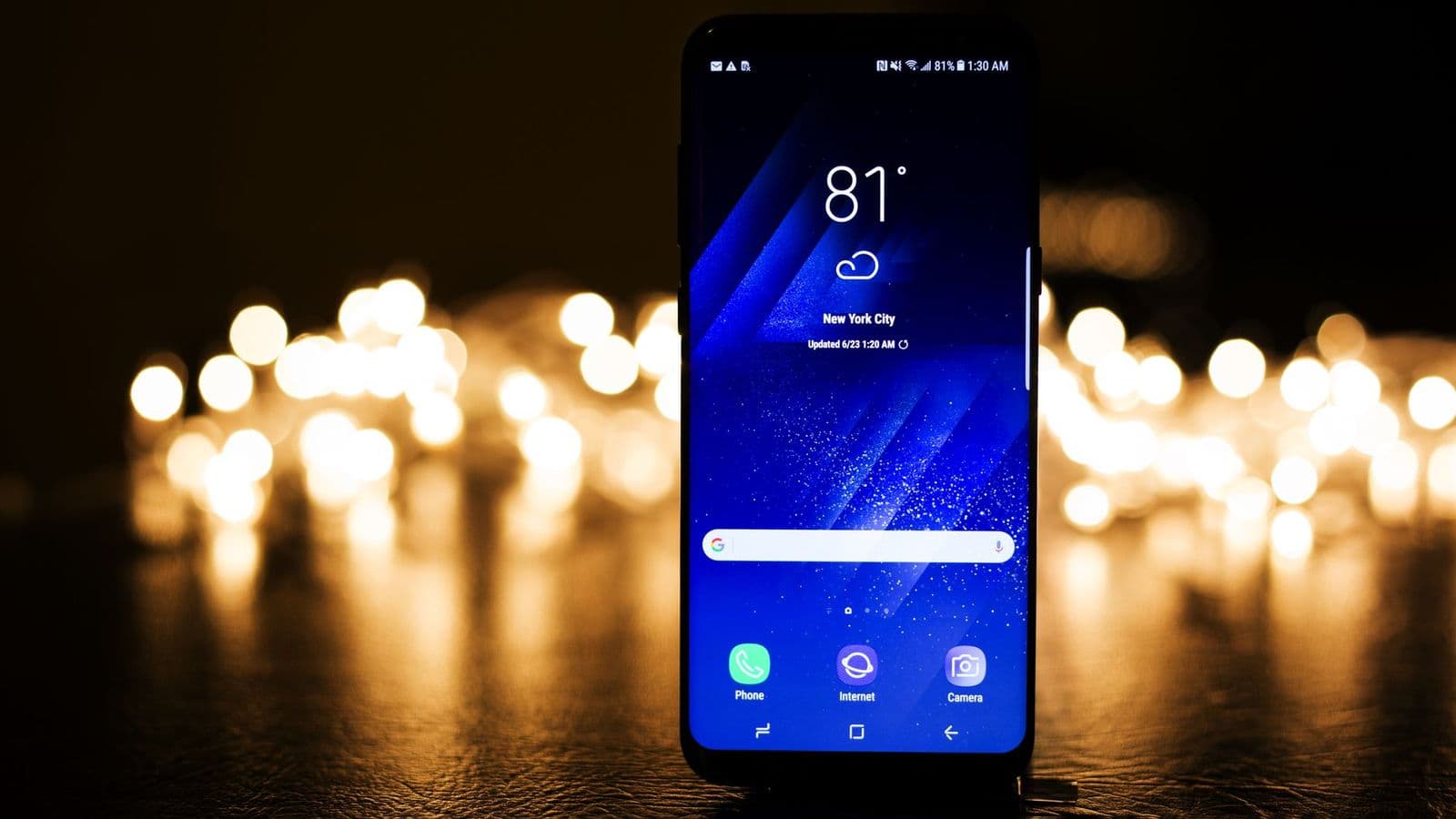
Learn how to choose the best backgrounds for android phones by size, readability and battery use, and how to set them on your lock and home screens.
A phone background is the first thing you see every time you wake your screen, so it should look sharp, keep icons readable and not waste battery. The best backgrounds for android phones are the ones sized for your display, calm enough behind widgets and app labels, and easy to set on both the lock screen and the home screen.
This guide explains how to match an image to your phone, which styles read well, how live and video backgrounds affect battery, where to find safe images and how to set them up. It is a practical walkthrough, so you can pick an image in a few minutes and avoid blurry or cluttered results.
What Makes the Best Backgrounds for Android Phones
A good background does four jobs at once. It fits the screen without stretching, it leaves quiet areas for icons and the clock, it suits the brightness you use most, and it comes from a source you trust. If an image fails any of these, you will notice it daily.
Resolution and Aspect Ratio
Most current Android phones use tall screens, with ratios around 20 to 9, and resolutions from 1080 by 2400 up to about 1440 by 3200. Choose an image at least as large as your screen so it stays crisp, and pick a portrait orientation. Many phones let the background scroll sideways across home screen pages, so a slightly wider image, about 1.2 to 1.5 times the screen width, avoids cropping when you swipe.
Readability Behind Icons and Widgets
Busy photos make white app labels hard to read. Look for images with a calm area in the middle and lower part of the frame, where icons and the dock sit. Pair your wallpaper with the best widgets for android phones for a clean layout. Soft gradients, blurred landscapes, dark textures and simple abstract shapes work well. Faces and fine detail belong near the top, where the clock and notifications may cover them anyway.
Brightness, Color and Eye Comfort
Dark and muted backgrounds are easier on the eyes at night and can save a little power on screens that light each pixel separately. Very bright images look harsh in a dim room and can wash out text in sunlight. If you use a dark theme, choose a background with a similar tone so the whole phone looks consistent.
Wallpaper Styles Compared
Static Photos and Illustrations
A single image is the simplest choice and uses almost no extra power. Landscapes, city scenes, macro shots and flat illustrations all work, as long as the subject does not sit under the clock. A static image is the safest pick if you care about battery life.
Gradients and Minimal Designs
Plain gradients and geometric patterns keep the screen calm and make widgets stand out. They also scale to any resolution without looking soft. If you keep many icons on the home screen, this style usually reads best.
Live and Video Backgrounds
Animated wallpapers add movement, such as drifting clouds or subtle parallax, and they look striking on the lock screen. They use more processor power and battery than a still image, and older phones can feel slower. Use them on the lock screen only, or switch to a static image when your battery runs low.
Photos of Your Own
Personal photos make the phone feel yours. Pick one with a simple composition and room for icons, and crop it with the picker so your subject sits where the clock and widgets will not cover it. Avoid putting private or sensitive images on a lock screen that anyone can see.
Where to Find Safe Wallpapers
Start with the wallpaper picker built into your phone, which offers curated collections sized for your display, and see our guide to the best wallpapers for android phones for more ideas. Reputable photo libraries and well known wallpaper apps are a good second step. Be careful with apps that ask for broad permissions, show constant ads or push extra downloads, because a free background is not worth a privacy risk.
Check the license if you plan to use an image on a work phone or a screen that others see. Save favorites in a dedicated folder, and name files by theme or color so you can find them again after a phone reset.
How to Set a Background on Android
Menus differ slightly by brand, but the steps are similar on most phones. Press and hold an empty spot on the home screen, or open Settings and choose Wallpaper and style. Pick an image from the gallery or the built in collections, then choose whether it applies to the home screen, the lock screen or both. Use the preview to drag and zoom the image until the subject sits clear of the clock and dock.
Many phones also offer themed color options that pull accent colors from your wallpaper, so icons and menus match. If your phone supports it, try a dark variant of the same image for night use, and let the system switch with your schedule.
Common Mistakes to Avoid
- Using a small or low resolution image, which looks soft and blotchy once the phone scales it up.
- Choosing a very busy photo, which hides app labels and makes widgets hard to read.
- Leaving a bright image on at night, which strains your eyes in a dark room.
- Running a live background on a low battery or an older phone, which drains power faster.
- Downloading from unknown sites or apps, which can bundle unwanted software or ask for too many permissions.
- Forgetting to preview the crop, so the subject ends up behind the clock or the dock.
Frequently Asked Questions
What resolution should an Android phone background be?
Use an image at least as large as your screen resolution, such as 1080 by 2400 for a full HD phone. Larger images scale down cleanly, while smaller ones blur. Check your display settings for the exact size, and pick a portrait image with a little extra width if your launcher scrolls the background.
Do live wallpapers drain the battery of an Android phone?
Yes, animated backgrounds use extra processor and graphics power, so they use more battery than a still image. The effect is small on new phones but noticeable on older ones. If battery life matters, use a static image or limit the animation to the lock screen.
Why are my icons hard to read on my wallpaper?
Bright or busy areas behind white labels reduce contrast. Choose an image with a quiet middle and lower area, or add a slight darkening effect in the wallpaper settings if your phone offers one. A gradient or blurred landscape usually fixes the problem.
Can I use a different background on the lock screen and home screen?
Yes, most Android phones let you set separate images, and some let you rotate several lock screen images through the day. Use a more detailed image on the lock screen, where nothing sits on top of it except the clock, and a calmer one on the home screen.
Are free wallpaper apps safe to use?
Many are fine, but check the permissions an app asks for and read recent reviews first. A wallpaper app has little reason to need your contacts or messages. Stick to well known apps, your phone maker's own collections and trusted photo libraries.
Final Thoughts
Choose an image that matches your screen size, leaves room for icons and suits the brightness you live with, then preview the crop before you save it. With those few checks, the best backgrounds for android phones are easy to find and set in minutes, and your phone looks better every time you wake it.


