Best Auto Feed Photo Scanner for 2026
Disclosure: We may earn a commission when you buy through links on this page, at no extra cost to you. As an Amazon Associate I earn from qualifying purchases. Learn more
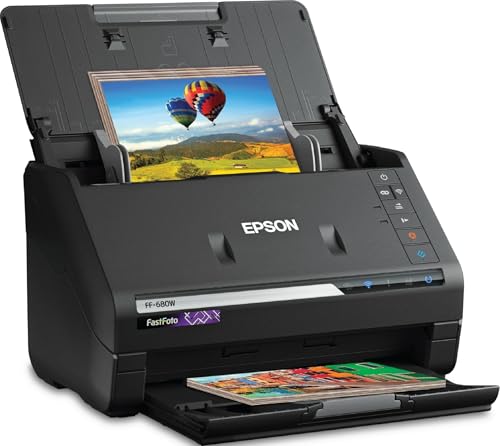
Pick the best auto feed photo scanner for a home archive by comparing feeder capacity, print sizes, resolution, and safe handling.
A box of loose prints can feel hard to start, especially when each photo must be placed by hand. The best auto feed photo scanner for your home should let you load a stack, walk away for a short time, and return to usable digital files. This guide explains feeder size, photo handling, resolution, and file choices in plain terms, so you can compare types without sorting through model claims.
Start with the size and condition of your collection, then match the feeder and settings to that work. A scanner that suits a few hundred sturdy prints may struggle with fragile albums, mixed sizes, or very large batches. The product table can help you weigh the main options side by side once you know what matters most for your photos.

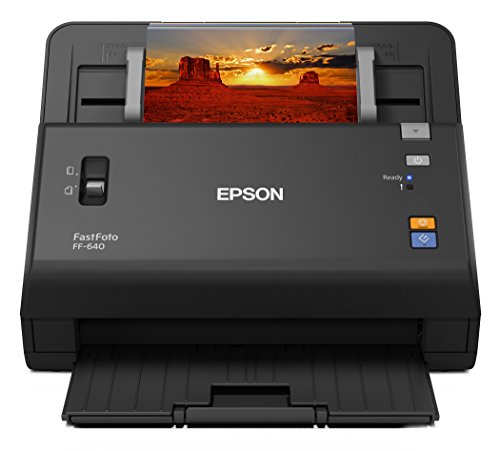
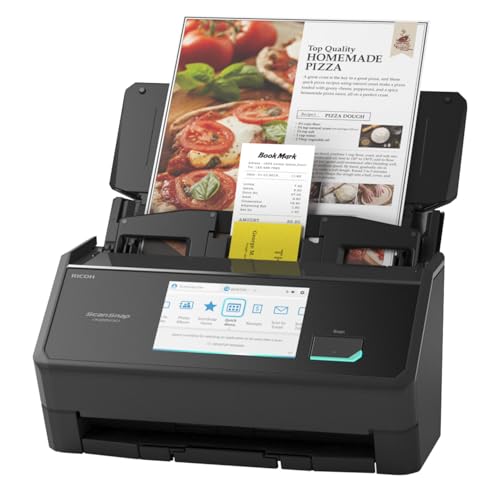
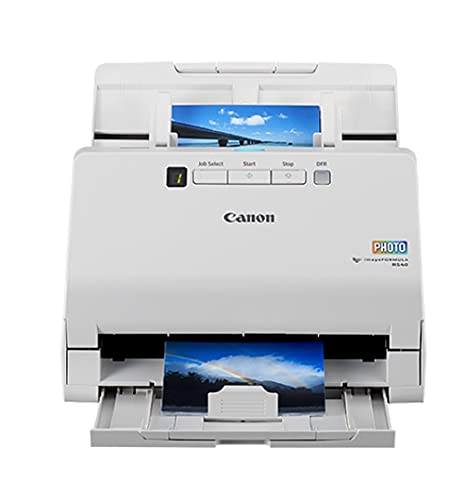


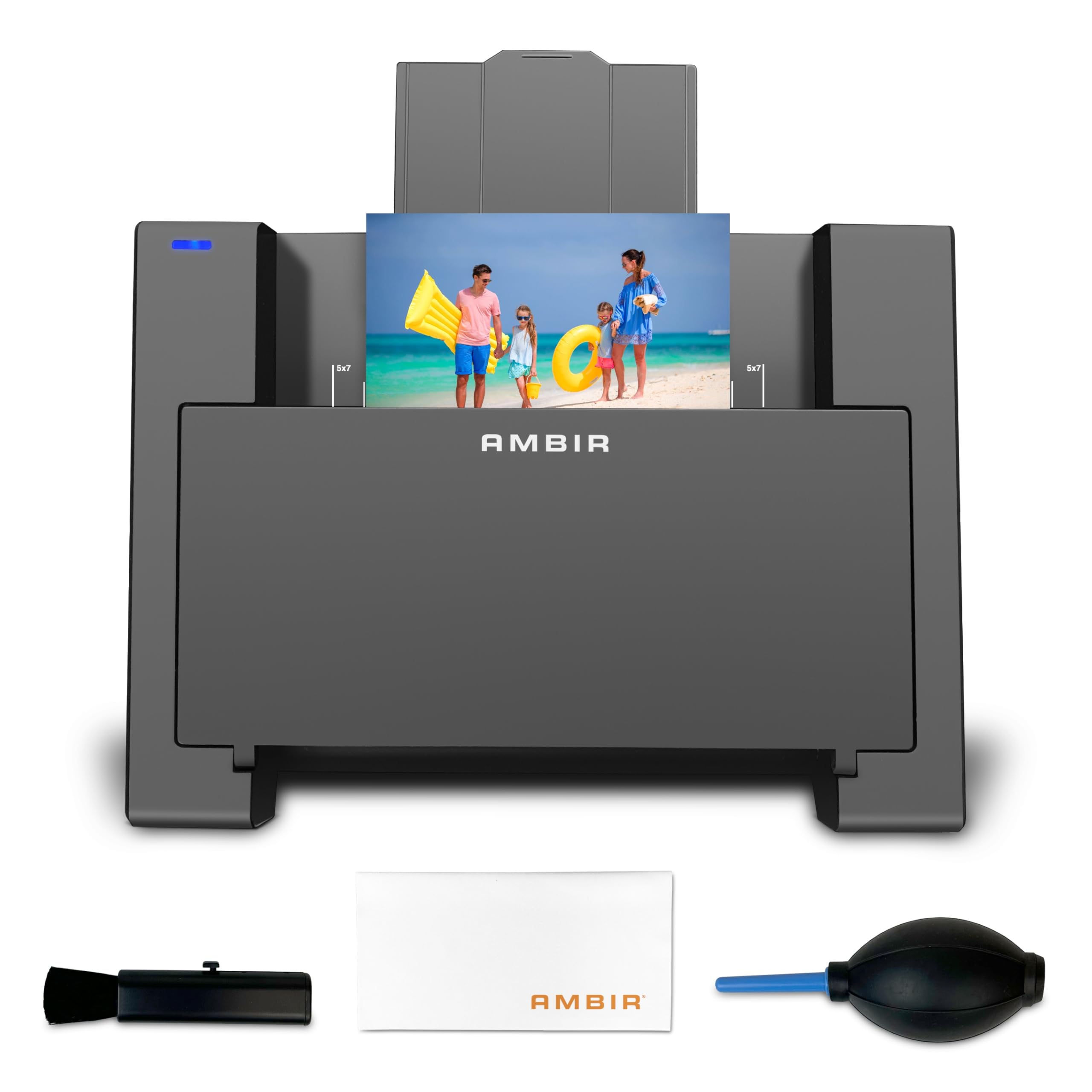
Who Should Buy the Best Auto Feed Photo Scanner
Family Archivists With Boxes of Prints
If your goal is to preserve family history, look for gentle feeding, support for common print sizes, and simple file naming. A wide feeder helps with mixed stacks, but fragile or curled prints may still need slower handling or a flat bed option. Choose a setup that lets you check early scans at full size before you commit to a large batch.
Home Offices Clearing Paper Files
Home office users often scan photos alongside letters, receipts, and school papers. A feeder that handles both photos and documents can save space, but photo settings and document settings are not the same. Look for separate color and resolution choices, plus a clear way to sort photo files apart from everyday paperwork.
Small Shops and Community Groups
Small shops, clubs, and local history groups may scan donated prints for exhibits or shared archives. Speed matters here, yet careful handling matters more, because borrowed prints cannot be replaced. A clear intake routine, labeled folders, and a second person to check fragile items can prevent most handling problems.
Key Features to Compare
Feeder Capacity and Stack Handling
Feeder capacity tells you how many sheets can load at once, but it does not tell you how well mixed sizes feed together. Standard prints in one size usually feed more smoothly than a stack that mixes small snapshots with larger prints. Check whether the feeder accepts a range of widths, and whether it can pause for a jam without forcing you to restart the whole stack.
Photo Sizes and Mixed Batches
Most home collections include wallet prints, standard snapshots, and a few larger enlargements. A good auto feed design should state its smallest and largest supported sizes in plain numbers. If many of your prints fall outside that range, plan to scan those items another way instead of forcing them through a feeder that was not built for them.
Resolution for Prints and Sharing
Resolution affects how much detail you can recover from a print and how large a later copy can look. For sharing on a screen, a moderate setting is often enough, while prints meant for later enlargement benefit from a higher setting. Higher settings also create larger files and slower scans, so match the setting to the final use rather than choosing the highest number by default.
Speed, Color, and Dust Handling
Speed is usually stated in pages per minute, but photo batches move more slowly than plain paper. Color accuracy, scratch and dust handling, and automatic cropping can matter more than raw speed for old prints. Ask how the scanner treats faded color, light dust, and slightly tilted prints, and try a small sample before scanning irreplaceable photos.
File Formats and Simple Organization
Common image formats suit most home archives, while document formats suit text heavy pages. Look for clear file naming, folder rules, and a way to add dates or notes during or soon after scanning. A simple habit, such as one folder per year or event, will save far more time later than a complex system you stop using after the first week.
Connection, Software, and Storage
Most home scanners connect by cable or home network and send files to a computer or storage folder. Check that the software works with your computer system and that files can move easily to backup storage. Keep at least one second copy of finished scans, because a single drive or account is not a safe long term archive on its own.
What Spending Levels Usually Offer
Lower Cost Options for Small Batches
Lower cost options often suit a single shoebox of sturdy prints. Expect a smaller feeder, fewer size choices, and simpler software, which can still work well when the batch is small and the prints are in good shape. Budget extra time for sorting, checking files, and rescanning any prints that feed poorly.
Midrange Options for Larger Home Archives
Midrange options usually add a larger feeder, wider size support, and better color tools. These features help when you have several boxes, mixed print sizes, or prints you want to share with family. The added cost makes most sense when the total batch is large enough that slower feeding would turn into many extra evenings of work.
Higher Cost Options for Heavy or Shared Use
Higher cost options tend to focus on stronger feeding, faster batch work, and software built for larger archives. They suit shared use, frequent scanning, or collections with many mixed sizes. Even at this level, fragile prints still deserve care, and no feeder replaces careful sorting before a batch begins.
Common Mistakes to Avoid
- Loading fragile, curled, or taped prints without checking them first, which can cause jams or damage.
- Choosing the highest resolution for every scan, which creates huge files and slows a large project.
- Mixing very different print sizes in one stack without checking how the feeder handles the change.
- Saving every scan in a single folder with no dates, which makes later searching slow and frustrating.
- Skipping a backup copy, which leaves the whole archive at risk if one drive fails.
Care, Safety, and Lasting Use
Keep the feed path clean and free of dust, and follow the maker guidance for cleaning rollers and glass surfaces. Store prints flat and dry before scanning, and handle faded or brittle prints by their edges. For electrical safety, use the supplied power parts, keep cords away from walkways, and unplug the unit before cleaning. Keep small parts and loose photo corners away from children, and store scanned originals in a safe place after the digital work is done.
For a related option that works one sheet at a time, see our guide to best portable photo scanners. That style can suit travel or a small number of prints, while an auto feed design suits larger home batches. The product table above can help you compare the two approaches before you choose.
Frequently Asked Questions
Can an auto feed scanner handle old and fragile photos?
It can handle many older prints, but fragile, brittle, curled, or taped photos need extra care. Sort those items out first and try one less important print before running a full stack. If a print cracks, sticks, or bends in the feeder, stop and use a gentler method for that item. A scanner that works well for sturdy modern prints is not automatically safe for every item in a family collection.
What resolution should I choose for family photos?
Choose the setting based on what you plan to do with the files. A moderate setting usually suits screen sharing and small reprints, while a higher setting suits later enlargement or careful restoration. Higher settings also mean larger files and longer scan times, so a mixed plan can work well. Use a higher setting for key family portraits and a moderate setting for everyday snapshots.
How do I organize scans from a large photo batch?
Start with a simple folder plan before the first batch, such as one folder for each year, place, or family event. Add short file names that include a date or event when the software allows it. Check each folder after scanning, and move any misfiled or poorly fed scans to a review folder at once. A short daily habit of checking and backing up files prevents a large pile of unsorted scans at the end.
Do I need special software to fix faded photos?
Basic color and dust tools in scanner software can improve many faded prints without extra programs. Look for simple controls for brightness, color balance, and dust removal, and try them on a copy rather than the only scan. Heavy restoration work, such as rebuilding torn areas, may need separate image software and more time. For most home archives, gentle correction looks better than strong automatic changes.
How long does a large home scanning project take?
The total time depends on sorting, feeder capacity, resolution, and how often you stop to check files. Sorting and removing duplicates often takes longer than scanning itself, especially for mixed boxes from several decades. A steady pace of one or two sorted batches per session usually works better than long rushed sessions. Plan for checking, naming, and backing up files, not only for the time the scanner spends feeding pages.
Final Thoughts
Choose by collection size, print condition, and how you will use the finished files. A larger feeder helps with big batches, while careful size handling and sensible resolution choices protect both quality and time. Check early scans closely, keep a simple folder plan, and back up finished files in a second place. With that plan, the best auto feed photo scanner for your home becomes the one that fits your prints, your pace, and your archive, and the product table above can help you confirm that match.