Best Art Tablets with Screens Made Simple: A Clear Buying Guide for 2026
Disclosure: We may earn a commission when you buy through links on this page, at no extra cost to you. As an Amazon Associate I earn from qualifying purchases. Learn more
A plain English guide to best art tablets with screens, covering display size, pen pressure, color, cables, and computer needs for first time buyers.
Drawing on a screen you can see, instead of looking up at a monitor while your hand moves elsewhere, feels natural from the first session. If you are shopping for the best art tablets with screens for the first time, the terms can still feel dense, with pen pressure, color gamut, and cable types all competing for your attention.
This guide starts with the basics, explains each spec in plain language, and ends with the mistakes that waste the most money. The comparison table below lists screen sizes and prices side by side, and the sections after it show how to match those numbers to your desk, your computer, and your art style.

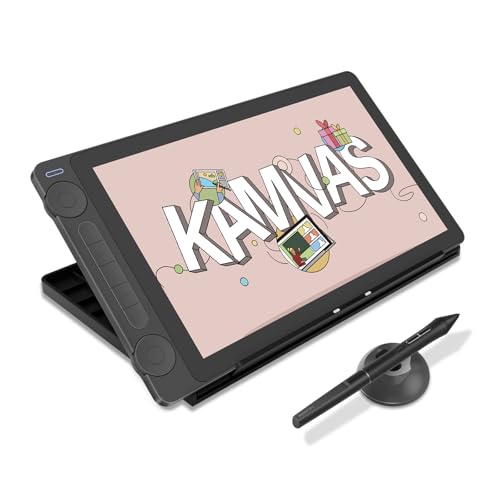
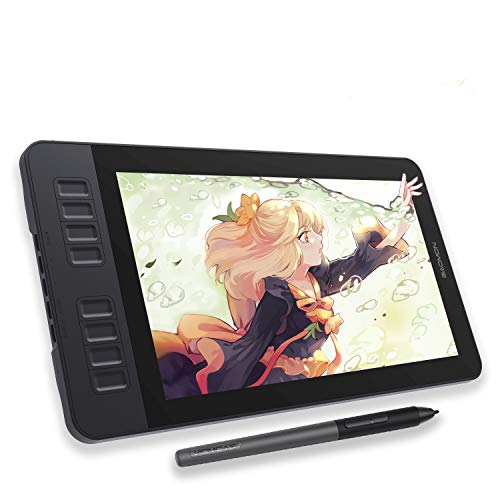
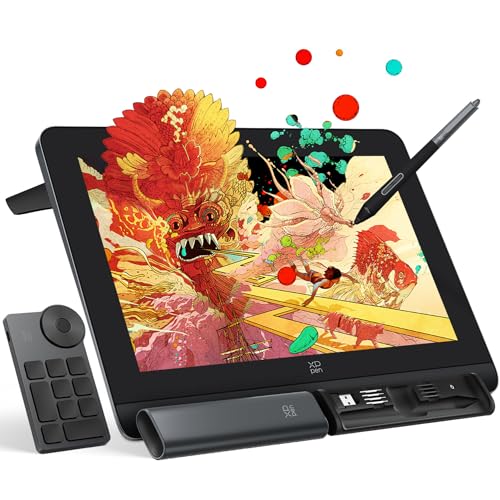
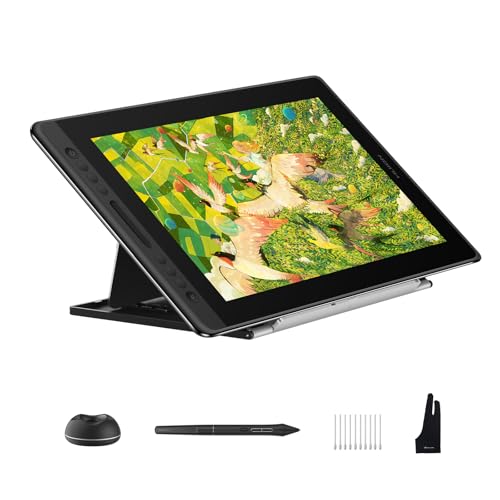


Art Tablets 101: The Basics
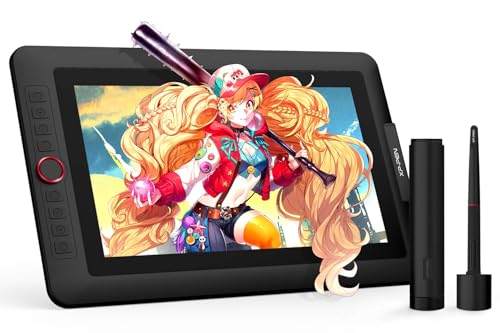
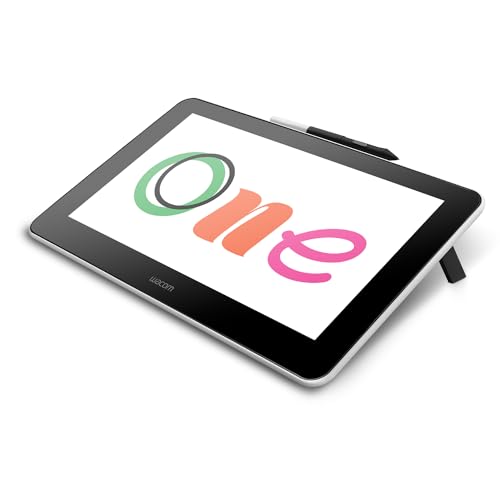
A screen art tablet, often called a pen display, is a monitor with a drawing surface built in. You connect it to a computer, open your drawing app, and draw directly on the image with a pen that needs no ink. Most pens are battery free and read pressure and tilt from the surface, so a light touch gives a faint line and a firm press gives a bold one, much like a real pencil.
Two facts surprise many first time buyers. First, most pen displays are not computers. They show your computer's screen and send your pen strokes back to it, so your existing laptop or desktop does the processing and storage. Second, a smaller group of standalone tablets runs apps on the device itself, costs more, and trades power for portability. Knowing which type you are looking at prevents the most common buying error of all, expecting a simple pen display to work with no computer attached.
Key Specs Explained in Plain English
Why Choose an Art Tablet With a Screen
Drawing where you look shortens the learning curve, especially for beginners, children, and anyone coming from paper. Line placement feels direct, tracing and lettering are easier, and you spot proportion errors sooner. The trade offs are price and desk space. A pen display costs more than a basic pen tablet without a screen and occupies monitor room full time. If you mainly edit photos with sliders or do simple vector work, a screenless tablet may serve you well for less money. If you sketch, paint, ink comics, or teach a child to draw digitally, the screen earns its cost quickly.
Processor and Performance Tier
For a standard pen display, performance lives in your computer, not in the tablet. A modern laptop with a recent mid range processor handles drawing apps, photo editing, and moderate canvas sizes comfortably. Large canvases with many layers, heavy brushes, or 3D work ask more of your machine, so check your app's recommended specs before you blame a tablet for lag. Standalone tablets do contain their own processor and memory, and there the same logic as any tablet applies. Choose a current mid range or better chip if you plan large files, and expect to pay notably more than for a pen display of the same screen size.
Keyboard, Trackpad, and Build
You will still use a keyboard for shortcuts while you draw, so leave room beside the tablet for your laptop or a compact keyboard rather than crowding your desk. Some artists place a small shortcut remote or keypad on the other side of the display, which speeds up brush changes. For build, look at the stand and the surface. An adjustable stand that holds the screen at a comfortable drawing angle protects your neck during long sessions. A matte surface gives slight paper like friction and cuts glare, while a smooth glass surface feels slicker and can be easier to wipe clean. Aluminum or firm plastic bodies handle daily desk use well.
RAM and Storage
Memory and storage also belong to your computer for a standard pen display. As a plain rule, 8 GB of memory is a workable minimum for light drawing and photo tasks, while 16 GB is the comfortable choice for large canvases, many layers, and having a browser or reference images open at the same time. Solid state storage keeps apps and files loading quickly, and 256 GB or more gives room for growing art libraries. On a standalone tablet, treat these numbers as the actual purchase decision, because you cannot upgrade them later. Running out of storage mid project is a frustrating and avoidable problem.
Ports and Connectivity
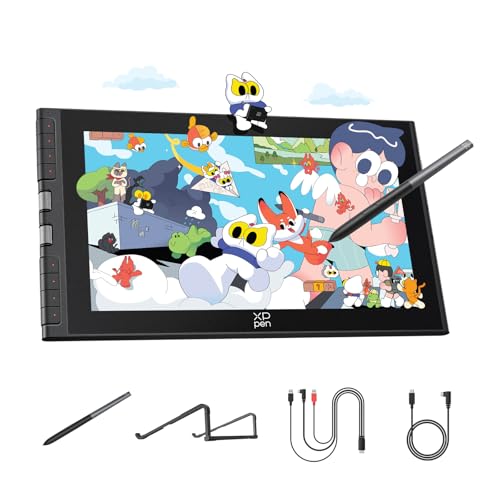
Most pen displays connect with a single USB C cable when your computer supports video over that port, or with a combined cable that splits into HDMI for video, USB for pen data, and power. Before you buy, confirm which ports your computer actually has and whether an adapter is needed, because this one check prevents most setup headaches. A spare pen nib set and a glove are common small extras. Wireless connection is rare on pen displays and can add slight delay, so a cable remains the standard choice for drawing. Keep cable length in mind too. A short cable limits how you can arrange a standing desk or a shared family computer.
Display Size, Resolution, and Brightness
Screens commonly run from about 12 inches for portable use to about 16 inches for a main desk, with larger sizes up to 24 inches for studio work. A 13 to 16 inch screen at full HD resolution suits most beginners, giving room for tool panels plus a clear drawing area. Brightness around 200 to 250 nits is typical and fine indoors, and a matte finish matters more than raw brightness for glare control. Color coverage is the spec artists should prize. Look for coverage near or above 90 percent of the sRGB range for web and print friendly work, and consider a factory calibration report a welcome bonus.
If you are weighing other tablet styles for school or general use, our guide to the best pc tablets covers full computers in tablet form, which is a different purchase from a pen display.
Rookie Mistakes to Avoid
- Buying a pen display without checking your computer ports, then needing adapters or finding the cable too short for your desk layout.
- Choosing the largest screen you can afford while ignoring desk depth, so the tablet crowds out your keyboard and strains your shoulders.
- Ignoring pen basics such as pressure levels and spare nibs, even though the pen is the part you touch for every single stroke.
- Paying extra for a standalone tablet when a pen display plus your current laptop would give you more power for less money.
- Skipping color coverage details and later finding that reds and greens on screen do not match what clients or printers expect.
Getting Started: Setup and First Use
Setup follows a calm order. Install the driver from the maker before you plug in the tablet, restart your computer, then connect the cables and open the driver panel to set pen pressure and shortcut buttons. Calibrate the pen by tapping the on screen points so the cursor sits exactly under the nib. Keep the operating system and firmware updated through the maker's app, since updates often fix pen delay and compatibility with new drawing software. Start with one small practice drawing and adjust pressure until light sketch lines feel light.
Readers comparing display styles may also find our guide to the best screen tablets useful, and complete newcomers can start with our guide to the best art tablets for beginners for a gentler first step.
Frequently Asked Questions
Should I buy a laptop or a tablet?
Buy for the job you already have. If you need a full computer for school, work, and art, a capable laptop plus a pen display is usually the strongest value, because one machine does everything. A standalone art tablet makes sense when you draw away from a desk often and accept smaller storage and app limits. Many students keep this simple by using the family or school computer with a modest pen display first, then upgrading the computer later if art becomes a serious pursuit.
Is a Chromebook enough for school?
A Chromebook is enough for writing, browsing, and light schoolwork, but it is a poor host for most pen displays because driver support and full drawing apps are limited. A few newer models work with select tablets and web based art apps, yet the experience is narrower than on Windows or macOS. If digital art class is a real goal, plan on a Windows or Mac computer as the host and treat a Chromebook as a note taking companion rather than your drawing station.
How much RAM do I need?
For the host computer, 16 GB is the comfortable target for most artists, with 8 GB workable for small canvases and simple apps. More memory helps when you keep reference photos, music, and chat open beside a large layered file. On a standalone tablet, buy the higher memory option if your budget allows, because you cannot add memory later and large canvases will test the base model within a year of growing skill.
Is a dedicated GPU worth it?
For standard 2D drawing and painting, a dedicated graphics card is rarely worth paying extra for, because modern integrated graphics handle brushes and layers well. It becomes worthwhile for 3D sculpting, animation, video editing, or driving several large monitors at once. Spend the money on screen color quality and a comfortable stand first. Those two upgrades improve every drawing session, while a stronger graphics card may sit idle through months of sketching and inking work.
How long should an art tablet last?
A well kept pen display should last four to six years, since it has few moving parts and the pen nibs are replaceable wear items. Screens can lose a little brightness over time, and cables are the most common failure point, so treat connectors gently and keep a spare cable in mind for a heavily used desk. Standalone tablets age faster because their processor and battery age like any tablet, so expect a shorter useful life of about three to five years.
Final Thoughts
Match the screen size to your desk, confirm your computer ports and memory, and put color coverage ahead of headline extras. Compare the product table above with those three checks in hand, and the best art tablets with screens choice for your budget and your art style will be clear and easy to defend.