
Best And Worst Routers: A Practical Buyer Checklist for 2026
Disclosure: We may earn a commission when you buy through links on this page, at no extra cost to you. As an Amazon Associate I earn from qualifying purchases. Learn more
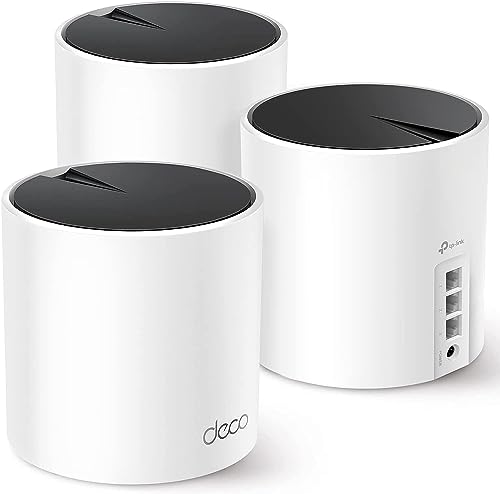
Run this checklist for the best and worst routers before you buy, covering WiFi standards, coverage, ports, security, and value for your home.
Router boxes shout huge speed numbers, yet your real experience depends on coverage, stability, and how well the router handles many devices at once. A clear checklist separates the best and worst routers far better than marketing claims. The worst buys usually fail on basics such as old security, weak coverage for the home size, or an app that makes simple settings hard to find.
This guide gives you the evaluation criteria first, then a quick buyer checklist and the red flags to avoid. Use the comparison table below to check models against these criteria once you know your internet plan speed and home layout.


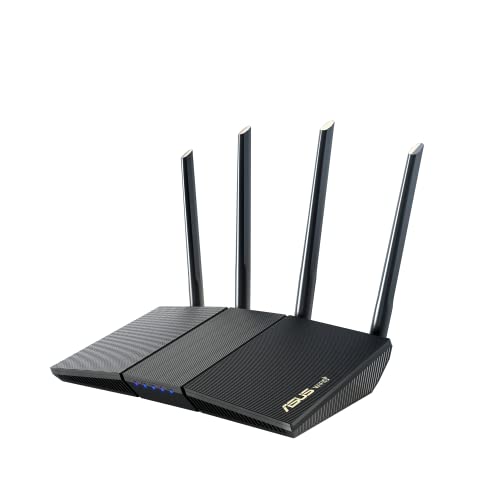
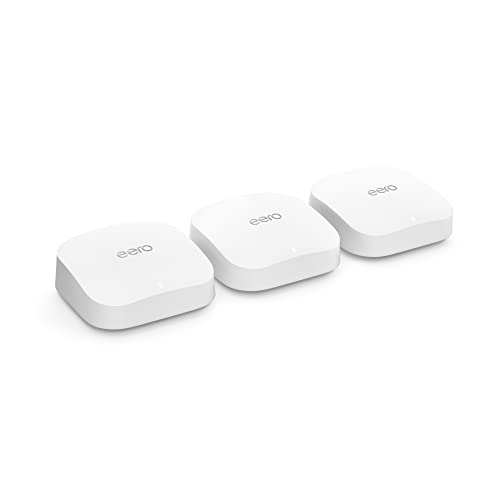

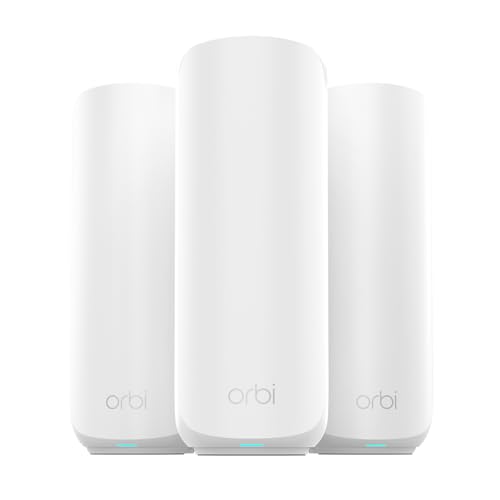
How We Evaluate Routers
WiFi Standard: WiFi 6, 6E, and 7
WiFi 6 handles crowded homes well and is the sensible baseline for a new router. WiFi 6E adds the 6 GHz band, which gives newer phones and laptops a cleaner, faster lane with less interference from neighbors. WiFi 7 raises the ceiling further and helps future devices, but both your router and your devices need to support it. A good router on an older standard beats a poor router on a new one, so judge the standard alongside coverage and stability rather than alone.
Setup and App Management
Good setup takes minutes, with a clear app, automatic detection of your connection type, and plain language prompts. You should be able to change the network name and password, update firmware, and see connected devices without hunting through menus. Parental controls and guest networks should be easy to switch on. A red flag is a router that forces an account and cloud connection for basic local settings, or an app full of ads and upsells. Read the app reviews before you buy, because you will live with that software for years.
Coverage and Home Size
Match the system to your floor plan, not just square footage. A single router can cover a small apartment or a compact one story home if placed centrally. Long, multi story, or brick and concrete homes usually need a mesh system with two or three nodes. Walls, floors, metal ducts, and aquariums all weaken signal. Place nodes where they still receive a strong signal from the main unit, not in the dead zone itself. Wired backhaul between nodes, when your home allows it, gives the most stable coverage of all.
Speed Ratings Versus Your Internet Plan
Combined ratings such as AX3000 add the theoretical speeds of every band together, and no single device ever reaches that total. What matters is that the router class comfortably exceeds your internet plan. A gigabit plan pairs well with a WiFi 6 or newer router with a gigabit or faster WAN port. If your plan is 200 Mbps, an expensive flagship router will not make browsing feel faster. Spend the difference on mesh coverage instead. Check real device needs too, since a video call needs only a few Mbps but needs them steadily.
Gaming Features: QoS and Low Latency
Quality of Service, or QoS, lets the router prioritize game traffic or a chosen device so downloads and streams do not cause lag spikes. For most homes, a simple device priority setting does the job without complex manual rules. Low latency also depends on your internet type and on using a wired connection for competitive play when possible. Gaming branded routers add styling and extra software, but the core value is stable prioritization and strong coverage. Shoppers comparing general home models can see more options in our guide to the best reviewed routers for how these features vary.
Wired Ports: Multi Gig, WAN, and LAN
Ports still matter in a wireless world. A multi gig WAN port, at 2.5 Gbps or faster, future proofs the router for faster internet plans. Enough LAN ports let you wire a desktop, a game console, or a mesh node for the most stable link. Homes with network storage or a home office may want a multi gig LAN port as well. If the router has few ports, a small network switch solves it cheaply. Check port speeds carefully, because some models include one fast port and several slower ones.
Three Profiles That Pass Our Checklist
Balanced Profile: Strong All Around Coverage
The best overall profile combines a current WiFi standard, WPA3 security, reliable firmware updates, and coverage matched to the home, in a single router or a two node mesh. Expect to pay around $150 to $300 for this level in a typical home. It should handle dozens of devices, stream on several screens, and keep latency steady during calls. The model to avoid in this class looks similar on the box but has not received a firmware update in over a year.
Value Profile: The Essentials Done Well
A value router at around $70 to $150 should still offer WiFi 6, WPA3, a usable app, and gigabit ports. You give up the 6 GHz band, multi gig ports, and some advanced controls, which most small homes never miss. This profile suits apartments and smaller houses on internet plans up to a few hundred Mbps. Value fails when makers cut security updates instead of features, so confirm the model is still supported. A slightly older but supported model on sale often beats a brand new unsupported one.
Compact Profile: Small Footprint, Full Basics
A compact router or small mesh node suits apartments, dorms, and tidy desks where a large gaming style unit with many antennas will not fit. Good compact models keep WiFi 6, WPA3, and at least two wired ports in a small body. The limits are coverage and port count, so this profile works best in one or two room spaces. Readers with unusual needs, such as workshop or garage coverage, can compare specialty options like best wlan routers to see how placement changes results.
Quick Buyer Checklist
- Does the router support at least WiFi 6 and WPA3 security?
- Is the coverage rated for your home size and floor count, with mesh if needed?
- Does the WAN port speed match or exceed your internet plan?
- Can you update firmware from the app, and is the model still supported?
- Are there enough LAN ports for the devices you want wired?
- Does it offer a guest network and simple parental controls?
- Will it work with your provider, as shoppers checking best routers for spectrum often need to confirm?
- Is the return window long enough to test coverage in your hardest rooms?
Red Flags to Watch For
Watch for vague speed claims with no stated WiFi standard, no WPA3 support, and no firmware update history, because an unsupported router becomes a security risk. Very short warranties and no clear maker support page are also warning signs. Be cautious with large numbers of glowing reviews posted in a short burst for an unknown brand, a pattern that can signal manipulated ratings. Another red flag is a required subscription for basic security or parental controls that rivals include free. Finally, avoid models that run hot and lack ventilation, since heat shortens electronic life.
Setup and Care Tips
Place the router centrally and elevated, away from metal objects, thick walls, and the floor, and keep it out of closed cabinets. Update firmware regularly, or turn on automatic updates, because patches close security holes. Change the default admin password during setup and use a strong, unique WiFi password. Restart the router once in a while if performance drifts, and note your settings before a factory reset. Keep the area around the vents clear, and write the model number and purchase date somewhere handy for support calls.
FAQs
How often should I replace my router?
Plan on replacing a router about every four to five years, or sooner when it no longer receives security updates. New WiFi standards alone are not a reason to upgrade if your current router is stable and supported. Replace sooner if you upgraded to a much faster internet plan that your WAN port cannot use, or if coverage problems persist after better placement. A router that reboots on its own or drops devices daily is telling you its hardware is failing.
Mesh or a single router: which is better?
A mesh system is better for large, long, or multi story homes because extra nodes spread coverage evenly and let devices roam. A single router is simpler and cheaper for apartments and compact homes. Mesh adds cost and one more thing to place well, since a node put in a dead zone cannot fix it. If one room is the only problem, try moving your router or adding a wired access point before buying a full mesh kit.
Will a new router speed up my internet?
A new router can only deliver the speed your plan provides, but it can remove bottlenecks an old router caused. If your plan is 500 Mbps and your old router caps real speeds at 100 Mbps, an upgrade will feel dramatic. If your plan itself is slow, or the slowdown comes from a weak signal in one room, coverage fixes matter more than raw router speed. Test with a wired connection to see the true plan speed before you blame the router.
Do I need WiFi 7 yet?
Most homes do not need WiFi 7 yet, because few devices support it and WiFi 6 or 6E already exceeds most internet plans. WiFi 7 makes sense if you keep a router for many years, have a multi gig plan, and own or plan to buy WiFi 7 devices. Its benefits show up most in busy homes with heavy local traffic, such as large file transfers. For everyone else, a well chosen WiFi 6E mesh often gives better real results for less money.
Wrapping Up
Run every candidate through the same checklist: current standard, WPA3, coverage for your layout, port speeds that match your plan, and active firmware support. Those basics separate strong routers from weak ones more reliably than box speed numbers. Our best and worst hub collects related comparisons if you want more background. When you rate the best and worst routers this way, the product table above turns into a quick final check before you order.

