Best Affordable Webcams for 2026: A Buyer Checklist
Disclosure: We may earn a commission when you buy through links on this page, at no extra cost to you. As an Amazon Associate I earn from qualifying purchases. Learn more
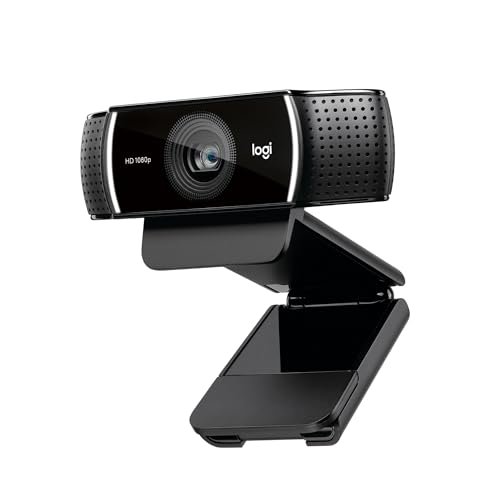
A buyer checklist for the best affordable webcams: light, resolution, focus and microphone, plus budget bands and red flags.
Most people buy a webcam after one bad call too many: a dark, grainy picture and a voice that sounds like it is coming through a wall. The fix is rarely the camera with the longest spec list. Choosing best affordable webcams is mostly a checklist exercise, and the first item on that checklist is not the camera at all. It is the light in your room, because light decides the picture more than the pixel count ever will.
This guide runs the checklist in the order that matters: light first, then resolution, frame rate, field of view, focus, and the microphone. It also covers what a small budget honestly buys, the mounting and privacy details buyers forget, and the red flags that mark a poor camera. A small table in the second check sets out the main resolution classes side by side.
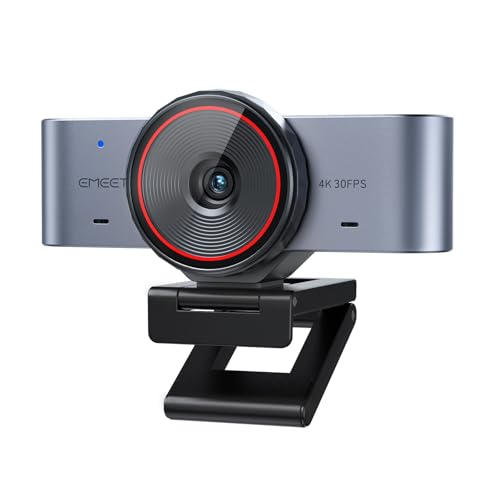
Check One: Fix the Light Before the Camera
Every webcam sensor is tiny, and a tiny sensor starved of light produces noise, grain, and smeared motion no matter what the box promises. The same modest camera pointed at a well lit face looks like a different product entirely. So the first check costs nothing: put the light in front of you, not behind you, and only then judge whether your current picture is a camera problem at all.
The Window Behind the Chair Is the Common Failure
The single most frequent webcam mistake is sitting with a bright window or lamp behind the chair. The camera exposes for the bright background, your face falls into shadow, and the picture looks gloomy even on a sunny day. Turning the chair around so the window faces you fixes more pictures than any purchase. If your desk cannot move, a curtain drawn behind you and a desk lamp in front achieves most of the same result.
What to Do When the Room Cannot Change
Some rooms only allow one desk position. In that case, a small lamp placed just above or beside the monitor, aimed at your face, does the work of a window. Keep it slightly higher than eye level so the light feels natural and does not glare into your eyes. A separate light is a neighboring purchase rather than part of the camera, but on a tight budget it often improves the picture more than stepping up a camera class would.
Check Two: Resolution and Frame Rate, Read Honestly
Maker resolution figures are class figures, not promises about your next call. A camera labelled with a high resolution still sends whatever the call software, your connection, and your light allow. Read the classes below as ceilings, and judge a camera by whether its class matches the calls you actually make.
| Resolution class | Typical picture | Honest use |
|---|---|---|
| 720p class | Soft but serviceable in good light | One to one calls on a small laptop screen |
| 1080p class | Clear faces, readable detail | The right default for work calls and classes |
| 1440p and 4K class | Sharp, with room to crop | Recording, streaming, large group calls |
Why 1080p Is the Sensible Default
For ordinary meetings, the 1080p class is where affordable cameras stop looking cheap. Faces stay clear on a full screen, and the camera has some reserve when the software crops or zooms the frame. Going higher buys sharpness you will mostly use for recording or cropping, not for a standard video call. Spend the difference on light and sound first.
Frame Rate Decides How Motion Looks
Thirty frames per second is the standard for calls and looks natural for a seated speaker. Sixty frames per second smooths fast movement, which matters for teaching fitness, demonstrating products, or streaming games, and matters very little for a weekly team meeting. Note that some cameras only reach their higher frame rate at a lower resolution, so a listing that shouts both numbers may not deliver them together.
Check Three: Field of View and Focus
Field of view is the width of the scene the camera captures, measured in degrees. A narrow view around 60 degrees frames your head and shoulders, which suits a solo desk worker. A view near 78 to 90 degrees takes in more of the room, which suits two people sharing a call or a teacher who moves. The widest views bend the edges of the picture, so a very wide camera in a small room can make the walls look curved.
Focus comes in three classes. Fixed focus is set at the factory for a typical desk distance and is honestly fine if you sit in one place. Autofocus adjusts as you lean in and out, which helps presenters and anyone who shows objects to the camera, holding a book or a product up close. Digital zoom is not focus at all; it crops the picture and softens it, so treat it as a convenience rather than a feature worth paying for.
Check Four: The Microphone Decides How You Sound
People forgive a soft picture far sooner than bad sound. The microphone class inside the camera decides whether your voice arrives clear or thin and distant, and in this price range the spread between microphones is wider than the spread between sensors. A single microphone picks up the room along with you, including the keyboard and the fan. Dual microphones and noise reduction processing clean that up noticeably.
Be honest about your setup. If you already wear a headset for calls, the camera microphone barely matters and you can put the whole budget into the picture. If you speak from the desk speakers, the camera microphone is doing real work, and it should rank above a resolution step when you compare two cameras. A cheap camera with a decent microphone beats a sharp camera that makes you sound like you are underwater.
What the Best Affordable Webcams Honestly Buy
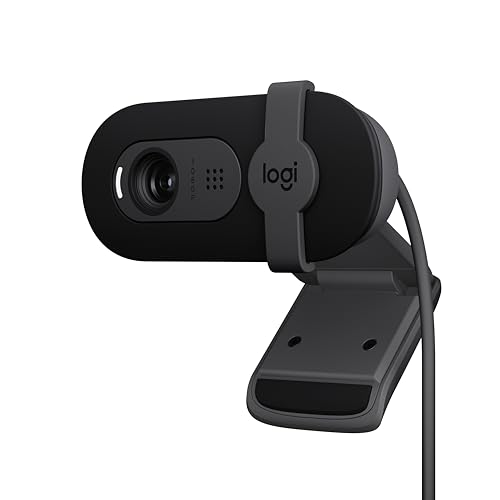
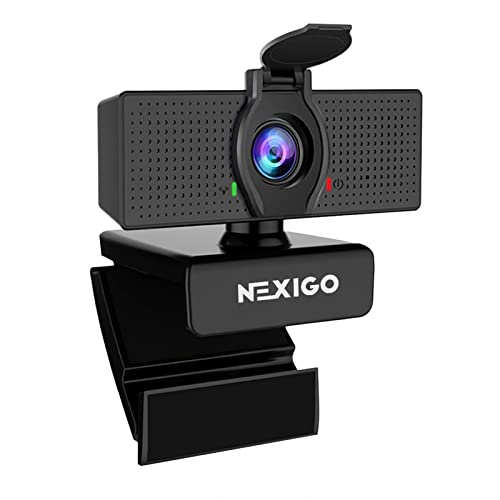
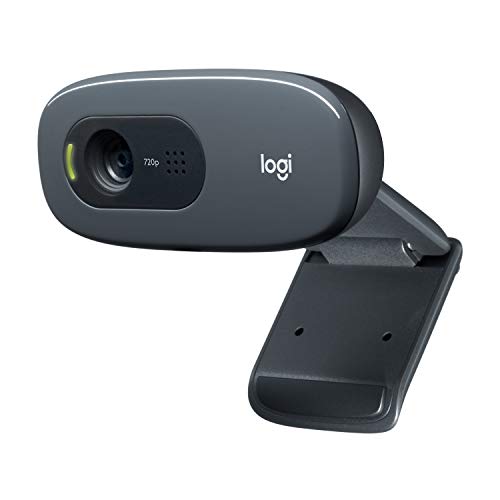
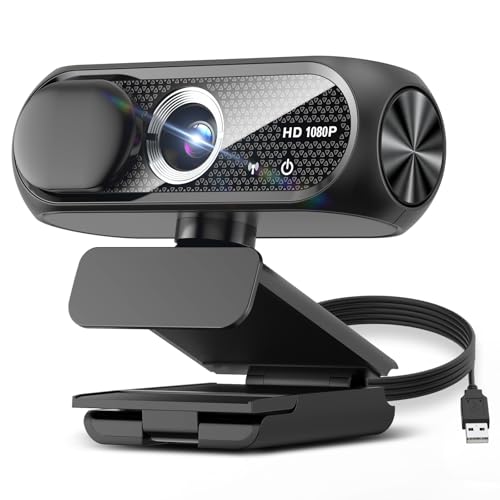
Affordable webcams fall into three rough bands, and knowing what each band cuts helps more than chasing specifications. The product table above shows where current models sit against these bands.
Under About $30: The Honest Minimum
Cameras under about $30 usually offer the 720p or basic 1080p class, fixed focus, and a single microphone. In a bright room they are a genuine improvement over an old laptop camera, and for occasional calls that may be the whole story. Expect a plastic mount, a short cable, and a picture that falls apart in dim light. This band is a spare camera or a first step, not a long term answer for daily meetings.
About $30 to $60: Where the Checklist Gets Satisfied
The band from about $30 to $60 is where the checklist items start arriving together: true 1080p output, autofocus, a wider choice of viewing angles, and microphones you can hold a meeting through. Most daily callers should shop here. Readers whose work is more demanding, such as recording lessons or presenting to clients, can compare the step up classes in our guide to best quality webcams to see what the extra money changes.
About $60 to $100: Polish Rather Than a New Class
Spending about $60 to $100 buys polish: better low light handling, a sturdier mount, a privacy shutter, and sometimes the 1440p class. It does not buy a different category of call. If your room is bright and your calls are standard meetings, this band is a comfort purchase rather than a necessity. If you record or stream, it starts to justify itself, which the streaming section below covers.
Mounting, Privacy, and Setup Details Buyers Forget
The mount decides where the camera sits, and eye level is the goal. A flexible clip that folds over the top of a monitor and also flattens into a stand gives you the most options, including perching the camera on a shelf or a tripod if the base has a standard thread. Check the cable length against your desk layout, because a short cable has ended more tidy setups than any spec has.
Privacy deserves one deliberate decision. A physical shutter or a built in cover is the only guarantee that the camera sees nothing when you are done, and it costs almost nothing at this level, so treat its absence as a mark against a camera. An indicator light is a weaker promise, since it depends on the camera behaving as designed. Note the boundary of the product class: a call camera is not a security device, and best security webcams are a separate class built for watching rooms rather than holding conversations.
Setup itself is simple: nearly every affordable webcam is plug and play over USB, with no drivers to install, and any software offered is for settings rather than basic use. A new laptop with a modern built in camera is a different purchase altogether; the guides to best and affordable laptops cover whole machines, not the camera you clip on top.
Matching the Checklist to Your Main Use
Best and affordable webcams
The word and in best and affordable webcams is doing real work: it names cameras that are cheap and genuinely good enough at the same time, not merely the cheapest on the shelf. Three criteria separate that group from the rest of the budget shelf.
First, honest output in the 1080p class, not an upscaled picture wearing a bigger label. Second, a microphone you can hold a meeting through without a headset. Third, a privacy shutter included rather than sold as an extra.
A camera that meets all three inside about $30 to $60 is the real answer to this search. One that misses the microphone or the light check fails no matter how low the price sits.
Calls and Classes From a Desk
Desk callers should weight the checklist toward the microphone and autofocus, since you move, gesture, and lean toward the screen. Field of view near the middle of the range frames you without swallowing the whole room. This is the easiest use to satisfy, and most cameras in the middle band pass it comfortably.
Streaming and Recording
Streamers and teachers who record should weight resolution and frame rate higher, and plan on a separate microphone sooner rather than later. Our guide to the best webcam for streaming goes deeper on the classes built for an audience rather than a meeting. Remember that recording software can only work with the picture the light gives it, so the first check in this guide still applies before any upgrade.
Red Flags to Watch For
- A high resolution claim with no mention of frame rate, which usually means the top resolution runs slowly and looks choppy.
- Digital zoom listed as a headline feature, since cropping a picture is not the same as capturing more of it.
- No privacy cover at any price, which tells you where the maker chose to save money.
- A fixed focus camera described as sharp at every distance, because fixed focus is only set for one desk distance.
- A very wide field of view sold for a small single desk, where it will mostly show the room and bend the edges.
Making an Affordable Webcam Last
Webcams ask for very little care. Keep the lens clean with a soft dry cloth, since a fingerprint film softens the picture more than a lower resolution class does, and never spray cleaner directly onto the lens. Close the shutter or cap when the camera is idle to keep dust off the glass. If the maker offers a settings app, an occasional update can improve exposure behavior, and coiling the cable loosely instead of wrapping it tight around the mount keeps the wiring intact for years.
Frequently Asked Questions
Is the 1080p class enough for work calls?
Yes, for standard meetings it is the right level, and most call software sends no more than that anyway. Your picture will look clear on the screens your colleagues actually use. One point buyers rarely hear: turning off the self view or lowering its size does nothing to the picture others receive, so judge your camera by a recorded clip or a trial call, not by the small preview in the corner.
Why does my webcam picture look dark and grainy?
Low light is the cause almost every time, because a small sensor raises its sensitivity in the dark and noise comes with it. Move a light in front of your face, close bright windows behind you, and the same camera improves immediately. One extra check: some cameras lock onto a dim exposure if a bright screen fills half the frame, so angling the camera slightly away from a glowing second monitor can lift the whole picture.
Do I need a separate microphone with an affordable webcam?
Not always. In a quiet room, a middle band camera microphone handles meetings well, and a headset you already own settles the question entirely. You need a separate microphone when the room echoes, when other people or a fan share the space, or when you record lessons and streams. A useful check is to record thirty seconds of speech and play it back on speakers, because laptop speakers hide thin sound that a room reveals.
Can an affordable webcam work for streaming?
Yes, as a starting point, provided the light is good and you accept the 1080p ceiling most streams use anyway. Many streamers begin on a budget camera and upgrade the microphone first, which audiences notice sooner. One caution: a camera that runs hot or drops its connection during a long call will do the same on a stream, so try it on a full length call before relying on it live.
How long should an affordable webcam last?
Several years of daily use is a fair expectation, because a webcam has no moving parts beyond its mount hinge. The mount and the cable fail before the sensor does, so a camera that starts drooping on the monitor or flickering when the cable moves is nearing its end. Software support matters less than with other electronics, since the basic driver is built into the computer, which is why an older webcam often still works on a new machine.
Final Thoughts
Run the checklist in order and the decision gets simple: fix the light, take the 1080p class as the default, pick the field of view that fits your room, and let the microphone break ties. Shoppers comparing best affordable webcams will find the middle band, about $30 to $60, satisfies every item without paying for polish they cannot see. Look back at the product table above with your room in mind, and choose the camera that passes your checks rather than the one with the longest list of numbers.