
Best Access Point Routers 2026: A Practical Buying Guide
Disclosure: We may earn a commission when you buy through links on this page, at no extra cost to you. As an Amazon Associate I earn from qualifying purchases. Learn more
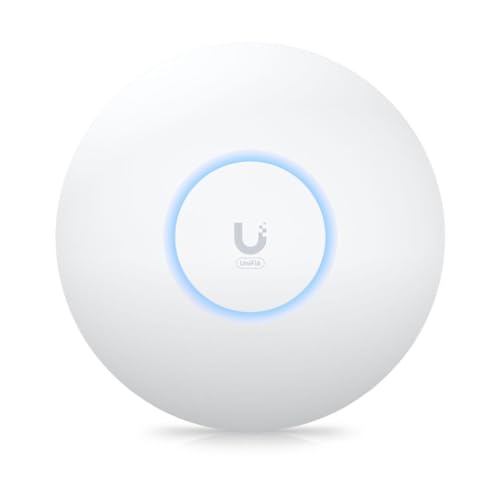
Learn how access point routers extend WiFi coverage, when to use one instead of a repeater, and how to choose speed, bands, and PoE power well.
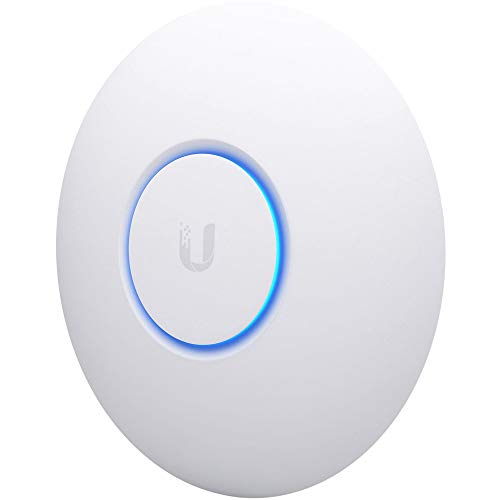
Dead zones at the far end of a house or office are frustrating, and the best access point routers solve them in a smarter way than a simple repeater. An access point connects to your network by cable and broadcasts a fresh wireless signal, so you keep more speed. The comparison table below will help you compare the main options side by side.
This guide explains access points in plain language: what they are, how they differ from routers and extenders, and what specs matter. It is written for first time buyers who want reliable coverage without becoming network engineers.




Who Should Buy Which Type
For Large Homes
Large homes with thick walls, multiple floors, or a long layout benefit most from wired access points in key spots. One access point near the living area and one near bedrooms often beats a single powerful router. Cable runs take planning, but the result is steadier coverage.
For Home Offices
A home office needs a stable connection for video calls and large file transfers, not just a strong signal bar. An access point near the office gives a cleaner link than a distant router through walls. Wired backhaul keeps calls smooth even when others stream video.
For Small Businesses
Small offices, cafes, and shops need coverage for staff and guests across a wider area. Multiple access points with central management keep the network tidy and let you set guest access separately. Plan for growth, so adding another access point later is simple.
Types Compared
Standalone Access Points
Standalone access points work on their own and are configured one at a time. They suit single unit installs and small homes. They cost less up front but take more effort if you later add several units.
Managed Access Point Systems
Managed systems let one controller or app manage several access points as one network. Devices roam between access points more smoothly, and settings stay consistent. They suit larger homes and small businesses.
Outdoor Access Points
Outdoor access points are weather resistant and cover gardens, patios, and yards. They need proper mounting and cable protection against rain and sun. They are a good fit when outdoor coverage matters as much as indoor coverage.
Router in Access Point Mode
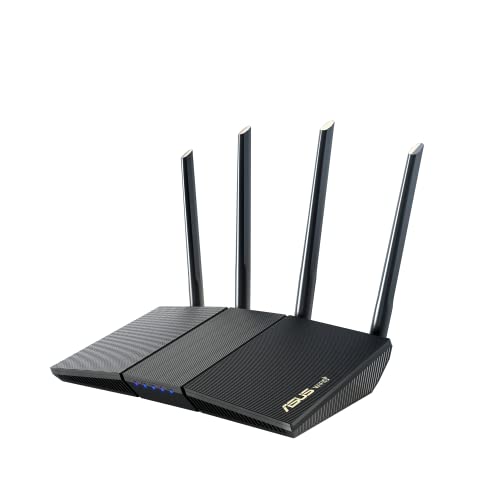
Many ordinary routers can run in access point mode, turning off routing and acting as a wireless bridge. This reuses hardware you already own and suits a single extra coverage spot. It can be less tidy to manage than a dedicated access point system.
Key Features to Compare
Wireless Standard and Speed
Newer wireless standards offer faster speeds and better handling of many devices at once. Real world speed depends on your internet plan, device support, and signal quality, not just the headline number. Choose a standard your devices actually support.
Bands and Channels
Dual band access points use two frequency bands, while tri band models add a third band for extra capacity. More bands help in busy homes with many devices. Channel planning reduces interference from neighbors, especially in apartments.
Wired Backhaul and Ports
A wired connection back to the main router, called backhaul, preserves speed far better than wireless repeating. Check for gigabit or faster Ethernet ports and whether the unit supports power over Ethernet. A single cable can carry both data and power in many installs.
Power over Ethernet
Power over Ethernet lets one cable power the access point, which simplifies ceiling or high wall mounting. Check whether the unit needs a compatible switch or injector, and whether that gear is included. Without it, you need a nearby power outlet.
Management and Security
Good management software makes setup, updates, and guest networks simple. Look for modern wireless security, separate guest access, and regular firmware updates. Security and ease of updates matter more over time than a small speed difference.
Placement and Setup
Place access points high and central within each coverage area, away from thick metal objects and large appliances that block signal. Ceiling mounting often gives the most even coverage in a room. Test with your phone or laptop in real use spots before fixing mounts permanently.
Connect the access point to your router by cable where possible, set the same network name and security as your main network, and update firmware before relying on it daily. If roaming feels sticky, with devices clinging to a distant access point, check controller settings for roaming thresholds. Small tuning steps often fix that behavior.
Care and Maintenance
Keep firmware current, since updates fix security issues and improve stability. Reboot access points now and then if the maker recommends it, and check that cables and mounts stay secure. A tidy cable run prevents accidental unplugging and damage.
Watch for new interference from neighbors or new devices, especially in dense housing. A quick channel rescan can restore speed after a neighbor installs new gear. Note your settings when you find a setup that works, so you can restore it after changes.
Mistakes to Avoid
- Using wireless repeating when a wired access point would keep far more speed.
- Placing the access point low, behind furniture, or inside a cabinet.
- Buying the fastest headline speed while ignoring backhaul and device support.
- Skipping firmware updates and guest network separation in a shared space.
A Final Check Before You Order
Before you order, confirm the wireless standard, bands, Ethernet speed, power method, and management style against your home and router. Plan cable routes and mounting spots, and count how many access points your space truly needs. These checks matter more than any single speed claim.
The related guides linked below cover nearby router choices, including routers that can serve as access points and long range wireless options, so you can compare approaches. Read them with your layout in mind, and shortlist the setup that fits your space. Related guides: best routers to use as access points, best wlan routers, best long range wireless access point, best routers for spectrum.
Frequently Asked Questions
What is the difference between an access point and a repeater?
An access point connects to your network by cable and broadcasts a fresh signal, keeping most of your speed. A repeater rebroadcasts a wireless signal it received, which often halves usable speed. For steady coverage, a wired access point is usually the better choice. Wired access points also handle many devices better, since each unit serves its own area independently.
Do I still need a router if I buy access points?
Yes. Access points extend wireless coverage, but a router still connects your network to the internet and manages traffic. Think of access points as extra wireless doors into the same network, not as replacements for the router. A modem supplied by your internet provider often still handles routing, with access points extending wireless coverage.
Can I use the same network name for all access points?
Yes, and it is usually the best approach for smooth roaming at home. Devices then see one network and move between access points as signal changes. Keep security settings identical across units so roaming works cleanly. Fast roaming standards help phones switch smoothly, though older devices may still cling to distant units.
What is power over Ethernet and do I need it?
Power over Ethernet sends power along the same cable as data, so an access point needs no nearby outlet. It simplifies ceiling mounting and tidy installs. You need a compatible switch or injector, so check what is included before ordering. Check injector voltage and power budget carefully, since mismatched power can prevent an access point starting.
How many access points does a large home need?
It depends on size, wall materials, and layout, but many large homes do well with two or three well placed units. Start with a plan based on rooms and dead zones, then test before adding more. Too many access points close together can cause interference. Concrete and metal stud walls block signal more than drywall, so count walls as well as distance when planning.
Designing Coverage That Lasts
Good coverage design starts with a floor plan, not a shopping list. Mark where people actually use devices, where walls are thickest, and where cable can realistically run. A plan based on real use beats a guess based on square footage alone.
Think about future device growth, since homes add cameras, speakers, and smart devices every year. An access point layout with spare capacity handles growth without a redesign. Choose a system that lets you add units easily rather than one that locks you into a single box.
Separate guest traffic from your main network from the start, especially if visitors, tenants, or customers connect regularly. Guest separation protects your devices and keeps your main network faster. Set it up once, and it quietly protects you every day.
Finally, document your network: access point locations, cable routes, passwords stored safely, and settings that work. Documentation saves hours when something changes or fails. A well documented network is far easier to maintain than a clever one nobody remembers.
Final Thoughts
Plan cable routes and placement first, and the best access point routers for your home will be the ones that quietly remove dead zones. The product table above gives a useful starting point, but your layout and your router should make the final call.
Order only after you have confirmed standards, ports, and power needs, and keep a note of your settings for future changes. With a careful setup, good coverage simply fades into the background of daily life.


