
Best 60fps Webcams: A Buying Guide by Budget for 2026
Disclosure: We may earn a commission when you buy through links on this page, at no extra cost to you. As an Amazon Associate I earn from qualifying purchases. Learn more

Compare the best 60fps webcams by price and features, from honest 1080p60 and autofocus to low light performance, and learn where your money matters most.
Moving from 30 to 60 frames per second changes how natural you look on camera, especially when you gesture, turn your head, or hold something up for the room to see. Shoppers comparing the best 60fps webcams will find prices from under $50 to about $250, and the spec sheets rarely explain where that money actually goes. This guide breaks down what each price level buys you, which features change your picture in daily use, and which extras you can safely skip.
You do not need the most expensive model to look sharp, but you do need an honest 60fps mode at a resolution your computer and your apps can actually handle. The comparison table below gathers the key specs side by side, and the sections that follow explain how to read them for your desk, your lighting, and your budget.



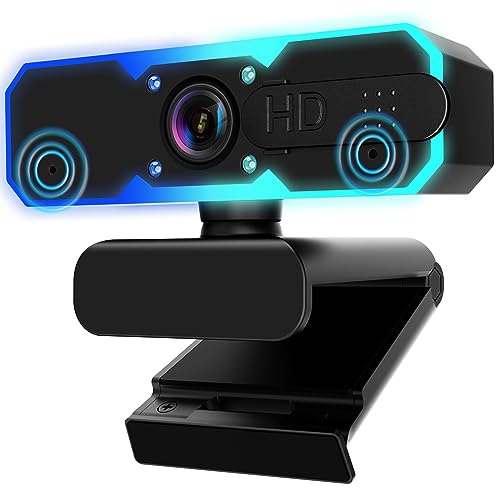
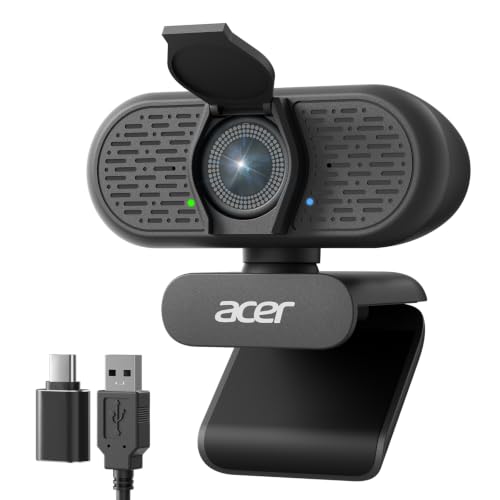
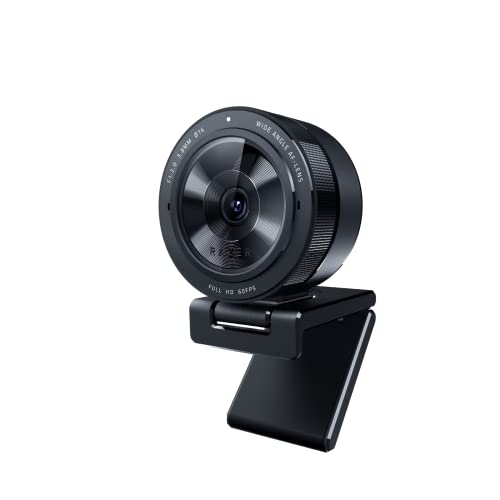
Who Should Buy a 60fps Webcam?
The right budget depends less on the camera itself and more on how you appear on screen each day. Match yourself to one of the groups below, then use the product table above to see which price tier fits that pattern.
Streamers and Creators Who Move on Camera
If you stream games, workouts, or hands on demos, motion is the whole point of paying for 60fps. Your face usually sits in a small corner box, so clean 1080p at 60fps matters far more than a 4K badge that most platforms downscale anyway. Autofocus that locks on quickly and stays put is worth real money here, because focus hunting is very visible to viewers. If streaming is your main goal, see our guide to the best webcam for streaming for platform settings and software advice beyond the camera itself.
Remote Workers With a Full Meeting Schedule
For daily calls, 60fps makes your gestures and expressions read more naturally, which helps when you present or lead a discussion. Most meeting apps compress video heavily, so a midrange camera with a decent sensor will look nearly identical to a premium one inside a call. A good built in microphone matters less if you already wear a headset, so you can let that feature slide down your priority list. Budget and midrange models cover this job well as long as your room has reasonable light.
Teachers, Coaches, and Presenters
If you stand up, write on a board, or demonstrate with your hands, you need a wider field of view and autofocus that tracks you as you move around the frame. A narrow budget camera will crop your gestures and lose focus when you step back from the desk. Premium models earn their price here through wider lenses, steadier tracking, and mounts that tilt down toward a desk or board. Plan to pair the camera with a small tripod, since a monitor mount rarely aims low enough for demonstrations.
What Your Money Gets You at Each Price Tier
Price tiers in this category follow a clear pattern. Each step up buys you a better sensor, smarter focus, or more honest frame rates, and the sections below show where the jumps are worth paying for.
Budget Tier: Honest 60fps Without Extras
Cameras at about $30 to $60 usually deliver 60fps at 720p, with 1080p capped at 30fps, so read the fine print before you buy. Most use fixed focus tuned for a typical desk distance, which is fine if you sit in one spot. Sensors are small, so the picture holds up in a bright room and softens quickly in dim light. Expect a basic monitor clip, a shorter cable, and manual settings that live in the maker app rather than on the camera.
Midrange Tier: Where Most Buyers Should Land
At about $60 to $120, you get true 1080p at 60fps, real autofocus, and a sensor that stays clean in ordinary room light. Dual microphones, USB C connections, and a privacy shutter become common at this level. This is the tier where the picture stops looking like a compromise and starts looking like a deliberate setup. For most streamers and remote workers, spending more than this buys polish rather than a visible leap in quality.
Premium Tier: When Spending More Pays Off
Models at about $120 to $250 add larger sensors, 1440p or 4K recording, and smarter framing that follows you around the shot. Low light performance is the clearest gain, since a bigger sensor gathers more light before noise creeps in. Build quality improves too, with sturdier mounts and longer cables that suit permanent desk setups. Readers chasing the sharpest possible image can see our guide to the best quality webcams for how these cameras compare with dedicated cameras.
Features Worth Paying For (and Ones to Skip)
Feature lists mix genuine upgrades with box decoration. The factors below are the ones that change what your audience actually sees, plus a short list of extras that rarely justify a higher price.
Resolution at a True 60fps
Frame rate and resolution are paired specs, and many cameras only reach 60fps at a reduced resolution. A model that lists 1080p and 60fps on the box may still record 1080p at 30fps and reserve the higher rate for 720p. Check the spec table for the frame rate at each resolution before you pay for either number. If 1080p60 is your target, see our guide to the best 1080p 60fps webcams for models built around that exact combination.
Sensor Size and Low Light Performance
The sensor decides how much light the camera can gather, and that decides how clean your picture looks after sunset. Small sensors boost brightness electronically, which adds grain and washes out skin tones in dim rooms. A larger sensor holds detail and color with less of that processing, so faces look natural under a desk lamp. If your calls happen at night or in a room without windows, sensor size is the single feature most worth paying for.
Autofocus and Field of View
Autofocus systems range from slow contrast based hunting to fast face aware tracking, and the difference shows every time you lean in or hold an object close. Field of view is usually listed in degrees, with about 65 degrees framing your head and shoulders and about 90 degrees taking in much of the room behind you. Narrow views flatter faces and hide clutter, while wide views suit presenters and shared workspaces. Pick the view that matches your room, because you cannot change the lens later.
Connection, Mounting, and Privacy
Nearly every webcam uses the UVC standard, so it works without drivers on Windows and Mac, though maker apps unlock finer exposure and zoom controls. Check cable length against your setup, since a tower under the desk can leave a short cable dangling short of the monitor. A standard tripod thread adds real flexibility, and a physical privacy shutter beats a software toggle for peace of mind. If your machine is a desktop build, see our guide to the best webcams for pc for setup ideas that fit tower and monitor layouts.
Extras That Rarely Earn Their Price
Some headline features add cost without improving your daily picture. A 4K mode capped at 30fps gives up the smoothness you bought a 60fps camera for, unless you record product close ups. Bundled editing software trials expire quickly and duplicate free tools you may already own. Tiny built in ring lights are too close to the lens to flatter anyone and usually lose to a simple desk lamp. Skip these extras and put the savings toward the sensor and autofocus instead.
Choosing 60fps Webcams for Your Situation
Before you order, look at your room rather than the spec sheet. Note where your light comes from, how far you sit from the screen, and whether your main app even sends video above 30fps, because several meeting platforms cap outgoing video regardless of your camera. A bright window behind you will defeat any sensor, so turning your desk to face the light often improves your picture more than a price tier jump.
Best 60fps Webcams under 50: Where Your Money Goes
Shopping the best 60fps webcams under 50 means choosing which corners get cut. Fixed focus is the cut you should accept, because at a normal desk distance a fixed lens keeps you sharp without any hunting. Spend what the budget allows on the largest sensor you can find at this price, and accept 720p at 60fps if 1080p forces a smaller sensor. A lamp you already own, placed beside the monitor and aimed at your face, will lift a budget camera further than any software setting.
Long Term Costs to Factor In
The purchase price is only part of what a webcam costs you over its life. A tripod or a taller mount often follows within a month, and a basic desk lamp is a common second purchase once you see yourself in evening light. Some premium brands lock advanced framing and background tools behind a paid software plan, so check whether the features you want stay free after any trial ends. Warranty length varies from one to three years, and a longer warranty matters more than a small price gap if the camera will travel in a laptop bag. Setting aside about $30 for these extras keeps the total cost honest.
Frequently Asked Questions
Does a 60fps webcam need USB 3.0 to reach its full frame rate?
No, most 60fps webcams reach full frame rate over USB 2.0 because they compress the video before sending it. The catch is compression quality, since heavy compression can soften fine detail in hair and patterned clothing. If your computer has a free USB 3.0 port, use it anyway, because some models reserve their least compressed mode for the faster connection. Check the maker spec sheet for the format listed at your chosen resolution.
Why does a 60fps webcam look choppy in a dim room?
A 60fps webcam looks choppy in dim light because the camera stretches each frame exposure to gather more light, which quietly drops the real frame rate. The fix is more light near your face, not a higher gain setting, since gain only adds grain. Many camera apps also let you lock the frame rate priority mode, which holds 60fps and accepts a darker picture instead. A lamp a few feet away usually restores smooth motion at once.
Can a 60fps webcam work with a Mac or a game console?
Yes, a 60fps webcam works with any Mac that accepts UVC cameras, and macOS treats it like a built in camera inside most apps. Console support is narrower, since each console allows only certain cameras for direct streaming and often caps the feed at 30fps. The app on your computer may also ignore some maker features, such as digital zoom, even when the camera itself supports them. Check the console maker camera list before you buy for console use.
Is 60fps worth it for ordinary video meetings?
It depends on the app, because several popular meeting platforms send your video at 30fps no matter what your camera can do. Where 60fps still helps is local recording, virtual presentations you upload later, and apps that allow higher rates for presenters. A quick test is to record a short clip in your camera app and wave, then compare it with a 30fps clip of the same wave. If the motion blur difference is obvious to you, your audience will notice it too.
How long does a 60fps webcam last before it needs replacing?
A 60fps webcam typically lasts for years because it has almost no parts that wear out, apart from the focus motor and the cable. Most early failures trace back to a strained cable or a broken monitor clip rather than the sensor itself. Route the cable with some slack and avoid unplugging it by the cord, and the camera should outlast the computer it serves. Replace it when your apps move to higher resolutions or when focus starts drifting on its own.
Final Thoughts
Start with the frame rate at the resolution you will actually use, then weigh sensor size for your lighting, then autofocus for how much you move. Those three checks sort the whole market faster than any brand name or box claim. Look back at the product table above with your tier in mind, and pick the camera whose strengths match your room and your routine. Chosen that way, the best 60fps webcams for your desk are simply the ones that make you look like yourself, moving naturally, every time you join.


