
Best 17 Inch Business Laptops for 2026: Types Compared and How to Choose
Disclosure: We may earn a commission when you buy through links on this page, at no extra cost to you. As an Amazon Associate I earn from qualifying purchases. Learn more

Compare the best 17 inch business laptops by type, battery life, display, ports, and performance so you can choose a large work laptop with confidence.
A 17 inch screen gives spreadsheets, documents, and dashboards room to breathe, but the category splits into very different kinds of machines. If you are sorting through the best 17 inch business laptops, the first decision is not the brand. It is the type of laptop that matches how you work, travel, and collaborate each day.
This guide compares each type in plain terms, with its strengths, limits, typical prices, and ideal users. Use the product table to see current configurations, then use the sections that follow to decide which style deserves your money.
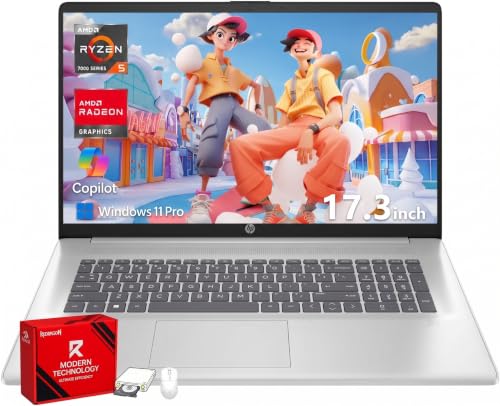
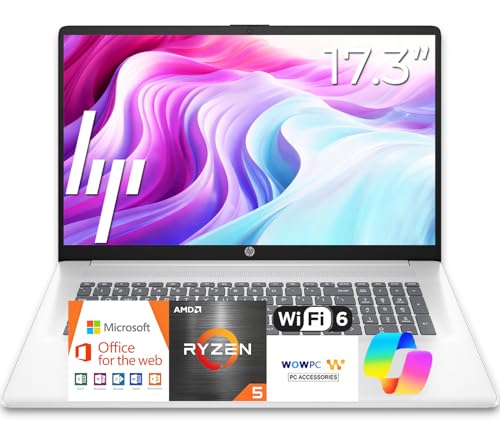
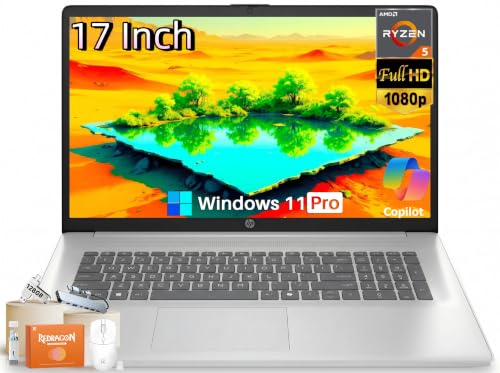
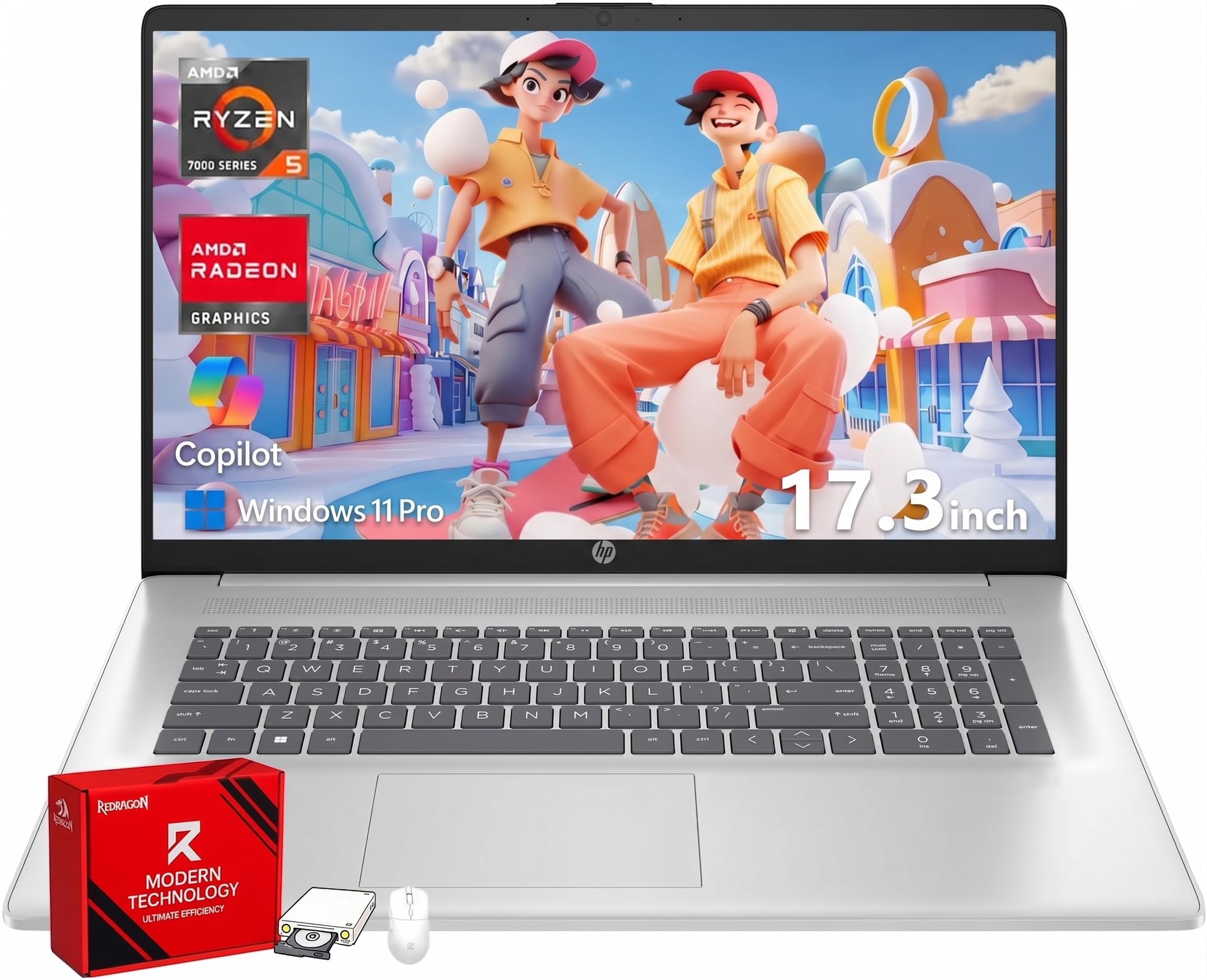

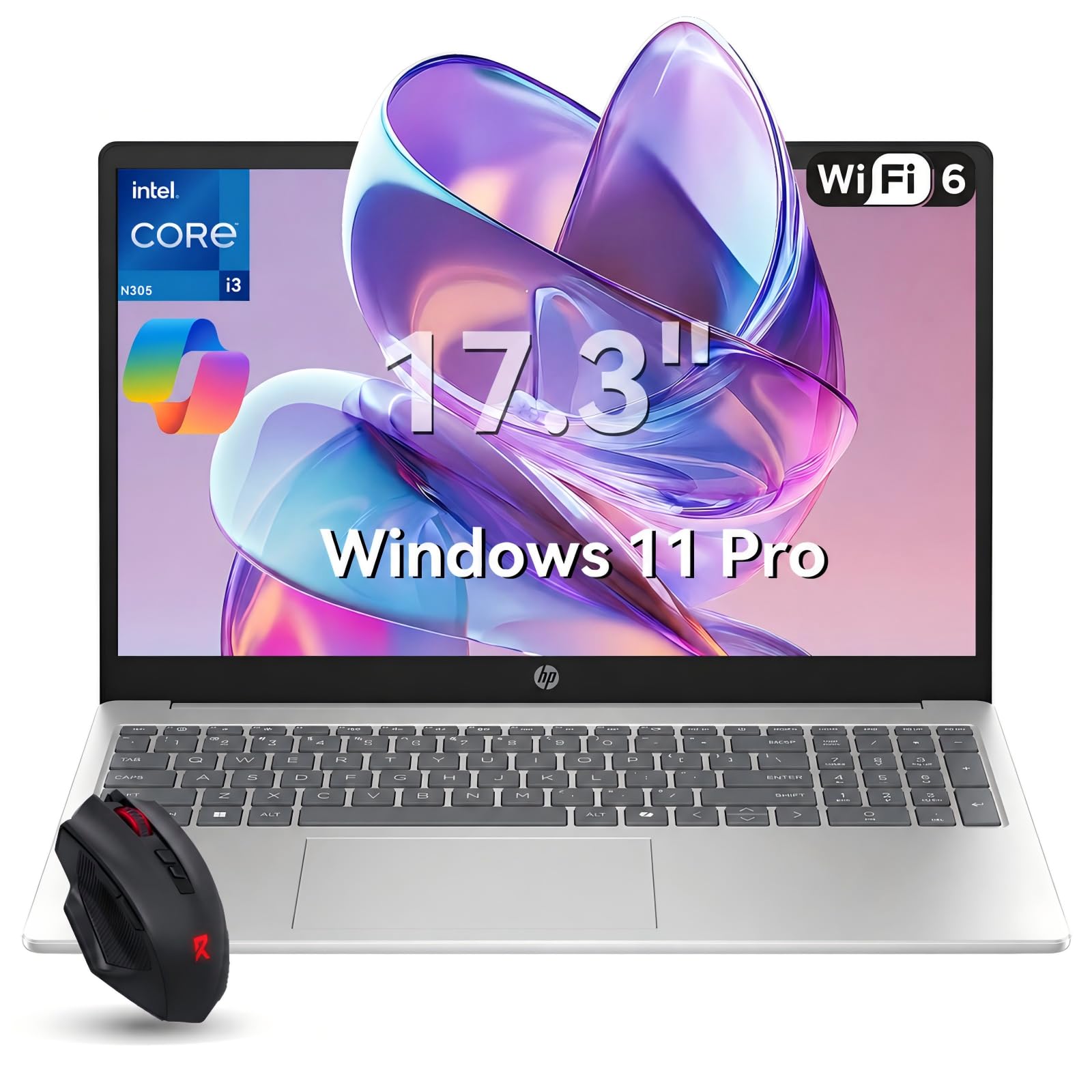

Types of the Best 17 Inch Business Laptops Compared
Three broad styles cover most of this market. Traditional clamshell models dominate true 17 inch business sales and typically cost around $700 to $1800, convertibles add touch and pen input at a premium, and Chromebooks trade app flexibility for simplicity and long battery life. Tablets appear here mainly as companions, since very few reach a true 17 inch size. For a broader view beyond business use, see our guide to the best 17 inch laptops as well.
2 in 1 Convertibles
A convertible folds its screen back so the laptop becomes a tablet for notes, markups, and presentations. That flexibility helps in meetings, on job sites, and in classrooms where a pen speeds up sketches and signatures. The costs are real: hinges and touch glass add weight, prices run higher for the same performance, and large convertibles feel awkward held in one hand. Choose this type if you regularly annotate documents or present standing up, and budget around $900 to $1800 for a business grade example.
Chromebooks
Chromebooks run ChromeOS, center on the browser, and shine for email, documents, video calls, and web based business tools. They start fast, update quietly, resist most malware, and often deliver excellent battery life for around $400 to $900. The limits appear when you need full desktop software, heavy offline work, or specialized peripherals. They suit schools, front desk roles, and cloud first teams. If your company stack lives in a browser, a Chromebook can be the calmest and cheapest route to a big screen.
Tablets
Large tablets paired with a keyboard cover can handle email, reading, and light editing, and they win on instant wake and simplicity. As a main business machine, though, they fight you with limited ports, smaller effective work areas once the on screen keyboard appears, and file handling that feels restricted. Most large tablets also top out below 17 inches, so the screen advantage shrinks. Treat a tablet as a travel companion to a real laptop rather than its replacement, unless your work is almost entirely reading and calls.
2 in 1 Convertibles vs Chromebooks: Which Should You Choose?
These two types solve different problems. A convertible runs full Windows software, so it handles the complete Office suite, accounting packages, and industry tools without workarounds, and the pen and touch screen add genuine value in meetings. A Chromebook answers with simplicity: lower prices, longer battery life, fast startup, and far less maintenance for an IT team. On performance per dollar the Chromebook wins for browser work, while the convertible wins on capability. Decide by listing your three most used apps. If all three run well in a browser, the Chromebook is enough, and you can put the savings toward a good dock and monitor.
How to Choose the Right 17 Inch Business Laptop
Once the type is settled, compare the individual specifications that shape daily comfort. If screen size itself is the priority, our overview of the best 17 inch screen laptops covers how panel quality varies across this size class.
Battery Life in Real World Use
Vendor battery claims assume light tasks at low brightness, so expect real mixed office use to land a few hours lower. For a 17 inch machine, about eight hours of documents, calls, and browsing is a good target, and large screens draw more power than small ones. USB C fast charging is worth having, because a short top up during lunch can recover several hours. If you travel for work, check the weight of the charger as carefully as the laptop itself.
Display Size, Resolution, and Brightness
At 17 inches, full HD resolution is the minimum and a sharper 1440p or 1600p panel makes text noticeably crisper when two windows sit side by side. Brightness around 300 nits or more keeps the screen readable in bright offices and near windows. Matte coatings reduce glare during long reading sessions. Refresh rate matters little for office work, so spend on brightness and resolution first. Color accuracy only becomes a priority if you edit photos or video for clients.
Processor and Performance Tier
Current Intel Core Ultra and AMD Ryzen processors handle office multitasking with ease, and Apple silicon leads on battery life where its screen sizes fit your needs. For spreadsheets, calls, and dozens of tabs, a mid tier chip with 16GB of RAM is the sweet spot. Step up in processor only for data analysis, code compilation, or regular media work. An older generation chip at a discount often serves office users just as well as the newest release.
Graphics (Integrated vs Dedicated GPU)
Integrated graphics now drive multiple external monitors and handle presentations, dashboards, and light photo work without trouble. A dedicated GPU earns its cost and weight only for CAD, 3D modeling, video rendering, or engineering software. It also drains the battery faster and adds fan noise in meetings. Most business buyers should skip it, take the longer battery life, and spend the difference on memory, storage, or a better warranty.
Ports and Connectivity
Count the ports before you buy, because a 17 inch laptop often replaces a desktop and should connect without a tangle of adapters. Look for at least two USB C ports with Thunderbolt or full data and charging support, an HDMI port for meeting room screens, and one or two classic USB A ports for older gear. WiFi 6E or WiFi 7 keeps crowded office networks fast. An Ethernet port is rare now, so budget for a dock if your desk needs wired networking.
Care and Maintenance Tips
- Keep the operating system and firmware updated, since business security fixes often arrive through those channels first.
- Avoid running at full charge all the time if your laptop offers a battery health setting that caps charge for desk use.
- Use a padded sleeve or a bag sized for a 17 inch machine when commuting, because the larger lid flexes more in a loose bag.
- Back up work files to your company cloud or drive weekly, so a repair never becomes a data emergency.
- Clean the keyboard and vents monthly, and keep drinks away from the wide deck where spills spread fast.
Carrying a machine this size is its own skill, so it is worth reading about the best backpacks for 17 inch laptops before you trust a favorite bag that was made for a smaller computer.
FAQs
Should I buy a laptop or a tablet?
Buy the laptop if it will be your main work machine, because a full keyboard, real file system, and proper multitasking matter across a whole workday. A tablet suits reading, signing, and presenting on the move. Many professionals pair a capable laptop with an inexpensive tablet rather than forcing one device to do both jobs badly.
How long should a 17 inch business laptop last?
A business grade model should last about four to six years with normal care. The battery usually shows wear first, often after three to four years of daily charging. Choosing 16GB of RAM, a solid state drive, and a replaceable battery extends useful life. Plan replacement when security updates, slow performance, or repair costs start to outweigh the price of a new machine.
Is a dedicated GPU worth it?
It is worth it only when your software names it as a requirement, such as CAD, 3D work, or serious video editing. For documents, dashboards, and calls, integrated graphics use less power and run cooler and quieter. The money saved buys more memory or a longer warranty, both of which help office work daily. Check your main applications and their stated requirements before paying for graphics you will never use.
How much RAM do I need?
Sixteen gigabytes is the right target for most business users, covering heavy tab use, large spreadsheets, and several apps at once. Eight gigabytes still works for light browser based roles, especially on a Chromebook, but leaves little headroom. Choose 32GB only for data work, virtual machines, or creative software. Memory you cannot upgrade later deserves extra care, so prefer models where the RAM is not soldered if you plan to keep the machine for years.
Is a Chromebook enough for school?
Yes, for most schoolwork a Chromebook covers documents, research, classes online, and learning platforms at a low price with long battery life. It struggles only when a course requires specific Windows or Mac software, such as certain engineering or media tools. Check the course software list first. Students who game or edit video heavily will also outgrow it faster than general users.
Our Verdict
Pick the type first, then judge battery life, display brightness, and ports in that order, because those three shape every workday with a big laptop. Most buyers land on a traditional Windows model with 16GB of RAM and a bright panel. If raw power for games ever matters more than meetings, the models in our guide to the best 17 inch gaming laptops show what changes. Whatever you choose, the best 17 inch business laptops are the ones that disappear into your workflow, so compare your finalists in the product table and buy the one that fits your apps, your bag, and your budget.


