Best Art Tablets for Animation 2026: A Complete Buying Guide
Disclosure: We may earn a commission when you buy through links on this page, at no extra cost to you. As an Amazon Associate I earn from qualifying purchases. Learn more

Learn how to choose art tablets for animation, from pen feel and display size to software fit and budget, with a clear guide for every skill level.
Choosing best art tablets for animation starts with how you animate, not with the longest spec sheet. A tablet for frame by frame drawing, storyboarding, and cleanup work needs a pen that feels steady, a surface that tracks clean lines, and a screen or slate that suits long sessions at a desk.
The comparison table below brings the main options together, so you can weigh pen feel, size, and price side by side. This guide explains each factor in plain language, so you can match a tablet to your animation workflow rather than buying features you will never use.
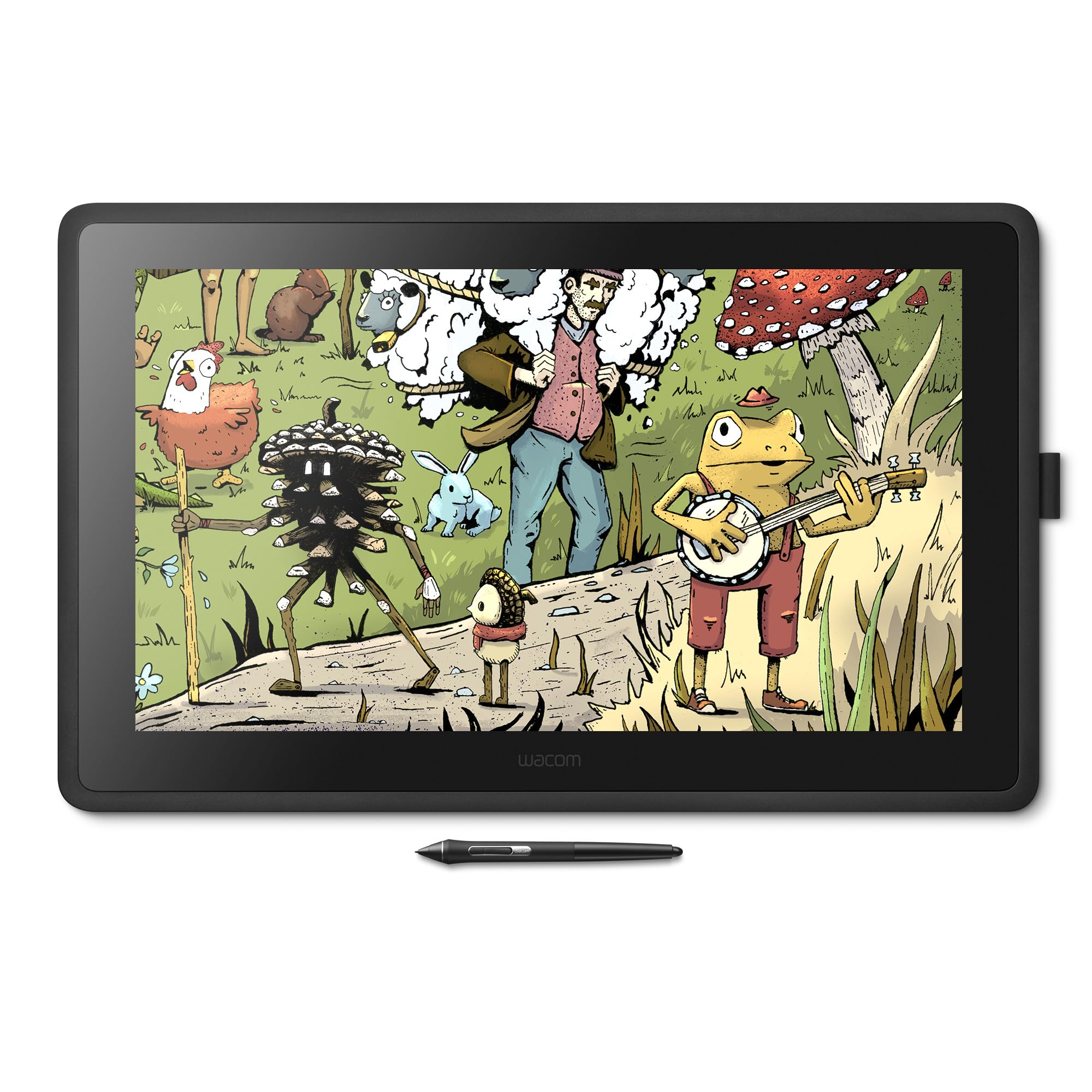


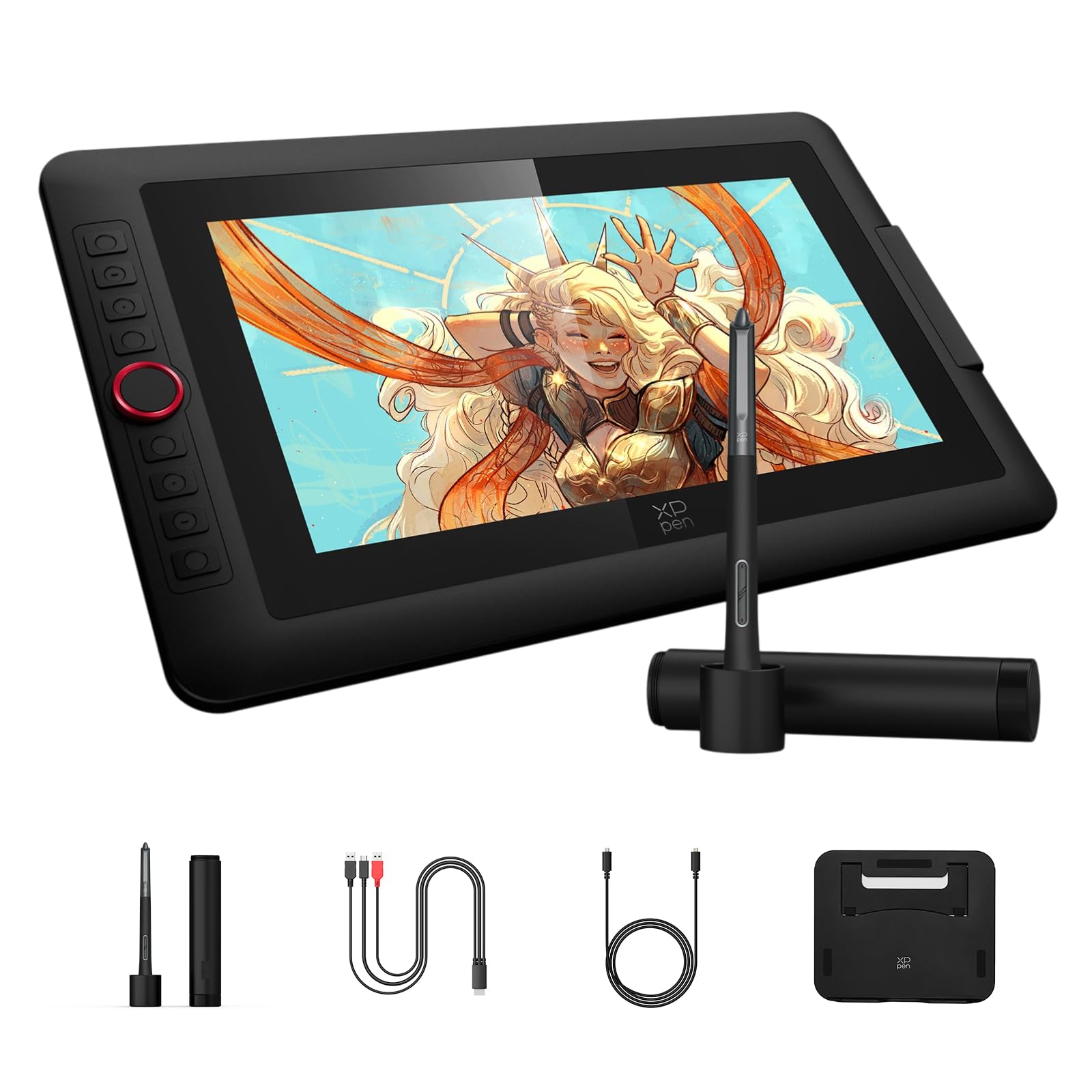

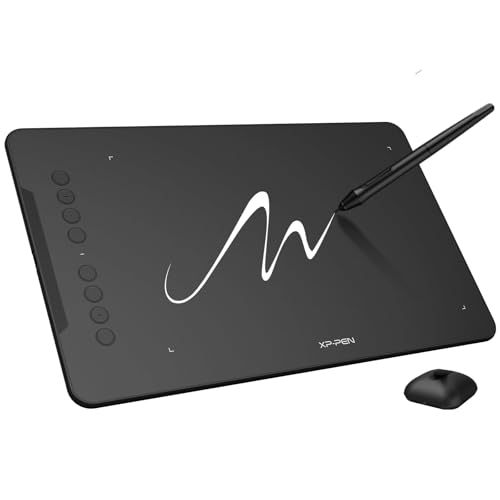


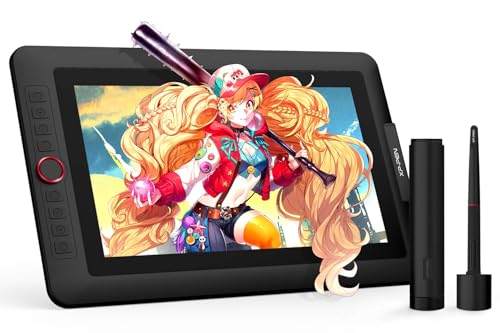
Animators work in different ways. Some sketch rough keys on a screenless slate, some draw directly on a display, and some switch between a laptop and a tablet during a project. Knowing which pattern fits your day makes the rest of the choice much easier.
Before you compare models, sketch your typical animation day on paper. Note how long you draw, which software you open first, and whether you work at a desk or move between rooms. That snapshot keeps the choice grounded in real work rather than wish lists.
Who Should Buy an Animation Tablet
A drawing tablet suits anyone who animates by hand, whether you make short films, explainer clips, social videos, or practice exercises. It gives you pressure sensitive lines, natural hand movement, and far more control than a mouse when you shape poses, arcs, and timing charts.
Students and hobbyists often start with a screenless tablet, because it costs less and teaches good habits with pen pressure and shortcut keys. Working animators who draw cleanups all day may prefer a display tablet, because seeing the pen tip on the artwork reduces guesswork on fine details.
If you animate only now and then, a modest tablet with solid pen tracking is usually enough. If animation is your daily work, invest in comfort, a larger active area, and a pen that feels balanced during long drawing sessions.
Key Features That Matter for Animation
Pen pressure levels matter, but the feel of the pen matters more. Look for smooth pressure response, low initial activation force, and a nib that glides without scratching. A pen that jumps from thin to thick with little control will frustrate you on inbetween frames.
Active area shapes your drawing style. A larger area suits broad arm movements and full body poses, while a smaller area suits desk setups and quick sketching. Measure your desk first, and check that the tablet leaves room for your keyboard, because animators rely on shortcuts constantly.
Display tablets add direct eye to hand coordination, which helps with lip sync drawings and detailed facial work. Screenless tablets keep your eyes on your monitor, which some animators prefer for storyboarding and rough passes. Neither choice is wrong, so pick the one that matches how you already draw.
Shortcut keys, touch strips, and dials speed up timeline scrubbing, onion skin toggling, and brush size changes. Even a few well placed controls can save hours across a project, so treat them as a real feature rather than a bonus.
Software Fit and Everyday Use
Check that the tablet works well with the animation software you already use, including drawing, compositing, and video tools. Most modern tablets support common programs, but pen pressure and shortcut mapping can vary, so read the setup notes before you commit.
A related guide to best tablets for animation can help you compare general animation tablets with art focused models. The art focused models in this guide lean toward pen feel and color handling for hand drawn work.
Set aside time to calibrate pressure curves and test a short animation loop before starting a paid project. Small adjustments to pressure and smoothing often fix wobbly lines, and a short test reveals palm rejection problems early.
Keep spare nibs, a pen holder, and a clean drawing surface close at hand. Worn nibs scratch surfaces and change line quality, so replacing them on schedule protects both your tablet and your drawings.
Budget, Value, and Mistakes to Avoid
Prices for animation tablets range widely, from about $50 to $500 for common models, with professional display tablets costing more. A low price does not always mean weak performance, and a high price does not guarantee a better drawing feel for your hand.
A common mistake is buying the largest display available and then finding it crowds the desk or strains the neck. Another is ignoring software compatibility and discovering that a favorite brush engine responds poorly. Measure, test, and read setup guidance before ordering.
A guide to best tablets for animation and digital art is useful if you split time between animation and illustration, because it covers color and brush needs that pure animation guides may skip. For a general device comparison, best pc tablets explains how standalone tablets differ from pen displays.
Before you order, list your top three animation tasks, your desk space, and your budget ceiling. That short list filters most options quickly and keeps you from paying for screen size or resolution you will not notice in daily work.
A Final Check Before You Order
Review your short list against pen feel first. A tablet that tracks smoothly and responds evenly to light pressure will serve animation better than a larger screen with a jumpy pen. If possible, test pen response with quick gesture drawings and cleanup lines before ordering.
Check desk fit with a tape measure, not a guess. Place your keyboard, monitor stand, and tablet outline on the desk and confirm that your drawing arm moves freely. A cramped setup causes shoulder strain and shortens productive sessions.
Confirm software compatibility in writing, including pressure support, shortcut mapping, and driver updates for your operating system. Animation tools update often, and a tablet with stale drivers can lose features after a software upgrade.
Plan for accessories from the start, including spare nibs, a pen case, and a protective sleeve for travel. Small accessories cost little, but they protect line quality and keep a tablet ready for work every day.
Read the return policy and warranty terms before ordering, especially for display tablets. A return window lets you test pressure, color, and comfort with real animation work, which matters far more than a brief shop demo.
If your current tablet still works, consider waiting until a project break to switch. Learning new pressure curves and shortcuts during a deadline adds stress, while a calm transition week lets you calibrate settings properly.
Frequently Asked Questions
Do I need a display tablet to animate well?
No, many skilled animators work on screenless tablets every day. A display tablet helps with direct drawing and fine detail, but a screenless tablet with good pen tracking can produce the same quality once your hand eye coordination adjusts. Choose based on comfort and budget, not on the idea that a screen alone improves skill.
What size tablet suits animation work?
A medium active area suits most animators, because it balances arm movement with desk space. Large areas suit broad poses and full scene layouts, while compact areas suit travel and small desks. If you work on a laptop, a medium tablet usually pairs best without crowding the keyboard.
How important are pressure levels for animation?
Pressure response matters more than the headline number. Smooth, predictable pressure lets you vary line weight for keys and inbetweens, while a jumpy response makes cleanups harder. Test pressure curves in your own software, and adjust them until light strokes stay light and firm strokes stay controlled.
Can one tablet serve both animation and illustration?
Yes, most pen tablets handle both tasks well, since both rely on pressure, tilt, and accurate tracking. Illustration may demand stronger color accuracy on a display, while animation may demand better shortcut controls for timeline work. A tablet with both strengths is a good choice if you do both kinds of work.
How do I keep a drawing tablet in good shape?
Replace nibs when they feel rough, keep the surface clean and dry, and store the pen where it will not roll off the desk. Avoid pressing hard enough to dent the surface, and update drivers when your software changes. Simple care keeps line quality steady for years.
Should I buy a bundle with software included?
Bundles can add value if the included software matches your animation workflow, but they rarely justify a poor pen feel or wrong size. Compare the tablet alone first, then treat bundled software as a bonus. Free trials often let you test animation tools before committing to a bundle.
Final Thoughts
Choosing the best art tablets for animation rewards a careful match between your drawing habits, your software, and your desk. Focus on pen feel, active area, and shortcut controls before chasing the largest screen or the highest headline specs.
Use the product table above to compare the short list, then test pressure and comfort with a short animation pass. A tablet that feels natural in your hand will serve every project better than one that only looks impressive on paper.
Take one calm evening to test pressure, desk fit, and shortcuts with a short animation loop. That test reveals more than any spec sheet, and it protects your budget from an impulse choice.