Best Art Monitors of 2026: Complete Buying Guide
Disclosure: We may earn a commission when you buy through links on this page, at no extra cost to you. As an Amazon Associate I earn from qualifying purchases. Learn more
Compare best art monitors by color range, panel type, size and ports, with plain guidance on pen displays, calibration and budgets for art work.
Color work fails quietly on the wrong screen. A red that looks rich on your desk can print dull, and a shadow that looks open on the panel can crush to black in the finished file. Choosing best art monitors for your own work means matching the panel to the way you draw, paint and edit, and the product table lays the main options side by side so that match is easier to see.
This guide covers the classes instead of model talk. It explains what the color figures really mean, how panel types trade accuracy against price, and when a pen display is the right purchase rather than a plain panel.
What the Price Bands Actually Buy
Price in this category buys color control first and screen size second. The bands below describe what each level of spending normally adds.
Entry Band for Learning and Light Edits
Entry panels cost about $150 to $300 and suit students, hobby painters and anyone learning digital color. Expect a standard color range, a matte finish that tames desk glare, and basic stands with tilt only. These panels are honest tools for practice and online sharing. They are a weaker fit for print work, where the narrower color range leaves some printable tones outside what the screen can show.
Middle Band for Serious Color Work
The middle band runs about $300 to $700 and is where most working artists should shop. Panels here widen the color range, add height and pivot adjustment, and include a USB C port that carries picture and power on one cable. For paid illustration and photo editing, this band covers the full job without studio level spending.
High Band for Print and Studio Work
High band panels cost about $700 to $1,500 and serve print shops, colorists and photographers who proof work for clients. The extra money buys the widest color ranges, deeper and more even blacks, 32 inch screens, and built in calibration tools on some classes. If your work never reaches paper, the middle band already shows everything your audience will see.
How to Choose Art Monitors for Color Work
Six factors decide whether a panel serves art work well. Read them in this order, because the first two matter more than the rest combined, and a panel that fails on color cannot be rescued by a long port list.
Color Depth and Gamut Coverage
Gamut is the range of colors a panel can show, and it is the first figure to read. Color figures are the maker's own measurements, taken on standard patterns under controlled light, so two panels with the same printed figure can still render a real painting slightly differently. Calibration is what keeps a panel honest, because a sensor and its software pull the screen back to a known standard as the backlight ages.
For most art work, look for coverage that reaches the full standard web color range and a wide share of the print and cinema ranges. Treat any gamut claim as a starting point, then plan on calibration as part of the purchase.
Panel Classes and What Each One Trades
The common panel class for art holds color steady when you lean or shift in your chair. A second class pushes contrast higher and suits video leaning work, though its colors shift more at an angle. The premium class lights each pixel on its own, giving true blacks and striking contrast for night scenes and dark illustration. Its trade is price, plus a small risk of a fixed bright image leaving a faint trace if it sits unchanged for very long.
Resolution Size and Desk Fit
Resolution decides how much canvas and how many tool panels fit on screen at once. A 27 inch screen at the sharper of the two common resolutions is the sweet spot for most desks, giving crisp lines without forcing text and menus to shrink. A 24 inch screen suits a small desk or a second display role. A 32 inch screen helps with large prints and detailed retouching, but it needs a deeper desk.
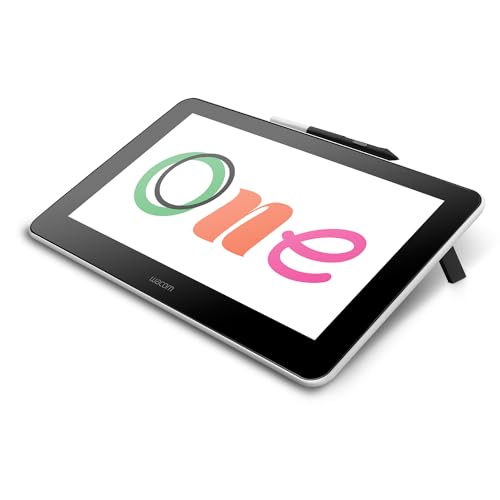
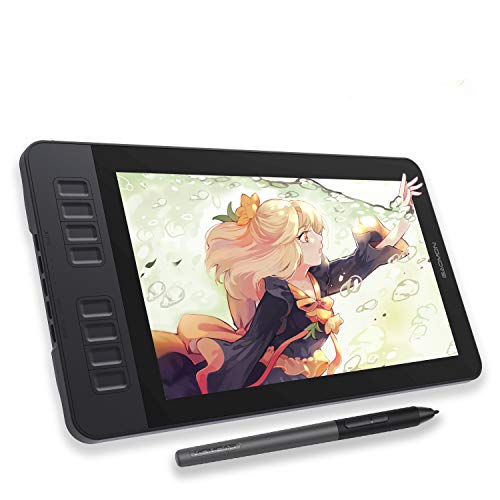
Pen Displays Versus Plain Panels
A pen display is a different purchase from a plain panel, and mixing the two up wastes money. A pen display lets you draw on the screen itself, with the stylus tracking under your hand like a pencil on paper. A plain panel keeps drawing beside it, on a separate tablet, while your eyes stay on the upright screen. Drawing on the screen feels direct and suits line work and inking. Drawing beside it keeps your hand off the artwork, keeps the screen clean, and usually costs less for the same color quality.
Neither class is better overall. Traditional artists often settle faster on the pen class, while photo editors rarely need a pen surface and get more panel for their money with the plain class. If you already own a good drawing tablet, a plain panel is the smarter spend.
Ports Stands and Daily Comfort
Ports decide how clean your desk stays. One USB C cable that carries picture, data and laptop power removes a nest of leads, while two standard picture ports let a desktop and a laptop share the screen. A stand with height, tilt and pivot adjustment sets the screen near eye level and turns it upright for tall artwork. Long sessions also raise the comfort question. No monitor feature replaces good habits, so regular breaks, room light that matches the screen, and a sensible viewing distance matter most. If eye discomfort continues, ask your doctor.
Build quality varies inside every band, and readers comparing best quality monitors will find the same pattern there, where stand solidity and panel evenness separate careful builds from cheap ones. Gamers weigh a different balance, clearest in guides to best gaming monitors and best computer monitors for gaming, where speed outranks color depth. Console players follow the same logic with best monitors for PS5, where fast response matters more than print color.
Refresh and Motion Features in Plain Terms
Refresh rate counts how often the picture redraws each second, and for still art it barely matters. A standard rate handles drawing, painting and photo editing without any visible problem. Higher rates smooth stylus strokes a little and help if you also edit video or play games on the same screen. Response time figures are also maker figures. For art buyers, both numbers sit near the bottom of the list, below gamut, panel class and calibration support.
Types of Art Monitors
OLED Displays
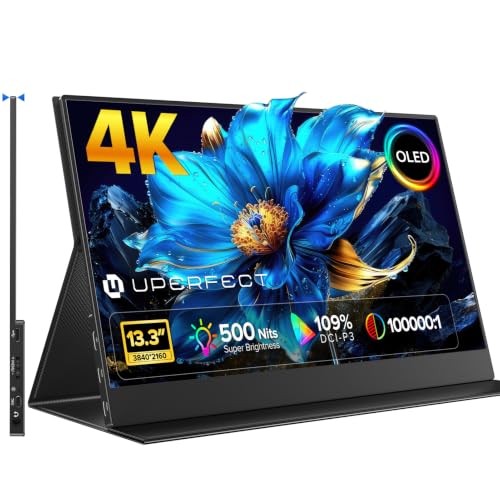
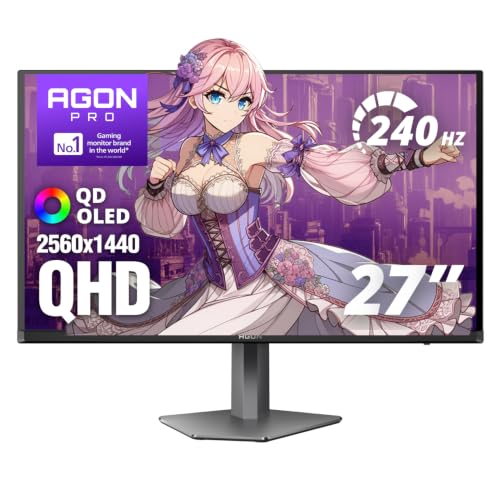
This premium class lights each pixel alone, so blacks are true black and dark scenes hold detail that other classes wash out. Color is rich and viewing angles are wide. The costs are a higher price and care around fixed bright elements left on screen for hours. Night scene illustrators gain the most here.
Budget Displays
Budget panels cover the standard web color range and little more, with simple stands and fewer ports. They suit students, casual sketching and a second screen for reference images. The limit shows in print proofing, where tones outside the range simply never appear. As a learning tool or a reference screen, the class is honest value.
Large Screen Options
Screens at 32 inches and above give a full canvas plus room for layers, brushes and reference boards at once. They reward a deep desk and a strong stand, since a wobble at this size is hard to ignore. Retouchers and anyone proofing large prints benefit most from the extra space.
Gaming Displays
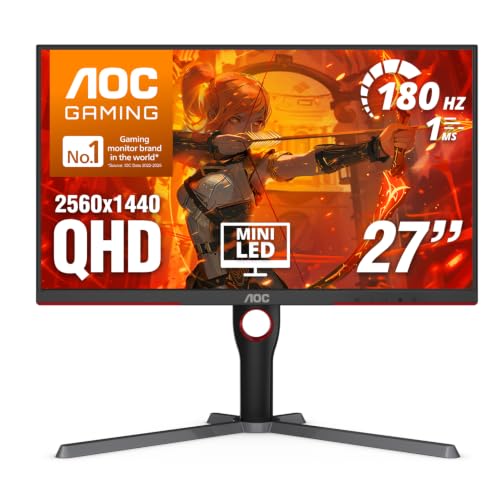
Gaming panels are built for speed, with fast redraw and quick response as the headline figures. Some now carry wide color ranges, and those crossover models can serve art work credibly. The risk is tuning for vivid game color rather than accurate color, so check the color range and calibration support first.
Picking the Right Panel for Different Uses
Best Digital Art Monitors
Digital art work rewards a wide color range, a matte surface that kills reflections, and a screen big enough for canvas plus tools. If you draw with a pen, decide first between the pen class and the plain class, since that choice shapes the whole budget. Even backlighting matters for flat color fills, where a patchy panel shows bands that are not in your file.
Best Photo Art Monitors
Photo work leans harder on accuracy than on drawing feel. Look for the widest print color range you can afford, hardware calibration support, and a uniformity control that evens brightness across the screen. High resolution helps retouching, but color trust comes first for prints and client proofs.
Care and Maintenance Tips
- Calibrate on a regular cycle, because backlights drift as they age and yesterday's settings slowly stop being true.
- Clean the screen with a dry or barely damp microfiber cloth only, and never spray liquid straight onto the panel.
- Turn the brightness down to match your room, since a screen run far brighter than its surroundings tires eyes and shifts judged color.
- On the premium pixel lit class, let the built in pixel refresh run and avoid leaving one bright still image up all day.
- Keep vents clear and the panel out of direct sun, because heat shortens backlight life.
FAQ Questions Answered
What size art monitor should I get for my desk?
A 27 inch screen suits most desks and most art work. It fits a full canvas plus tool panels without crowding, and its lines stay crisp at a normal sitting distance. Smaller desks do well with 24 inches, especially in a second screen role. Go to 32 inches only if your desk is deep enough to keep the whole screen in easy view.
Is 4K worth it on an art monitor?
4K is worth it on larger screens and for detailed retouching. On a 32 inch panel the extra pixels keep fine lines and small text clean, and they help when you zoom deep into a photograph. On a 24 or 27 inch screen the gain is smaller, and the sharper standard resolution already looks smooth. Spend on color range before resolution if the budget forces a choice.
Should art monitors use the IPS class or the OLED class?
The IPS class is the safer default for most art monitors and most budgets. It holds color steady at an angle, costs less, and carries no worry about fixed images leaving a trace. The OLED class wins on black depth and contrast, which suits dark illustration and video work. Choose by subject matter and budget rather than by headline contrast figures.
How long do art monitors last?
A good art monitor lasts about five to eight years of regular work. The backlight slowly dims and drifts over that span, so color trust fades before the screen itself fails. Regular calibration stretches the useful color life. Plan a replacement when calibration can no longer pull the screen back to target.
Does refresh rate matter for art monitors used by non gamers?
Refresh rate matters very little for still art work. Drawing, painting and photo editing look the same at the standard rate as at the fast gaming rates, because the image itself is mostly still. A higher rate adds a touch of smoothness to stylus strokes and helps shared video or game use. It should never outrank color range or calibration when you set the budget.
Final Thoughts
Gamut you can calibrate, the right panel class for your subject, and a screen size your desk can hold are the three decisions that shape this purchase. Match the pen class to how you actually draw, keep speed figures in their proper low place, and the best art monitors for your work become a short list. Compare the picks in the product table and choose the band that fits your art and your budget.