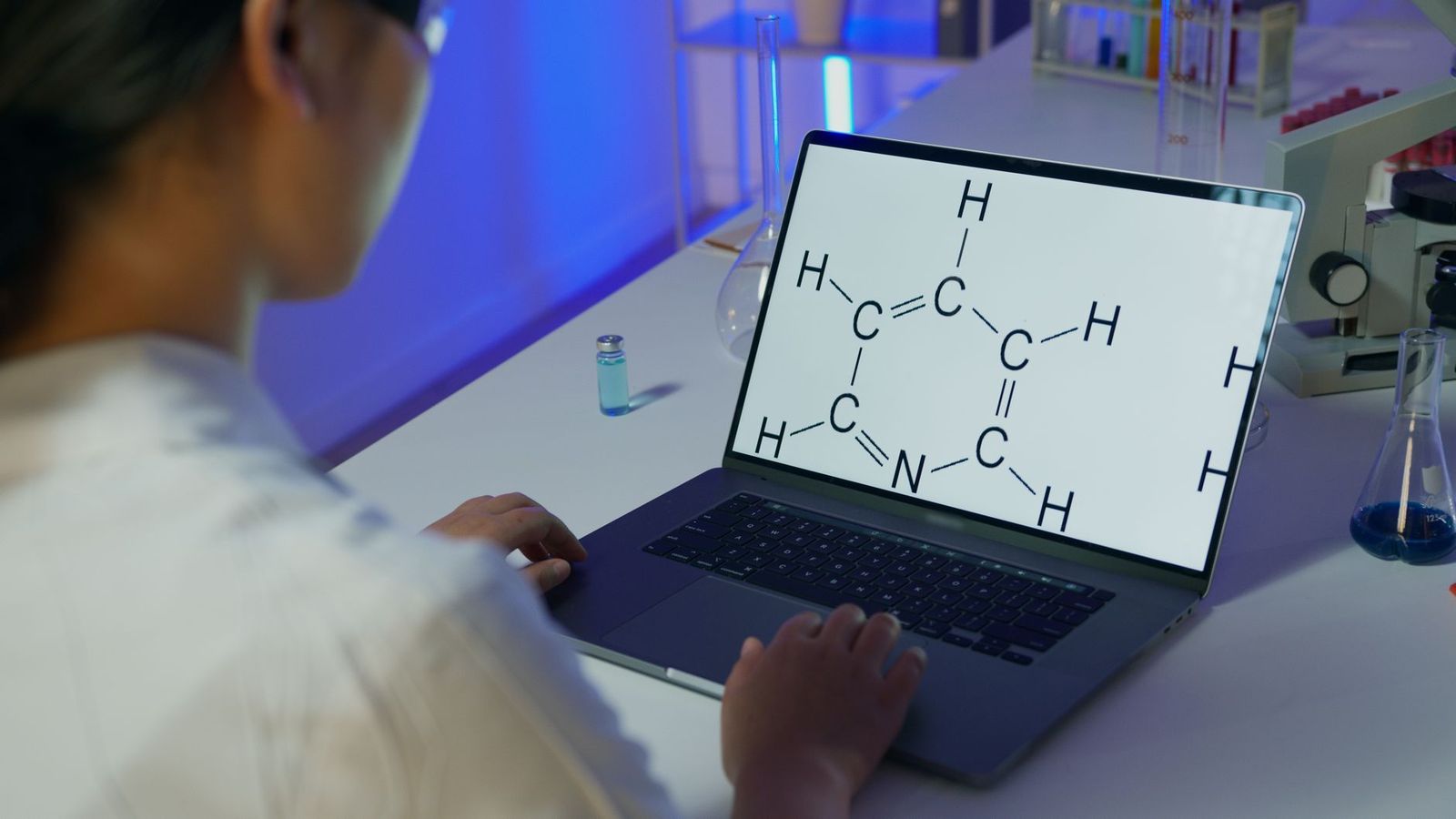
Best Animation Laptops for Students Made Simple: A Clear Buying Guide for 2026
Disclosure: We may earn a commission when you buy through links on this page, at no extra cost to you. As an Amazon Associate I earn from qualifying purchases. Learn more

Shopping for the best animation laptops for students for the first time? Learn the terms, compare options, and avoid rookie mistakes with this easy guide.
Buying your first animation laptop can feel like reading a spec sheet in another language. Cores, RAM, color gamut, and graphics cards all compete for your attention and your budget. This guide to the best animation laptops for students starts with plain English basics, then walks through each spec and the level a student actually needs. Use the comparison table below to see how models differ at a glance, and use the checklists here to avoid paying for power you will never use, or skimping on the one part your coursework depends on.

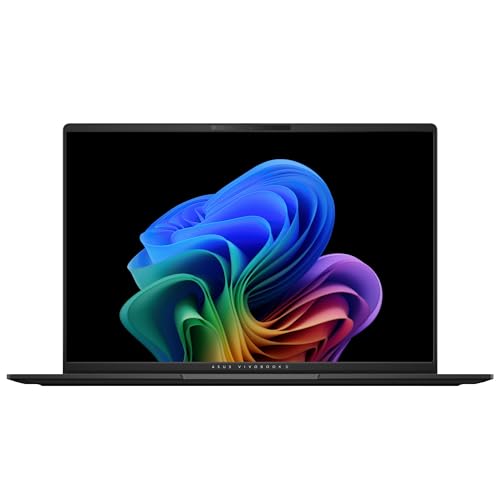
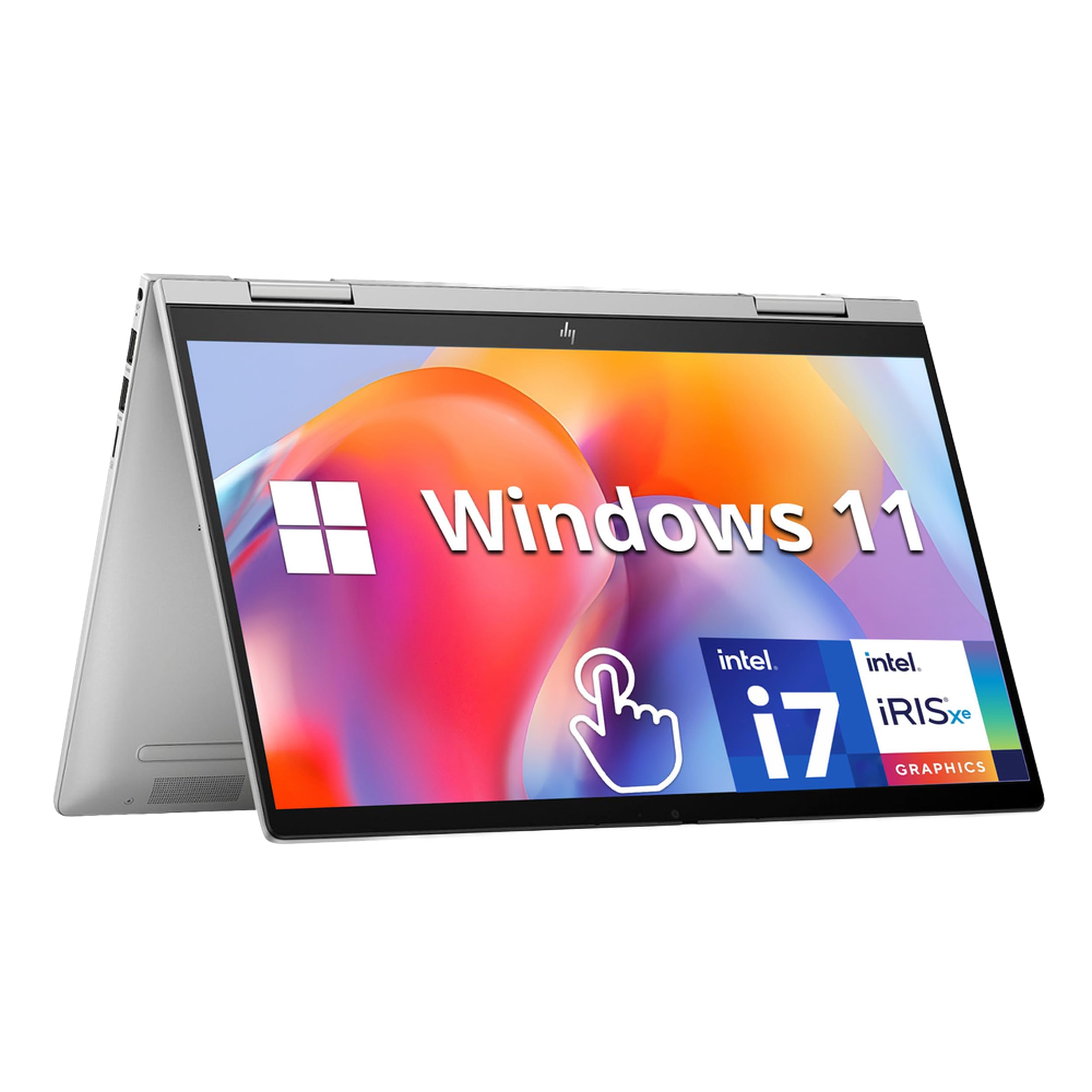

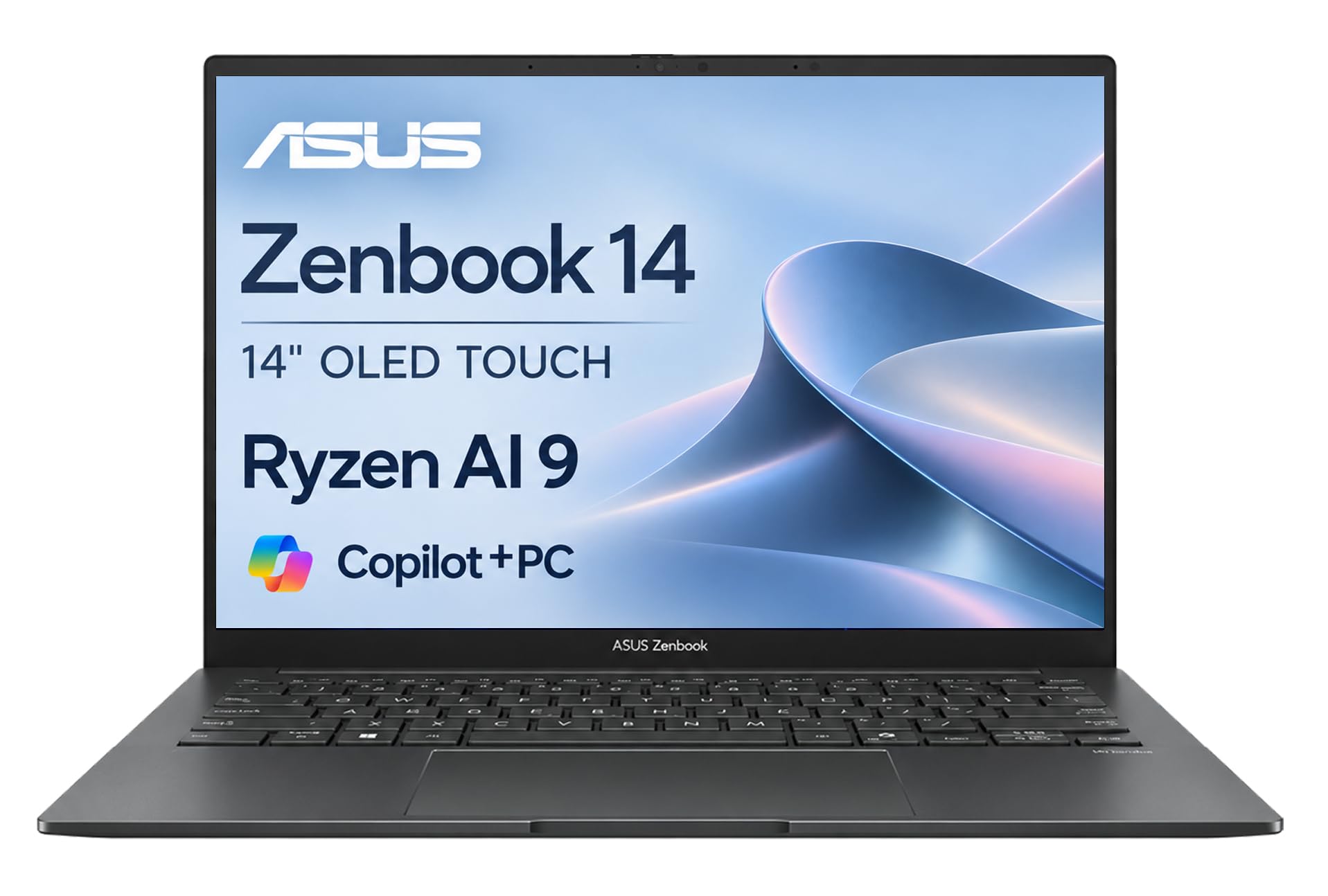
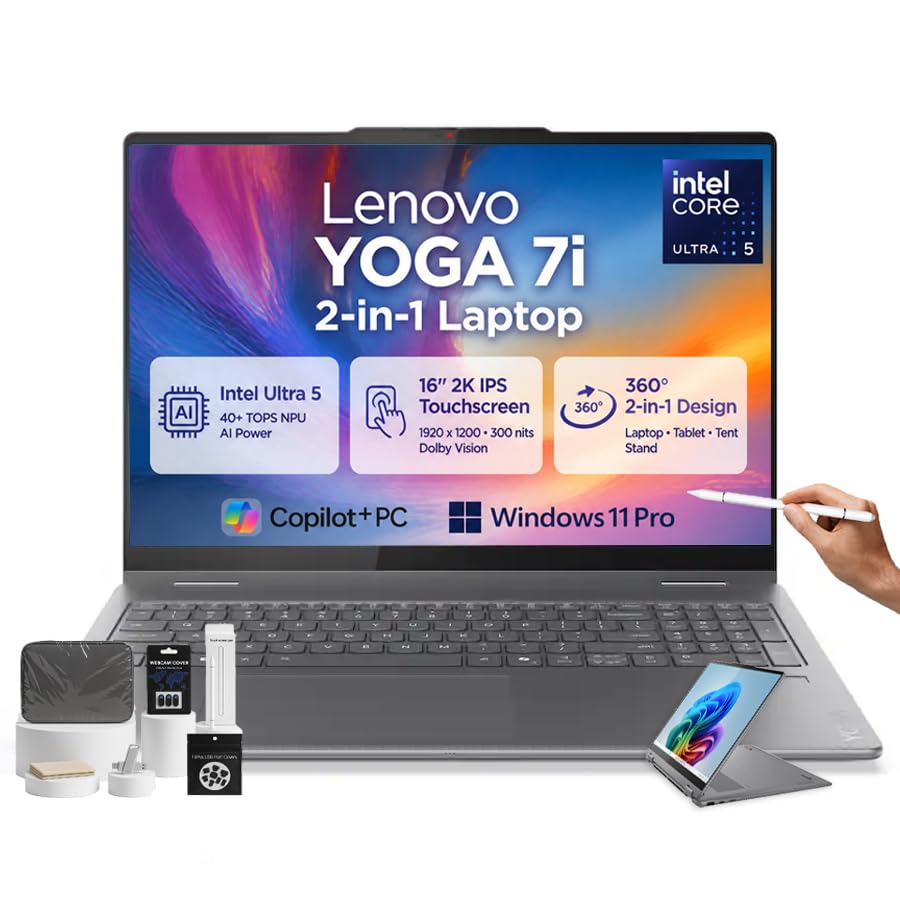
Animation Laptops 101: The Basics
An animation laptop is a portable computer that can draw, move, and render images smoothly. Two dimensional work, such as frame by frame drawing and vector illustration, leans on the processor and a good screen. Three dimensional work, such as modeling and rendering scenes with light and texture, leans much harder on the graphics card and memory. Most student programs mix both, starting with drawing and storyboards and adding 3D tools in later terms.
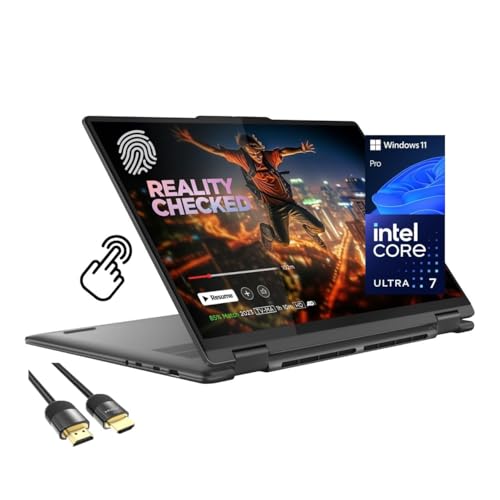
A few terms unlock the whole category. The CPU is the main processor that runs your software. RAM is short term memory that holds open projects. An SSD is fast storage where files and programs live. The GPU is the graphics processor that draws the screen and speeds up renders. A stylus friendly touch screen lets you draw directly on the display, while other students prefer a separate drawing tablet plugged in by USB C. Knowing which style your program teaches helps you choose between a standard laptop shape and a convertible that folds flat.
Key Specs Explained in Plain English
What Students Should Look For
Students need a balance that office laptops do not: a color accurate screen, enough memory for large files, and a body light enough for a backpack. Aim for a machine under about 4.5 lb if you carry it all day, with a battery that lasts a full class schedule. Check your program software list before you shop, because some courses require Windows while others accept any system. Ports matter too. At least one USB C port, one standard USB port, and an HDMI or adapter option for a second monitor will cover most classroom setups.
Processor and Performance Tier
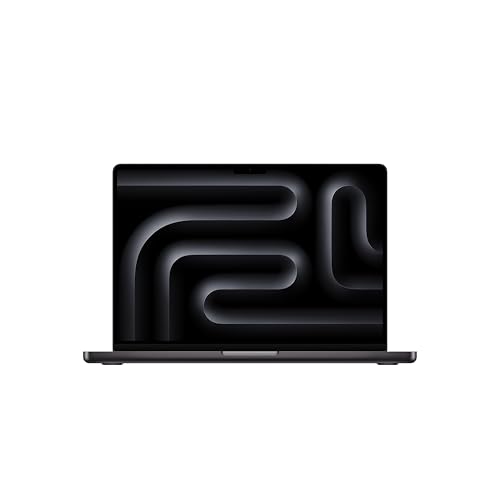
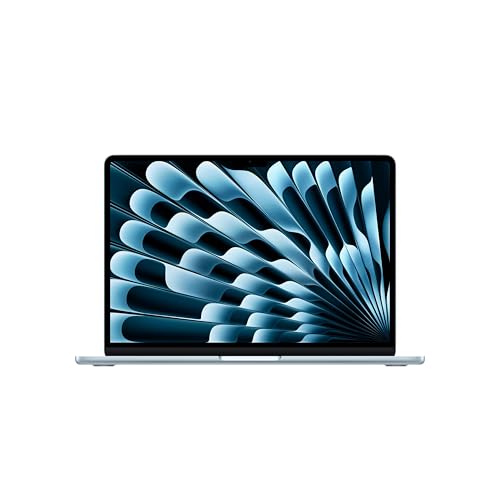
The processor sets the ceiling for smooth drawing, multitasking, and export speed. Current mid tier chips, such as recent Intel Core Ultra, AMD Ryzen, or Apple M series processors, handle 2D animation, photo editing, and light 3D work comfortably. You do not need the top tier chip as a student, but avoid the lowest budget tier, which can stutter when several apps and browser tabs share the screen with your canvas. More cores help rendering and video export most. For drawing alone, a faster mid tier chip beats a slow chip with more cores.
RAM and Storage
Treat 16 GB of RAM as the practical starting point for animation study. Eight GB can open basic 2D software, but large canvases, layered files, and a browser full of reference images will push it into slowdowns. Thirty two GB suits heavy 3D scenes, though many students can upgrade later or manage with 16 GB in early terms. For storage, choose an SSD of at least 512 GB. Animation files, cached frames, and software libraries fill space quickly, and an SSD keeps programs and projects loading fast. An external drive is a smart, cheap backup for finished projects.
Keyboard, Trackpad, and Build
You will type essays and shortcut keys for hours, so keyboard feel matters. Look for keys with clear travel and a layout that keeps shortcut clusters where your fingers expect them. A large, smooth trackpad helps when you do not have room for a mouse in a lecture hall. Build quality protects your budget too. An aluminum or sturdy composite body survives daily backpack trips better than a flexy plastic shell, and a hinge that feels firm will still hold the screen angle in your final year. Our guide to the best notebook laptops covers build and keyboard checks in more depth.
Display Size, Resolution, and Brightness
The display is the feature animation students should protect most. A 14 to 16 inch screen gives room for timelines and tool panels, while a 13 inch screen suits students who travel light and plug into a monitor at home. Choose at least a full HD resolution, and favor panels that cover most or all of the sRGB color range so class colors match printed or exported work. Brightness of about 300 nits or more keeps the screen readable in bright classrooms. A higher refresh rate feels smoother for drawing strokes, but color accuracy matters more for grades.
Graphics (Integrated vs Dedicated GPU)
Integrated graphics share the main processor and handle 2D animation, drawing, and light video work well. A dedicated GPU has its own memory and speeds up 3D modeling, rendering, and effects heavy video. If your program includes 3D courses, a dedicated GPU is worth real money, often the difference between a render that takes minutes and one that takes an evening. If your degree is purely 2D, integrated graphics let you spend the savings on RAM and a better screen. Students comparing creative machines broadly can also read our guide to the best laptops for animation.
Rookie Mistakes to Avoid
- Buying on processor name alone. A strong chip paired with 8 GB of RAM and a dull screen still makes a poor animation machine. Judge the whole spec list together.
- Choosing the smallest SSD to save money. A full drive slows the whole system and forces constant file juggling during project weeks.
- Ignoring color coverage. A bright screen with narrow color range can make your graded work look different on your instructor screen.
- Forgetting the stylus plan. Decide before you buy whether you will draw on the screen or on a separate tablet, because that choice changes the laptop shape you need.
- Skipping the weight check. A powerful 6 lb laptop plus its charger gets heavy by the third week of carrying it across campus.
Getting Started: Setup and First Use
Your first hour with a new laptop pays off all term. Run system updates first, then install your animation software while you are on a fast connection, since creative suites are large downloads. Set up cloud or external drive backup before your first project, not after a scare. Calibrate your drawing routine next: adjust stylus pressure in your drawing app, set up your shortcut keys, and test an export so you know the full workflow works.
Two habits protect the machine. Keep the OS and firmware updated, since updates often include graphics driver fixes that matter for creative apps. Avoid running at 100 percent charge all the time if the laptop lives plugged in at a desk. Many brands offer a battery limit setting around 80 percent that slows battery wear. Finally, learn where your program autosaves, and turn autosave on before your first long session.
Frequently Asked Questions
What makes animation laptops for students different?
They differ from general student laptops in screen color, memory, and graphics strength. A typical essay laptop can run on 8 GB of RAM and a basic display, while animation work needs accurate color and room for layered files. The other difference is software demands. Animation suites are updated often and grow heavier each year, so buying a little headroom now protects you in later terms when projects get larger.
Is a Chromebook enough for animation study?
For most animation programs, no. Chromebooks run web and Android apps, while the main desktop animation suites used in coursework need Windows or macOS. A Chromebook can still serve as a cheap second machine for notes, email, and reference boards. Students whose course is fully browser based are the exception. Check your syllabus software list first, and if a desktop suite is named, budget for a full laptop instead.
How much RAM does a student animation laptop need?
Sixteen GB is the sweet spot for most students, covering 2D work, layered files, and moderate 3D scenes. Choose 32 GB only if your program leans heavily into 3D rendering or you plan to keep the laptop past graduation into freelance work. One practical tip: if a model lets you upgrade RAM later, confirm that before buying, because many slim laptops have memory fixed in place at the factory.
How long should an animation laptop last?
A well chosen mid tier laptop should last a full degree, roughly four years, with care. Battery capacity fades first, usually after two to three years of daily charging, and replacement cost varies by brand. Storage pressure is the other limit, solved cheaply with an external drive. Buying one tier above the minimum spec today is the simplest way to stretch useful life, which is why guides to the best quality laptops for students stress headroom over headline price.
Is a dedicated GPU worth it for students?
Yes, if your coursework includes 3D modeling, motion graphics with heavy effects, or video rendering. It shortens render waits and keeps complex scenes smooth while you work. For purely 2D programs, the money usually does more good as extra RAM or a better screen. A balanced route is a modest dedicated GPU rather than the strongest one. Student scenes rarely need top tier graphics, and the savings can cover a drawing tablet.
Should I buy a laptop or a tablet for animation?
Buy a laptop as your main machine, because coursework, file management, and most animation suites assume a full computer. A tablet shines as a drawing surface and second screen, and many students add a modest one later. Convertible laptops blur the line by folding into a drawing slate, though they often cost more for the same power. Students in mixed tech programs can compare needs with our guide to the best laptops for it students, and those who prefer a slim notebook shape can see our guide to the best notebook laptops for students.
The Bottom Line
Protect three things: a color accurate screen, 16 GB of RAM with a 512 GB SSD, and graphics strength matched to whether your program teaches 3D. Weight and battery come next for campus life. Check the product table above against that short list, and the best animation laptops for students for your budget and your degree plan will stand out clearly.