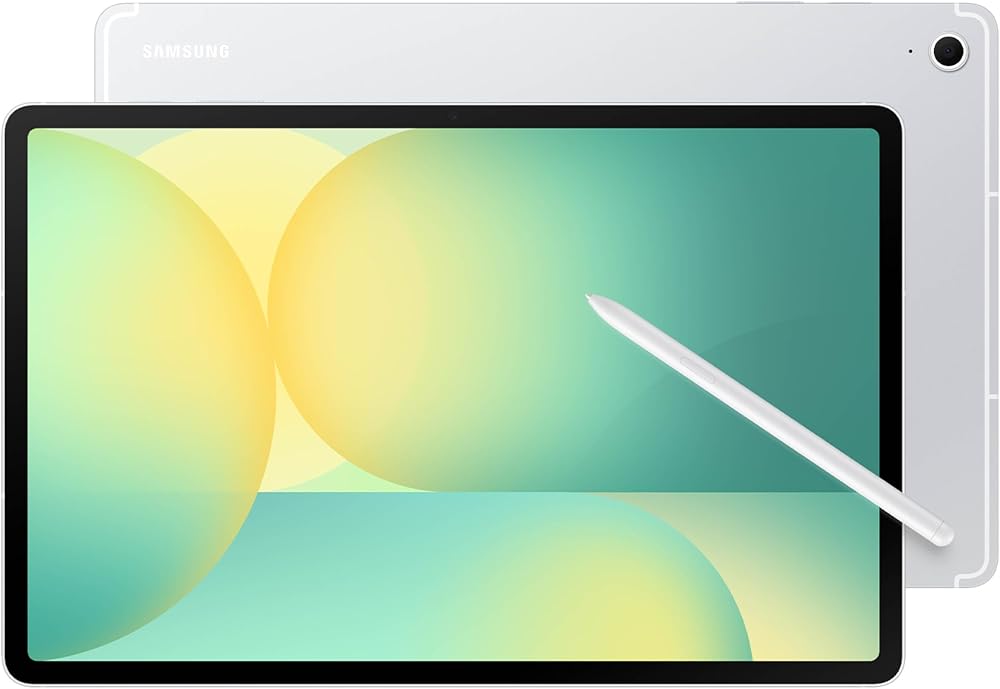
Best Android Tablets for Digital Art of 2026: Complete Buying Guide
Disclosure: We may earn a commission when you buy through links on this page, at no extra cost to you. As an Amazon Associate I earn from qualifying purchases. Learn more

Choose the best android tablets for digital art with this guide on pen latency, pressure levels, color coverage, RAM, and storage for smooth drawing.
Digital art on a tablet can feel like drawing on paper or like dragging a pen through mud, and the difference sits in a few specific specs. This guide to the best android tablets for digital art explains pen latency, pressure, screen lamination, and color in plain terms, then shows how much processor and memory your canvas size really needs. Start with the buyer profiles, check the comparison table below, and you will know which tier fits your art before you pay.


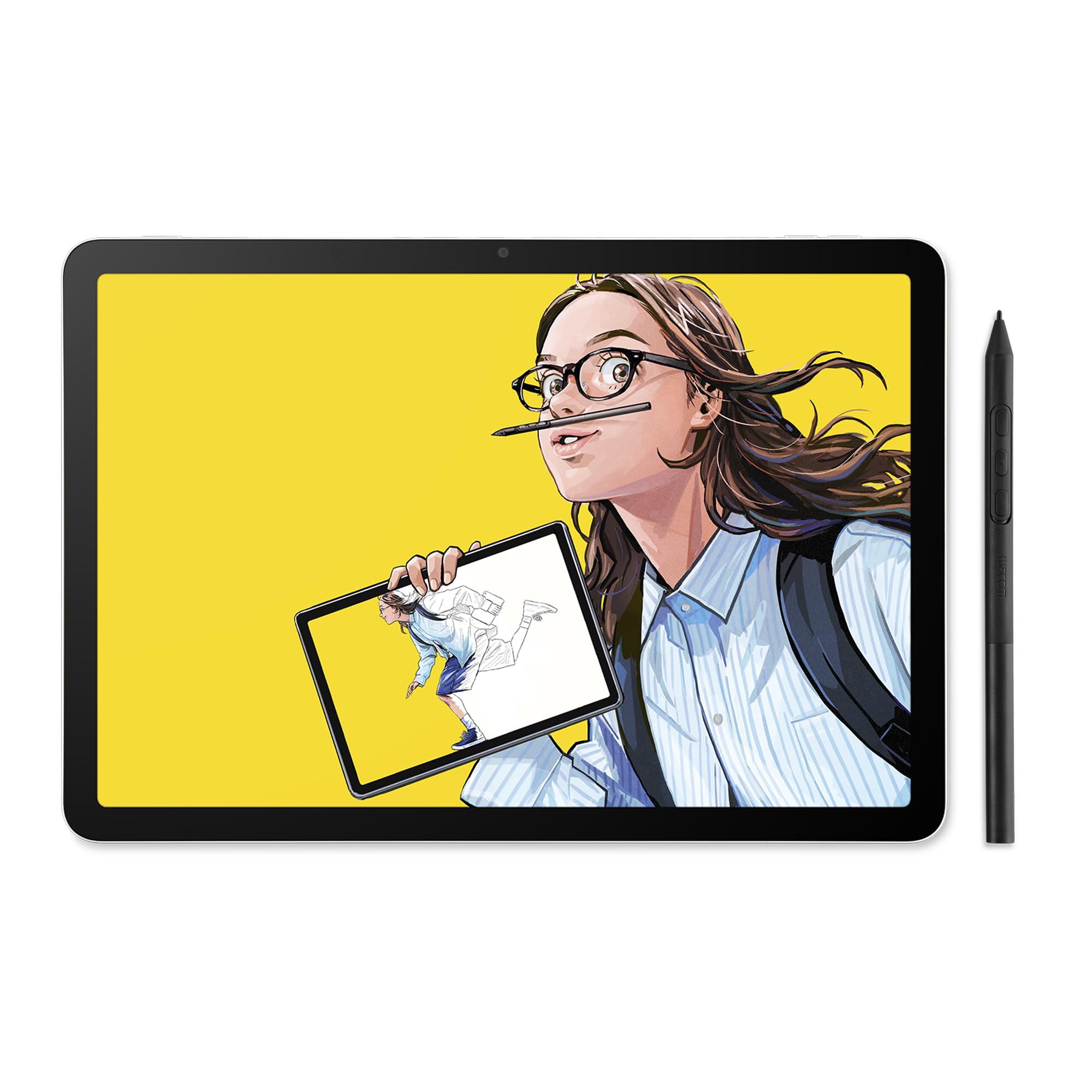

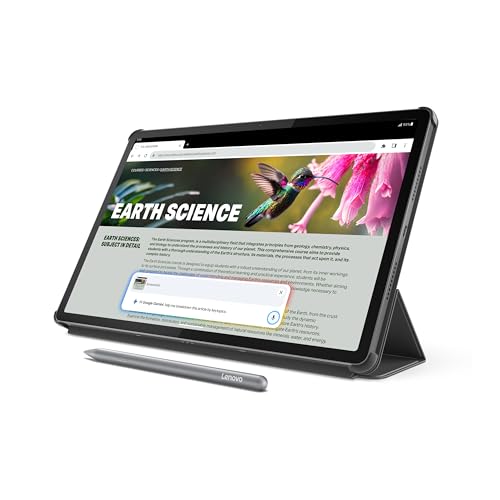
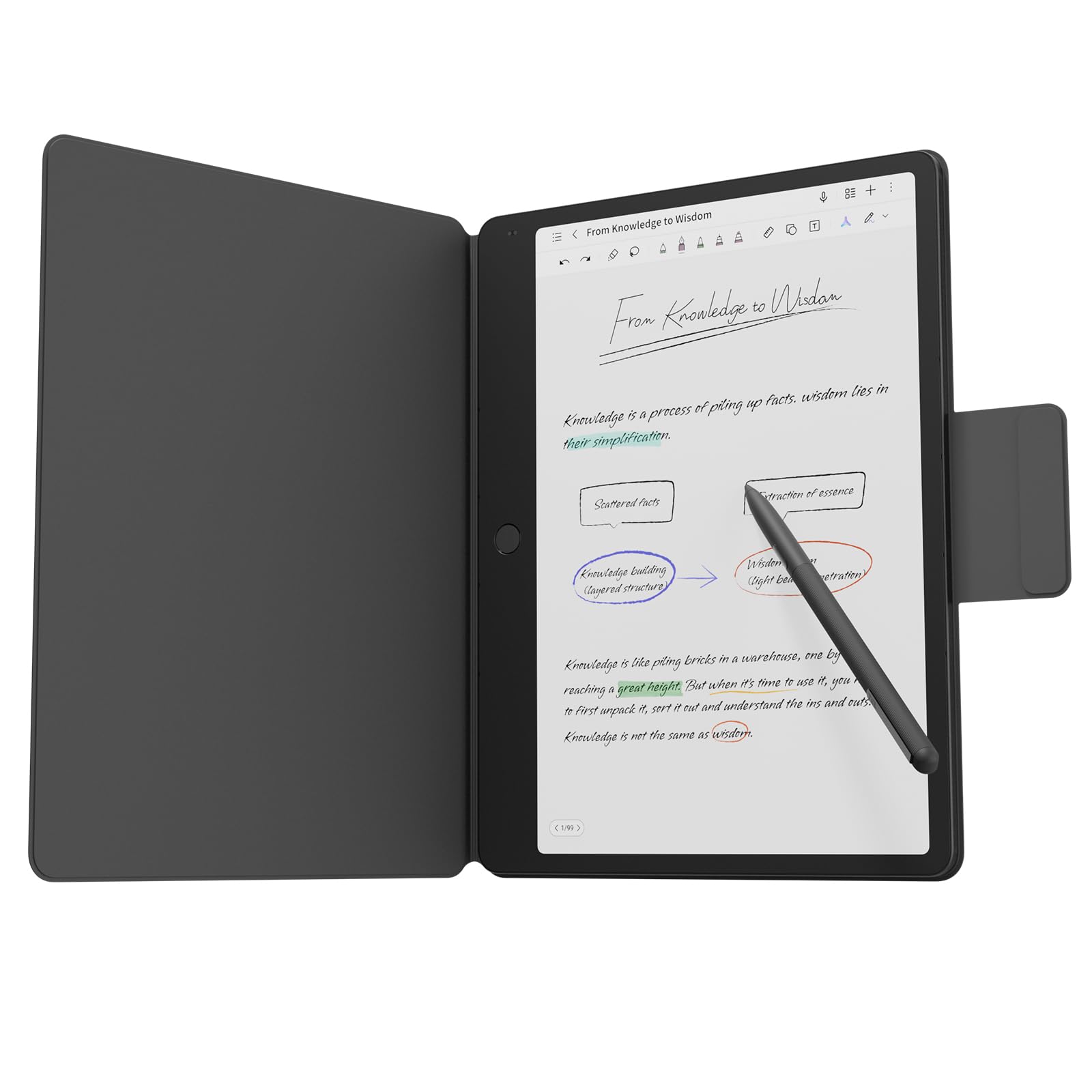
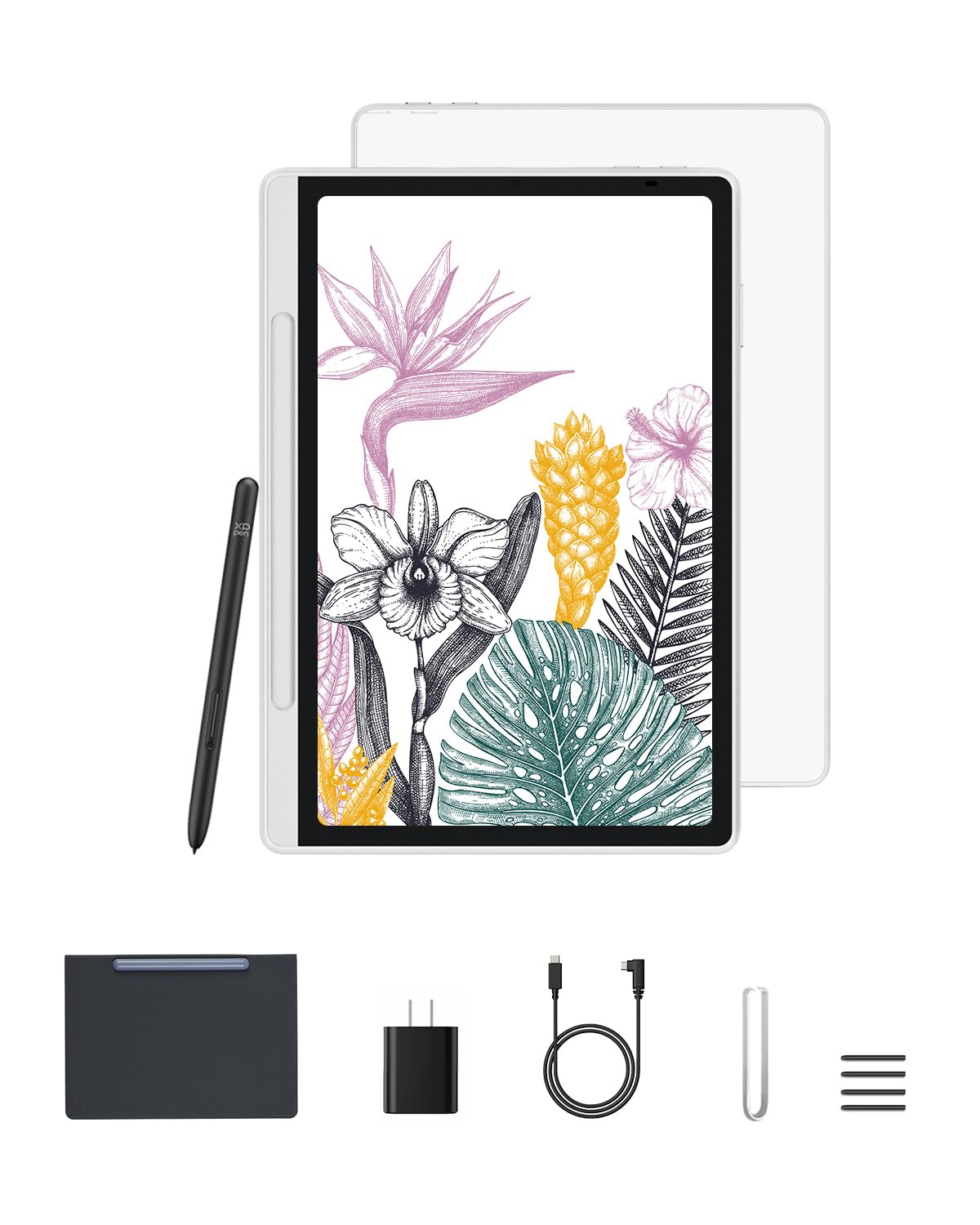
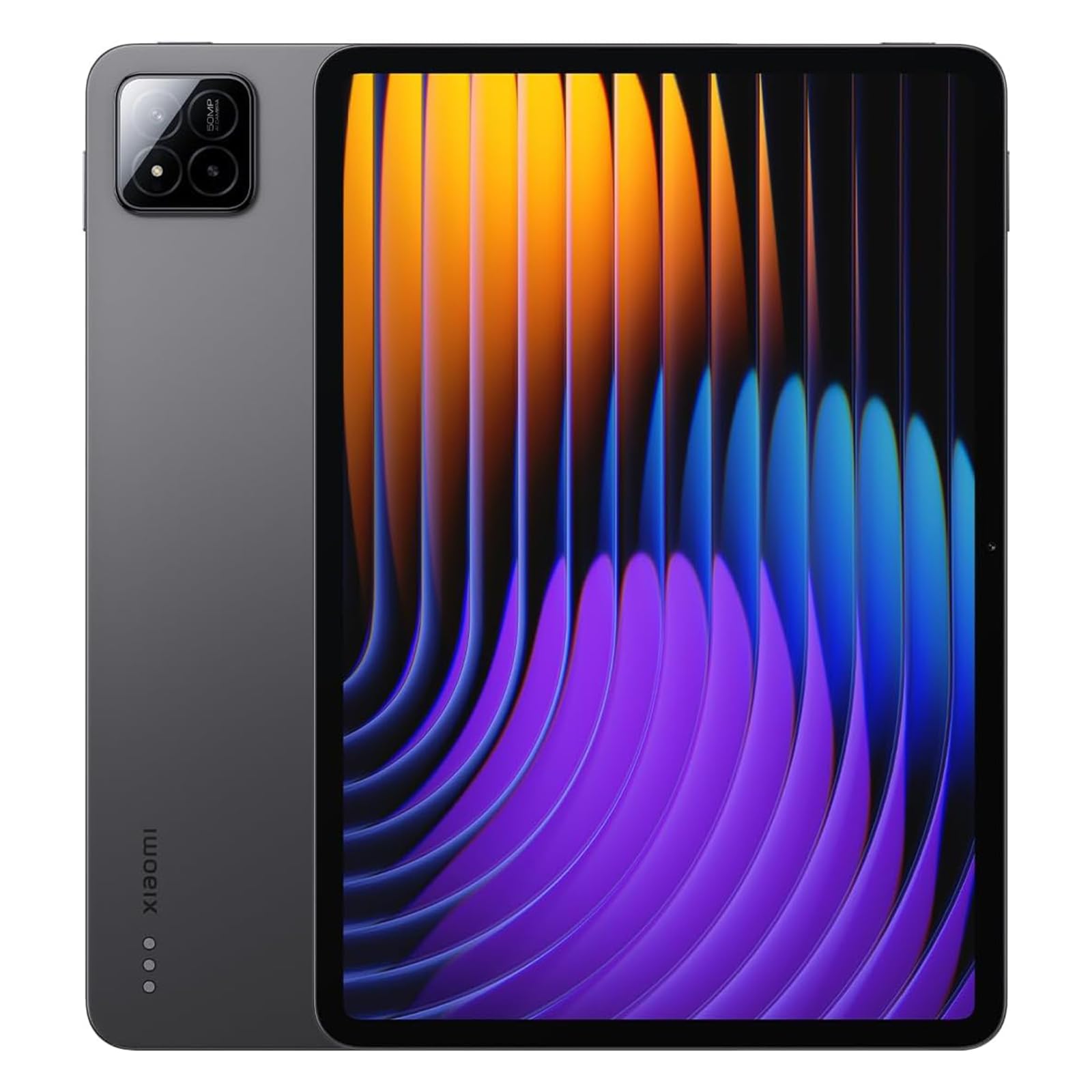
Three Buyer Profiles at a Glance
Balanced Profile
The overall profile fits artists who draw several times a week and publish or sell finished work. It combines an 11 to 12 inch laminated display with wide color coverage, a pen with tilt and at least 4,096 pressure levels, 8 GB to 12 GB of RAM, and 256 GB of storage. Brushes stay responsive on large canvases, colors hold up for client work, and the tablet remains pleasant for reading and media when you are not drawing. This is the profile most readers should aim for.
Low Cost Profile
The value profile serves beginners, students, and hobby artists who draw for fun and social sharing. You still want a laminated screen and reliable palm rejection, but you can accept 128 GB of storage, a smaller display, and a midrange processor. Files for web and social sizes stay manageable at this level. Put the savings toward a stand, a drawing glove, and any app subscription you need, because those small tools improve daily comfort more than a small spec bump does.
Premium Profile
The premium profile is for artists working at print sizes, painting with texture heavy brushes, or drawing as paid work every day. It adds the fastest processors, 12 GB or more of RAM, large high resolution screens with excellent color, and the lowest pen latency available. Sessions run longer without slowdowns, and exports finish quickly even on complex files. Buy this tier when your art income or advanced study justifies it, since casual drawing gains little from the extra spend.
How to Choose the Best Android Tablets for Digital Art
Features That Matter for Digital Art
Four things shape your drawing feel more than anything else. A laminated display closes the gap between pen tip and line, pressure levels control line weight, low latency keeps fast strokes honest, and palm rejection prevents stray marks when your hand rests on the glass. Check all four before you look at cameras or speakers. Also try your main drawing app early, because brush engines feel different across apps even on the same hardware, and your comfort with the software matters daily.
Processor and Performance Tier
The processor sets your ceiling for canvas size, layer count, and brush size before lag appears. Sketching and coloring at screen sizes work well on midrange chips, while print size canvases with dozens of layers and large textured brushes need a stronger tier. If you record time lapse video of your process or stream your drawing, step up as well, because those tasks run alongside the drawing app and claim power and memory at the same time.
Graphics Performance in a Tablet
Tablets rely on integrated graphics inside the main processor, so there is no separate card to upgrade later. That graphics power shows up in 3D sculpting apps, perspective tools, and smooth canvas rotation and zoom. For flat illustration and painting, even midrange graphics feel smooth at sensible canvas sizes. Choose your tier by the largest files you realistically make, not by the largest file you can imagine, and you will avoid paying for headroom you never touch.
RAM and Storage
RAM holds your active canvas, layers, undo history, and reference images, so it directly limits how ambitious a single piece can be. Eight GB covers most illustration, and 12 GB or more suits print work and complex paintings. Storage fills with project files, exported images, and time lapse videos, so 256 GB is comfortable for active artists. If you choose 128 GB, confirm a memory card slot or keep a strict cloud archive habit for finished projects.
Weight and Portability
Many artists draw with the tablet on a stand at a desk, where weight barely matters, but travel and couch sketching reward a lighter device. Models around 1 to 1.2 lb are easy to hold for a quick sketch session, while larger screens earn their weight back in canvas room. Think about your real posture and places. A tablet that lives on a desk can be as large as your budget allows, while a sketch anywhere habit favors the middle sizes.
Battery Life in Real World Use
Active drawing with a bright screen uses power steadily, and most tablets give about six to nine hours before you need a charge. That covers a long studio day for many artists, especially with a break for charging at lunch over USB C. If you draw away from outlets, such as in classes or cafes, favor a model with fast charging and carry a compact charger. Lowering brightness indoors is the simplest way to gain an extra hour.
Operating System and App Choice
Android offers a strong set of drawing apps at low or no cost, plus easy file transfer and wide hardware choice. The key check is your own app list. Confirm that your preferred drawing program, cloud storage, and any class or client tools run well on Android before you buy. Update support also lives here, because app makers drop older systems over time. A tablet with several years of promised updates protects your art workflow far longer than one with a slightly faster chip.
Android Tablets vs Other Options
Chromebooks
Some Chromebooks support pens and Android apps, and they add a keyboard for school or writing tasks. Pen quality and display lamination vary widely, and drawing often feels like a secondary feature rather than the purpose of the device. A Chromebook can work for a student who types far more than they draw. If drawing is your main reason to buy, a tablet designed around its pen will feel better from the first session.
Gaming Laptops
A gaming laptop runs desktop art software at high speed and drives a separate drawing display well, but it is not itself a drawing surface. You would still need an accessory tablet for pen input, which adds cost and desk clutter. This route suits artists committed to desktop only programs and heavy 3D work. Everyone else gets a simpler, cheaper, and more direct experience from drawing straight on an Android tablet screen.
Budget Laptops
A budget laptop covers writing, browsing, and file tasks at a low price, yet it offers no pen on screen drawing without extra hardware. Screens in this class also tend to have limited color coverage, which hurts art proofing. A budget laptop plus a basic pen display can be a valid studio setup for desktop software fans. For portable, direct drawing with strong color, an Android tablet remains the cleaner single purchase.
Picking the Right Tablet for Different Uses
Best Graphics Tablets for Digital Art
When artists say best graphics tablets for digital art, they sometimes mean pen displays that connect to a computer rather than standalone tablets. A pen display offers desktop software and a large work area, but it chains you to a desk and a computer. A standalone Android tablet draws anywhere and needs no computer at all. Choose the pen display route only if your required software is desktop only, and compare options in our guide to the best drawing tablets for digital art before deciding.
Best Stylus and Tablets for Digital Art
The phrase best stylus and tablets for digital art points to the pen and tablet as a matched pair, and that pairing deserves care. A tablet with a pen included and tuned for its screen almost always feels better than a strong tablet paired with a random universal stylus, which often lacks pressure and palm rejection. If you buy the pen separately, confirm official support for your exact model. New artists can also review our guide to the best tablets for digital art beginners for starter friendly expectations.
Animation adds one more demand, since frame by frame work rewards a smooth refresh rate and an app with a clear timeline. If animation is a serious goal rather than a side interest, look at our guide to the best tablets for animation and digital art for the extra checks that moving images require.
How to Make Your Android Tablet Last Longer
- Keep the system and firmware updated, because pen drivers and drawing app support improve through updates, along with security.
- Avoid running at full charge all the time if your tablet sits on a desk dock. Let the battery move through its middle range during the week.
- Use a padded sleeve when commuting, and store the pen in its case slot so the tip and buttons are protected in your bag.
- Replace pen nibs when lines start to feel scratchy or uneven. Fresh nibs protect the screen and restore line control for very little money.
- Back up your art files to cloud storage or a computer weekly, and export finished pieces in a common format outside your drawing app.
- Keep storage from filling completely, since a full tablet saves, updates, and exports more slowly and can corrupt large files during writes.
Screen care deserves a final note for artists. A textured protector adds paper like friction that many artists love, but it wears nibs faster and slightly dims color, so treat it as a choice rather than a default. Replace a worn protector promptly, because grit trapped under a lifting edge can scratch the glass beneath. Our overview of the best android tablets and our guide to the best digital tablets can help if you are still weighing Android against other drawing platforms.
FAQs
What features matter most in android tablets for digital art?
A laminated screen, low pen latency, at least 4,096 pressure levels, and good palm rejection matter most, because together they decide whether lines land where you intend. Color coverage comes next if your work goes to clients or print. A useful extra check is slow inking. Draw a slow, careful line on a display model if you can, since wobble at low speed reveals pen quality that fast demo strokes hide completely.
Is a dedicated GPU worth it?
No separate graphics card exists in an Android tablet, so the real choice is your processor tier. A higher tier helps 3D sculpting, huge canvases, and fast exports, and it adds little for sketching, inking, and coloring at web sizes. If your art is mainly two dimensional, spend the difference on screen quality, a pen that is included, or more storage. Those are gains you will feel in every single session.
Should I buy a laptop or a tablet?
Buy a tablet if drawing directly on the screen is your goal, because no laptop without a pen display can match that feel. Buy a laptop if your work requires desktop only art software, heavy file management, or long writing, and plan to add a drawing accessory later. Be honest about your current software. Switching apps is a learning cost, so the best device is often the one that runs the tools you already know well.
How long should an android tablet last?
Expect about three to five years of drawing use, limited mainly by update support, battery wear, and rising app requirements. Pens, nibs, and protectors wear out much sooner and should be budgeted as supplies. You can stretch the life of an older tablet by using it for sketching and reference after its updates end, while keeping accounts and paid work on a supported device for security.
Final Thoughts
Judge by pen feel, screen lamination and color, and enough RAM for your canvas size, and let price sort the models that pass those checks. The comparison table above puts current options side by side so you can check those points quickly. Picked with that discipline, your choice among the best android tablets for digital art will support your style for years instead of limiting it within months.