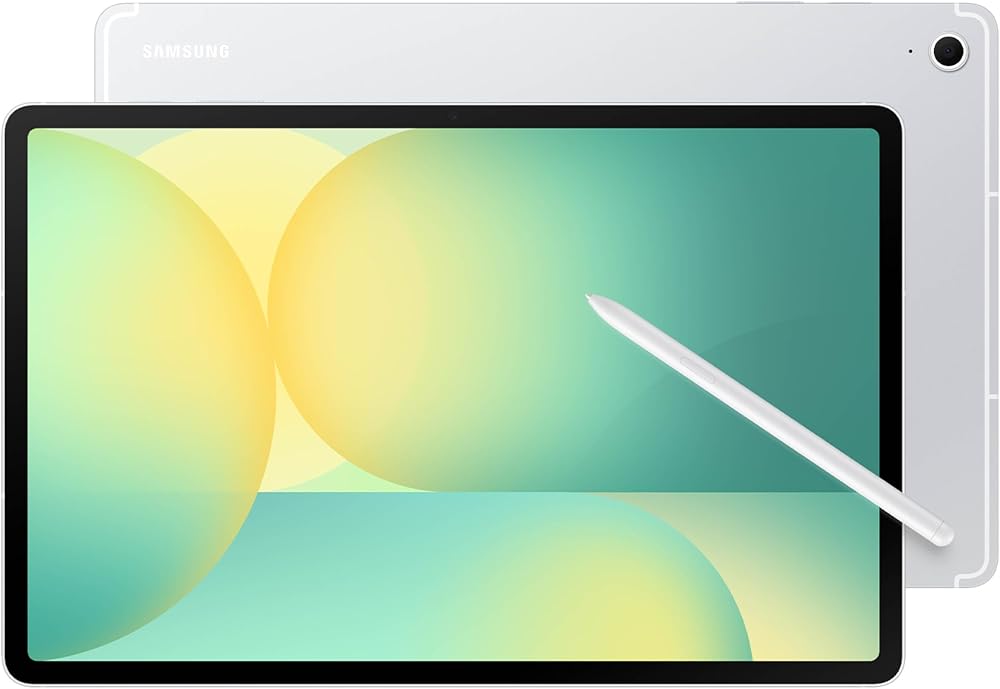
Best Android Tablets Comparison: Everything to Know Before Your First Purchase for 2026
Disclosure: We may earn a commission when you buy through links on this page, at no extra cost to you. As an Amazon Associate I earn from qualifying purchases. Learn more

Use this best android tablets comparison guide to learn key specs in plain English, compare screen, RAM, and battery, and buy your first tablet with confidence.
Buying your first tablet is confusing because every listing leads with numbers and very few explain what those numbers feel like in daily use. This best android tablets comparison guide starts with plain language, then shows you how to weigh screen, speed, battery, and storage for the jobs you actually do. By the end you will be able to read any spec sheet with confidence and use the comparison table below to narrow your choices to two or three models.
You do not need the most powerful tablet to have a good first experience. Most disappointment comes from one wrong choice, such as too little storage or a screen that is hard to read near a window. The sections below prevent those mistakes in order, from basics to setup.

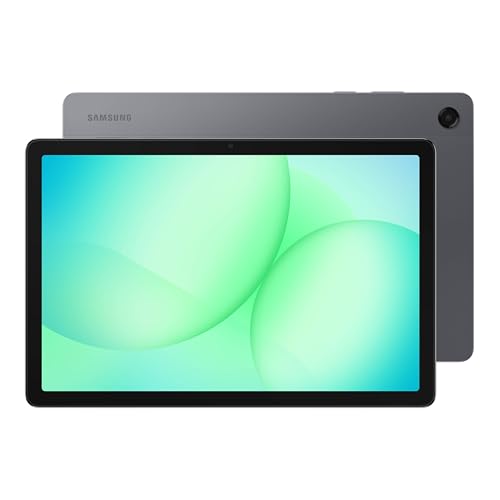
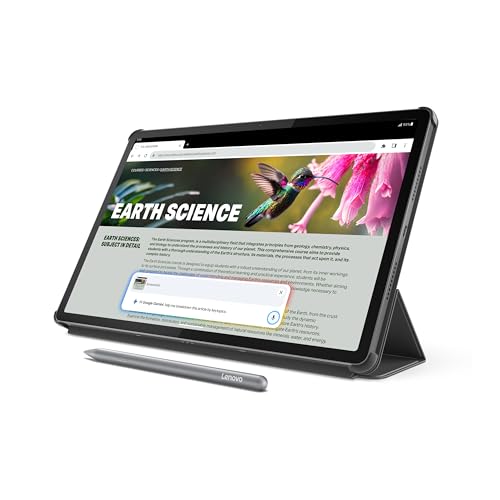

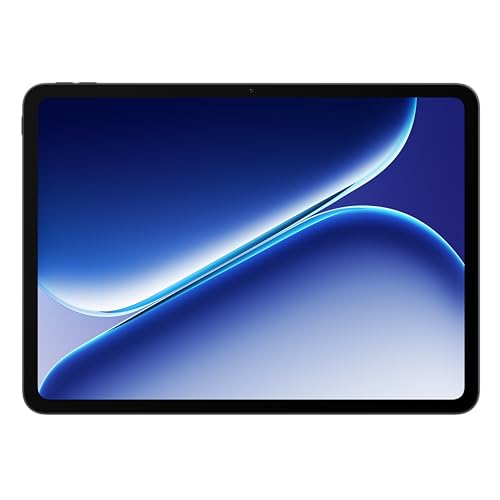


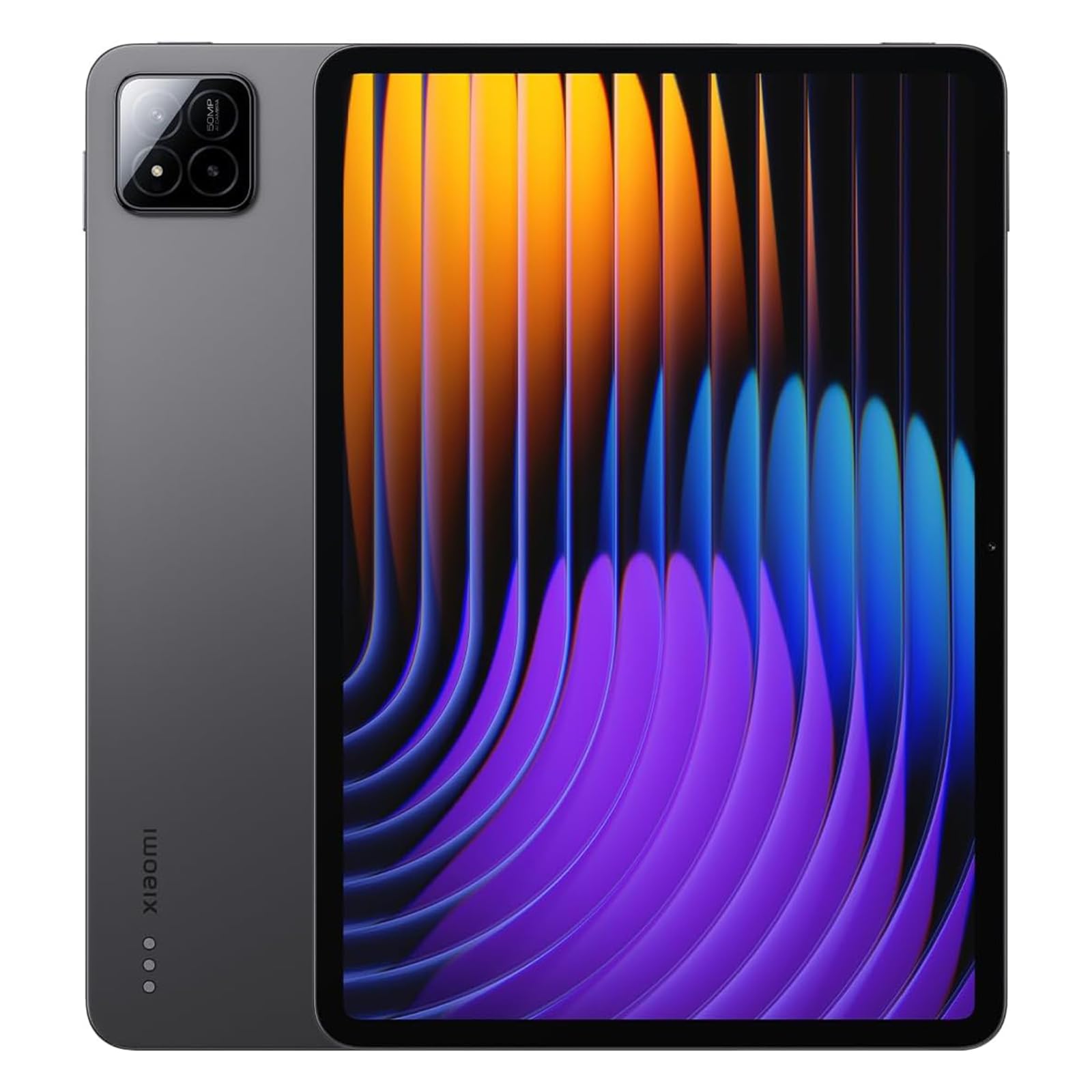
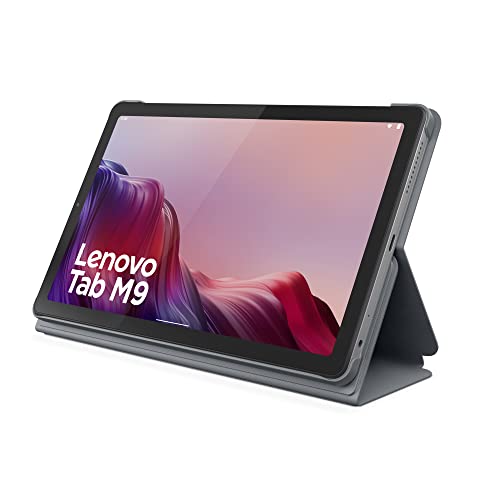
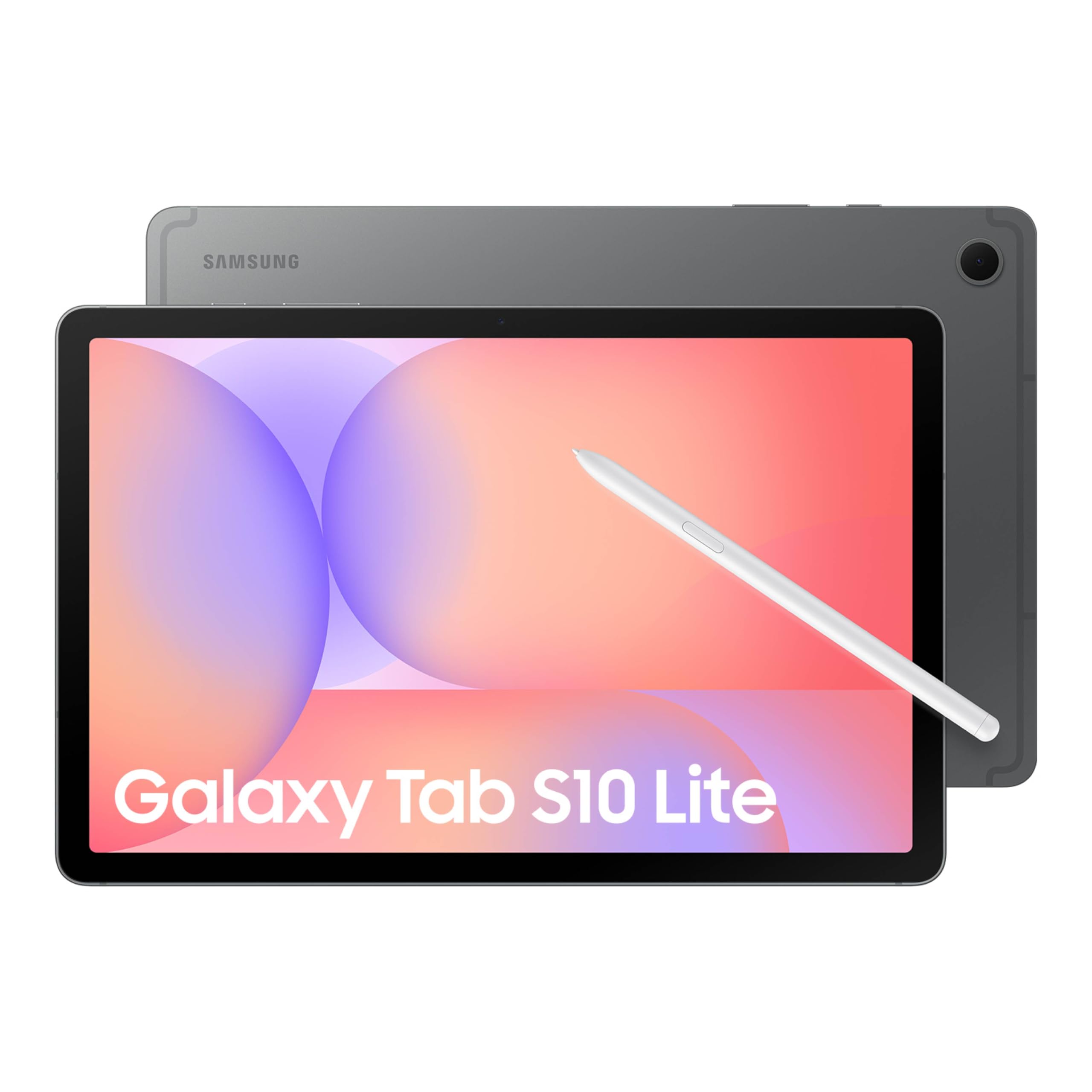
Android Tablet Comparisons 101: The Basics
A tablet is a touch first computer built around apps rather than desktop programs. You tap, swipe, and write with a finger or a pen, and the device wakes instantly, which makes it ideal for reading, video, notes, and quick tasks around the house. Compared with a phone, the larger screen makes documents, classes, and split screen work far easier. Compared with a laptop, a tablet is lighter and simpler, but long typing and complex file work are less comfortable.
When people talk about best tablets comparisons, they usually mean lining up a few models by the same short list of specs and prices. That habit matters more than any single benchmark. Two tablets can share a screen size yet feel very different because one has more RAM, a brighter panel, or longer update support. Learn to compare the same fields in the same order each time, and listings stop feeling like a wall of numbers. Our general guide to the best android tablets gives you a sense of what a balanced model looks like at each price.
Reading a Best Android Tablets Comparison: Key Specs in Plain English
Processor and Performance Tier
The processor is the engine that opens apps, loads pages, and runs games. Entry level chips handle reading, email, video, and simple school apps without trouble, and they keep prices low. Midrange chips feel smoother when you switch between apps, join video calls while taking notes, or play larger games. Premium chips add speed for drawing with many layers and video editing. For a first tablet, a midrange chip is the safe target because it stays pleasant for years without premium cost.
Operating System
Android gives you wide app choice, flexible file handling, and tablets at many prices, which is why it suits first time buyers well. The look and update pace vary by brand, so check how many years of updates the maker promises. Your phone matters here too. If you use Google services and an Android phone, setup and sync feel familiar on day one. If your household uses other platforms, confirm that your key apps, such as your school or work tools, have good Android versions before you buy.
Weight and Portability
Weight shapes how often you pick the tablet up. A model near 1 lb is easy to hold for a full chapter or a long article, while a large model near 1.5 lb is happier on a stand, a desk, or your lap. Screen size drives weight, so choose size by task first. Around 10 to 11 inches balances reading, video, and travel for most people. Try to hold a similar size in a store if you can, because hand comfort is personal and hard to judge from photos.
Battery Life in Real World Use
Battery ratings assume gentle use, so plan for less during video calls, bright screens, and gaming. For mixed daily use, most 10 inch tablets give you about a full day, and charging over USB C is quick and uses the same cable type as many phones. A useful habit is to charge during breakfast or while you cook, rather than hunting for an outlet at night. If you travel often, a compact USB C charger and a short cable in your bag solve most battery stress.
Display Size, Resolution, and Brightness
Resolution tells you how sharp text and images look, and brightness tells you whether you can read near windows or outside. Look for a sharp panel with at least 400 nits if your rooms are bright. A higher refresh rate, such as 90 Hz or 120 Hz, makes scrolling and pen strokes feel smoother, and many first time buyers notice this more than raw processor speed. Matte screen protectors can cut glare for reading, though they slightly soften image sharpness, which is a fair trade for many people.
Rookie Mistakes to Avoid
- Buying the smallest storage to save money, then filling it with photos and offline video within months. Choose 128 GB when you can, or confirm a memory card slot.
- Judging a screen by size alone. A dim, low resolution 11 inch panel is less pleasant than a bright, sharp 10 inch panel for reading and classes.
- Ignoring update support. A cheap tablet with only one year of security updates can become a poor buy long before the hardware wears out.
- Forgetting the cost of a case, a pen, or a keyboard. Add accessories to the price before you compare models, or the cheaper tablet may cost more in the end.
- Paying for power you will never use. If your jobs are reading, video, and notes, a premium chip adds cost without changing your day.
One more mistake deserves a paragraph of its own. Many first time buyers assume a tablet will fully replace a laptop, then feel stuck during a long essay or a complex spreadsheet. A tablet can be your main device for light work, especially with a keyboard case, but keep expectations honest. If your school or job depends on specific desktop programs, look at our guide to the best pc tablets as an alternative, or plan to keep access to a computer for those tasks.
Getting Started: Setup and First Use
Setup takes about twenty minutes if you go in order. Connect to WiFi, sign in, install system updates, and only then add your apps, because updates sometimes change settings menus. Turn on automatic backups for photos and notes right away, set a screen lock you will actually use, and adjust brightness and text size before you judge the display. Add a simple case before the tablet leaves the house, since most early damage happens in the first weeks.
Two habits protect your tablet from the start. Keep the system and firmware updated, because those updates carry security fixes as well as new features. Avoid running at full charge all the time if the tablet lives plugged in on a desk, since batteries age faster when held at the top for weeks. If money is your main limit, our guide to the best affordable android tablets shows where lower priced models cut corners and where they do not.
Frequently Asked Questions
Is a Chromebook enough for school?
A Chromebook is enough when your school works mainly in a browser and provides accounts for web based tools. A tablet is better when classes use Android apps, pen notes, or lots of reading away from a desk. Ask your school for its required app list before you choose, because one required program can settle the question. Many families also find a tablet more useful during breaks and travel than a school only laptop.
Is a dedicated GPU worth it?
A separate dedicated graphics card is not an option in Android tablets, so there is nothing extra to buy or skip. Graphics ability comes with the processor tier you choose at purchase. Casual games and drawing apps run well on midrange tiers, while large 3D games reward a stronger tier. Spend the difference on more storage or a better screen instead if your games are simple, because you will notice those upgrades every day.
How much RAM do I need?
Most first time buyers should choose 8 GB of RAM for smooth switching between classes, notes, and video. Six GB works for reading and streaming on a tight budget, but apps will reload more often when you move between them. Twelve GB suits drawing, gaming, and people who keep a tablet for four years or more. When you compare best tablets comparisons online, treat RAM and storage as a pair, since a tablet with strong RAM but tiny storage still frustrates quickly.
Should I buy a laptop or a tablet?
Buy a tablet if your days center on reading, video, notes, light games, and carrying your device between rooms or classes. Buy a laptop if you write long documents daily, need desktop software, or manage large sets of files. A practical check is your last week of tasks. If most of them happen in apps and a browser with short typing, a tablet will feel natural and a laptop will feel like extra weight.
How long should an android tablet from this comparison last?
A well chosen midrange tablet should serve about three to four years, and longer for reading and video. Update support is the real limit, so favor brands that promise several years of security updates. Battery wear also grows noticeable after a few years of daily charging. You can slow that wear with moderate brightness and by avoiding constant full charge storage, which keeps an older tablet pleasant for hand me down use.
Wrapping Up
Start with screen size and brightness, then confirm 8 GB of RAM and at least 128 GB of storage, and let price choose between the models that pass those checks. The product table above lines up your finalists so the trade offs are easy to see. A careful best android tablets comparison is not about finding a perfect device. It is about avoiding the one or two wrong choices that would bother you daily.