Best and Latest Tablets for 2026: Every Type Explained Side by Side
Disclosure: We may earn a commission when you buy through links on this page, at no extra cost to you. As an Amazon Associate I earn from qualifying purchases. Learn more

Compare the best and latest tablets against Chromebooks and laptops, with pros, cons, ideal users and price ranges for each type.
Tablet shopping has become confusing because the word now covers simple reading slates, powerful work machines, and devices that try to replace a laptop entirely. This guide sorts the best and latest tablets by type first, because the right category matters more than any single specification. Once the category is clear, the remaining choices about screen, storage, and accessories fall into place quickly.
We will compare tablets with Chromebooks, ultraportable laptops, and budget laptops, then walk through who each type suits and how to choose within it. The comparison table below is a handy reference as you narrow your shortlist.

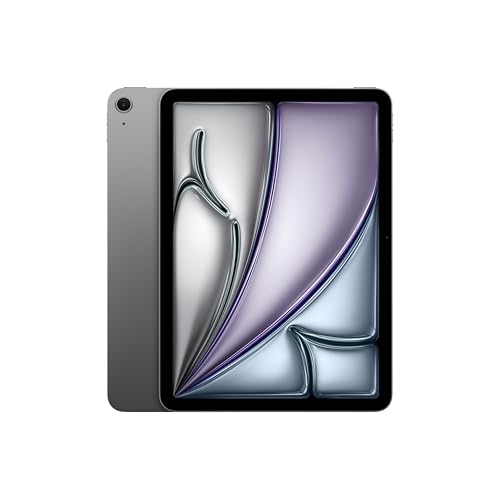


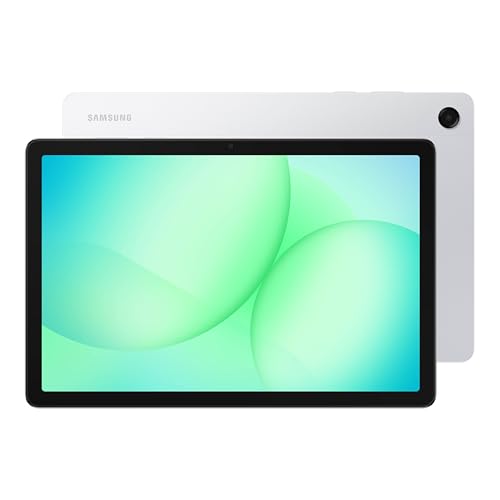

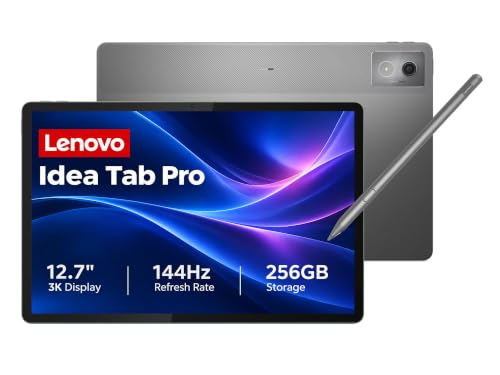
How the Latest Tablets Compare to Other Options
Think of four broad groups. Current tablets are best for touch first use, media, reading, and light creation, typically around $250 to $1,200 depending on size and power. Chromebooks are best for browser based school and office work, usually around $200 to $600. Ultraportable laptops are best for heavy multitasking and full desktop software, often around $800 to $1,800. Budget laptops are best when a keyboard and large screen matter more than portability, usually around $300 to $600.
Tablets win on weight, instant wake, and battery life that often reaches a full day. They lose on file management, complex multitasking, and the cost of adding a good keyboard. The three comparisons below show where each alternative makes more sense, so read the one that matches the device you already own or are tempted to buy instead.
Latest Tablets vs Chromebooks
A Chromebook gives you a proper keyboard, a desktop style browser, and simple management that schools love, all at a low price. A tablet gives you a better screen for the money, a far lighter bag, and apps for drawing, reading, and media that feel natural with touch and a stylus. For typing long documents daily, the Chromebook is the calmer choice.
Choose a tablet if your work is mostly reading, video, notes, and light editing, especially away from a desk. Choose a Chromebook if several people share the device, since separate profiles and a built in keyboard make handoffs painless. Many households honestly need both at different prices rather than one expensive compromise.
Latest Tablets vs Ultraportables
Ultraportable laptops run full desktop operating systems, drive large monitors easily, and handle demanding software such as big spreadsheets, code tools, and video editors without complaint. A premium tablet matches them on screen quality and beats them on weight, but its mobile operating system can make complex file work and window management slower than it should be.
Our guide to the best pc tablets covers the Windows based middle ground, where a tablet runs the same system as a laptop. Choose that route if you need one specific desktop program on the move. Choose a mainstream tablet if battery life, silence, and simplicity matter more than raw software compatibility.
Latest Tablets vs Budget Laptops
A budget laptop looks cheaper until you compare screens and battery life. Tablets at the same total price usually offer brighter, sharper displays, longer unplugged hours, and better speakers, while the laptop counters with a full keyboard, more ports, and storage that is easier to expand. Neither is wrong; they simply spend the same money in opposite places.
If the device will live on a desk for homework and email, the budget laptop is hard to beat. If it will travel between rooms, sofas, trains, and classes, the tablet earns its keep daily. Remember to price the tablet with its keyboard case included, because that accessory often closes most of the price gap.
Who Should Choose the Latest Tablets?
Students who read and annotate more than they type, commuters who want a light second screen, and families sharing a media device all suit tablets well. Artists and note takers gain real value from stylus support that laptops in this price range rarely match. Parents shopping for a young child should look at our guide to the best tablets for kindergarteners, where durability, parental controls, and simple interfaces matter more than processing power.
On the other hand, writers, accountants, and anyone living in complex desktop software should choose a laptop first and treat a tablet as a companion. Gamers chasing the newest console style titles will also find even a strong tablet limiting. Being honest about your main task saves money, because the most expensive tablet is still the wrong tool for laptop shaped work.
How to Choose the Right Tablet
Display Size, Resolution, and Brightness
Screen size shapes everything. Around 8 to 9 inches suits reading and one handed use, 10 to 11 inches is the all round sweet spot, and 12 to 13 inches suits split screen work and drawing. Resolution matters less than brightness for most people: look for about 400 to 500 nits if you read near windows or outdoors, and a matte or well coated screen if glare bothers you.
Refresh rate is the other display number worth knowing. A 90 Hz or 120 Hz screen makes scrolling and stylus strokes feel smoother, which artists and heavy readers notice immediately. OLED panels add deeper blacks for films at a higher price, while good LCD panels remain bright and accurate for everyday use.
Processor and Performance Tier
Tablet processors come in tiers rather than the familiar laptop families. Entry chips handle browsing, video, and school apps happily. Mid range chips add smooth multitasking and casual gaming. Flagship chips, including the latest Apple M and A series and top Snapdragon lines, handle photo editing, large documents, and demanding games with ease.
Match the tier to your hardest weekly task, not your easiest daily one. Pair the processor with enough storage: 128 GB is a sensible minimum for most buyers, and 256 GB is wiser if you download films or keep large photo libraries. Cloud storage helps, but it cannot hold the app you need on a plane.
Weight and Portability
Most 10 to 11 inch tablets weigh about 1 to 1.1 lb, which is why students and travelers carry them all day without thinking about it. Larger 13 inch models approach 1.5 lb and feel more like laptops once a keyboard case is added. Under 3 lbs total, case and charger included, is a good ceiling for a bag you carry on foot or by train.
Hold the tablet the way you will actually use it. A device that feels fine for five minutes in a store can tire your wrist during an hour of reading in bed, so weight and rounded edges matter more than a thin specification suggests. A lighter tablet you bring everywhere beats a powerful one left at home.
Ports and Connectivity
Most current tablets offer a single USB C port for charging and accessories, which is enough if you rely on cloud storage and wireless earbuds. That port can also drive an external monitor on many mid range and premium models, a genuinely useful trick at a desk. If you transfer photos from a camera often, a model with a memory card slot or a small USB C hub solves the bottleneck.
For connectivity, WiFi 6E or WiFi 7 support gives faster, steadier connections on modern routers, while cellular models add freedom at a monthly cost. Before paying for cellular, check whether phone tethering covers your travel pattern, because many buyers find it does. Our guide to the best tablets to purchase walks through these buying decisions in a shopping focused order if you want a second framework. Bluetooth 5 or newer keeps keyboards, mice, and styluses connected reliably.
Setup and Care Tips
Keep the operating system and firmware updated, since updates carry security fixes and often improve battery behavior. Avoid running at 100 percent charge all the time if the tablet lives plugged in at a desk; many models offer a charge limit setting that slows battery aging. Use a padded sleeve when commuting, and add a screen protector if the tablet shares a bag with keys or chargers.
On setup day, sign in, restore your apps, and set up a backup before you customize anything else. Turn on device finding tools and a strong passcode while the steps are fresh in your mind. A few minutes of setup care at the start prevents nearly every common tablet headache later.
Frequently Asked Questions
Should I buy a laptop or a tablet?
Buy a laptop if your main work needs a keyboard for hours, complex files, or one specific desktop program. Buy a tablet if you mostly read, watch, browse, draw, or take notes in many places. If you can afford only one device for mixed duties, a laptop plus a modest tablet later is usually the safer order.
Is a dedicated GPU worth it in a tablet?
For most tablet buyers, no separate GPU decision exists, because tablets use integrated graphics built into the main chip. What matters is choosing a high tier chip if you edit video or play demanding games. Buyers who truly need dedicated graphics for design or engineering work should choose a laptop instead.
How much RAM does a tablet need?
About 6 to 8 GB keeps browsing, school apps, and media smooth, and it is the sensible minimum on a new purchase. Choose 12 GB or more if you edit large photos, keep many apps open, or plan to keep the tablet for five years. RAM cannot be upgraded later, so buy for your future use, not only for today.
Is a Chromebook enough for school?
For most primary and secondary school work, yes, because lessons, documents, and research live in the browser. It falls short for specialized software such as advanced design, music production, or certain exam tools. Check the school's own device list before buying, since some schools require or provide a specific platform.
How long should a new tablet last?
A mid range or premium tablet should last about 4 to 6 years, with battery wear as the usual limiting factor. Software support length varies by brand, so favor makers that promise several years of updates. A battery replacement midway through its life can add comfortable years at modest cost.
Our Verdict
Choose the category first, the screen second, and the processor tier third, and the right model usually identifies itself. Tablets shine when touch, weight, and battery life drive your day, and they disappoint only when asked to be laptops. Review the product table above with your main task in mind, price in the keyboard and stylus if you need them, and the best and latest tablets for your routine will be easy to spot.