Best 2nd Monitors in 2026: Which Type Is Right for You?
Disclosure: We may earn a commission when you buy through links on this page, at no extra cost to you. As an Amazon Associate I earn from qualifying purchases. Learn more

Compare the best 2nd monitors by type, size, panel and ports to add screen space that fits your laptop, desk and budget.
Adding a second screen sounds simple until you face a wall of sizes, panels and ports, so the best 2nd monitors for a cramped desk can look very different from the best choice for a spacious studio. A second display should make work easier, not add cable clutter or force you to twist toward an awkward angle. The product table sets out the picks, and this guide explains which type earns a place beside your main screen.
Begin by naming the job for the extra screen. Will it hold reference notes, a video call, a timeline, a chat window or a game map? That job decides the size, resolution and placement you need, and it keeps you from paying for a large, fast screen that will only show email.


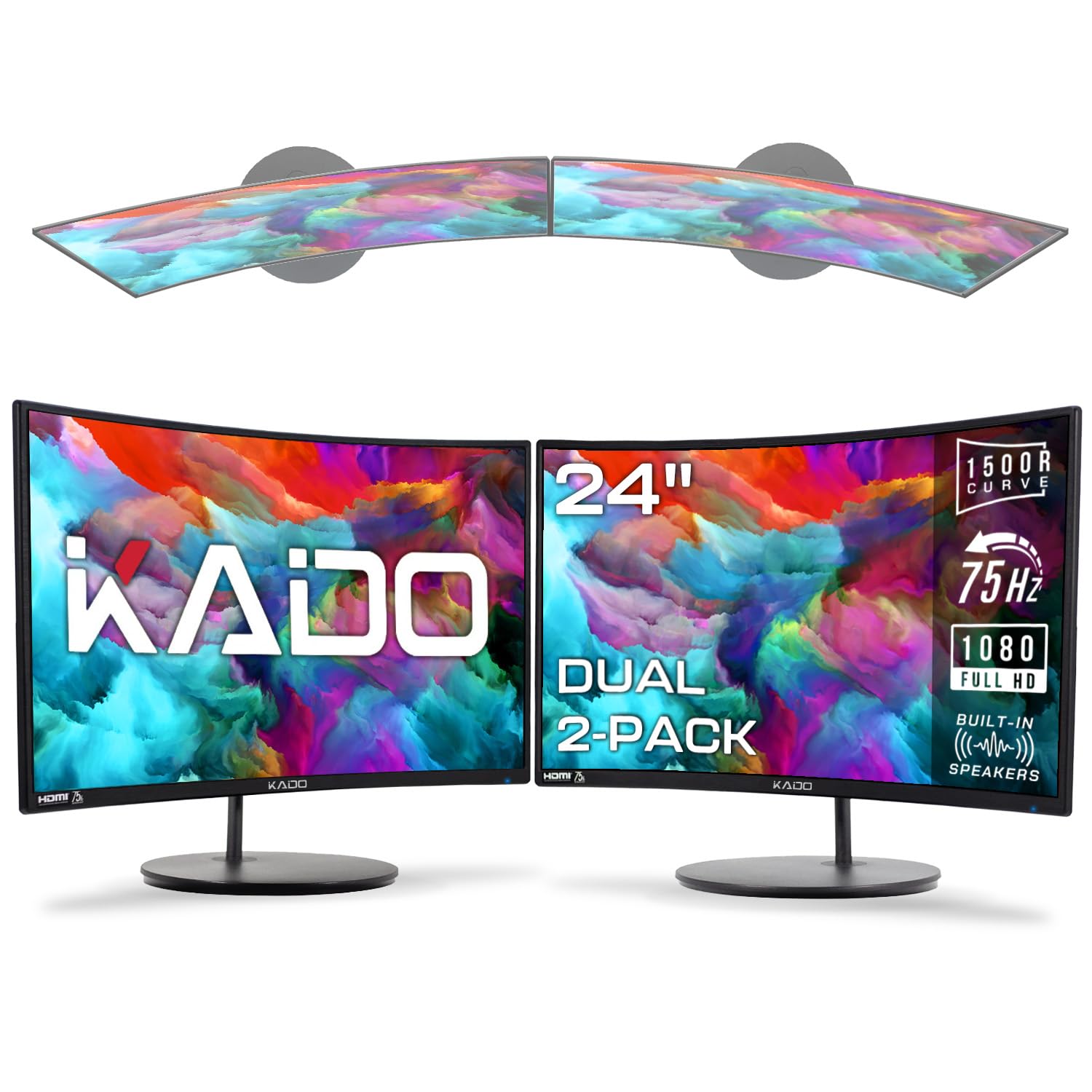
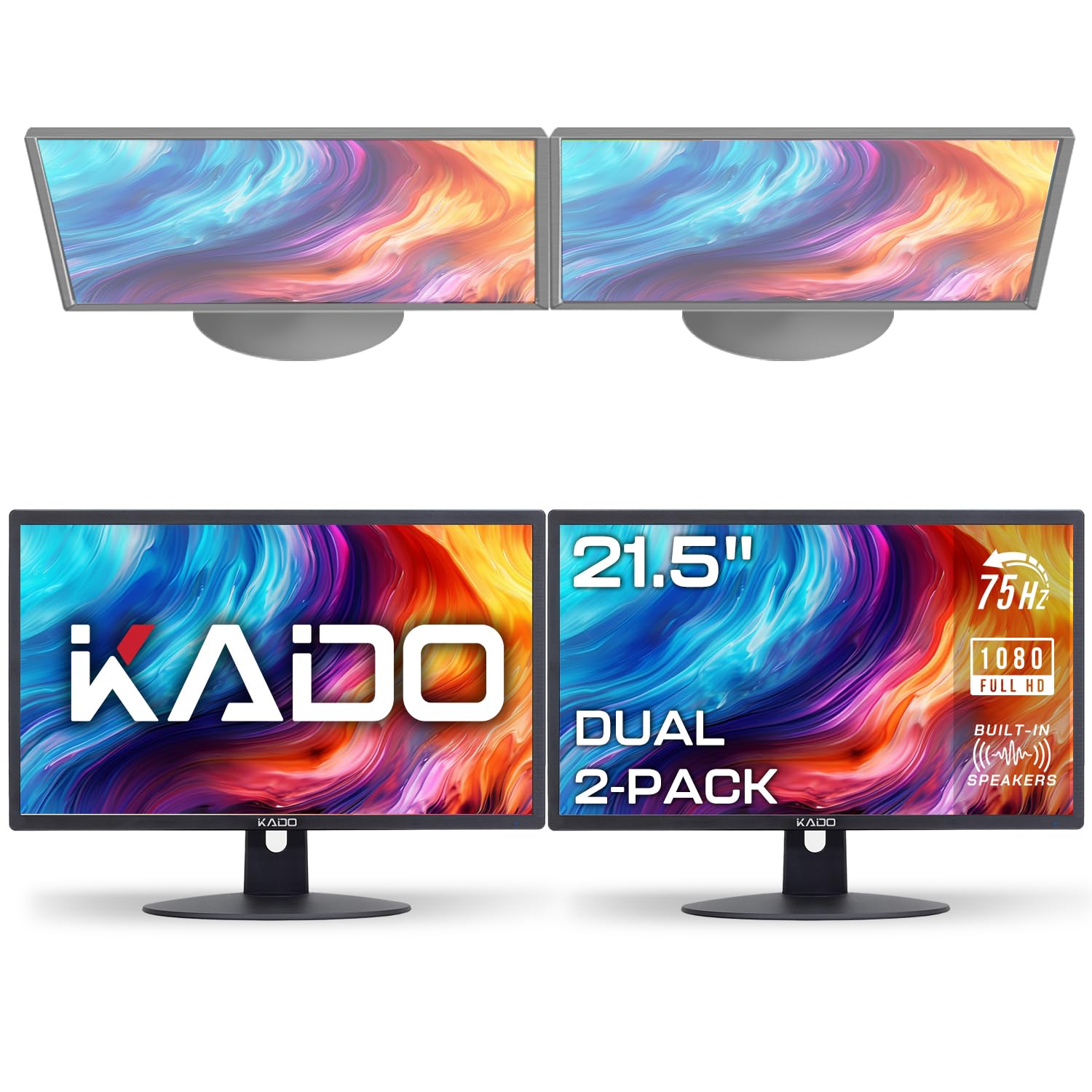

Types of Second Monitors Compared
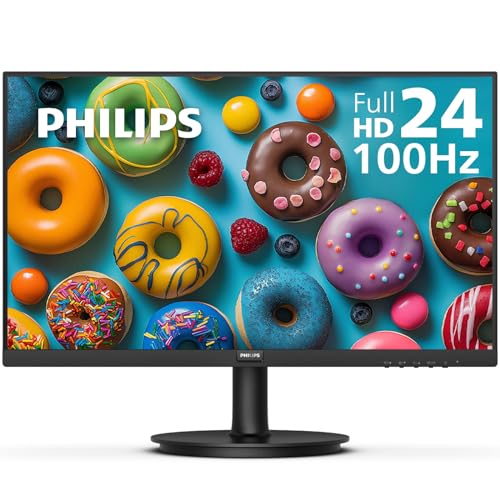
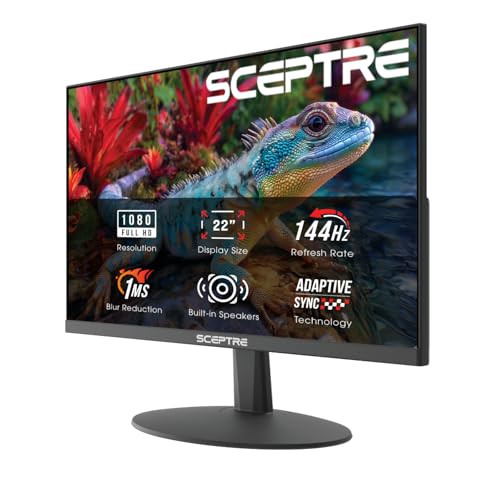
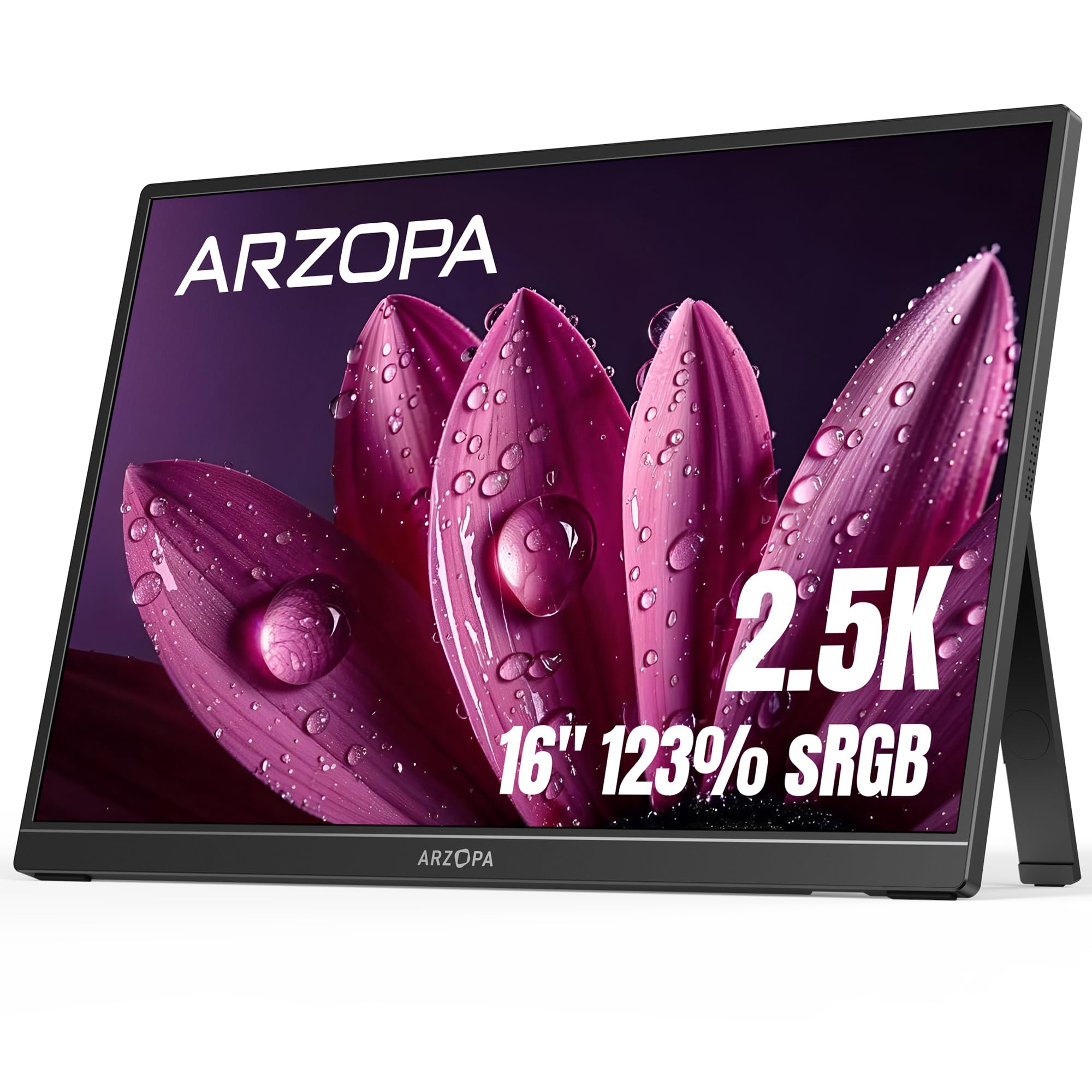
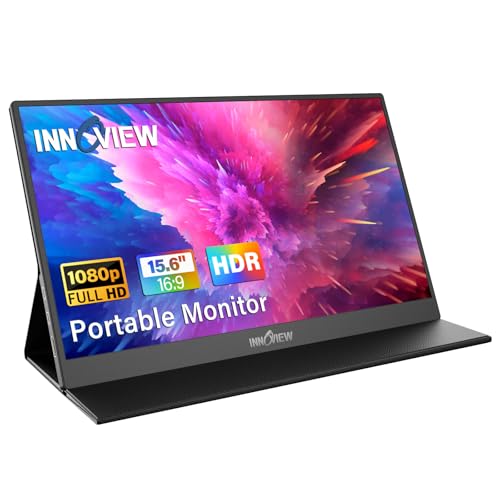
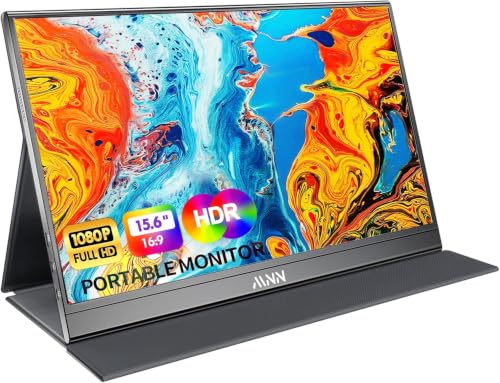
The three broad types below cover most desks. Budget displays suit simple extra space, large screens suit detailed side by side work, and ultrawide style displays suit people who want one wide second canvas rather than two separate windows.
| Type | Best For | Pros | Cons | Typical Price |
|---|---|---|---|---|
| Budget displays | Notes, email and calls | Low cost, simple setup | Narrower color and viewing angles on some models | about $90 to $180 |
| Large screen options | Spreadsheets, timelines and design | Room for two windows side by side | Needs a deep desk and a sturdy stand | about $200 to $450 |
| Productivity and ultrawide displays | Wide timelines and many panes | Replaces window juggling with one broad view | Can dominate a small desk and needs a strong graphics output | about $250 to $600 |
Budget Displays
Budget displays work well when the second screen only needs to show readable text, a calendar or a video call. They keep the total cost down and usually connect with a standard cable, so setup takes minutes. Look for acceptable brightness and viewing angles rather than exotic features, because a dim screen placed to the side quickly becomes annoying.
The limits show up with color sensitive work and wide seating positions. Some low cost panels wash out when viewed from an angle, and cheaper stands may offer tilt only. Those tradeoffs are fine for notes and messages, but they make budget models a poor second screen for photo work. Choose this type when the main screen already handles demanding tasks.
Large Screen Options
Large second screens suit people who keep two documents open at once, compare data across windows or edit a timeline beside a preview. The extra width reduces scrolling and window switching, which can speed up research, bookkeeping and planning. A larger screen also helps when a colleague sits beside you to review work.
The cost is desk space and weight. A large second screen needs a deep desk, a stable base and enough distance to avoid constant head turning. Check that your graphics output can drive both screens at their native resolutions, and plan cable routes before the screen arrives. When space allows, this type often becomes the screen you glance at most.
Productivity and Ultrawide Displays
An ultrawide style second screen gives one continuous canvas for several panes, which suits timelines, code, trading layouts and project boards. Instead of splitting attention across separate windows, you can keep a main pane in the center and reference material at the edges. That layout helps when tasks involve three or more sources at once.
The wide shape brings its own demands. Text at the far edges can sit outside comfortable eye movement, so place the most important pane near the center. The screen also needs a capable graphics output and a desk that can hold its width without crowding the main display. For focused single window work, a standard wide screen may be simpler and cheaper.
Budget Displays vs Large Screen Options: Which Should You Choose?
Compare the two types on cost, desk space, readability, color needs and future use. Budget displays win on price and simplicity, and they fit shallow desks and temporary setups. Large screens win on readability and multitasking, because two windows can sit side by side without shrinking text. Color work also favors larger, better specified screens, while simple notes do not justify the extra spend.
Think about how often the second screen carries demanding work. If it shows email and calls all day, a budget display leaves money for a better chair, arm or main screen. If it regularly shows spreadsheets, design files or research, the larger screen pays back in fewer errors and less scrolling. When in doubt, measure the desk and sit at the planned distance before deciding.
How to Choose the Right Second Monitor
Connectivity and Ports
Start with the outputs on your computer and the inputs on the screen, since a mismatch can add adapters and cost. DisplayPort and HDMI cover most desktops, while a USB C connection can carry video, data and charging for a laptop through one cable. Check the cable version as well, because an older cable may limit resolution or refresh rate. If you switch between two computers, inputs that are easy to change and a clear input button save daily frustration.
Choosing a Panel for a Second Screen
Panel choice matters less for a second screen than for a main screen, but it still shapes readability from an angle. IPS style panels usually hold color and contrast better when you glance sideways, which is common for a screen placed off center. VA style panels can offer stronger contrast in a darker room, while OLED style panels offer striking contrast at a higher price and need care around static images. For a second screen used mainly for text, wide viewing angles and steady brightness matter more than peak color performance.
Brightness and HDR on a Secondary Display
A second screen should match the main screen in brightness closely enough that your eyes do not keep adjusting. A very dim side screen looks washed out next to a bright main screen, while a very bright one can distract during calls. HDR support is rarely essential on a second screen, since most secondary tasks use documents, browsers and chat rather than HDR video. If you do preview video on the second screen, check peak brightness and HDR claims together, rather than relying on the label alone.
Mounting, Stands and Desk Ergonomics
Two screens demand more thought about height, angle and distance than one screen does. Set both screens so their tops sit near eye level, angle the second screen slightly toward you, and keep the gap between screens small enough to avoid a large blind spot. A monitor arm can align heights precisely and free desk space, but check the VESA pattern, weight limit and desk clamp fit first. Leave room for ventilation behind each screen and route cables so they do not pull when an arm moves.
For play focused setups, see our guide to best gaming monitors before choosing a fast second screen. If the second screen will also host games, our guide to best computer monitors for gaming explains refresh rate and input lag in more detail. For a second screen where image quality matters most, our guide to best quality monitors covers color and sharpness tradeoffs.
Best 2nd Monitors for Specific Needs
Best 2nd Monitors for Laptops: Which Type Works Best
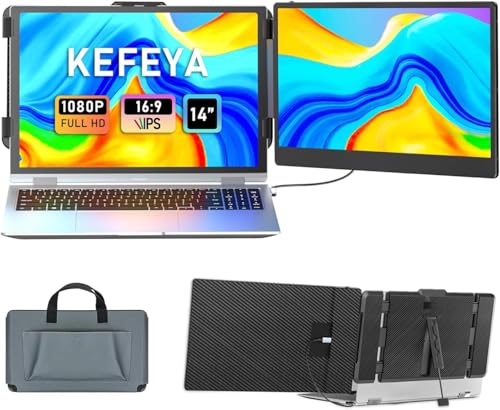
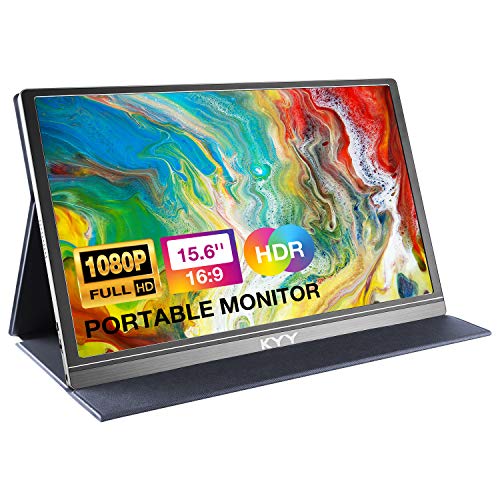
Laptop users benefit most from a second screen that connects with one cable and wakes reliably when the laptop docks. Look for a USB C input that carries video and charging, a stand or arm that lifts the screen to eye level, and a size that does not dwarf the laptop keyboard. A portable second screen suits travel, while a fixed desk screen suits a home base where the laptop returns each day. Match the screen resolution to the laptop output so text stays sharp rather than scaled and blurry.
Best Monitors for a 2nd Monitor
When you already own a main screen, the second screen should complement it rather than compete with it. Match height and brightness as closely as possible, and consider a similar panel style so colors do not clash across the join. A slightly smaller second screen often works well, because it holds reference material without pulling focus from the main task. Check that your computer can drive both screens at once, and try the arrangement for a few days before fixing cables permanently.
Setup and Care Tips
Set both screens to a balanced picture preset and turn off any vivid mode, which can make colors look harsh beside a calibrated main screen. On OLED second screens, use the maker pixel refresh routine as directed and avoid leaving a static sidebar on screen for hours. Clean each screen only with a soft microfiber cloth, and keep vents clear so heat can escape. Follow the manufacturer's instructions for electrical safety, and unplug screens before moving arms or rearranging cables.
Arrange windows by task, not by habit. Keep the active document on the main screen and reference material on the second screen, and move windows that need frequent clicks closer to the center. That small habit reduces neck strain and keeps the second screen useful instead of decorative.
Frequently Asked Questions
Can a second monitor use a different size from the main screen?
Yes, a second screen can be a different size, and many desks work better that way. A smaller second screen suits notes and calls, while a larger one suits detailed reference work. The main risk is a height mismatch, which can cause neck strain when you glance between screens. A monitor arm or a stand with height adjustment usually solves that problem.
Will a second monitor slow down my computer?
A second screen adds work for the graphics system, but most modern computers handle a second display for office tasks without trouble. Problems appear mainly with demanding games, high resolution video on both screens, or an older graphics system already near its limit. Lowering the second screen resolution or closing heavy video windows usually restores smooth performance. If you plan to game on one screen while streaming on the other, check the graphics card output and memory guidance before buying.
Do both monitors need to match in resolution and panel type?
Matching resolution and panel type helps, but it is not required for most second screen jobs. Mismatched screens can still work well when heights and brightness are aligned. The main annoyance is text changing size as a window moves across the join, which happens when pixel density differs sharply. For color sensitive work, a closer match matters more, because colors can shift between panels.
Can I use a television as a second monitor?
A television can serve as a second screen for video, presentations and large text, but it is a weaker choice for close desk work. Televisions often sit farther away, use larger pixels and add input delay, which makes small text look soft. They also lack the height adjustment and close viewing comfort of a desk screen. If you already own a spare television, try it at your planned seating distance first.
How should I arrange two monitors on a desk?
Place the screen you use most directly in front of you, with its top near eye level. Angle the second screen slightly inward, close the gap between the screens, and keep both at a similar distance. Avoid placing one screen much higher than the other, since repeated vertical glances strain the neck. If desk space is tight, a dual arm mount can align both screens and free the surface below.
Our Verdict
Pick the second screen by its job: a budget display for notes and calls, a large screen for side by side work, or an ultrawide style screen for wide timelines. Then check connections, height, brightness and desk space, since those details decide whether the extra screen helps or hinders. The product table can narrow the options once those priorities are set. Done well, the best 2nd monitors fade into the background and simply give your main work more room to breathe.