Best Blender Laptops: GPU, RAM and Cooling Guide for 2026
Disclosure: We may earn a commission when you buy through links on this page, at no extra cost to you. As an Amazon Associate I earn from qualifying purchases. Learn more
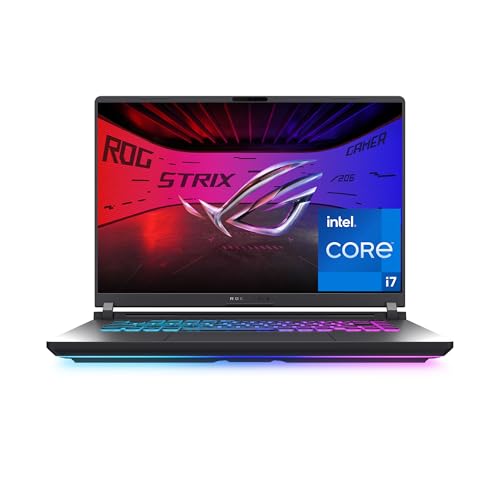
GPU, VRAM, RAM and cooling compared for choosing the best blender laptops for 3D modeling and rendering.
Blender is a 3D modeling and rendering program, and the best blender laptops are the ones with enough graphics power, memory and cooling to keep viewport work smooth and renders short. The wrong laptop turns every render into a wait and every complex scene into a slideshow.
Use the comparison table below to shortlist, then work through the checklist here to match the graphics card, memory, storage and cooling to the kind of scenes you build.

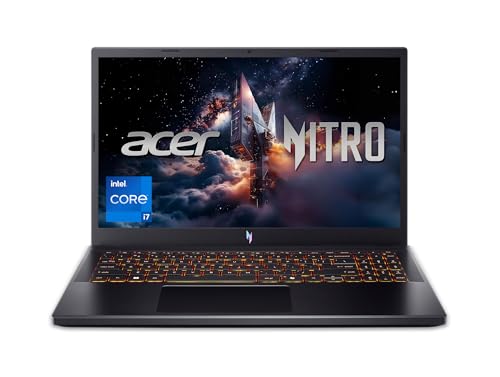
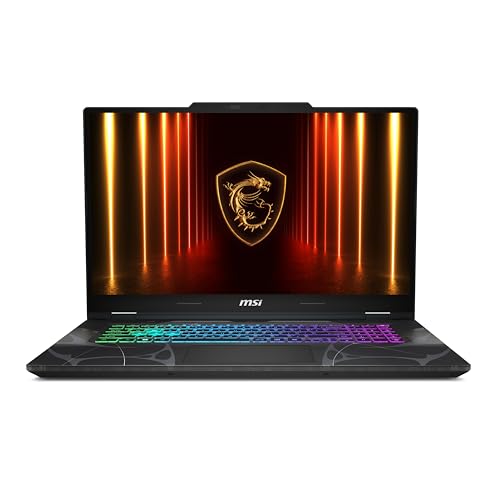
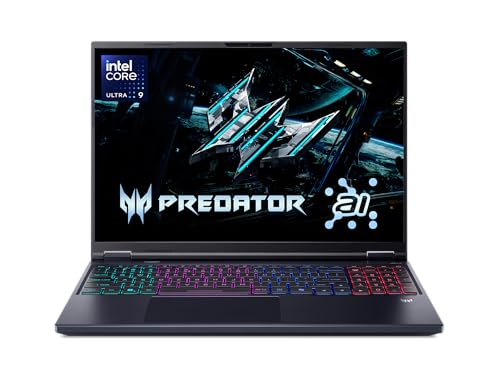

How to Evaluate Laptops for Blender
Graphics Card (GPU)
The GPU matters most. An NVIDIA RTX card renders fastest in Blender because it supports hardware ray tracing through the OptiX renderer, and its CUDA support is mature. For learning and light scenes, a card in the RTX 4050 or RTX 5050 class works. For regular rendering and sculpting, aim for an RTX 4060, 5060 or better, and for heavy scenes and animation choose an RTX 4070, 5070 or higher. It helps to weigh this against your own routine when choosing the best blender laptops.
Video Memory (VRAM)
VRAM limits how large a scene the GPU can render. 6 GB is a minimum for simple projects, 8 GB suits most hobby and freelance work, and 12 GB or more helps with dense geometry, large textures and simulations. A scene that does not fit in VRAM slows down or fails to render on the GPU.
Processor (CPU)
The CPU handles modeling, physics, simulations and CPU rendering. A recent Intel Core i7 or Ultra 7, or an AMD Ryzen 7, covers most work. More cores help with simulations and with CPU based rendering, but for most users the GPU decides render speed.
Memory (RAM)
16 GB is the starting point, and 32 GB is a safer choice for large scenes, high resolution textures and running other apps alongside Blender. Check whether the RAM is soldered or upgradable, because an upgradable laptop can grow with your projects.
Storage
Choose an NVMe SSD of at least 1 TB. Blender project files, texture libraries and render caches grow quickly, and fast storage shortens load and save times. A second drive slot is a useful bonus.
Display
A 15 to 17 inch screen with good color accuracy helps with texturing and lighting work. Look for a resolution of at least 1920 by 1200 and wide color coverage if you plan to deliver finished images. Extra refresh rate helps viewport smoothness but matters less than color.
Cooling and Power
Rendering keeps the GPU at full load for long periods. A laptop with strong cooling holds its speed, while a thin one can throttle and slow down. Always render plugged in, because most laptops cut GPU power on battery.
Price Tiers Compared
Entry Level
Laptops around $900 to $1,300 with an RTX 4050 class GPU and 16 GB of RAM are enough to learn Blender, model props and render simple scenes at modest resolution. Expect longer renders and a tighter VRAM limit.
Mid Range
Laptops around $1,300 to $2,000 with an RTX 5060 or comparable card, 16 to 32 GB of RAM and a 1 TB SSD suit hobbyists, students and freelancers. This tier balances render time, portability and price for most users.
High End
Laptops above about $2,000 with an RTX 5070 or higher, 32 GB of RAM and strong cooling suit animation, simulation and client work. They are heavier and louder but cut render times noticeably.
Portability and Battery Life
Powerful graphics laptops are heavy, often 5 to 6 pounds, and their battery life under load is short. If you carry the laptop daily, weigh a lighter creator model against a thicker gaming model with better cooling, and pack the power brick.
Quick Buyer Checklist
- Does it have an NVIDIA RTX GPU with at least 8 GB of VRAM for regular work?
- Is there at least 16 GB of RAM, with 32 GB preferred for large scenes?
- Is the SSD at least 1 TB and NVMe?
- Does the cooling design look built for sustained load?
- Is the display color accurate enough for your finished work?
- Does the weight and battery suit how you work?
Frequently Asked Questions
Which GPU is best for Blender on a laptop?
An NVIDIA RTX GPU is the best choice because of OptiX hardware ray tracing. Within that family, more VRAM and higher tiers render faster, so an RTX 5060 is a good mid range target and an RTX 5070 or above suits heavy work.
How much RAM do I need for Blender?
16 GB is enough to start, but 32 GB gives room for large scenes, high resolution textures and multitasking. Upgradable memory is a plus.
Can a regular laptop run Blender?
Blender runs on many laptops, even without a dedicated GPU, but modeling is slower and rendering can take much longer. A dedicated GPU is the biggest upgrade you can make.
Is a gaming laptop good for Blender?
Yes. Gaming laptops pair strong GPUs with solid cooling at a lower price than workstation models, which makes them a popular choice for Blender users. Check the display color quality if you do finished image work.
Should I render on battery power?
No. Most laptops limit GPU power on battery, which slows rendering and shortens battery life quickly. Plug in for any serious render.
Wrapping Up
Put the GPU first, then memory, storage and cooling, and choose a tier that matches the scenes you build. Compare the best blender laptops in the product table above, check the VRAM and RAM on each listing, and plan to render plugged in.